Publish, share, and embed a showcase
A showcase is private until you publish it. Once it’s live, you can share its link, embed it on your website, or give its proof data to a developer or coding agent.
Publish a showcase
- Open the showcase from the Showcase page.
- In the top bar, turn on the switch next to Not live.
- In the Publish {name}? dialog, click Publish.
The dialog explains what happens: for a webpage, “Anyone with the link can open this webpage. Sites that embed it start to show it.” The switch then reads Live and the showcase card on the Showcase page shows a Live badge.
You can also publish from the share sheet: when a showcase isn’t live, it shows a Not published notice (“The link and embed code work after you publish. Nothing is public before that.”) with a Publish… button.
Opening Share… never publishes anything on its own.
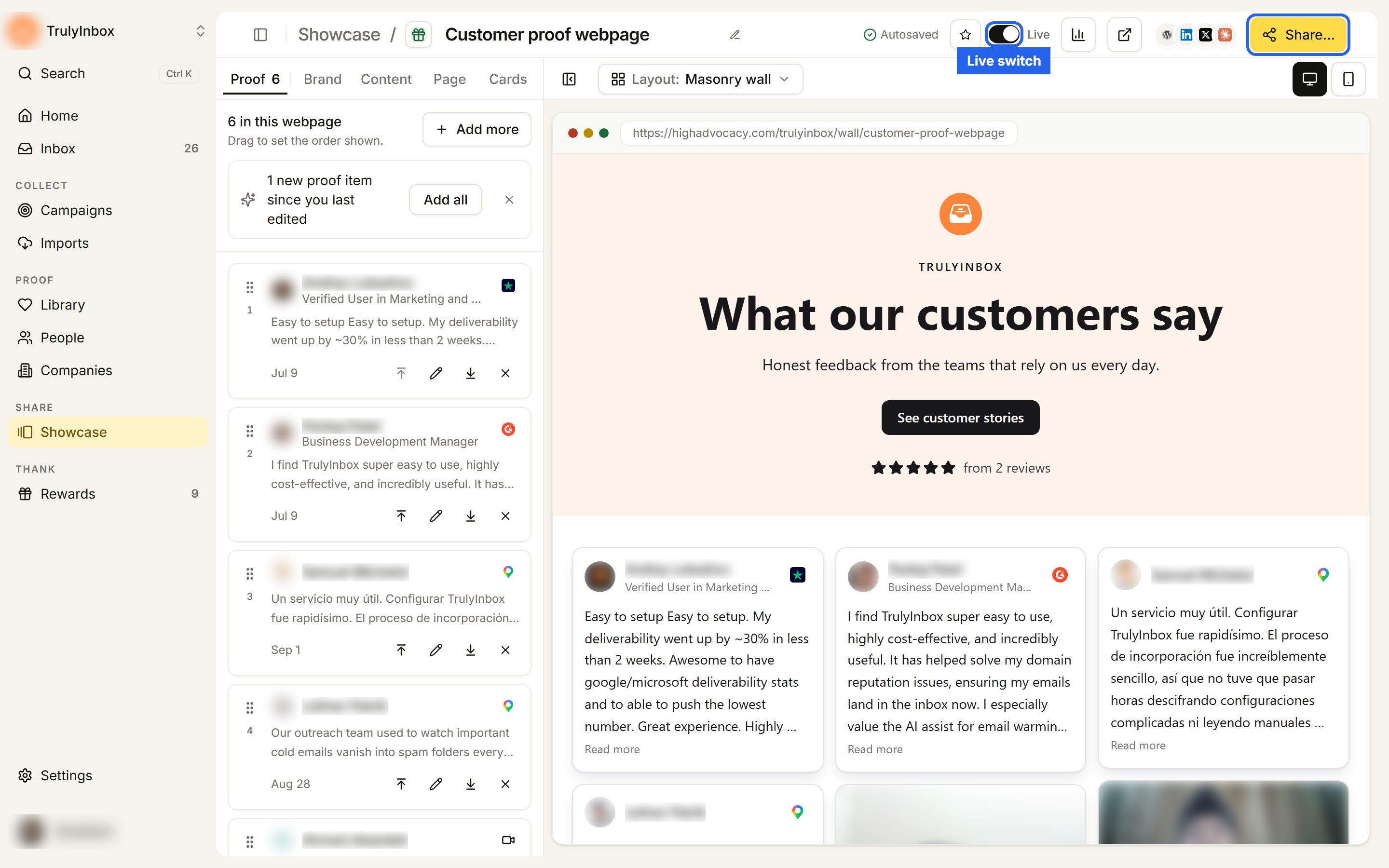
Next to the switch, the top bar also has:
- Analytics: views in the last 30 days. See Showcase analytics.
- Open live page: opens the public page in a new tab. It’s available only while the showcase is live.
- Share…: the link, embed code, social sharing, and data for coding agents.
The share sheet
Click Share… in the top bar. The sheet is called Share your proof page for a webpage, or Share your widget for a widget. At the top right, the Live switch and Copy link button repeat the main actions.
Right after you publish, the sheet may say “We’re making your share image. Sharing options show when it’s ready.” This takes a moment. The image is used for link previews (see Link previews and the share image).
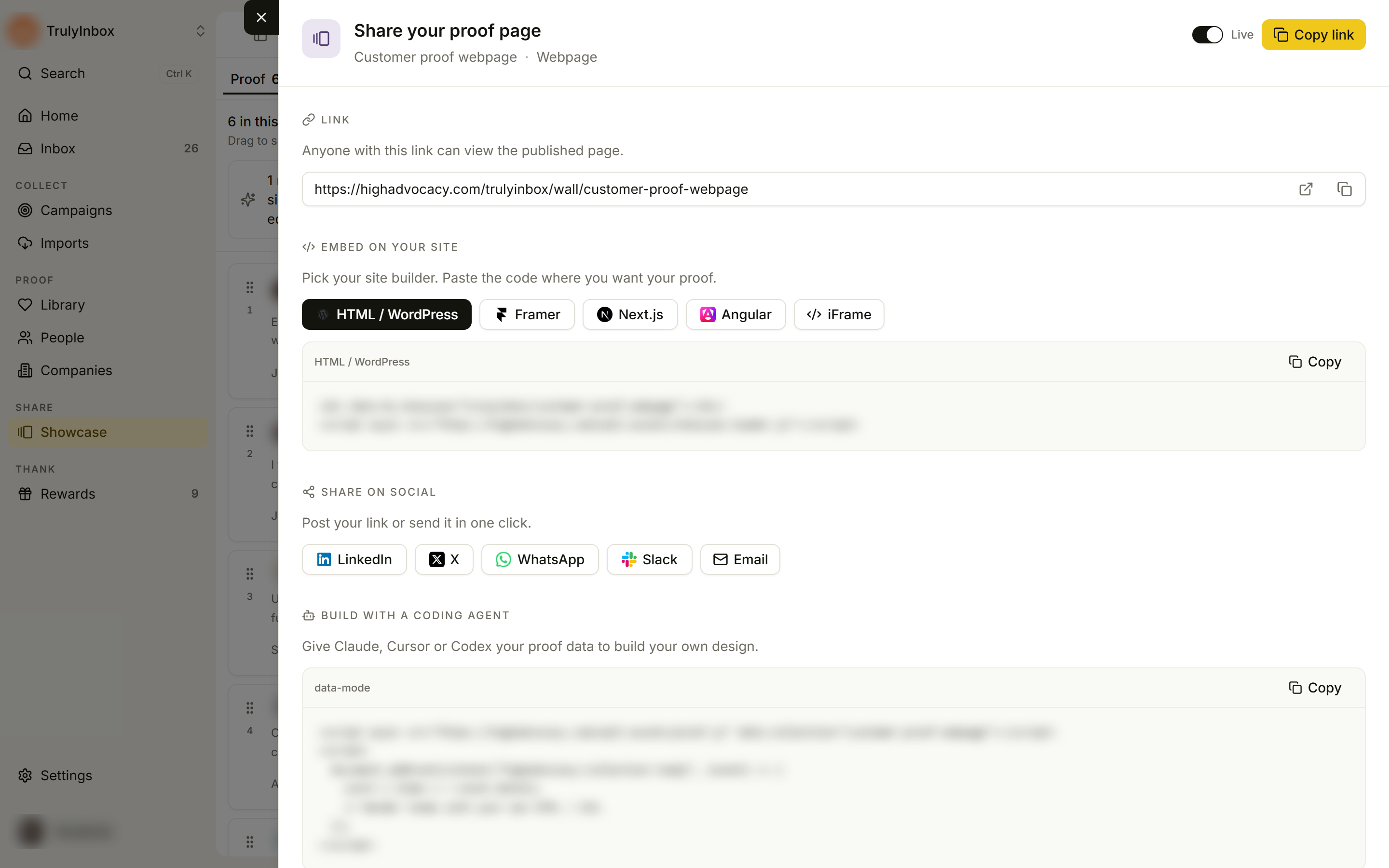
Link
“Anyone with this link can view the published page.” The public link looks like this:
https://highadvocacy.com/<workspace>/wall/<showcase-slug>If you’ve connected your own domain, the link uses it instead, and Link domain above the field lets you pick which domain this showcase uses. See Use your own domain.
Use the icons in the field to Open public link or Copy share link. Before the showcase is published, this section says “Publish to get your link.”
Use the link anywhere outside your website, such as a deal email, a Slack thread after a QBR, or a follow-up to a prospect who asked for references.
Share on social
“Post your link or send it in one click.” Buttons for LinkedIn, X, WhatsApp, Slack, and Email open each app with your link filled in.
Embed on your site
“Pick your site builder. Paste the code where you want your proof.” Pick HTML / WordPress, Framer, Next.js, Angular, or iFrame, then copy the code. The code in the sheet already has your workspace and showcase filled in, so copy it from there rather than from this page.
HTML / WordPress (Framer uses the same code in an Embed or HTML component):
<div data-ha-showcase="<workspace>/<showcase-slug>"></div>
<script async src="https://highadvocacy.com/wall-assets/showcase-loader.js"></script>
Put the div exactly where the proof should appear. The script can go anywhere on the page.
Next.js:
import Script from "next/script";

export function CustomerProof() {
  return (
    <>
      <div data-ha-showcase="<workspace>/<showcase-slug>" />
      <Script
        src="https://highadvocacy.com/wall-assets/showcase-loader.js"
        strategy="afterInteractive"
      />
    </>
  );
}Angular: add the loader script to the scripts in angular.json (or to index.html), then place the div in your template.
iFrame:
<iframe
  src="https://highadvocacy.com/<workspace>/wall/<showcase-slug>?embed=1"
  title="Your showcase name"
  width="100%"
  height="600"
  style="border:0"
  loading="lazy"
></iframe>
Which embed should I use?
- The script embed (HTML / WordPress, Framer, Next.js, Angular) renders proof inline and fits the width of your page. Use it by default.
- The iFrame is isolated from your site’s CSS but needs a fixed height. Use it when your site’s styles clash with the showcase, or when your site builder won’t let you add a script.
You only paste the code once. Proof order, design changes, and new auto-added proof all show up on your site without re-pasting.
Build with a coding agent
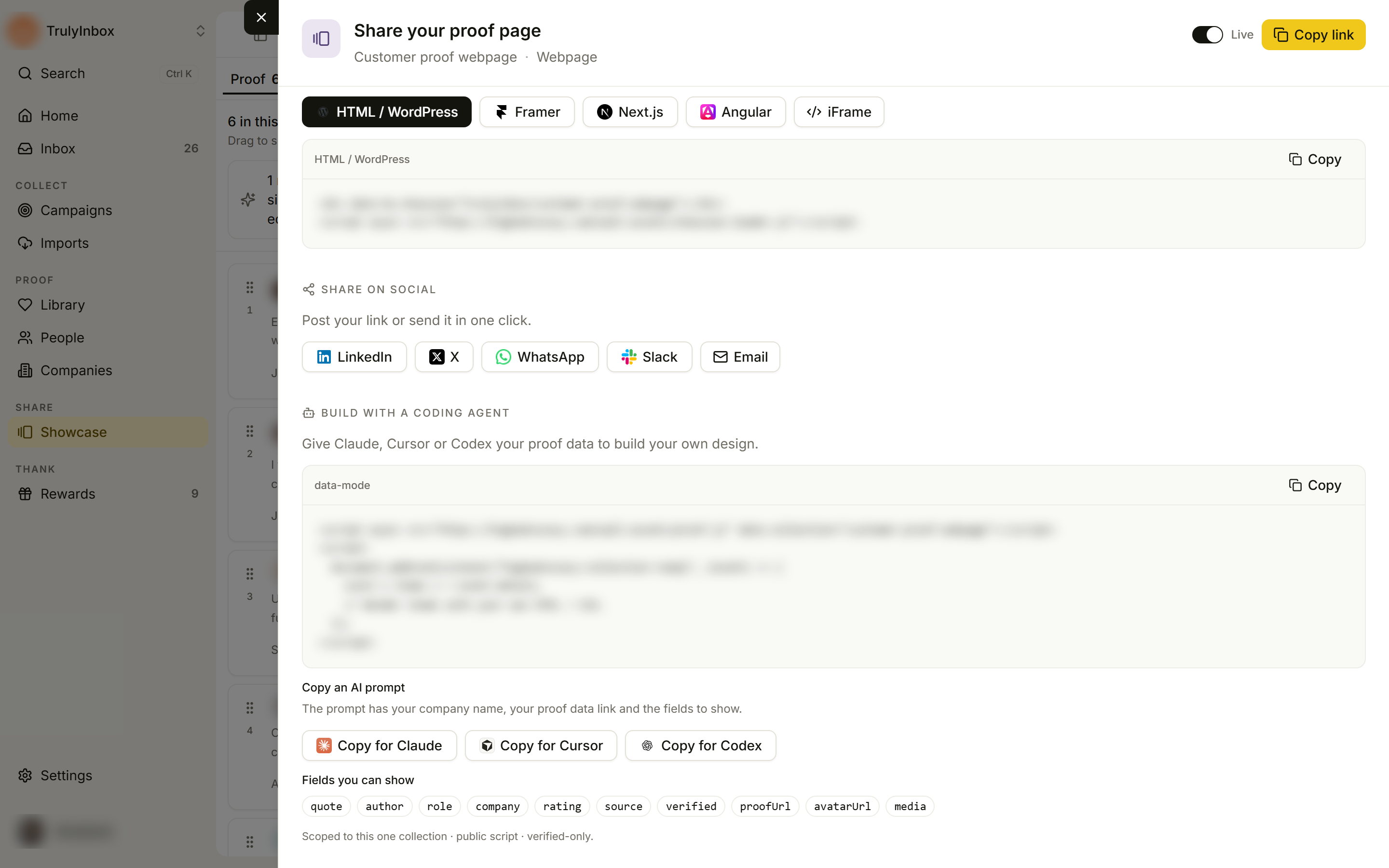
“Give Claude, Cursor or Codex your proof data to build your own design.” This section gives you the showcase’s proof as data, with no design attached, so a developer or AI coding agent can build a fully custom component.
The data snippet loads the proof and fires an event when it’s ready:
<script async src="https://highadvocacy.com/wall-assets/proof.js" data-collection="<showcase-slug>"></script>
<script>
  document.addEventListener("highadvocacy:collection-ready", (event) => {
    const { items } = event.detail;
    // Render items with your own HTML / CSS.
  });
</script>
Under Copy an AI prompt, click Copy for Claude, Copy for Cursor, or Copy for Codex. “The prompt has your company name, your proof data link and the fields to show.” Paste it into your agent.
Fields you can show: quote, author, role, company, rating, source, verified, proofUrl, avatarUrl, media.
The data covers only this showcase and is loaded live, so a custom design built this way updates as the showcase changes.
What visitors see
The public link opens a standalone page with your banner, proof, and design. Visitors don’t need an account. The page works on phones as well as desktops.
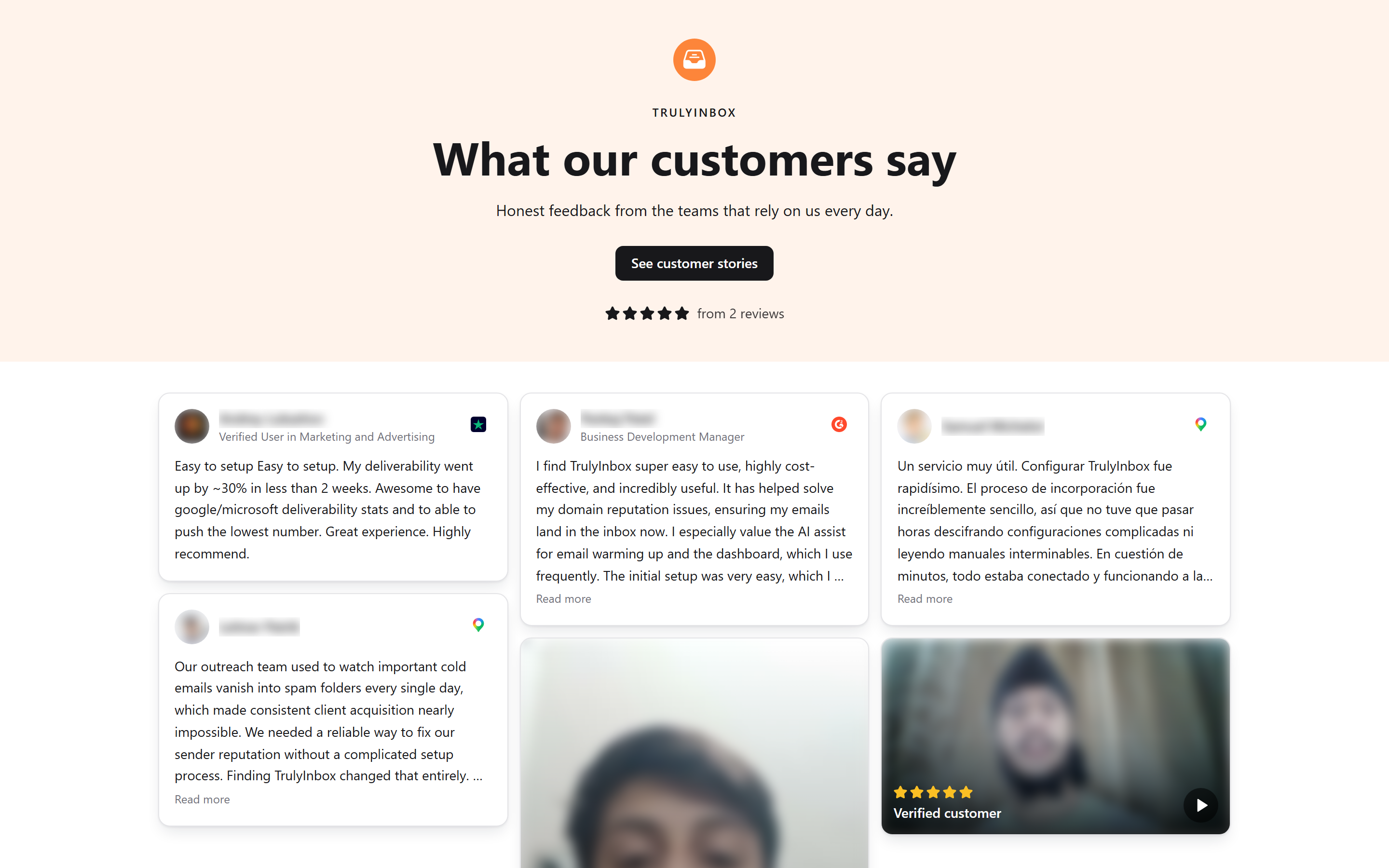
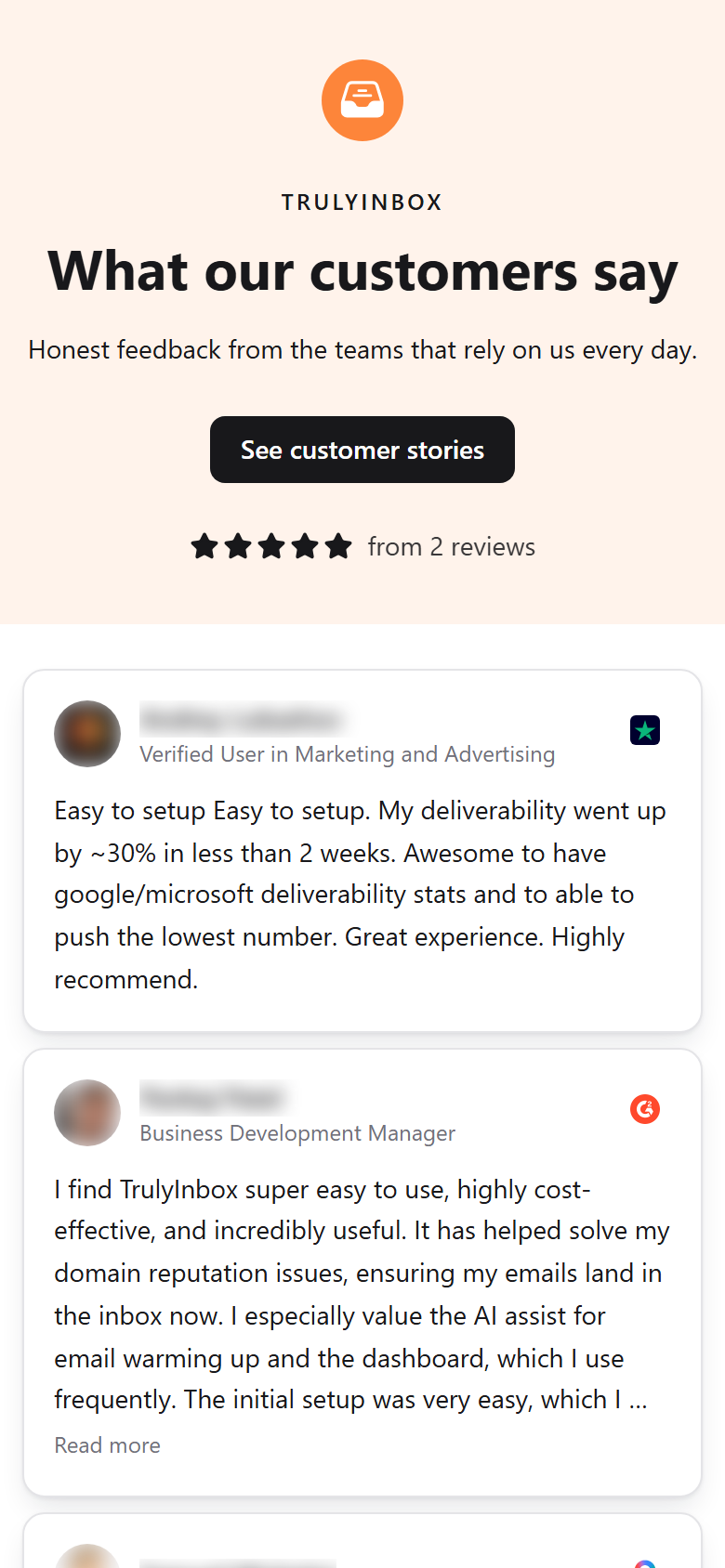
Proof rated below the showcase’s auto-add minimum rating, and proof with nothing to show, doesn’t appear. If no proof is left, the page shows your workspace name and “No testimonials to show yet.” See Why some proof is hidden.
Link previews and the share image
When you publish, HighAdvocacy makes a share image of the top of your showcase. When someone pastes your link into LinkedIn, X, Slack, WhatsApp, or email, that image shows as the link preview, along with the page title.
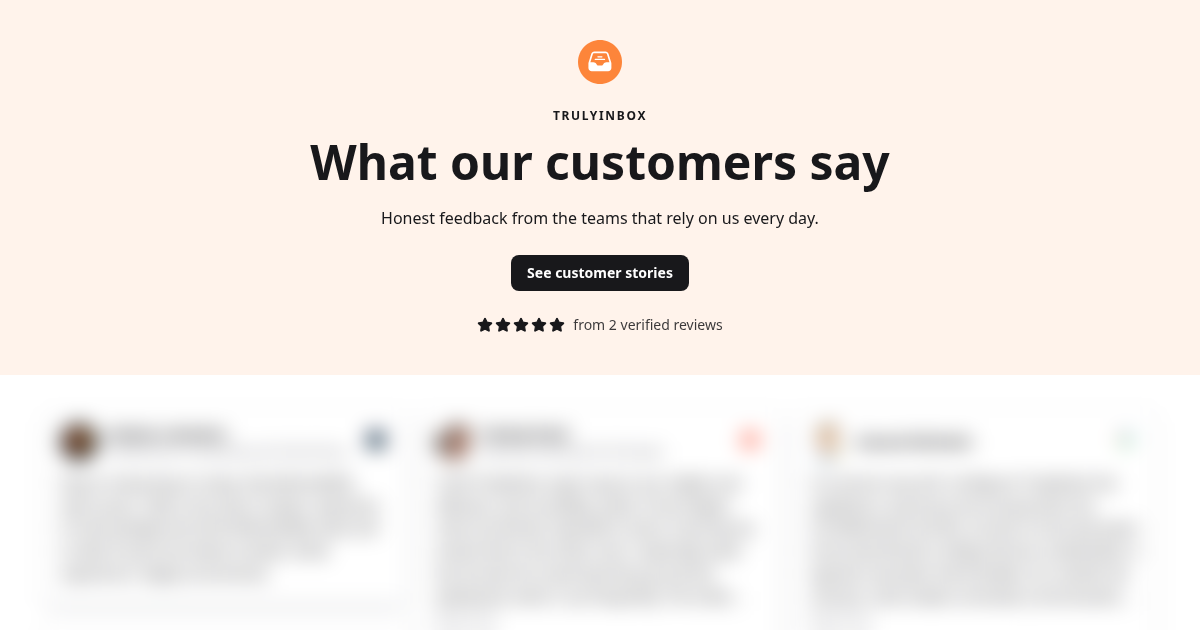
For webpages, you can set the title and description search engines show in Page > Search engine settings. See Design your showcase.
If the image can’t be made, the share sheet and the showcase card show “Share image couldn’t be generated” with a Retry button.
Stop sharing
Turn off the Live switch in the top bar or the share sheet, then confirm Stop sharing. “The public link stops working and every embed goes blank. You can turn sharing on again later.” When you publish again, the link stays the same.
Deleting a showcase removes the showcase and its settings for good, and the link stops working for anyone you sent it to.
Troubleshooting
The link shows nothing or the embed is blank. Check that the switch in the top bar says Live. Nothing is public while it says Not live.
The embed still renders nothing on my site.
Check the browser console for a blocked script. Your site’s content security policy may need to allow scripts from highadvocacy.com. If the code sits inside a sandboxed iframe, the sandbox needs allow-scripts.
The iFrame is cut off or has a big gap.
Change the height value in the iFrame code to fit your content.
The widget doesn’t match my site. Adjust corners, shadow, and border on the Cards tab, and set Font to System on the Brand tab so it uses your site’s font.
I can’t find the sharing options in the share sheet. If the sheet says “We’re making your share image”, wait a moment for it to finish. If it says “Share image couldn’t be generated”, click Retry.
Related
- Use your own domain: share the showcase on proof.yourcompany.com
- Showcase analytics: see who viewed it after you published
- Design your showcase: make an embed fit its page
- Choose what proof appears: keep a published showcase fresh