Rewards
Audience: Marketers and admins
Use rewards to thank customers for a review, a social post, or a testimonial. You build a reward once in your catalog, add it to the asks on your campaigns, and HighAdvocacy issues it when you approve a submission that earns it. A reward connection can send it automatically, or your team sends it by hand and marks it as sent.
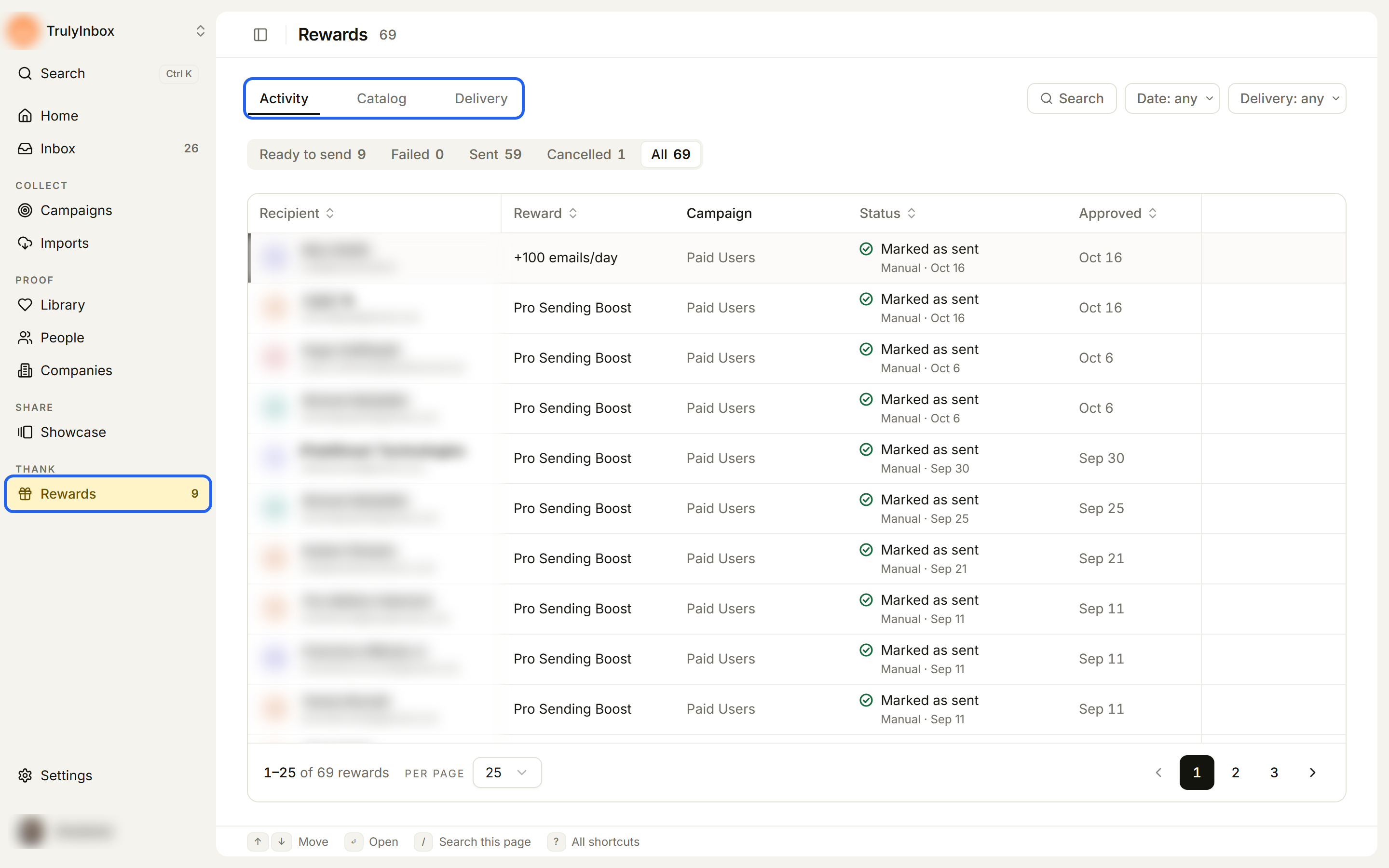
Open Rewards under Thank in the sidebar. The page has three tabs:
- Activity: every reward issued to a customer, with its status. This is where you mark manual rewards as sent and retry failed sends.
- Catalog: the rewards your workspace offers.
- Delivery: your reward connections, the URLs that send rewards automatically.
Create, edit, and delete the rewards you offer.
Reward catalogAdd a reward connection so rewards go out without manual work.
Send rewards automaticallyTrack every reward, mark manual ones as sent, and retry failures.
Reward activityHow approval and your reward release setting decide when a reward goes out.
When rewards are sentWhy editing a reward never changes what a customer already earned.
Reward snapshot and historyThe data a reward connection receives, and how to check the signature.
Delivery payload referenceReward types
Every reward has one of three types.
| Type | Use it for | Shown as |
|---|---|---|
| Credits | Credits in your own product, for example 10,000 email credits | 100 credits |
| Gift card | A gift card you choose and send, with a value and currency | $25 |
| Custom | Anything else, for example 14 extra days on a plan, a discount, or free merchandise | The value and the display label you set, for example 14 Trial days |
Set up your first reward
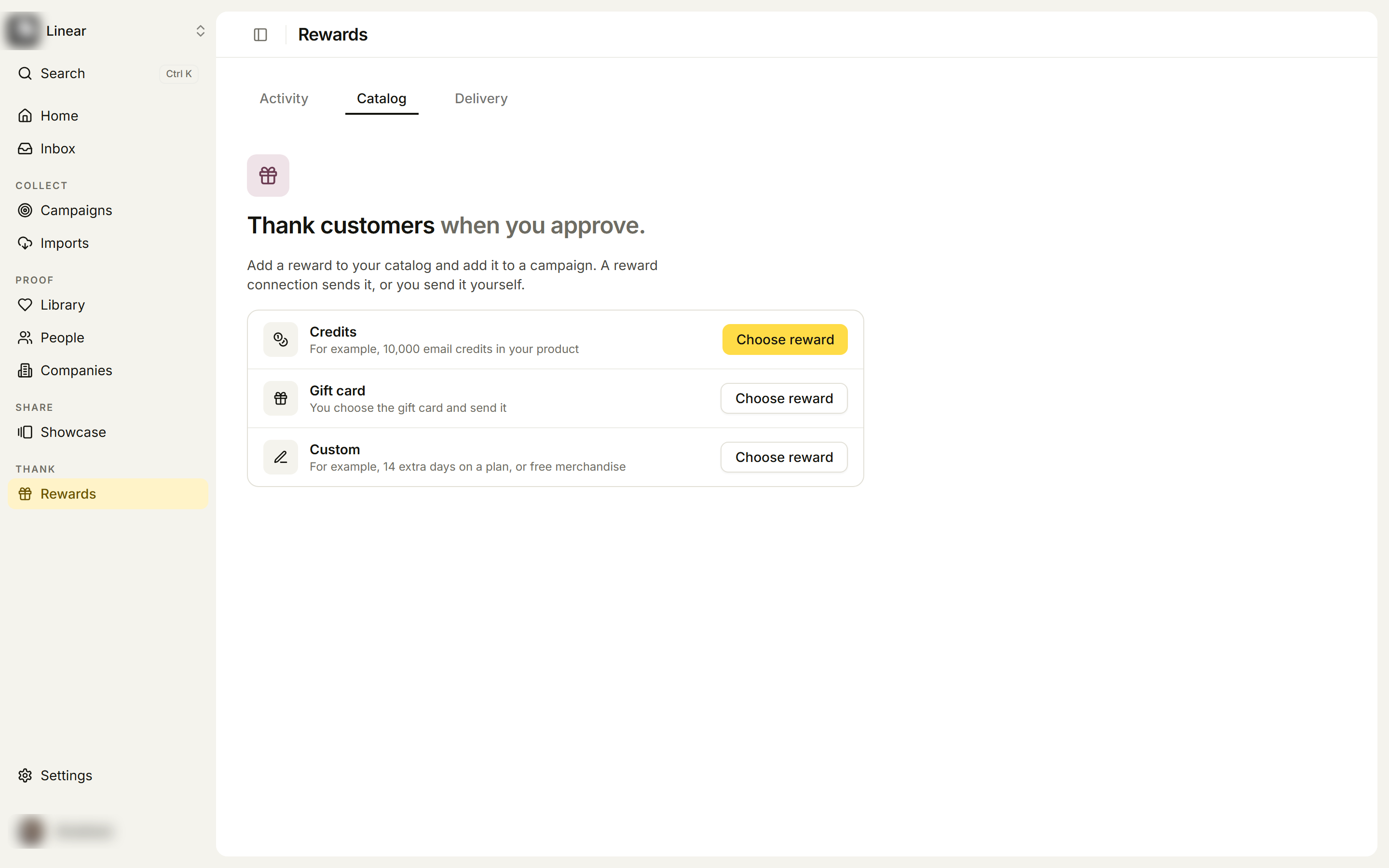
When your workspace has no rewards yet, the Activity and Catalog tabs show Thank customers when you approve. with one row per reward type.
- Open Rewards in the sidebar.
- Next to Credits, Gift card, or Custom, click Choose reward. A Create reward panel opens with that type already picked.
- Under Basics, enter a Reward name. Only your team sees this name.
- Under Reward value, write a Description for customers and set the value. Customers see the description on your campaign before they submit.
- Under Delivery, choose Manual by team (the default) or Reward connection. See Send rewards automatically if you want automatic sending.
- Click Create reward.
Once a reward exists, create more from the Catalog tab with Create reward. See Reward catalog for every field.
Add the reward to a campaign
A reward is only sent when it is on a campaign. Open the campaign, go to the Rewards step of the builder, and choose a reward for each ask. You can also use Set one reward for all, or pick No reward for an ask (customers see “Our thanks” and nothing is sent). See Set rewards on a campaign.
Approve your first submission
A reward shows in Activity after you approve a submission that earns one. Until then, Rewards shows a Next step panel that points to what is missing, for example Add this reward to a campaign, Add a reward connection, or Approve your first submission. You can dismiss the panel.