Roles and permissions
HighAdvocacy has three roles: Owner, Admin and Member.
- Owner is an account role. Owners have access to every workspace in the account and to the account settings. An account can have more than one Owner.
- Admin is a workspace role. Admins run a workspace: settings, notifications, teammates and campaigns.
- Member is a workspace role. Members review submissions and import proof, but don’t change campaigns or settings.
Admin and Member are set per workspace, so someone can be an Admin in one workspace and a Member in another.
What each role can do
| Action | Owner | Admin | Member |
|---|---|---|---|
| Approve or reject submissions in the Inbox | Yes | Yes | Yes |
| Import proof | Yes | Yes | Yes |
| Create and edit campaigns | Yes | Yes | No |
| Turn a campaign live or pause it | Yes | Yes | No |
| Delete a campaign | Yes | Yes | No |
| Change workspace settings (Profile, Security, AI verification, Custom fields) | Yes | Yes | No |
| Change notification settings (Integrations, Team emails, End-user notifications) | Yes | Yes | No |
| Invite people to the workspace | Yes | Yes | No |
| Approve or decline requests to join | Yes | Yes | No |
| Change roles and remove people | Yes | Members only | No |
| Open account settings (General, Members, Workspaces) | Yes | No | No |
| Make someone an Owner | Yes | No | No |
| Create, delete and restore workspaces | Yes | No | No |
| Delete the account | Yes | No | No |
Members don’t see Settings in the sidebar. Actions a role can’t use are either hidden or shown read-only.
Change someone’s role in a workspace
- Click Settings at the bottom of the sidebar, then Members.
- In the person’s row, open the Role menu and pick Admin or Member.
The change saves right away and you’ll see Role changed. It only affects this workspace.
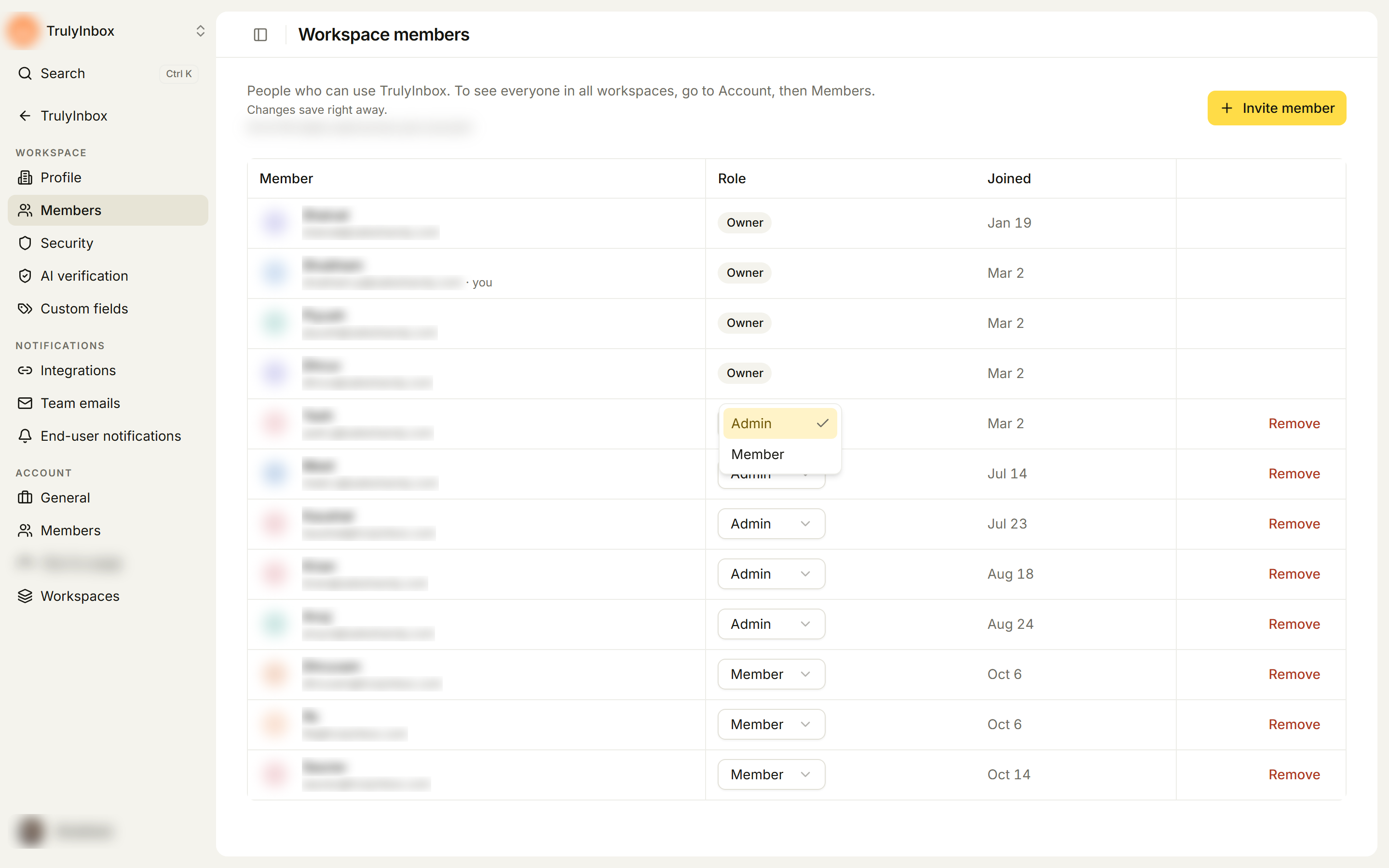
Some rows have a role badge instead of a menu:
- Owners always show Owner. Change owner access in Account → Members. See Account members and owners.
- Your own row, because you can’t change your own role.
- Other Admins, if you’re an Admin. Admins can change and remove Members only. Ask an Owner to change another Admin.
Remove someone from a workspace
- Go to Settings → Members.
- Click Remove in the person’s row.
- Click Remove member to confirm.
They can no longer see the workspace’s data. They stay in your account and keep access to any other workspaces they belong to. To remove someone from every workspace at once, an Owner can use Account → Members.
When someone loses access
If someone is removed from every workspace they belonged to, they’re signed out and land on the sign-in page.
Related
Last updated on