Review and confirm an import
Every import except the manual form ends with the same two steps: Select, where you pick what to keep, and Confirm, where you choose what gets added to each item. Nothing reaches your Library until you click Import N. This page also explains the result page you see afterwards.
Before you start
- To use Enhance with AI, turn on AI hook generator and AI highlighter in Settings › AI verification under AI help for proof.
Open a run that is waiting for you
When a fetch or file read finishes, the run’s status changes to Waiting for you. If you left the page, open Collect › Imports and click the run under Recent imports.
Step 1: Select
The Select step lists everything HighAdvocacy found.
- Narrow the list with Search reviewer or text…, the rating filter, and the date filter (Any date, Last 30 days, Last 90 days, Last year).
- Tick the items you want, or tick the box in the yellow selection bar to select every item that can be imported.
- If an item has a mistake, click Edit, fix it, and save. HighAdvocacy checks it again.
- Click Continue.
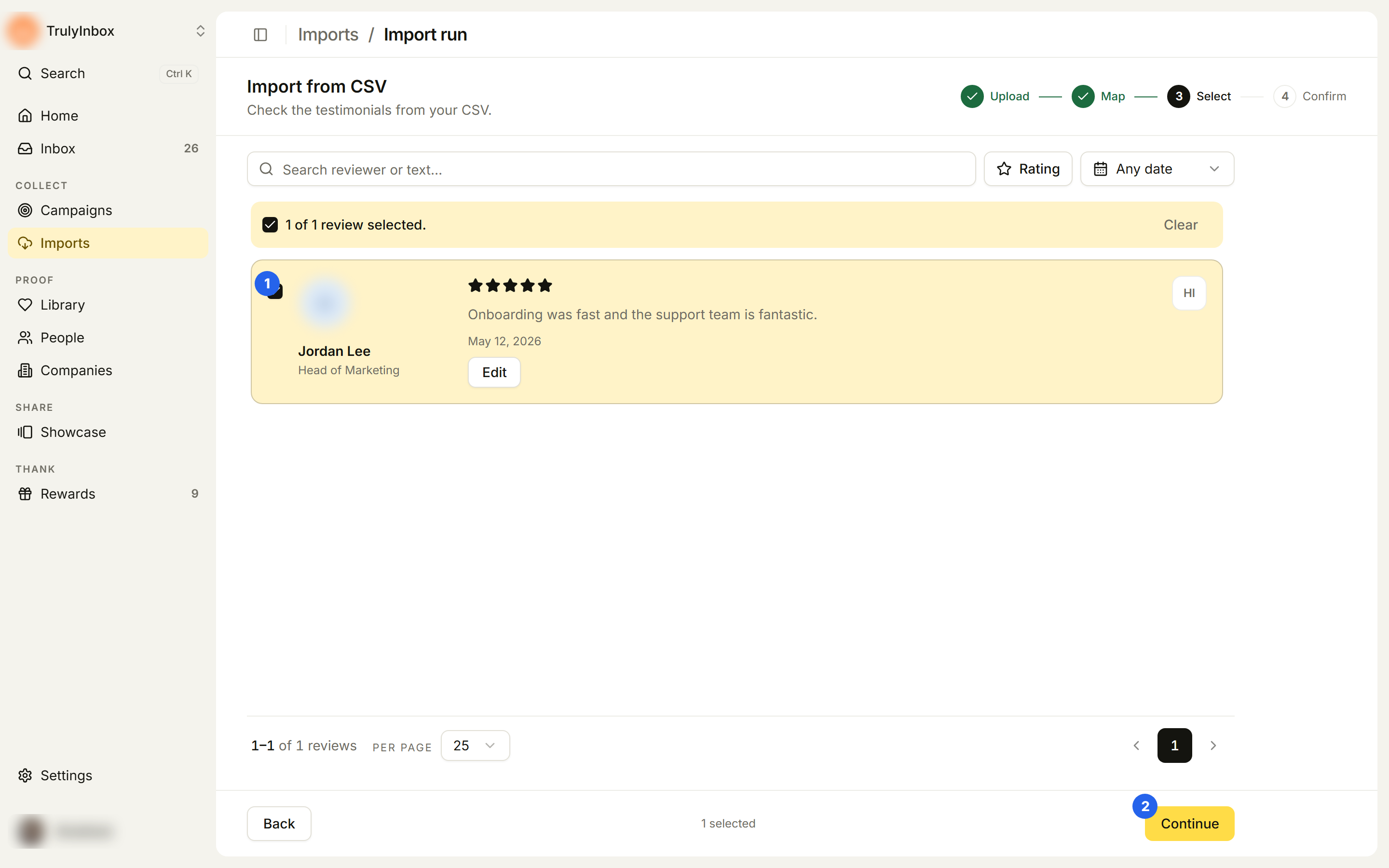
The selection bar shows what you have selected:
- “N of N reviews selected.” If some items can’t be imported, it adds “N rows can’t be imported (duplicate or missing details).”
- With filters on, it counts the matching items. If you selected items that the filters now hide, it says so and offers Deselect hidden. Those hidden items are imported too unless you deselect them.
- Clear removes the whole selection.
Items that can’t be selected carry a badge: Duplicate (already in your workspace) or Below rating (under the minimum rating of a synced profile). See Duplicates and matching.
Step 2: Confirm
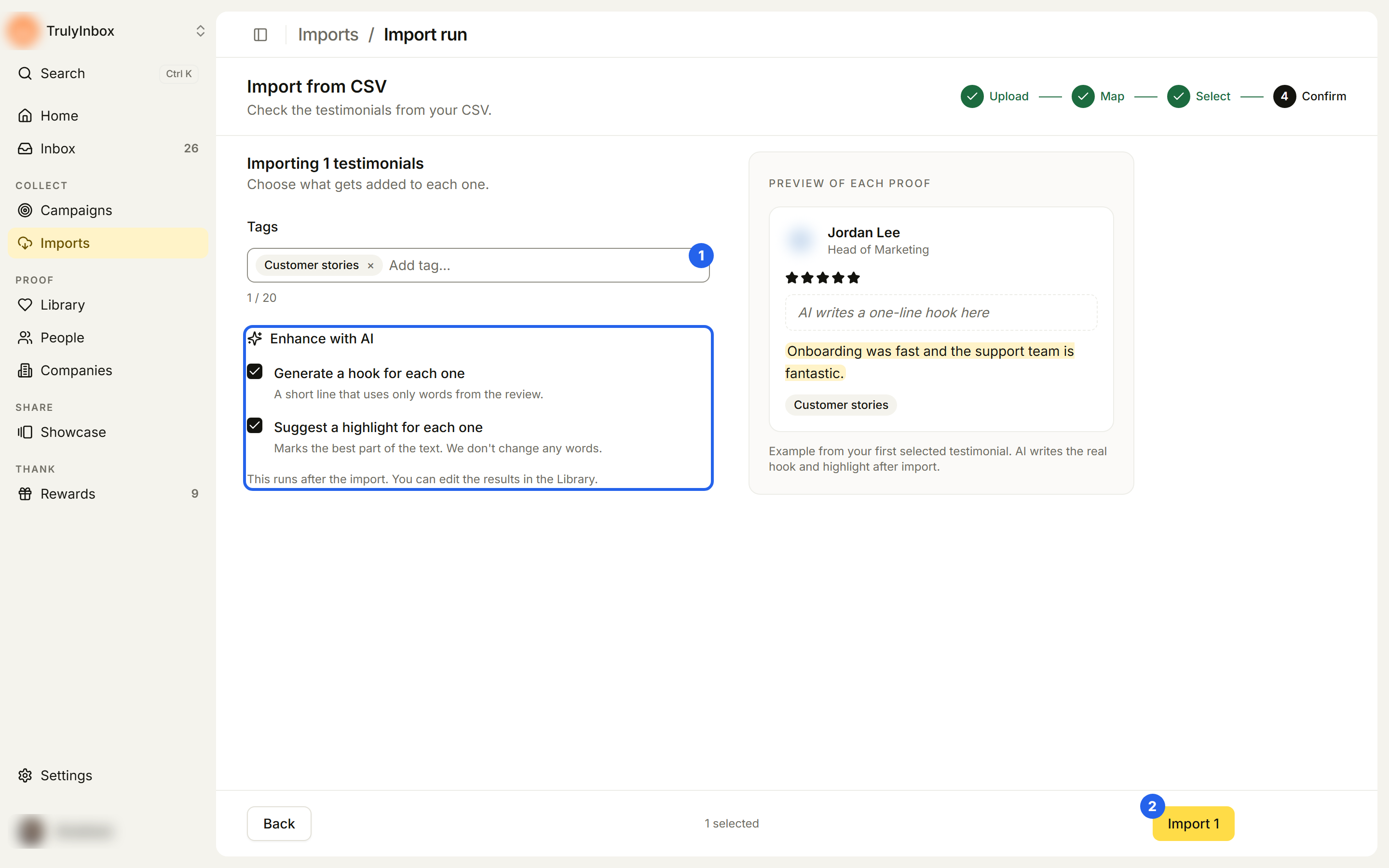
The Confirm step is headed Importing N testimonials with “Choose what gets added to each one.”
- Tags: type a tag and press Enter. Every imported item gets these tags.
- Also tag new testimonials from this source: shown when the profile syncs every week. Tick it to add the same tags to new reviews from the weekly sync. You can change this later in Connected sources.
- Enhance with AI (when switched on in Settings):
- Generate a hook for each one: a short line that uses only words from the review.
- Suggest a highlight for each one: marks the best part of the text without changing any words. This runs after the import, and you can edit the results in the Library. Preview of each proof shows an example using your first selected item.
- Click Import N. Use Back to return to Select.
Low-rated reviews
For web and CSV imports, HighAdvocacy checks whether you selected anything rated 2 stars or lower. The Confirm step shows Some reviews are low-rated, and clicking Import N opens a dialog titled “N selected reviews are 2★ or lower”. Low-rated reviews go to your Library with the rest, where anyone building a showcase can use them. Choose:
- Import N without them to leave them out.
- Import all N to keep them.
- Cancel to go back.
Read the result
After you import, the run page shows the result.
- A headline such as 24 reviews imported., followed by any exceptions, for example “3 were duplicates. 1 couldn’t be read.”
- A line with the people and companies created, plus weekly sync on and the tags you added, when they apply.
- If you asked for AI help, a line per tool, for example “24 hooks generated · 0 skipped (no text)”, with Review hooks in Library →.
- View in Library opens the Library filtered to imported proof. Import more returns to Imports.
- Cards for the imported items. Items that were duplicates are marked. If there are more than fit, “N more are in the Library.”
- A list of any items that couldn’t be imported, with the reason.
On the right, About this import shows Source, Started, Last update, Next sync (for synced profiles), and Tags. Counts shows:
| Count | Meaning |
|---|---|
| Imported | Items added to your Library |
| Duplicates | Items you already had |
| Rule skips | Reviews below a synced profile’s minimum rating |
| Failed | Items that couldn’t be imported |
| People | People added and matched |
| Companies | Companies added and matched |
| Unlinked | Imported without a person or company |
When an import fails or imports nothing
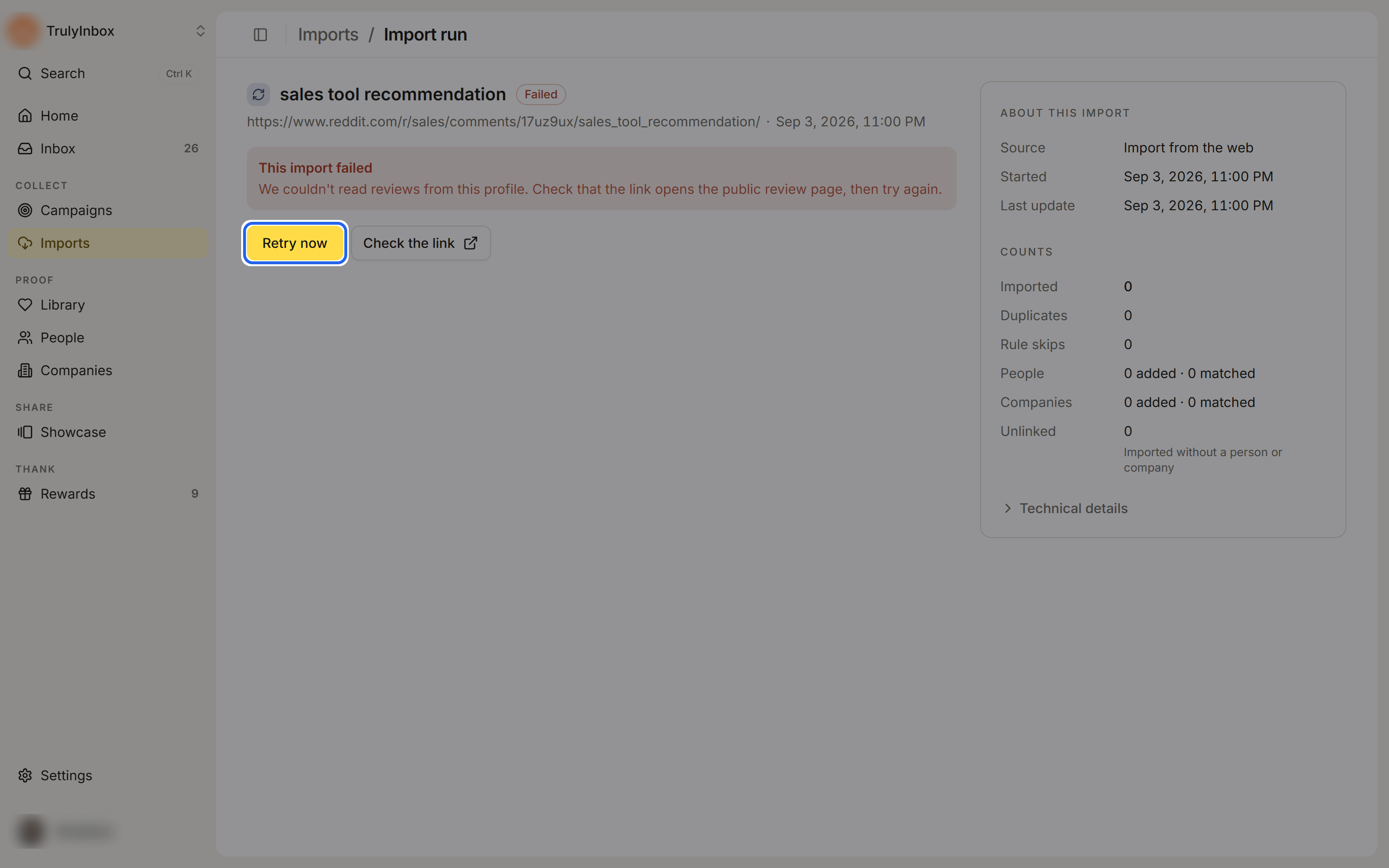
A failed run shows This import failed with the reason. A run that added nothing shows Nothing was imported. Depending on the method you get:
- Retry now: fetch the same review profile again.
- Import again: start a new import of the same type.
- Check the link: open the source to make sure it is public.
Related
- Imports: methods and run statuses
- Duplicates and matching
- Hooks and highlights
- Tags and favorites