Find your way around
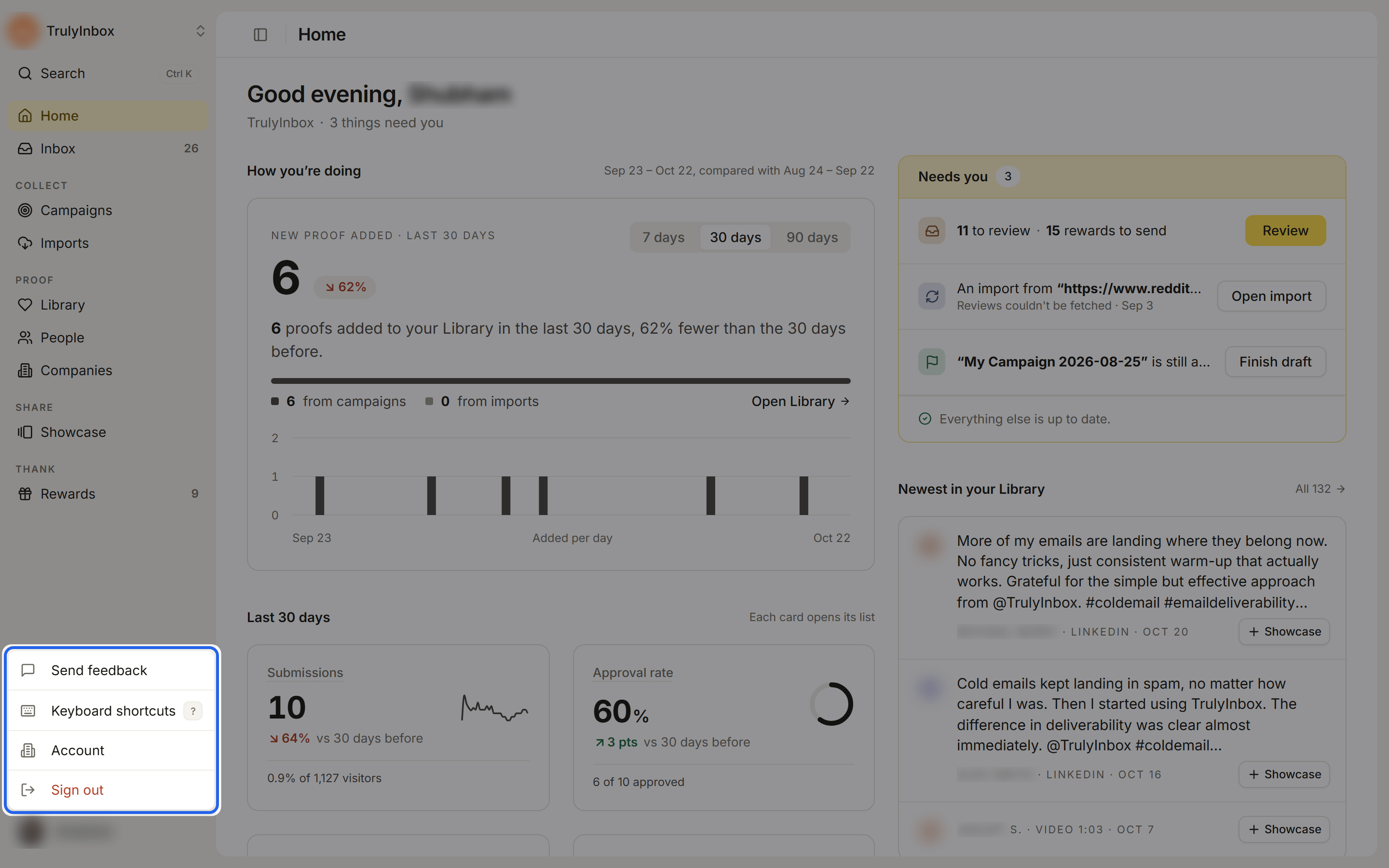
Use the sidebar on the left or search to reach any page in HighAdvocacy. This page also covers keyboard shortcuts and sidebar favourites.
The sidebar
The sidebar follows the advocacy loop: collect proof, keep it, share it, thank the people who gave it.
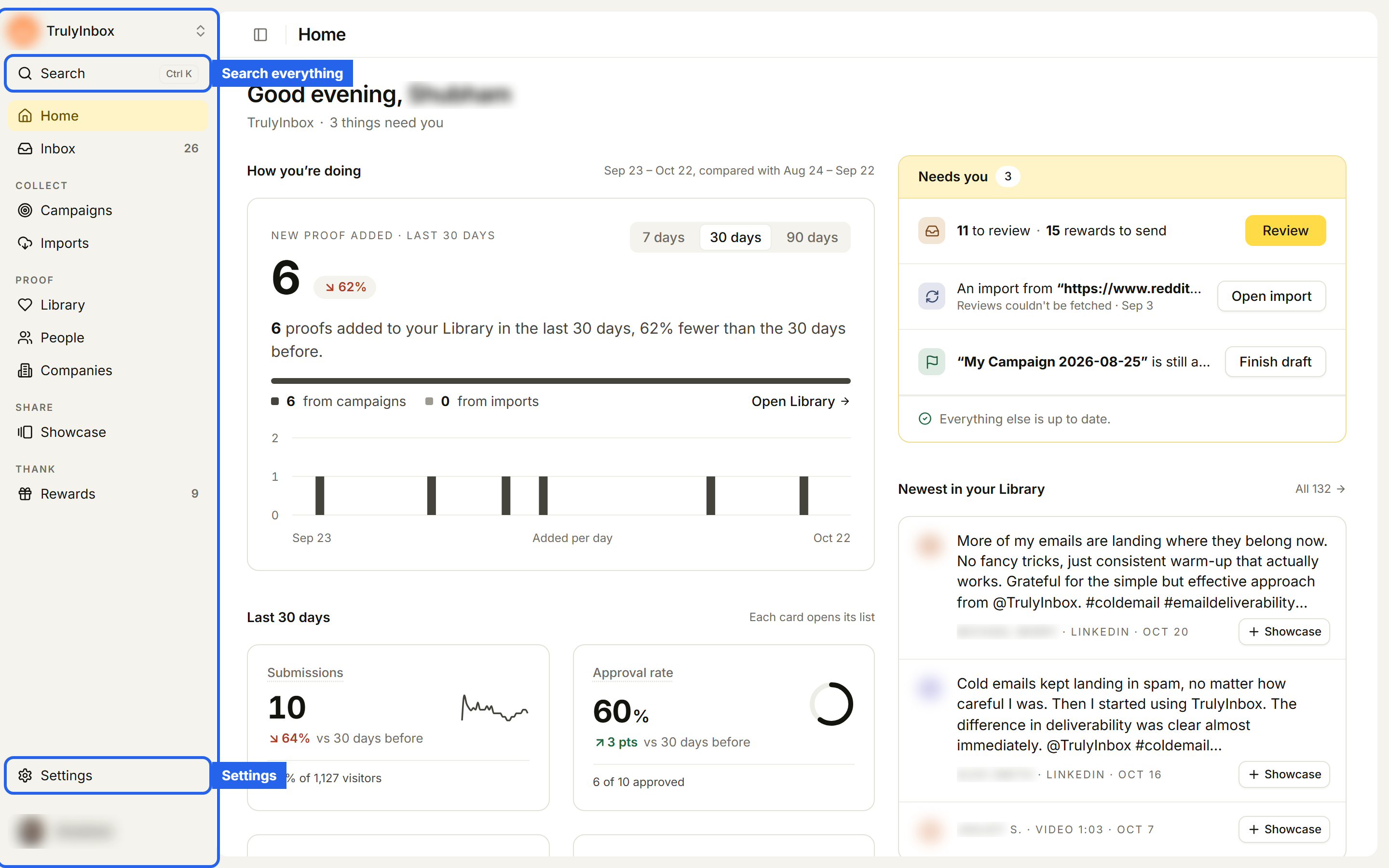
| Item | What it’s for |
|---|---|
| Search | Search everything and jump to any page. See Search. |
| Home | Setup steps, what needs you, and how you’re doing. See Your Home page. |
| Inbox | Submissions to approve or reject. The number is how many need attention. |
| Collect > Campaigns | Ask customers for reviews, social posts and testimonials. |
| Collect > Imports | Bring in proof you already have. |
| Proof > Library | All your approved and imported proof. |
| Proof > People | Everyone who gave you proof. |
| Proof > Companies | The companies they work at. |
| Share > Showcase | Showcase pages and widgets for your website. |
| Thank > Rewards | Rewards, delivery, and what’s ready to send. The number is how many rewards are waiting to be sent. |
| Settings | Workspace and notification settings. Members don’t see this item. |
Click the panel icon next to the page title to collapse or expand the sidebar.
If you used HighAdvocacy before the redesign
Some areas were renamed:
- Submissions is now Inbox.
- Proof Library is now Library.
- Reward Connections is now Delivery, under Rewards.
- Notification settings now live under Settings.
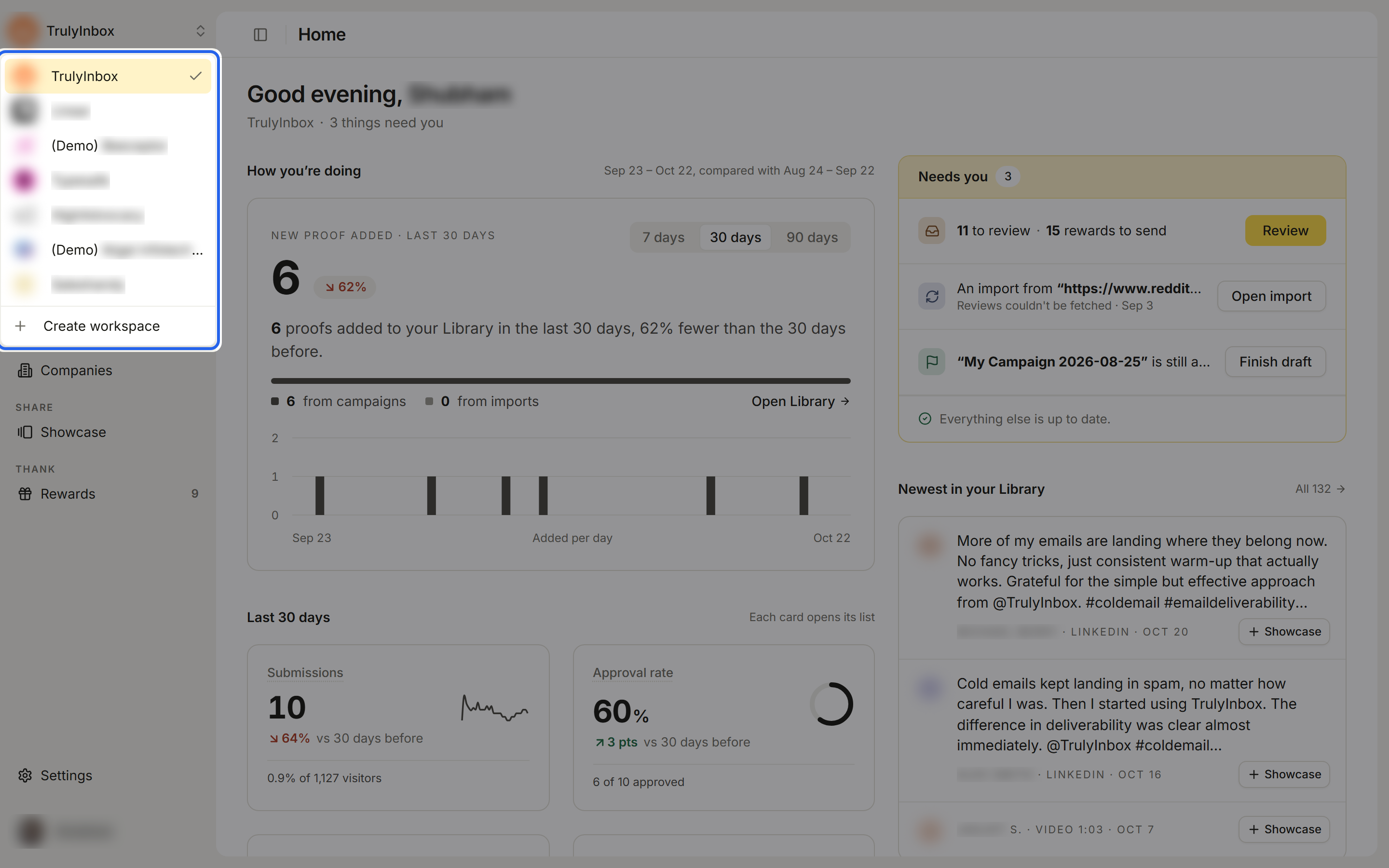
Switch workspaces
Click the workspace name at the top of the sidebar to see your workspaces. Pick one to switch to it. Owners also see Create workspace here. See Workspaces.
Search
There’s one search for the whole app. It finds records (people, companies, proof, submissions, campaigns, showcases) and lets you jump to any page or start something new.
- Search everything: click Search in the sidebar, or press Ctrl K (⌘K on a Mac).
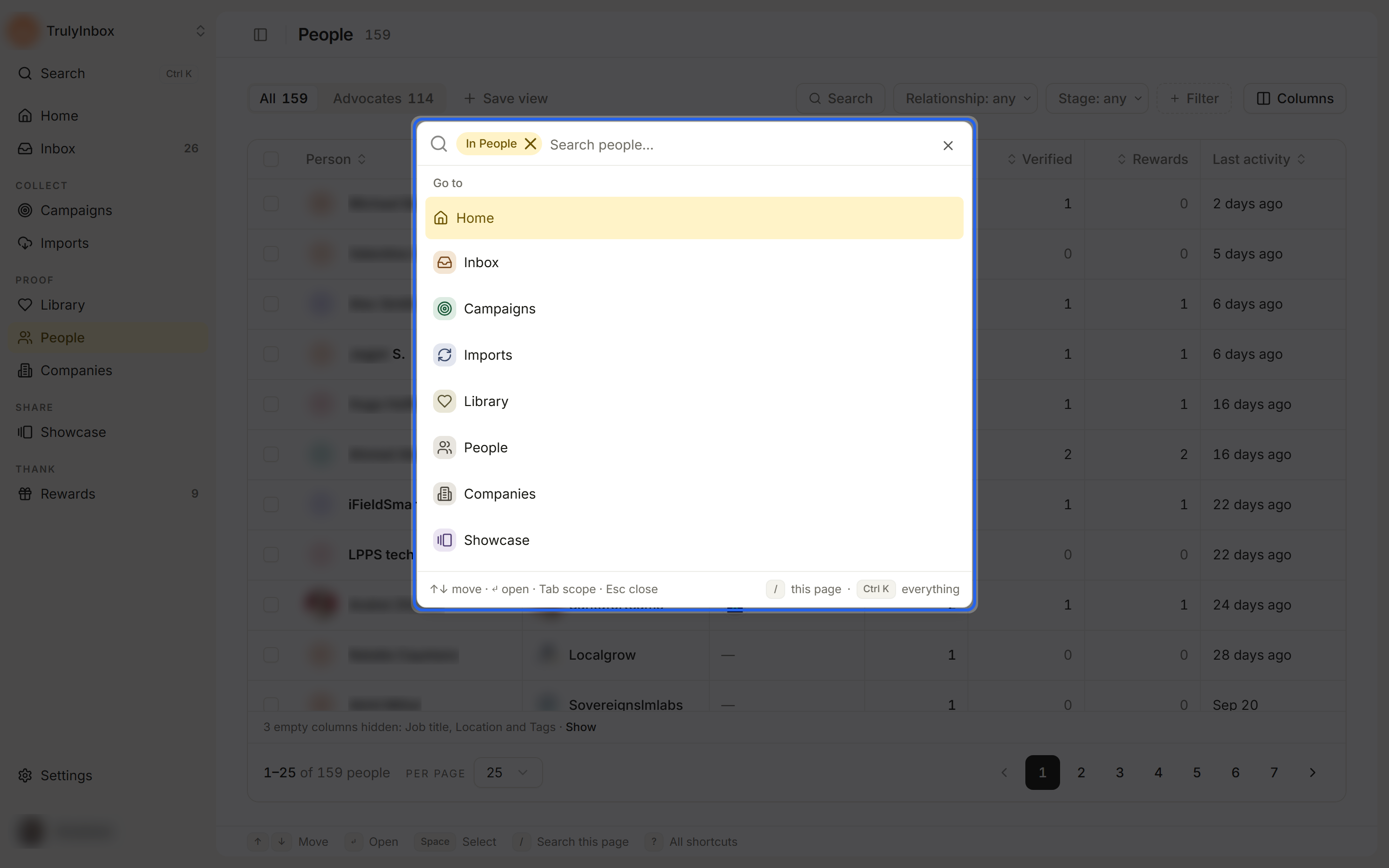
- Search this page: press / on a list page, or click the page’s Search button. Search opens already limited to that page, for example In People.
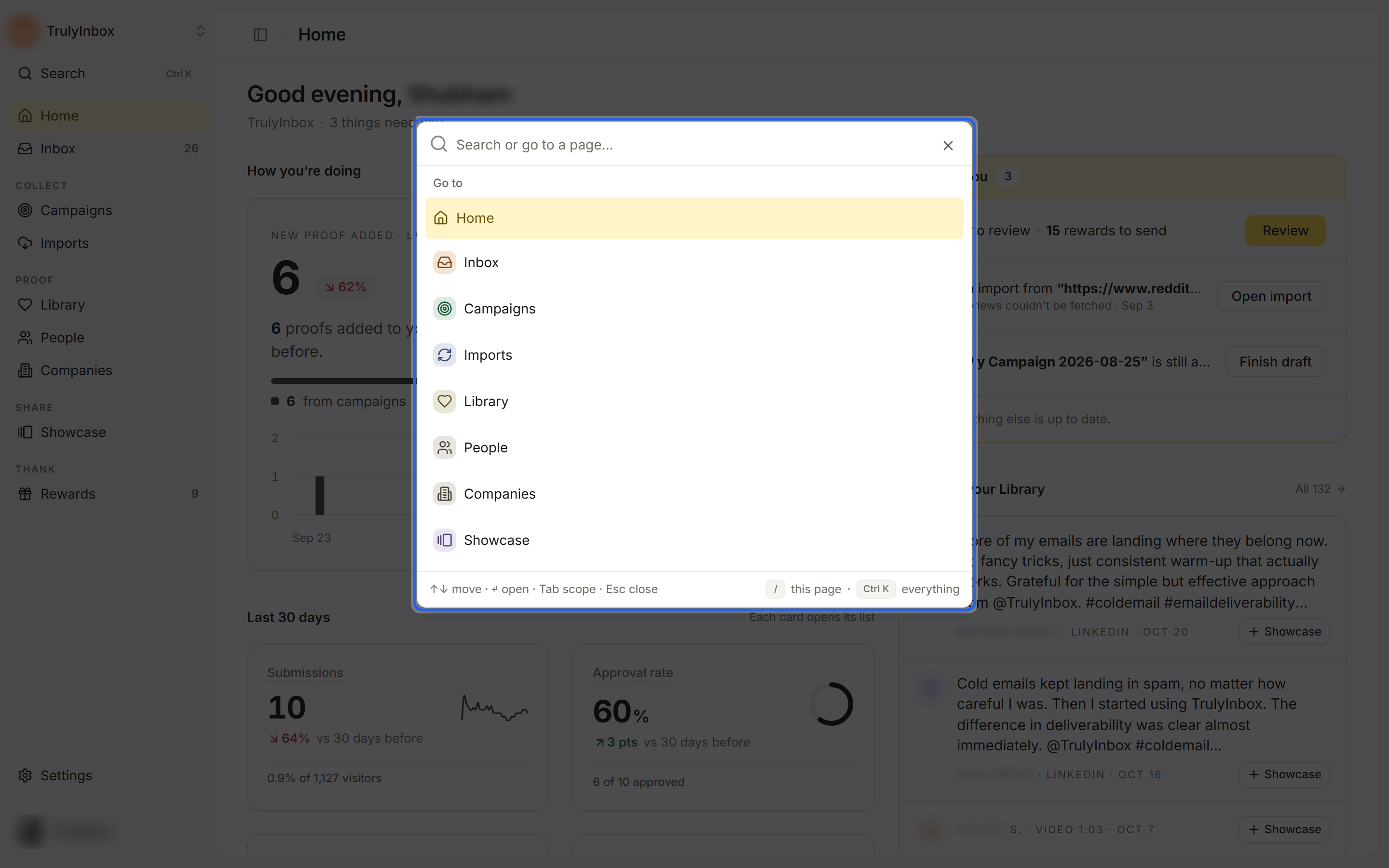
With an empty search you see:
- Go to: every page in the sidebar.
- Create: New campaign, New showcase, New reward, and Import proof.
- Recent: records you opened lately.
Inside search:
- ↑ ↓ to move, Enter to open, Esc to close.
- Tab changes where search looks: All, People, Companies, Library, Inbox, Campaigns, Showcase.
- Backspace in an empty search, or the × on the scope chip, goes back to searching everything.
To find a submission in the Inbox, type the customer’s full email address.
Keyboard shortcuts
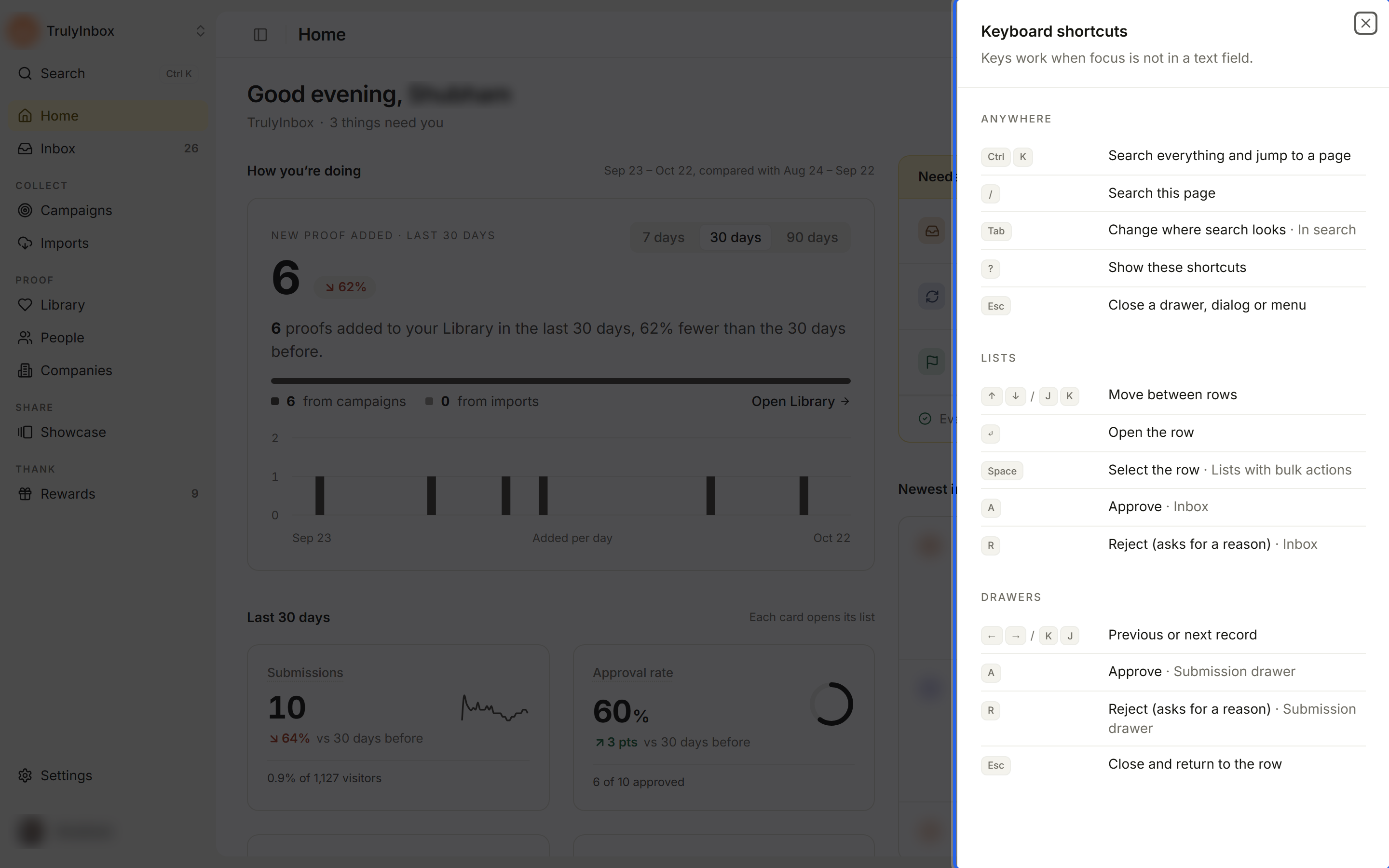
Press ? anywhere (outside a text field) to see every shortcut. You can also open the list from your name at the bottom of the sidebar, then Keyboard shortcuts. List pages also show their main keys in a strip at the bottom.
| Keys | What they do | Where |
|---|---|---|
| Ctrl K / ⌘K | Search everything and jump to a page | Anywhere |
| / | Search this page | Anywhere |
| Tab | Change where search looks | In search |
| ? | Show the shortcuts | Anywhere |
| Esc | Close a drawer, dialog or menu | Anywhere |
| ↑ ↓ or J K | Move between rows | Lists |
| Enter | Open the row | Lists |
| Space | Select the row | Lists with bulk actions |
| A | Approve | Inbox and the submission drawer |
| R | Reject (asks for a reason) | Inbox and the submission drawer |
| ← → or K J | Previous or next record | Drawers |
Shortcuts don’t run while you’re typing in a field.
Favourites
Pin the things you open most to the sidebar. Favourites appear in a Favourites group above Collect once you add one.
You can favourite:
- A campaign: the star in the campaign’s header.
- A showcase: the star in the showcase editor’s top bar.
- A person: the star in their drawer.
- A saved view on People or Companies: the saved view’s menu, with the view open.
Click the star (Add to favourites) to pin it, and again (Remove from favourites) to unpin it.
To manage a favourite, click the ⋯ next to it in the sidebar. You can Move up, Move down, or Remove from favourites.
Sidebar favourites are separate from starring proof in the Library. See Tags and favorites.
Settings and your account
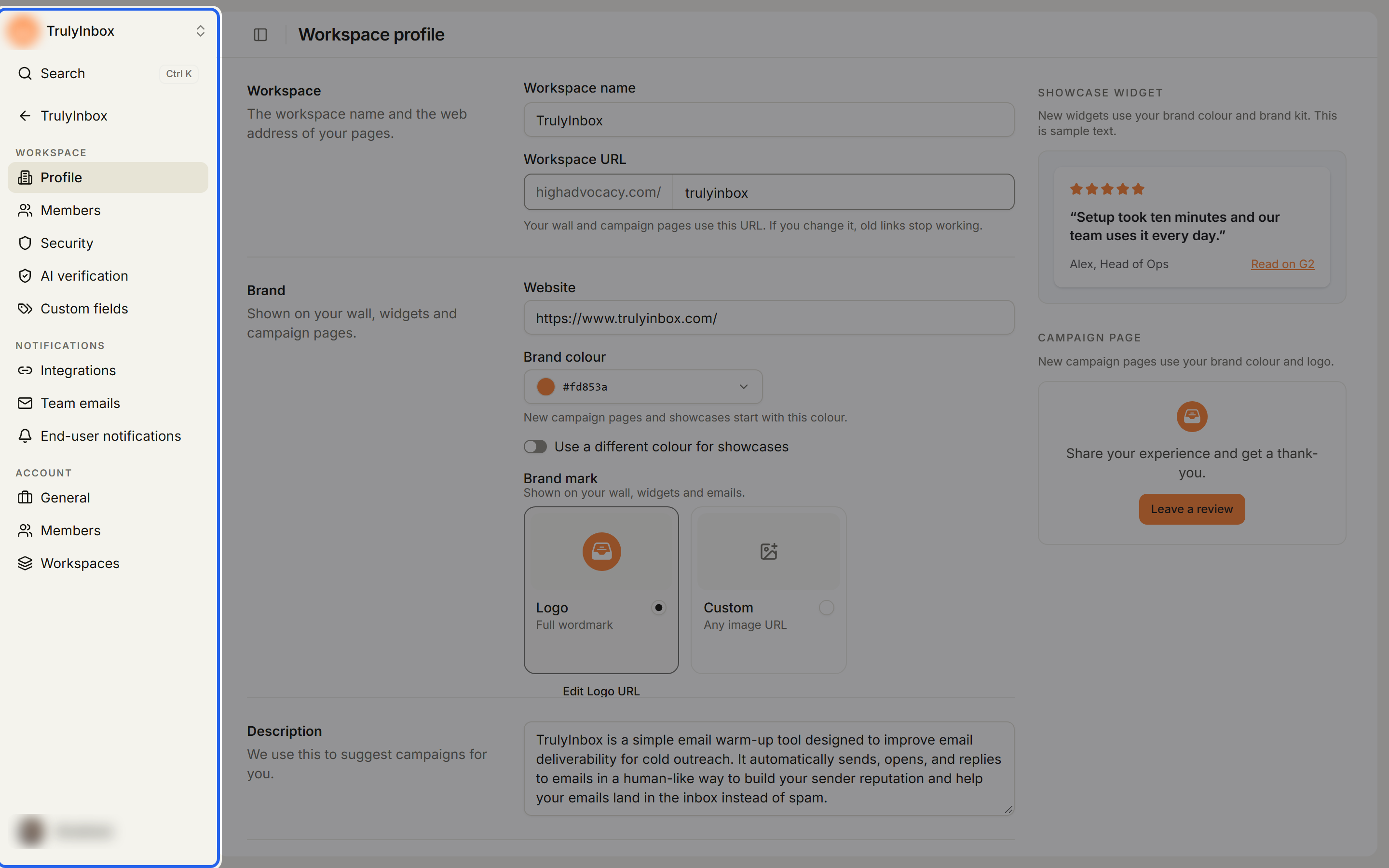
Click Settings at the bottom of the sidebar. The sidebar switches to settings:
- Workspace: Profile, Members, Security, AI verification, Custom fields.
- Notifications: Integrations, Team emails, End-user notifications.
- Account (Owners only): General, Members, Workspaces.
To go back, click the workspace name with the back arrow at the top of the settings sidebar. It takes you to Home.
Click your name at the bottom of the sidebar for:
- Send feedback
- Keyboard shortcuts
- Account (Owners only)
- Sign out