Create a showcase
To create a showcase, pick a type (webpage or widget) and a layout. You can change everything later, including the layout.
Before you start
- You need approved or imported proof in your Library for the showcase to have something to show. If the Library is empty, import reviews or run a campaign first.
- A webpage is a standalone page with its own link. A widget goes inside a page you already have, such as your pricing page.
Create a showcase
- In the sidebar, under SHARE, click Showcase.
- Click New showcase. The Create webpage page opens.
- Use the Webpage | Widget toggle to pick the type. Webpage is selected by default.
- Browse the templates and click the one you want.
Clicking a template creates the showcase straight away and opens the builder, so look through the options before you click. Opening the page and switching between Webpage and Widget doesn’t create anything.
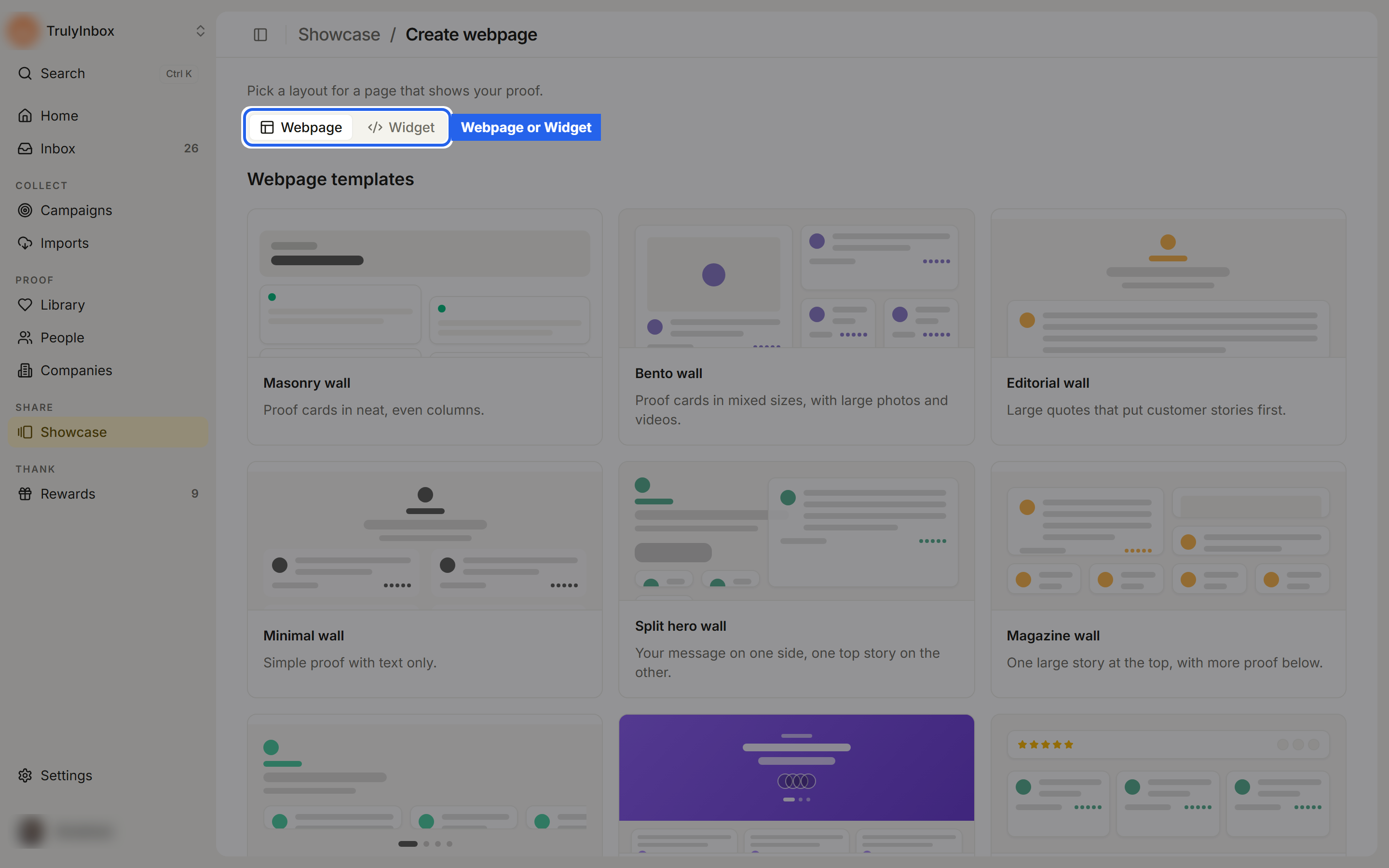
Webpage layouts
Ten layouts for a standalone page with its own link.
| Layout | What it does | Good for |
|---|---|---|
| Masonry wall | Proof cards in neat, even columns. | A general wall of love |
| Bento wall | Proof cards in mixed sizes, with large photos and videos. | Lots of video and photo proof |
| Editorial wall | Large quotes that put customer stories first. | Longer, story-style testimonials |
| Minimal wall | Simple proof with text only. | Understated brands |
| Split hero wall | Your message on one side, one top story on the other. | A landing page with one standout quote |
| Magazine wall | One large story at the top, with more proof below. | Leading with a flagship customer |
| Carousel wall | Proof cards in a row that scrolls sideways. | A compact page |
| Spotlight | A large banner that rotates your best customer stories. | Named customer stories |
| Proof metrics | Starts with your average rating, review count and sources. | Showing review volume and ratings |
| Conversion split | Your headline and button stay in place while proof scrolls. | Sales pages and deal rooms |
Widget layouts
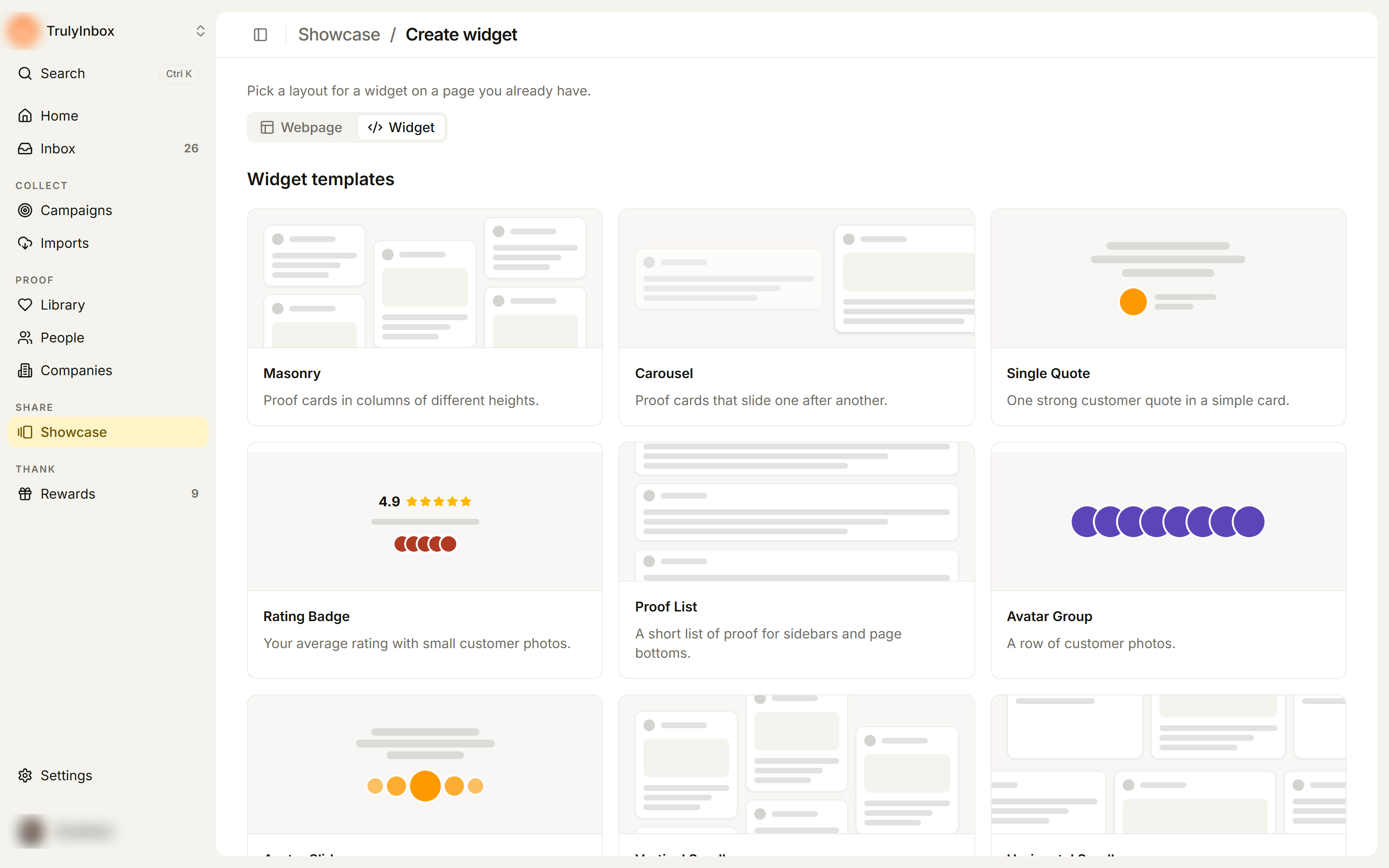
Twelve layouts for embedding in a page you already have.
| Layout | What it does | Good for |
|---|---|---|
| Masonry | Proof cards in columns of different heights. | Mid-page proof sections |
| Carousel | Proof cards that slide one after another. | Hero sections |
| Single Quote | One strong customer quote in a simple card. | Next to a sign-up form |
| Rating Badge | Your average rating with small customer photos. | Pricing pages, navbars |
| Proof List | A short list of proof for sidebars and page bottoms. | Sidebars, feature pages |
| Avatar Group | A row of customer photos. | A small trust cue |
| Avatar Slider | Proof with the customer’s photo, one at a time. | Face-led proof |
| Vertical Scroll | Proof cards that move slowly up and down. | Sidebars |
| Horizontal Scroll | Proof cards that move slowly from side to side. | Full-width proof strips |
| Floating Cards | Proof cards that stay at the bottom of your site. | Checkout and sign-up flows |
| Company Logo Slider | Show company logos in a scrolling strip. | B2B logo proof |
| Avatar Blocks | Proof cards with a large customer photo. | People-led proof |
What the builder fills in for you
The builder fills in a new showcase for you:
- Your best proof. HighAdvocacy adds your highest-rated proof and confirms it with a message such as “We added your 6 best proofs (4★ and up)”. If there isn’t enough 4-star proof, the Proof tab says “We added some 3-star reviews. Replace them when you have more proof.” If most of your proof has low ratings, it says “Your proof has low ratings. Collect more before you publish.”
- Your brand. Your workspace brand colour and logo are applied. If the workspace has no brand set yet, the builder opens on the Brand tab so you can set colors first.
- A name. The showcase is named after its layout, such as “Masonry wall”. If that name is taken, a number is added, such as “Masonry wall 2”.
You can remove, reorder, add, and restyle any of it.
Rename a showcase
Click the name at the top of the builder (or the pencil, Edit name), type a new name, and press Enter. The square next to the name opens Choose showcase icon and color, which sets the icon used on the Showcase page and in your sidebar favourites.
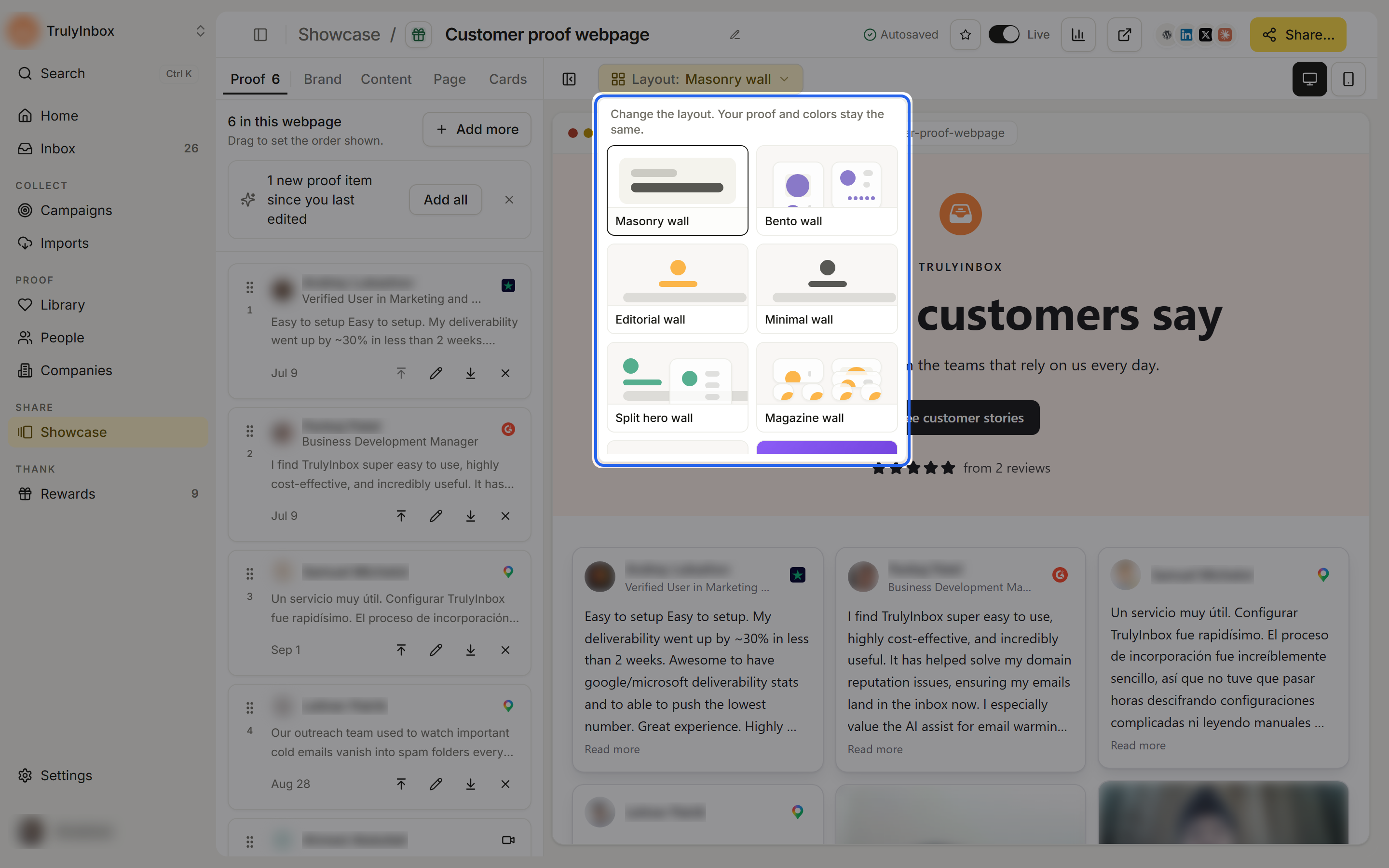
Change the layout later
- In the builder, click Layout: in the preview toolbar.
- Pick another layout. The picker says “Change the layout. Your proof and colors stay the same.”
You can switch only within the same type: a webpage switches between webpage layouts, and a widget between widget layouts. To use the same proof in the other type, create a new showcase.
If the showcase is live, HighAdvocacy asks Change your published layout? first, because visitors see the change right away. Click Change to {layout} to switch, or Keep current layout.
Saving and going live
There is no save button. The builder saves as you go and the top bar shows Autosaved. A new showcase is Not live. Nothing is public until you turn on the Live switch and confirm Publish. You can leave a half-finished showcase as long as you like.
Related
- Choose what proof appears: curate the proof the builder added
- Design your showcase: colors, content, page, and card settings
- Publish, share, and embed: go live and put it on your site