Widget security and signing secret
The Security page has two settings for the workspace:
- Widget security: which websites can show your widget.
- Signing secret: a private key that proves an alert came from HighAdvocacy.
To open it, click Settings at the bottom of the sidebar, then Security. You need to be an Owner or Admin to make changes.
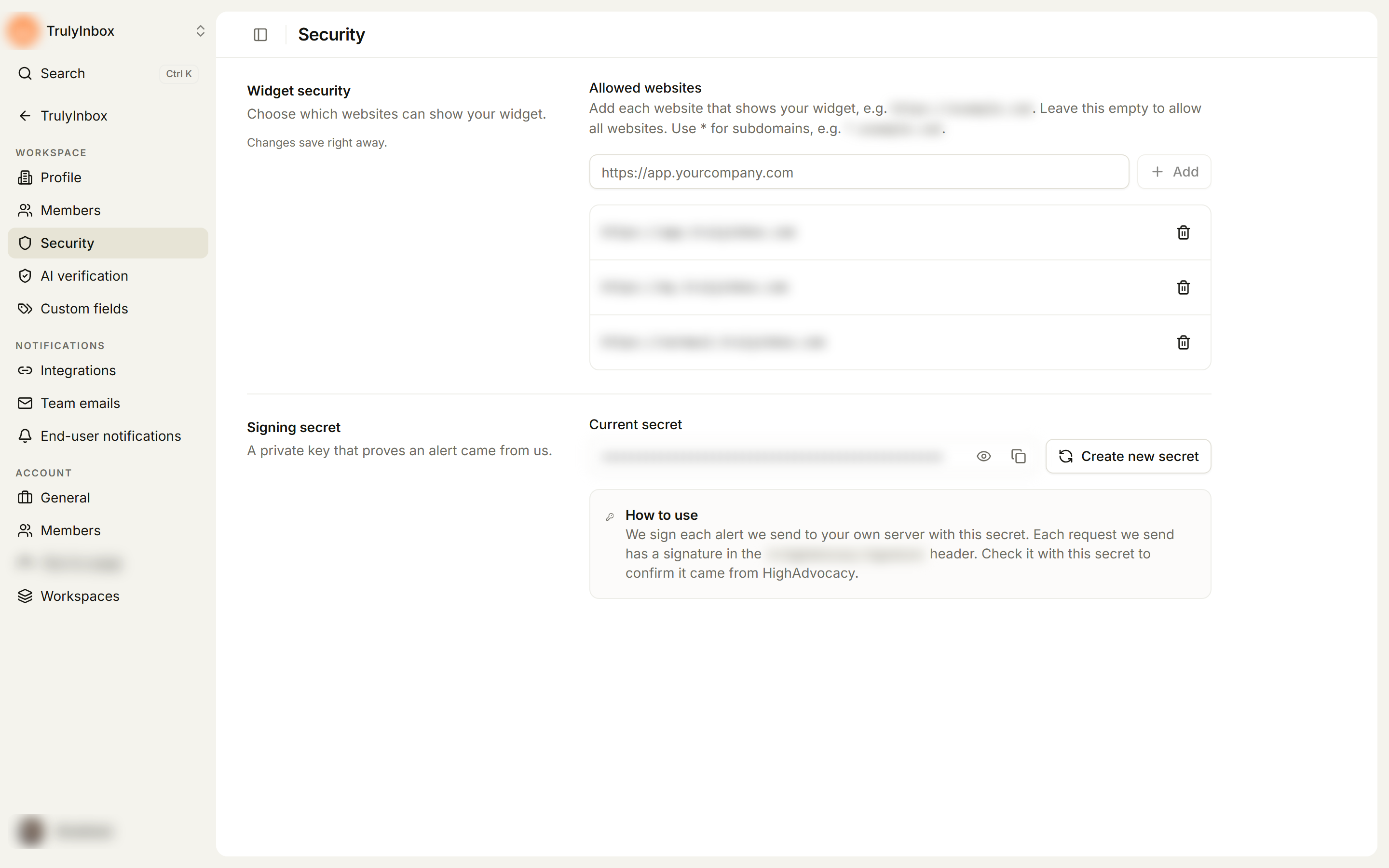
Choose which websites can show your widget
By default, your widget can show on any website. Add websites under Allowed websites to show it only on those sites.
- In Allowed websites, type the full address of a site that shows your widget, for example
https://app.yourcompany.com. - Click Add (or press Enter).
The change saves right away and you’ll see Website added.
- To cover every subdomain, use
*, for example*.example.com. - Add each website separately, including staging or test sites where you check the widget.
- To remove a website, click the trash icon next to it.
If the list is empty, the page shows No websites added and your widget can show on any website.
Once you add one website, the widget only shows on the websites in the list. If your widget stops showing on a page, check that page’s address is listed here.
Verify alerts sent to your own server
If you send alerts to Your own server under Settings → Integrations, we sign each request with this workspace’s signing secret. Use it to check that a request came from HighAdvocacy.
- Under Signing secret, click the eye icon to show Current secret, or the copy icon to copy it.
- Store the secret on your server.
- When an alert arrives, check the signature in the
X-HighAdvocacy-Signatureheader against the secret.
Each workspace has its own secret. Keep it private.
Create a new signing secret
Create a new secret if the current one may have leaked.
- Click Create new secret.
- Read the message, then click Create new secret to confirm.
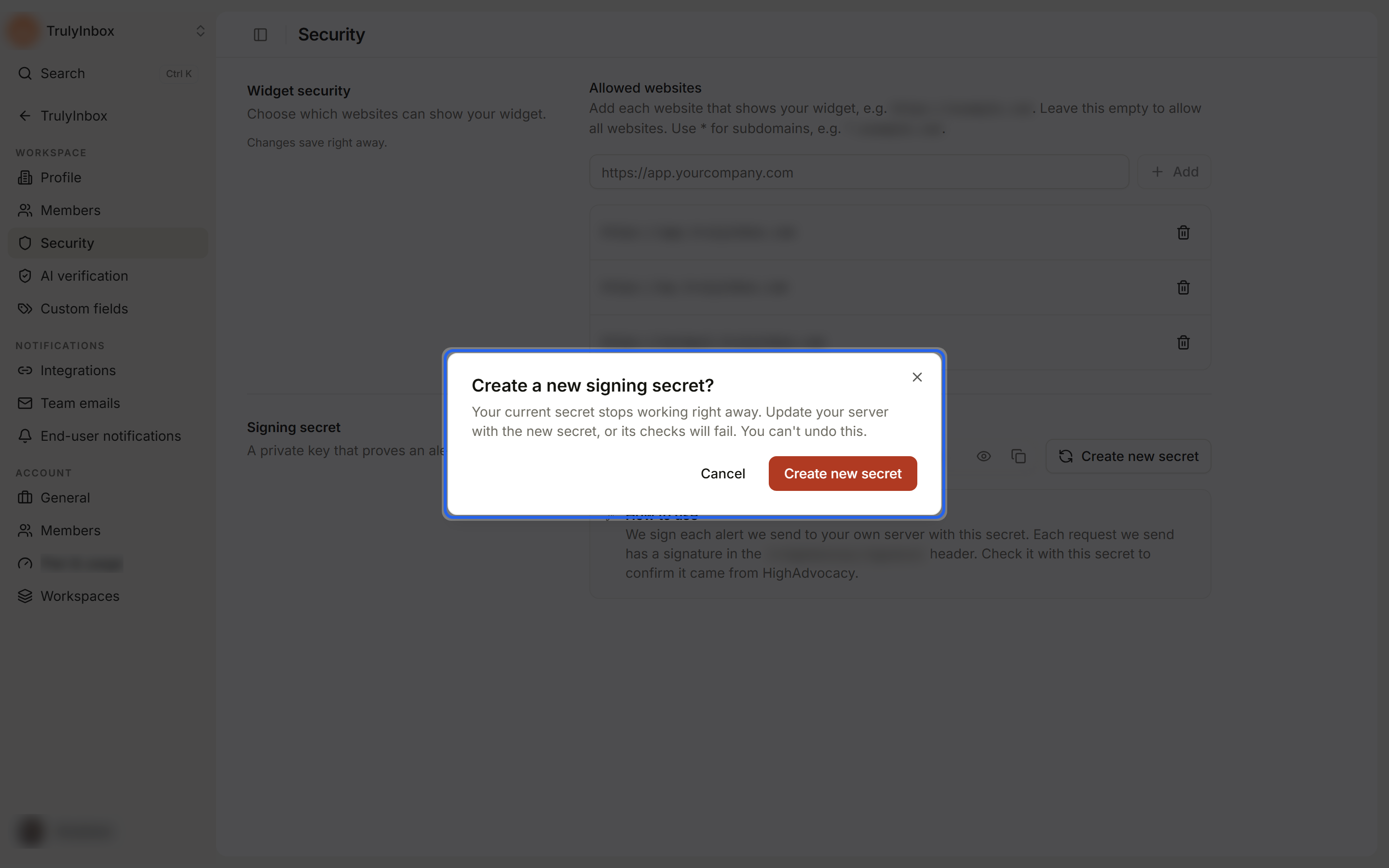
Your current secret stops working right away. Update your server with the new secret, or its signature checks will fail. You can’t undo this. Your integrations stay on.