Change your account name or delete your account
The Account details page holds your organization’s name and domain, and the option to delete the whole account. Only Owners can open it.
To open it, click your name at the bottom-left of the sidebar, then Account. Or go to Settings and click General under Account.
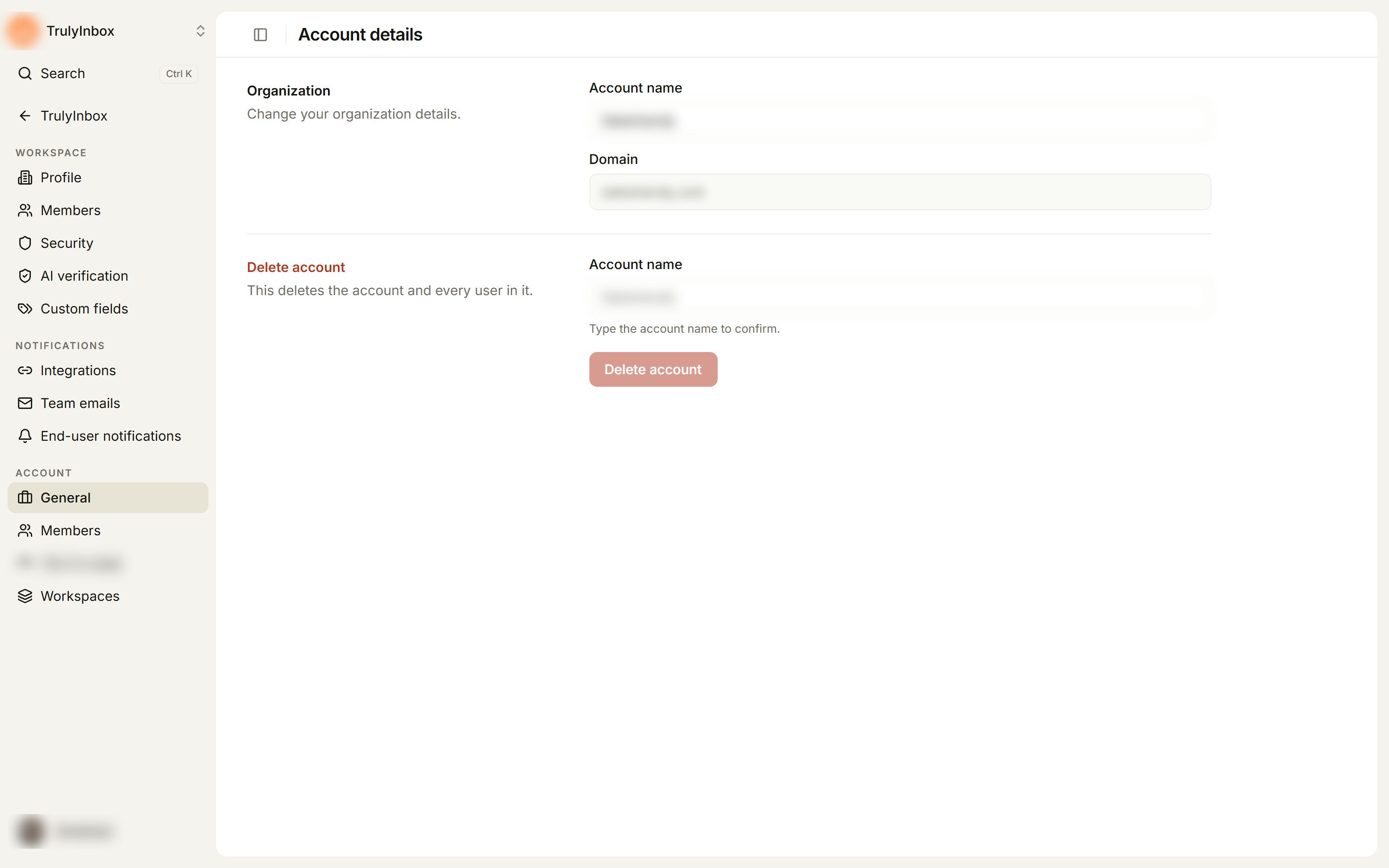
Rename your account
- Under Organization, edit Account name.
- Click Save changes in the bar that appears. Click Discard to undo.
You’ll see Changes saved.
Domain shows your company’s email domain. It can’t be changed here.
The account name is different from a workspace name. To rename a workspace, see Change your workspace name, URL, and brand.
Delete your account
Deleting the account deletes the account and every user in it. Check that everyone on your team is ready first.
- Under Delete account, type the account name exactly as it appears. Capital letters don’t matter.
- Click Delete account.
The button stays off until the name matches. After the account is deleted, you’re signed out.
If you only want to remove one workspace, delete that workspace instead. See Create, switch, and delete workspaces.