Search, filter, and save views of people and companies
The People and Companies pages share the same controls: search, filters, columns, sorting, pages, and saved views.
Search
- Click Search in the filter bar, or press
/. - Type a name or term. The search box reads Search people… on People and Search companies… on Companies.
- Press Enter.
The search term shows as a Search: ”…” chip in the filter bar. Click the × on the chip to clear it.
Filter
Some filters always sit in the filter bar. The rest are under + Filter.
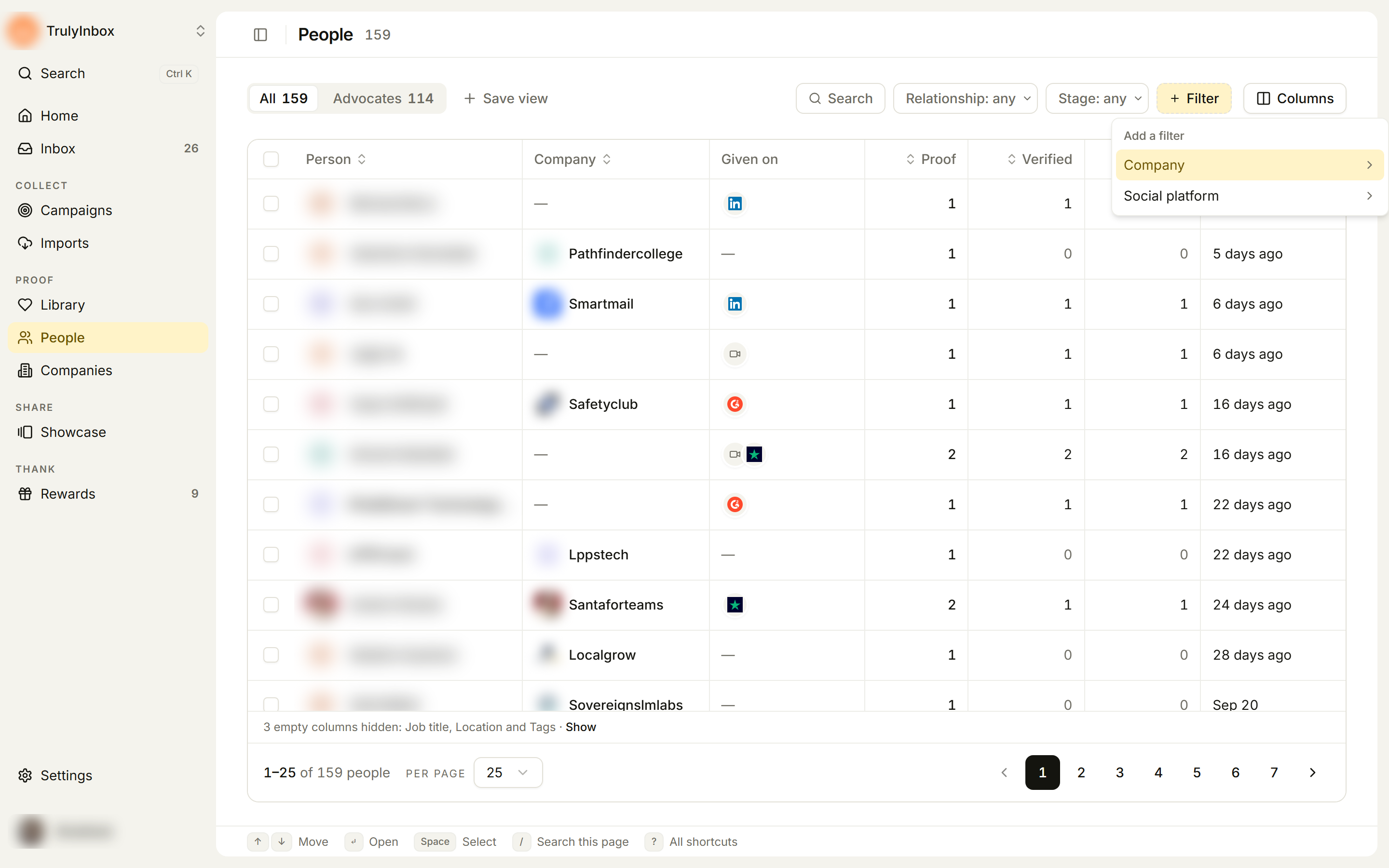
- Click a filter in the bar, or click + Filter and pick one from Add a filter.
- Pick one or more values. The list updates right away.
- To remove every filter and the search, click Clear filters.
The filter bar shows how many rows match, for example 12 of 159 people. A filter only shows up under + Filter when there’s something to pick, so Tags appears once you’ve tagged someone, and ARR once a company has an ARR.
People filters
| Filter | Options |
|---|---|
| Relationship (always shown) | User, Customer, Employee, Partner, Vendor, Influencer, Other |
| Stage (always shown) | Engaged, Submitted, Verified or imported, Rewarded |
| Company | Search for one or more companies |
| Social platform | People with a profile on LinkedIn, X, Facebook, Reddit, YouTube, Instagram, or TikTok |
| Tags | Any tag on a person |
Companies filters
| Filter | Options |
|---|---|
| Industry (always shown) | Industries in your workspace |
| Size (always shown) | Company size ranges |
| Has proof | Only companies with proof |
| ARR | ARR ranges |
| B2B | B2B, Not B2B |
| Funding round | Funding rounds in your workspace |
| Verified people | With verified people, Without verified people |
| Tags | Any tag on a company |
Choose columns
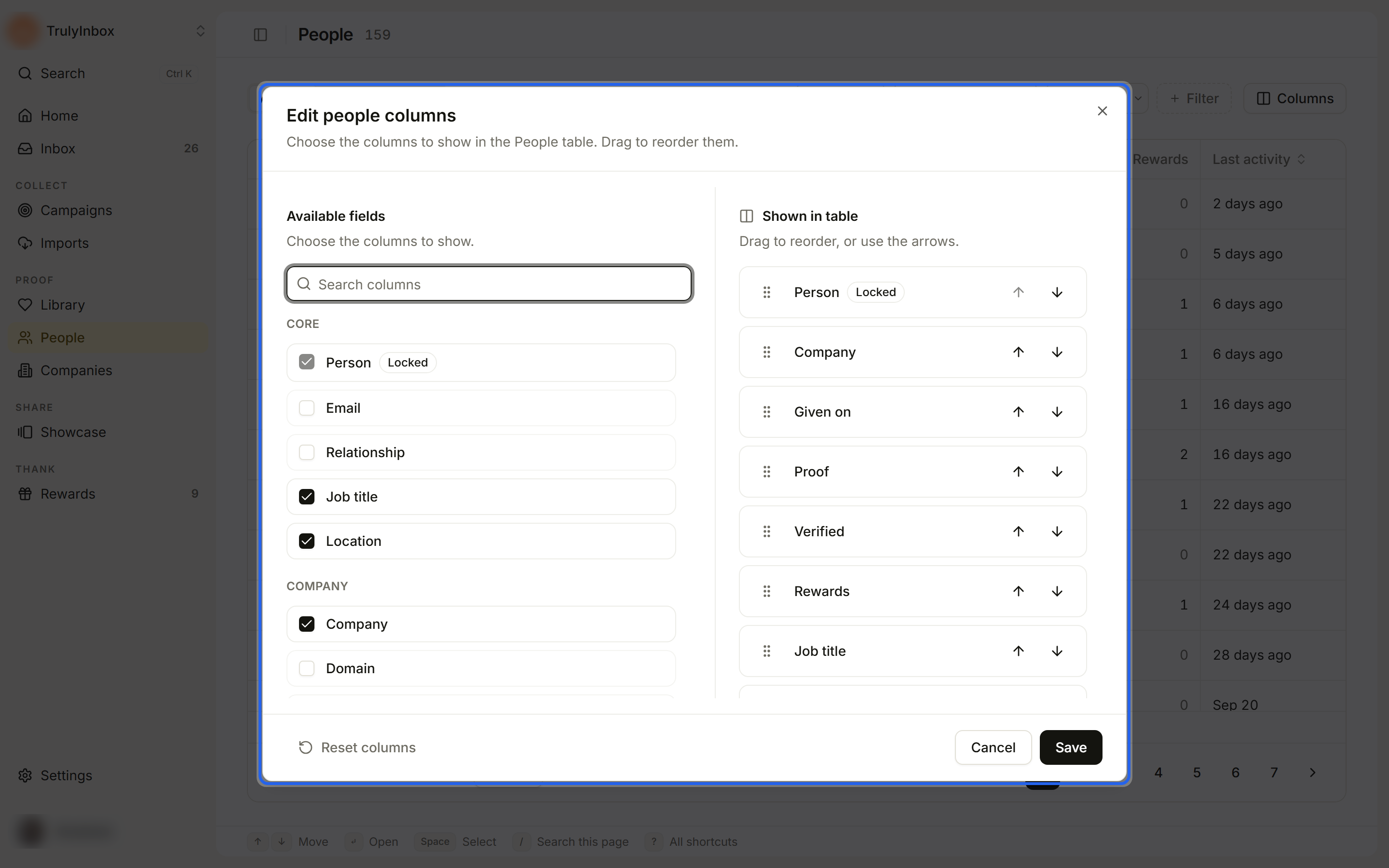
- Click Columns at the top right of the table.
- In Edit people columns (or Edit company columns), tick the columns you want under Available fields.
- Drag columns in Shown in table to reorder them, or use the arrows.
- Click Save.
Good to know:
- Columns are grouped into Core, Company, Social, Advocacy, and Custom on People, and Core, Company, and Advocacy on Companies. Custom lists your custom fields.
- Person and Company are marked Locked. They always show first.
- Use Search columns to find a column, and Reset columns to go back to the default set.
- The column layout is shared by everyone in the workspace.
- If you save columns while a saved view is open, the page switches back to All.
- When a column is empty on most rows, we hide it and show a note under the table, such as 3 empty columns hidden: Job title, Location and Tags · Show. Click Show to bring them back.
Sort
Click a column header to sort by it. Click again to reverse the order, and a third time to turn sorting off. You can sort by one column at a time.
- Counts and Last activity sort from highest or newest first. Text sorts A to Z first.
- Proof, Verified, and Rewards on People, and Verified people, People, and Proof on Companies, sort only the rows on the current page. A note under the table says so, for example Proof: sorted on this page only.
- Given on, Stage, Tags, social, and custom columns can’t be sorted.
Move between pages
Each page shows 25 rows by default. Use Per page at the bottom to show 10, 25, 50, or 100. The count next to it reads, for example, 1–25 of 159 people.
Save a view
A saved view brings back the same filters, search, sort, and page size in one click.
- Set the filters, search, and sort you want.
- Click Save view next to the tabs.
- In Save current view, enter a View name. To pick an icon and colour, click the icon button next to the name.
- Click Save view.
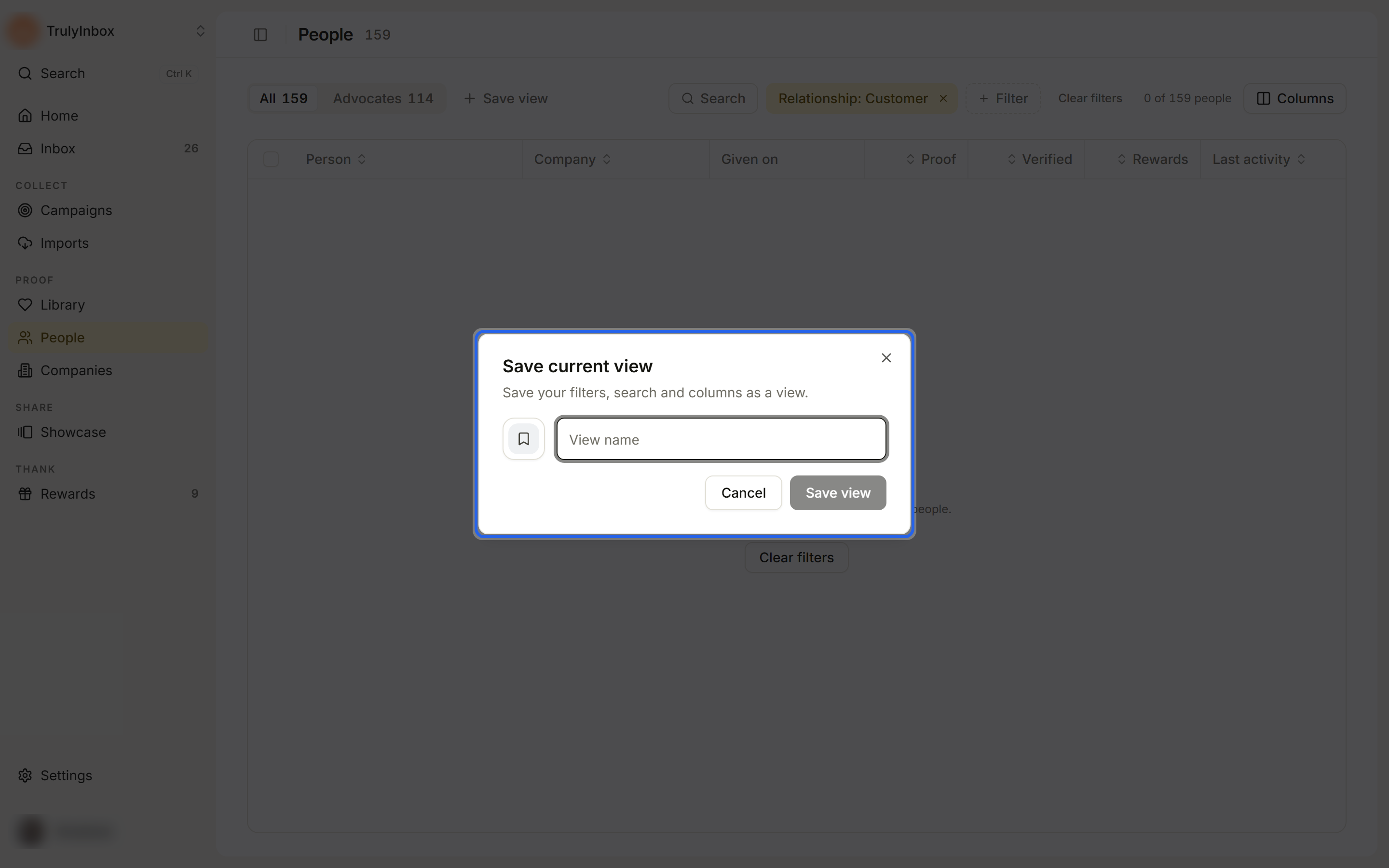
The view appears as a tab next to All (and Advocates on People). Hover a view tab to see what it filters on. Saved views are shared with your workspace, and People views and Companies views are kept separate.
To manage a view, open it and click the ⋯ button next to the tabs:
- Add to favourites pins the view to your sidebar.
- Edit “{name}” changes the name, icon, or colour.
- Delete view removes it after you confirm Delete saved view?. Your data stays.
When you have many views, the extra ones are listed under More views in the same menu.
All and Advocates are built in. You can’t edit or delete them.
Share a view with a link
The page address keeps your search, filters, sort, page, and view. Copy the URL to send a teammate the exact list you’re looking at. An open person or company also has its own address, so you can link straight to it.
Use the keyboard
/opens search.↑and↓move between rows.↵opens the row.Spaceselects the row.?shows all shortcuts.
When the list is empty
- No people or companies yet: the page explains how records get added and offers Import reviews or Create campaign.
- No people match these filters (or No companies match these filters): change the search, or click Clear filters.
Related
- Person and company drawers
- Tag, update, and export in bulk
- Find your way around: sidebar favourites and ⌘K search.