Company details and automatic enrichment
When a company or person is added, HighAdvocacy looks up public details about them, such as a company’s industry, size, and description, or a person’s job title and location. This is called enrichment. You don’t have to turn it on, and you can fill in or correct what’s missing.
What we look up for a company
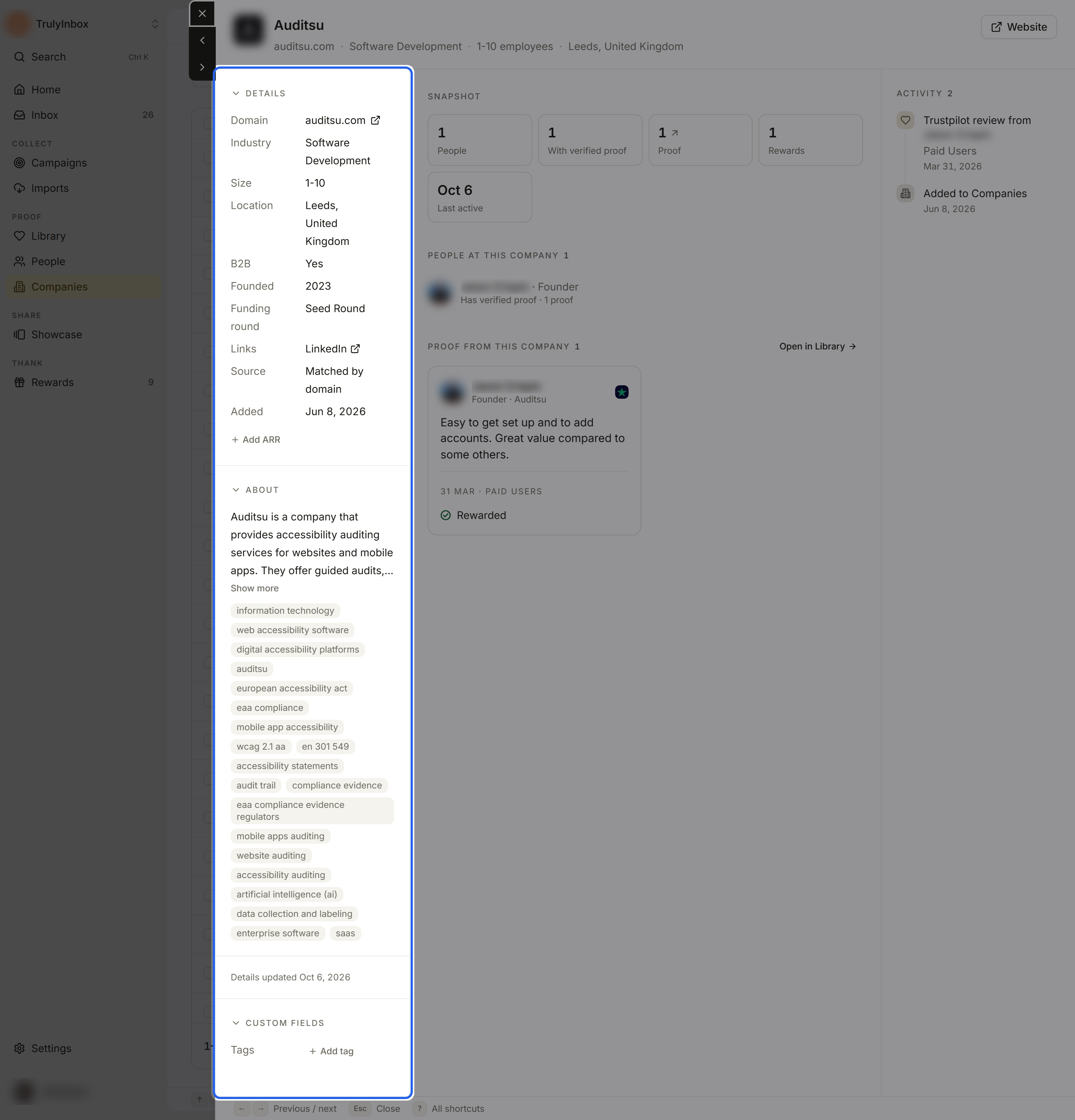
Open Companies and click a company. Found details show in the left column:
- Details: Industry, Size, Location, B2B (Yes or No), Founded, Revenue, Funding round, and Links to the company’s LinkedIn and X pages.
- About: a short description of the company, with keywords. Click Show more to read a long description in full.
- The logo, shown in the header and in lists.
Domain comes from people’s work emails and can’t be changed. Source shows how the company was added, for example Matched by domain.
Enrichment status
A line under the details tells you where the lookup stands:
| You see | Means |
|---|---|
| Looking up details… | We’re looking it up now. The record updates by itself when it’s done. |
| Details updated {date} | We found details on that date. |
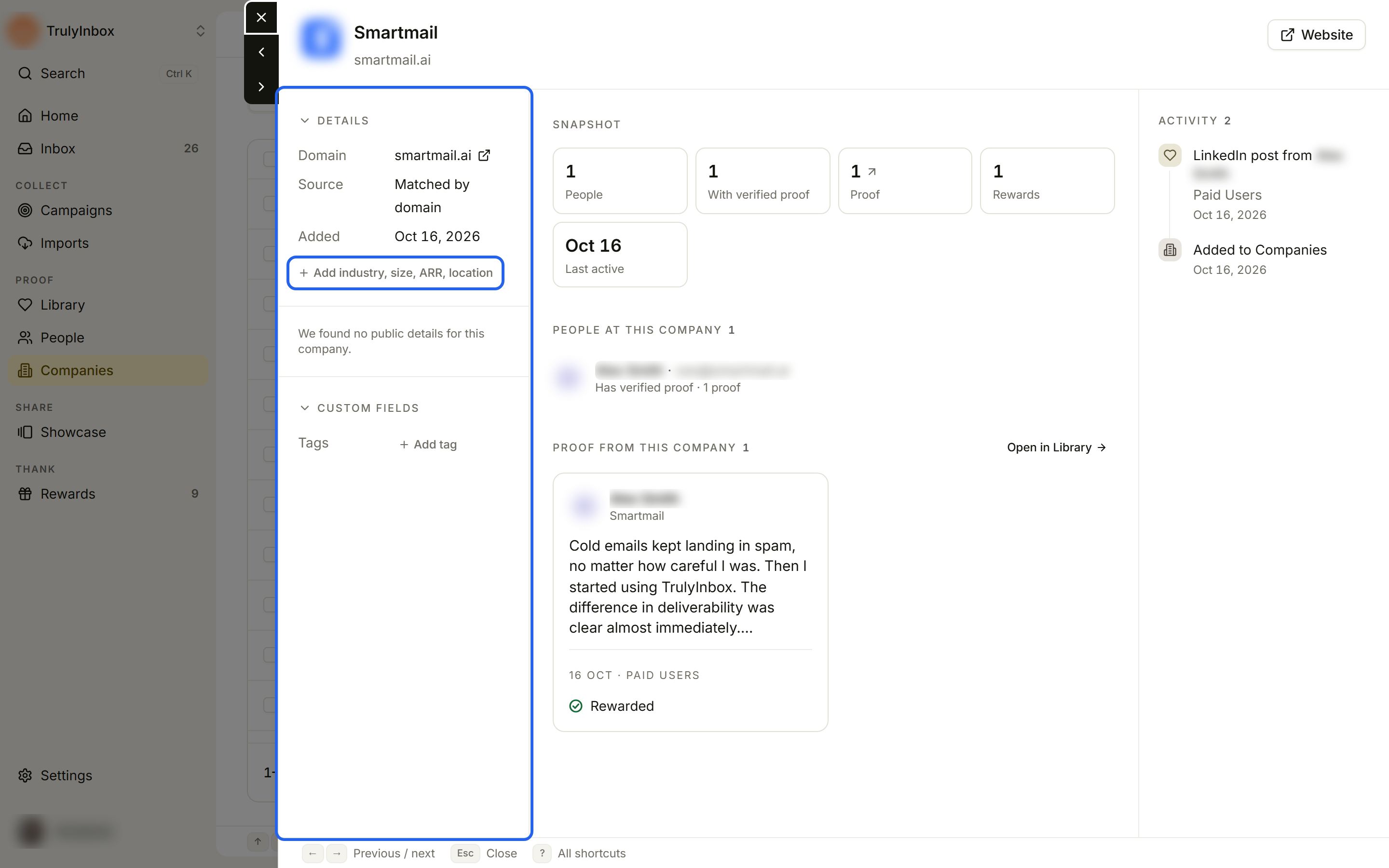
| We found no public details for this company. | Nothing public matched. Add the details yourself. |
| We couldn’t look up this company’s details. | The lookup failed. Add the details yourself. |
What we look up for a person
For people, we can fill in Title, Role (department and level, sometimes with a Decision maker label), Location, and social profiles such as LinkedIn. Under Profile you’ll see Last enriched {date}, or Looking up details… while it runs. If nothing is found for a person, no message shows.
To correct a person’s details, see Edit a person’s profile.
Edit a company’s details
Changes save as soon as you make them, and everyone in the workspace sees them.
Name
Hover the company name in the header, click the pencil, type the new name, and press Enter. Press Esc to cancel.
Logo
- Click the logo in the header.
- Paste an image link in Logo URL.
- Click Save.
Industry, Size, ARR, and Location
- Industry and Location: hover the value, click the pencil, type, and press Enter.
- Size and ARR: click the value and pick a range from the list.
| Field | Options |
|---|---|
| Size | 1-10, 11-50, 51-200, 201-500, 501-1000, 1001-5000, 5001+ |
| ARR | <$500K, $500K-$1M, $1M-$10M, $10M-$50M, $50M-$100M, $100M+ |
Empty fields are hidden. To fill them in, click Add industry, size, ARR, location (the button lists only the missing ones). Click Hide empty fields when you’re done.
Tags
Under Custom fields, click Add tag, type a Tag name, and press Enter. Click × on a tag to remove it.
What you can’t edit
- Domain, Source, and Added.
- Details we found but that have no edit control: B2B, Founded, Revenue, Funding round, Links, and About.
The Companies page filters by Industry, Size, ARR, B2B, and Funding round. Fill these in so you can find proof from companies like the prospect you’re talking to.
Related
- Person and company drawers
- Browse, filter, and save views
- Edit a person’s profile: move a person to another company.