Import testimonials from a CSV file
Use a CSV when your testimonials already live in a spreadsheet: an export from another tool, a survey, or a sheet your team keeps by hand. The import runs in four steps: Upload, Map, Select, and Confirm.
Before you start
- One CSV file, up to 5 MB.
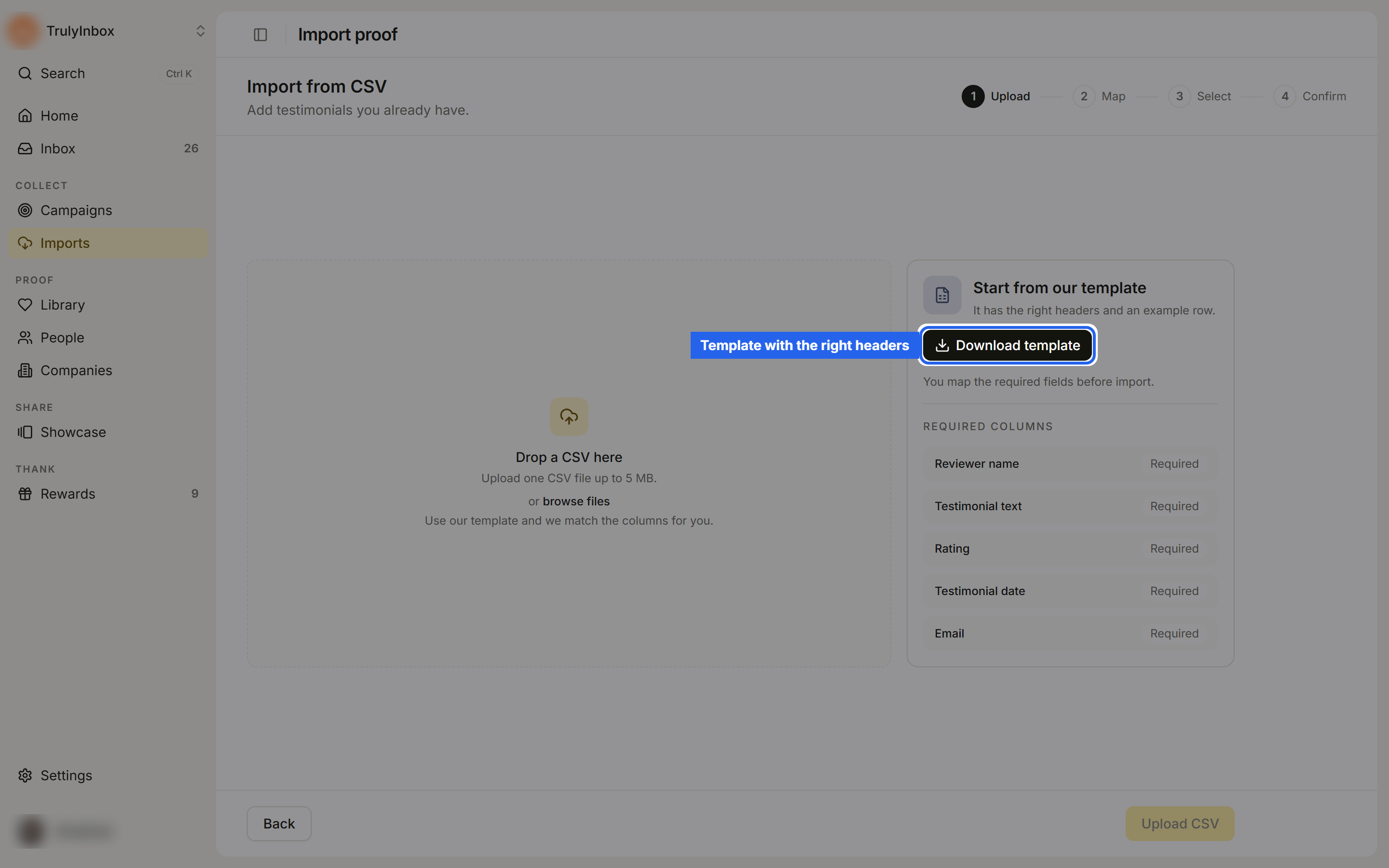
- Every row needs five fields: Reviewer name, Testimonial text, Rating, Testimonial date, and Email.
- If you’re starting from scratch, download the template first. Files that use its headers are mapped for you.
Step 1: Upload
- Open Collect › Imports.
- Under Other ways to import, click Upload CSV. The Import from CSV page opens.
- Optional: under Start from our template, click Download template. You get
testimonial-import-template.csvwith the right headers and an example row. - Drop your file on Drop a CSV here, or click browse files.
- Click Upload CSV.
Step 2: Map your columns
HighAdvocacy reads your header row and matches columns to its fields. The Map step shows each Field next to the CSV column it uses.
- Fields matched for you are labelled Auto-matched. Fields you set yourself are labelled Mapped.
- Required fields come first. The Required counter shows how many of the five are mapped, for example 4/5.
- Other fields are grouped into Proof fields, Person fields, Company fields, Person custom fields, and Company custom fields.
- To set a field, open its Choose CSV column menu and pick a column. Pick Do not import to skip it.
- The Live preview shows how a row will look.
When all required fields are mapped, click Save mapping. Until then you see “Finish the mapping before saving”.
Step 3: Select rows
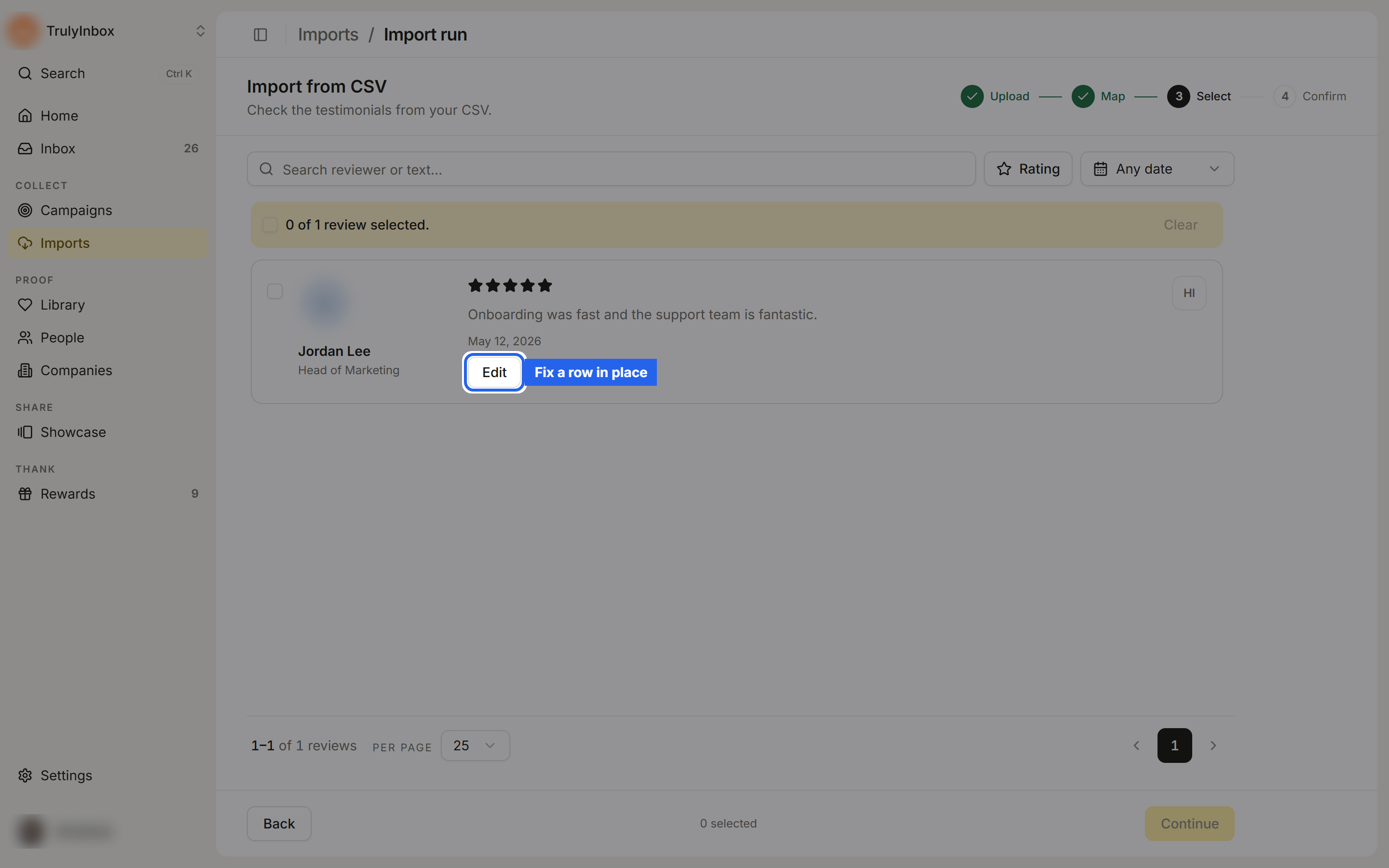
HighAdvocacy checks every row and lists the testimonials it found.
- Use Search reviewer or text…, the rating filter, or the date filter to narrow the list.
- Select the rows you want.
- To fix a row, click Edit, correct the fields, and click Save row. HighAdvocacy checks the row again when you save. Rows marked Needs input or Failed can be fixed this way.
- Click Continue.
Step 4: Confirm and import
Add tags and optional AI hooks and highlights, then click Import N. If any selected rows are rated 2 stars or lower, HighAdvocacy asks whether to include them. See Review and confirm an import.
What you can include
The template covers every importable field.
The testimonial
| Column | Required | Notes |
|---|---|---|
reviewerName | Yes | |
reviewText | Yes | The quote |
rating | Yes | 1 to 5 |
reviewDate | Yes | Date of the original testimonial, for example 2026-01-15 |
email | Yes | Used to match or create the Person |
title | No | A headline for the testimonial |
videoUrl | No | A link to a video testimonial |
sourceUrl | No | Link to the original. Also used to spot duplicates |
platformName | No | Where the testimonial came from |
platformDomain | No | The platform’s domain |
The person
| Column | Notes |
|---|---|
jobTitle | |
avatarUrl | Profile picture |
phone | |
location | |
externalUserId | Your own ID for this person |
relationshipTypes | |
tags | |
linkedinUrl, xUrl, facebookUrl, redditUrl, youtubeUrl, instagramUrl, tiktokUrl | One column per social profile |
The company
| Column | Notes |
|---|---|
companyName | |
companyDomain | Used to match or create the Company |
companyLogoUrl | |
companyIndustry | |
companySizeTier | |
companyArrTier | |
companyLocation | |
companyRelationshipTypes | |
companyTags |
You can also map columns to your workspace’s custom fields for people and companies.
Troubleshooting
“Finish the mapping before saving” One of the five required fields has no column. Map one, or add the column to your file and upload it again.
Some rows show Needs input or Failed. Usually a rating outside 1 to 5, a date that can’t be read, or an invalid email. Click Edit on the row to fix it, or leave it unselected.
My file is larger than 5 MB.
Split it into several files and import them one after another. Rows with the same sourceUrl are spotted as duplicates.
Rows imported without a Company.
Map companyName or companyDomain. Without them, the testimonial has nothing to attach a Company to.