Inbox
The Inbox is where every submission from your campaigns lands: reviews, social posts, engagement proof, and video or written testimonials. The AI check scores each one, you approve or reject it, and the reward goes out.
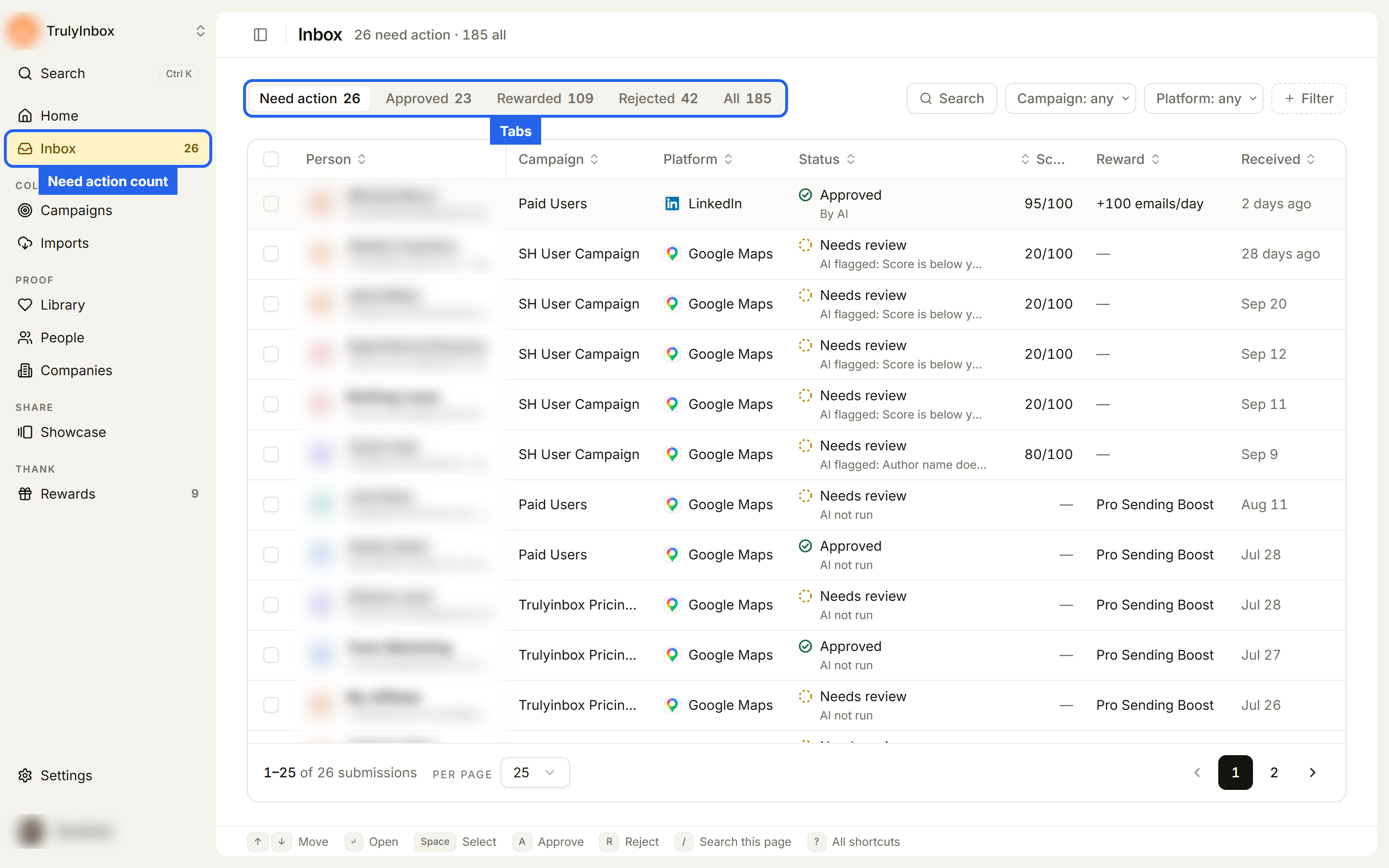
Open it from Inbox in the sidebar. The number next to it is how many submissions need your action. The page header shows the same count next to the total, for example “26 need action · 185 all”.
Open a submission, read the status and AI check, then approve or reject it.
Review and approve submissionsApprove, reject, or re-run the AI check on many submissions, and work from the keyboard.
Bulk actions and shortcutsSend a reward that is waiting for approval, or mark a manual reward as sent.
Send rewards after you approveWhat the AI checks, how the score out of 100 is built, and why some submissions still come to you.
How AI verification worksTurn the AI check on or off, per workspace and per campaign, and choose how rewards are released.
Set up AI verificationMissing submissions, rewards that have not gone out, and verdicts that look wrong.
Troubleshooting AI verificationThe tabs
Submissions are grouped into tabs by where they are. Each tab shows its count.
| Tab | What is in it |
|---|---|
| Need action | Submissions waiting for your decision, plus approved submissions whose reward still needs you (a reward waiting for approval, or a manual reward to mark as sent). This is your work queue. |
| Checking | Submissions the AI is still checking: waiting to start, running, or waiting for the review page to go live. |
| Approved | Approved by the AI or by your team, reward not sent yet. |
| Rewarded | Approved, and the reward is sent. Nothing left to do. |
| Rejected | Rejected by the AI or by your team. |
| All | Every submission. |
Checking, Approved, Rewarded, and Rejected are hidden while they are empty. A submission the AI is still checking is not in Need action yet. You can still open it from Checking and decide early.
Find a submission
The filter row sits below the tabs:
- Search: search submissions by email. Press / to open it from the keyboard.
- Campaign and Platform: pick one or more.
- + Filter: add a Source filter (Widget or Webpage).
- Clear filters: appears once a filter is on.
Click any column header to sort by it.
When the Inbox is empty
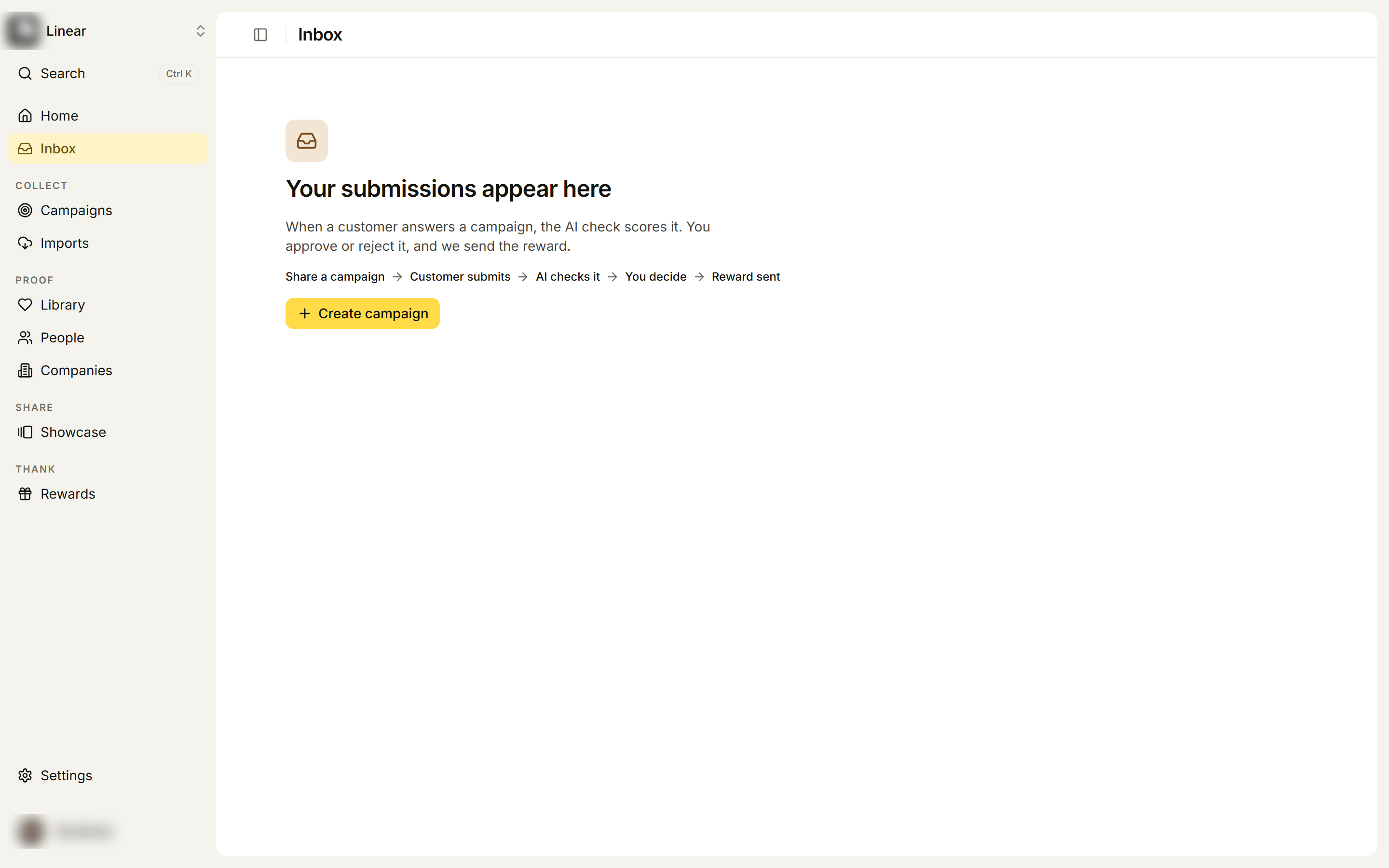
- Your submissions appear here: you have not received a submission yet. Use Create campaign to start collecting.
- Nothing needs a decision.: you are caught up. Use View all submissions to see everything.
- Nothing needs a decision yet.: new submissions are still in the AI check. Use View N being checked to open the Checking tab.
- No submissions match these filters: use Clear filters.
Who can review
Owners, Admins, and Members can approve and reject submissions. See Roles and permissions.