Share your campaign link or install the widget
Every campaign reaches customers through two channels:
- Webpage: a hosted page you share by email, chat or in your app.
- Widget: shows inside your product, for signed-in customers.
Both channels show the same asks and rewards, and every submission lands in the same Inbox. New campaigns start with both channels on.
Before you start
- The campaign must be live. The Share tab in the builder stays locked (“Opens after you go live”) until you launch. See Create a campaign.
- You need the Owner or Admin role to change channels. Anyone who can open the campaign can copy the link and the widget code.
Open the Share tab
- Go to Campaigns and open the campaign.
- Click Edit, then the Share tab (step 4).
Right after you go live, the builder opens this tab for you with “Your campaign is live.”
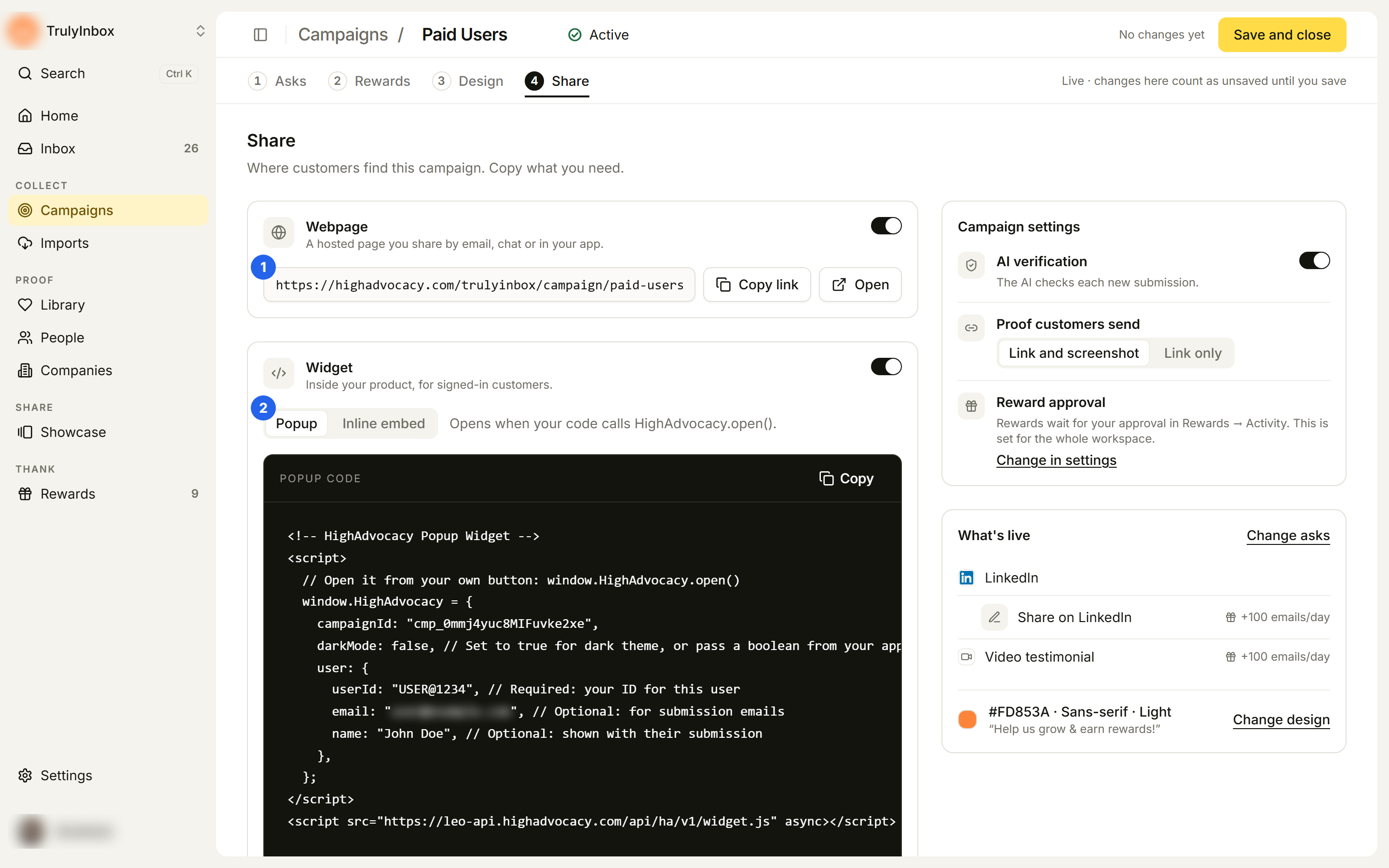
The tab has the Webpage panel (1), the Widget panel (2), Campaign settings, and What’s live, a summary of the asks, rewards and design customers see now. Use Change asks or Change design to jump back to those tabs.
Share the hosted page
- In the Webpage panel, click Copy link (or Open to view the page in a new tab).
- Paste the link wherever your customers are: an email, a chat message, your help center or an in-app message.
The link looks like https://highadvocacy.com/{workspace}/campaign/{campaign-name}. It follows the campaign name, so renaming the campaign changes the link. Links you already shared keep working.
If you’ve connected your own domain, the link uses it instead, like https://proof.yourcompany.com/campaign/{campaign-name}. Use Link domain in the Webpage panel to pick which domain this campaign uses. See Use your own domain.
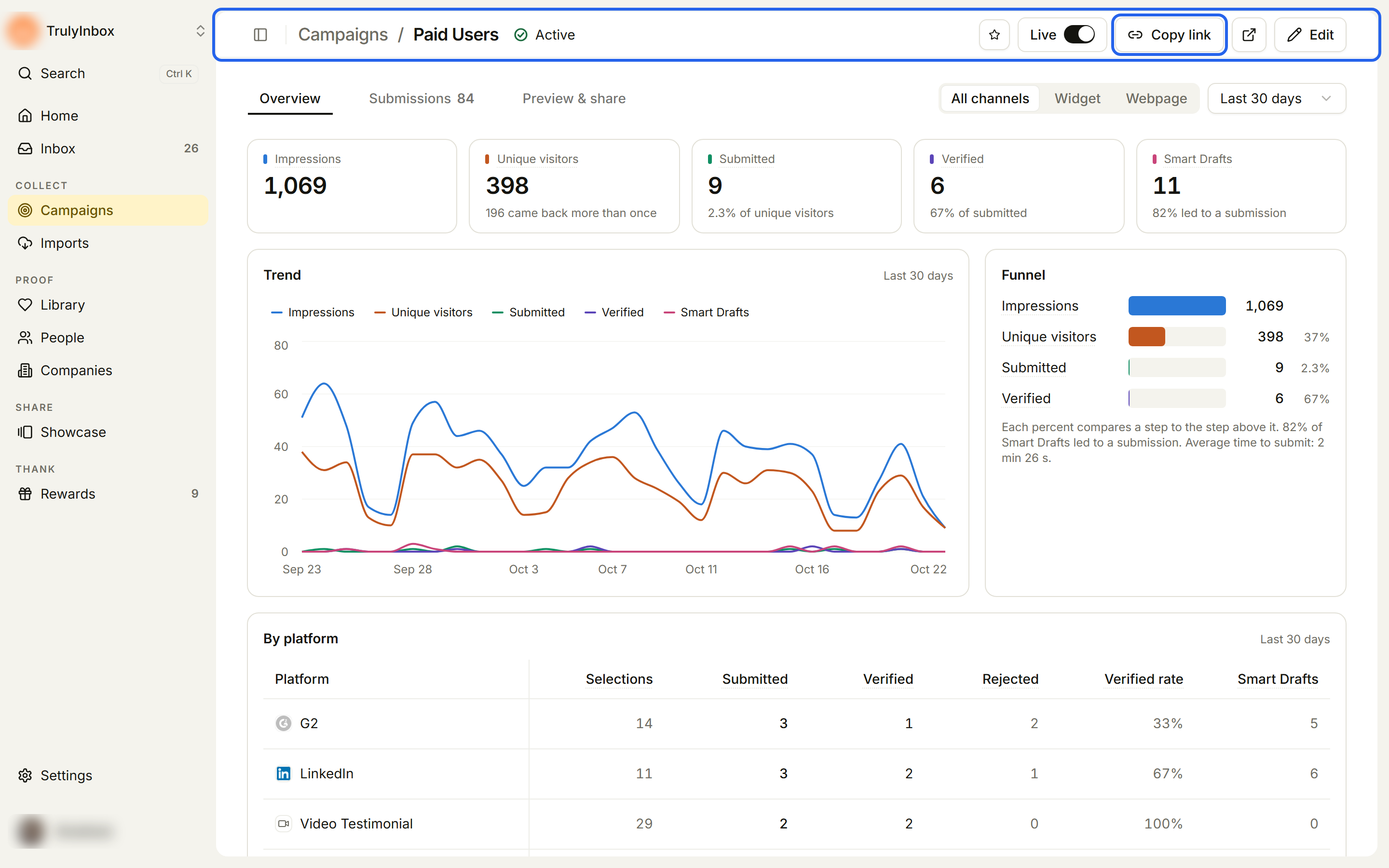
You can also copy the link without opening the builder. On the campaign page header, click Copy link. The open-page icon next to it opens the hosted page. It is disabled with “The page opens when the campaign is active” while the campaign is not live.
Prefill a customer’s name and email
When you send the link to one person, add their details to the end of it:
https://highadvocacy.com/{workspace}/campaign/{campaign-name}?name=Jane%20Doe&email=jane@acme.comThe task screen then shows “Submitting as” with their name and email instead of empty fields. They can click Not you? to change it. Without these details, customers type Your name and Work email themselves.
Install the widget
- In the Widget panel, choose how it opens:
- Popup: “Opens when your code calls HighAdvocacy.open().” Call it from your own button.
- Inline embed: “Shows inside a box on your page, at least 320px wide.” Use it on a review page or in a sidebar.
- Click Copy on the code block (Popup code or Embed code).
- Paste the code before the closing
</body>tag of the page. - Replace the sample values in
userwith the signed-in user’s details:
| Field | Required | What it does |
|---|---|---|
userId | Required | Your ID for this user. It allows one submission per platform per person and links rewards to your users. |
email | Optional | We use it to email them about their submission. |
name | Optional | Shown with their submission. |
- Set
darkModetotruefor the dark theme, or pass a boolean from your app.
If your site has a strict Content Security Policy, allow images from https://www.google.com and https://*.gstatic.com.
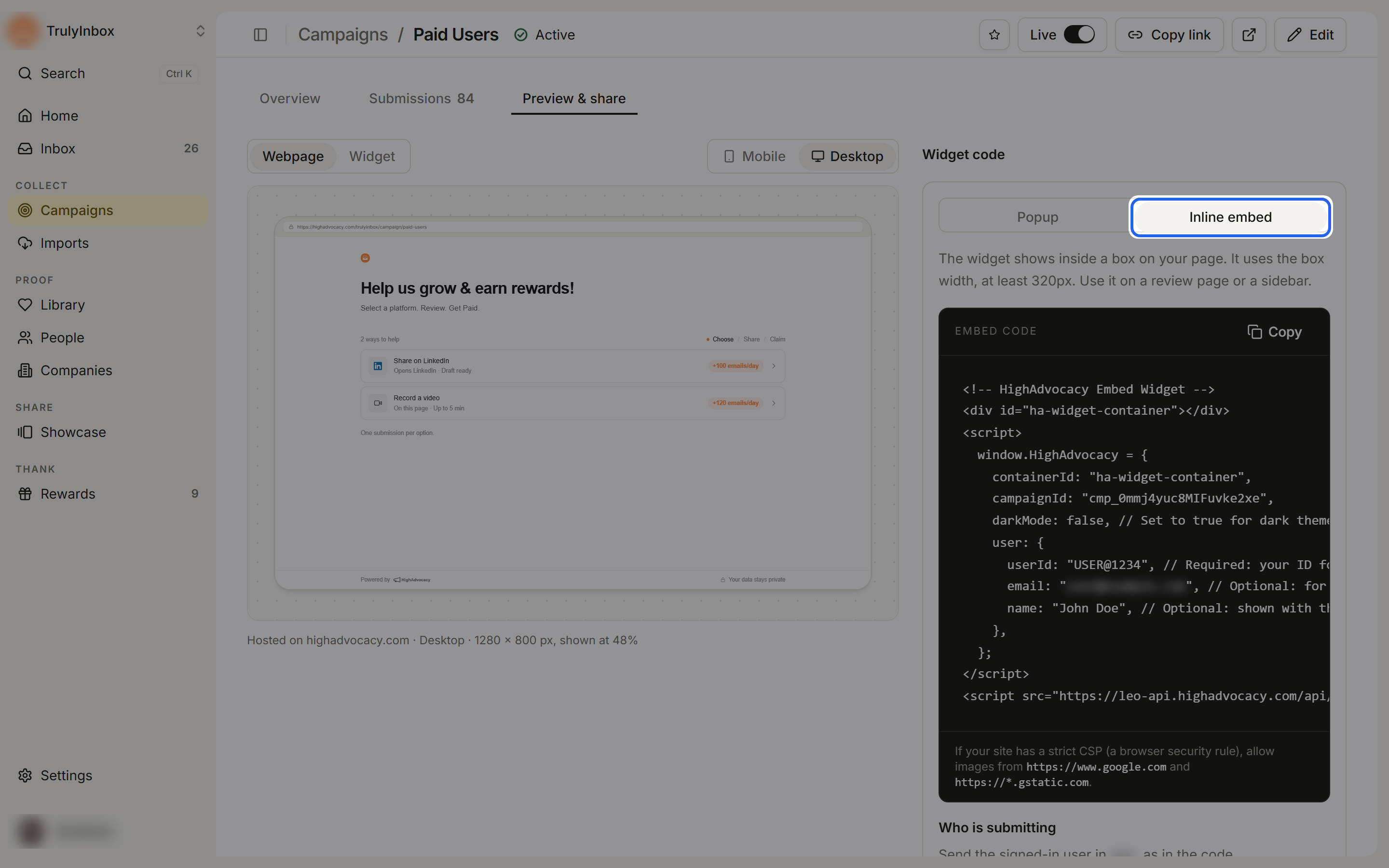
You can also get the widget code from the campaign page: open the campaign, click Preview & share, and use the Widget code panel. It has the same Popup / Inline embed choice and the “Who is submitting” field list.
Turn a channel on or off
- In the builder Share tab, use the switch on the Webpage or Widget panel.
- Click Save and close. On a live campaign, changes in this tab count as unsaved until you save.
Rules:
- One channel always stays on. You cannot turn off the second channel while the other is off.
- When the webpage is off, the panel reads “Off. Customers can’t open the page. Turn it on to share the link.” Customers who open the link can see the options, but picking one shows “This page isn’t accepting responses right now.”
- When the widget is off, the panel reads “Off. Turn it on to get its install code.”
- To stop the whole campaign for a while, pause it with the Live switch instead. See Manage campaigns.
Which channel should I use?
- Webpage: works anywhere you can paste a link, with no code. Good for email asks, customer success follow-ups and one-to-one requests.
- Widget: meets customers inside your product while they are signed in, and links each submission to your own user ID. Good for asking at the right moment in the product.
- Both: keep both on to reach customers in email and in your product. To compare them, use the channel filter on the campaign’s Overview. See Read your campaign results.