Launch your first campaign
If you picked a campaign during onboarding, we already set it up from your website, with its asks, copy and brand filled in. Follow these steps to take it live and get your first submission. If you skipped it, the same steps work for a new campaign.
Before you start
- You need to be an Owner or Admin to edit a campaign or put it live.
- Decide where customers will find it: a webpage link you send by email or chat, a widget inside your product, or both.
1. Open your campaign
- From onboarding: click Edit campaign on the campaign screen. Later, find it under Campaigns. If it’s still a draft, Home shows it under Needs you with Finish draft.
- Starting fresh: go to Campaigns and click New campaign.
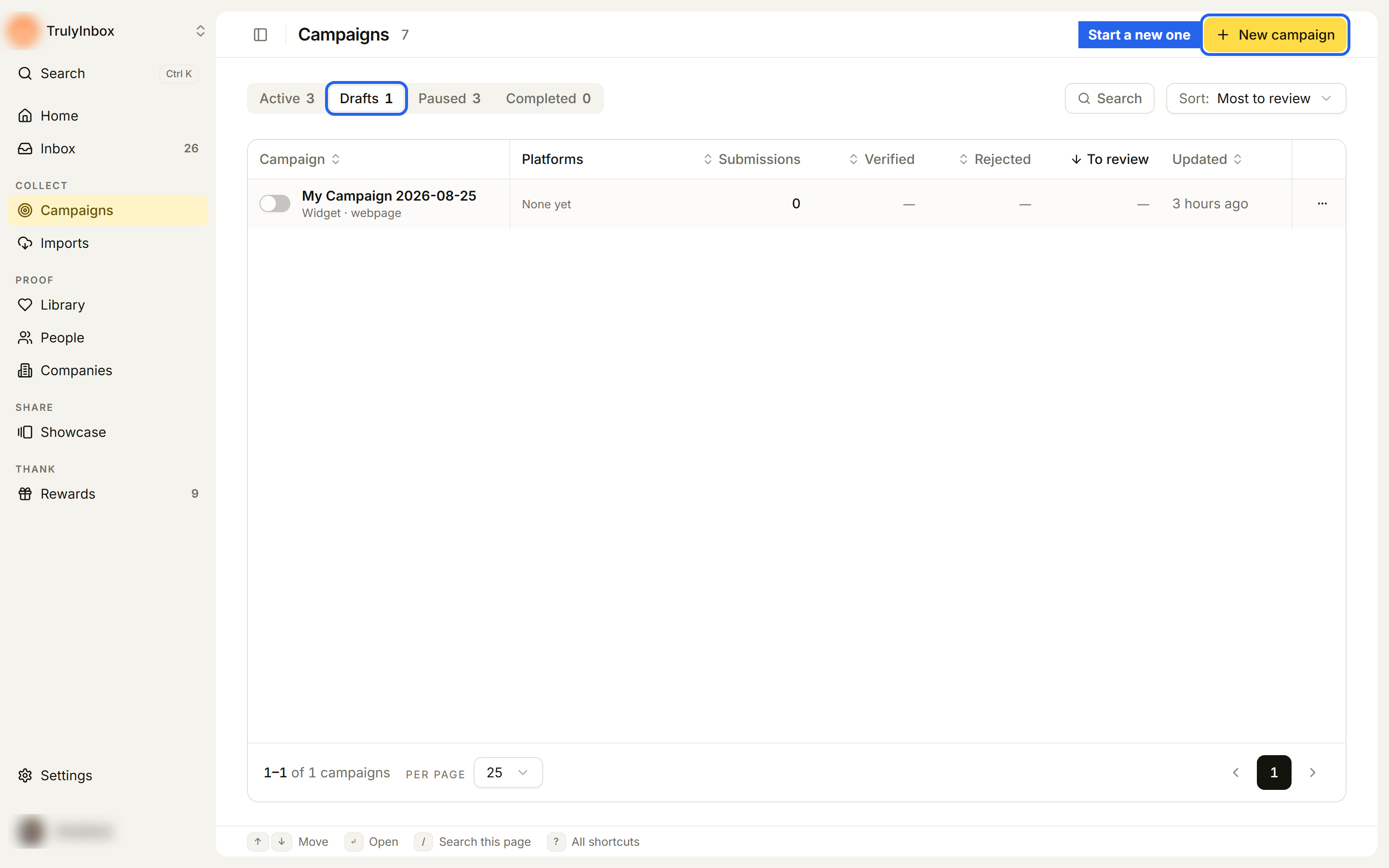
Campaigns open in a builder with four steps: Asks, Rewards, Design and Share. Drafts save as you go.
2. Check the asks
On Asks, tick what you want customers to do. Asks are grouped as Review sites, Social and Testimonials. Click a picked row to edit its details, for example the link to your review profile. Click Next: Rewards.
See Create a campaign for each kind of ask.
3. Check the rewards
On Rewards, choose what each ask earns, or leave an ask without a reward. If you don’t have a reward yet, see Rewards. Click Next: Design.
4. Check the design and go live
On Design, check your brand and the words customers read first: the Headline and Subtext for the webpage and the widget. The preview on the right updates as you type. Switch between Webpage and Widget to see each one.
When you’re ready, click Go live at the bottom.
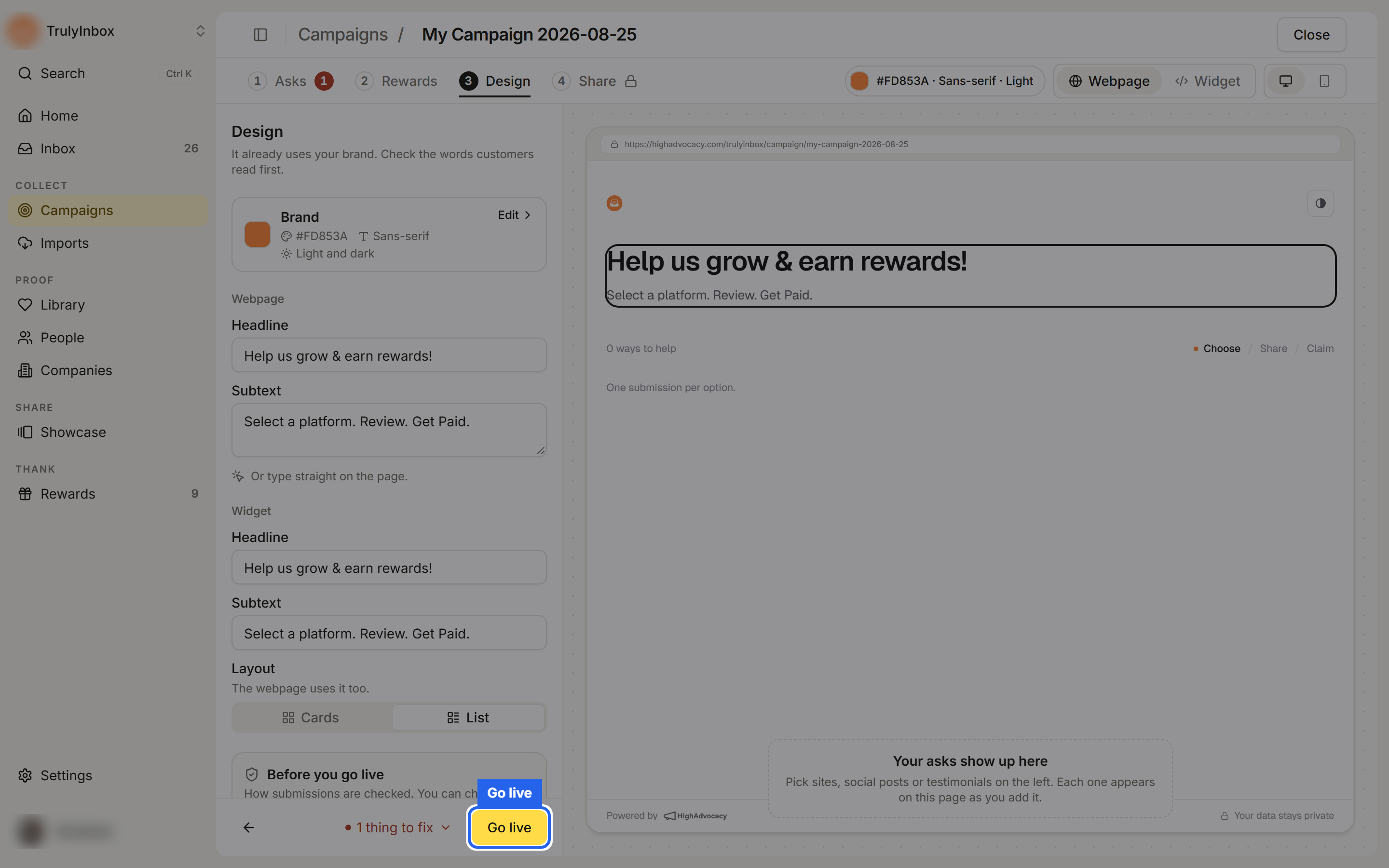
If something is missing, Go live lists it as “Before you go live, fix N things”. The checks are:
- Every ask has its reward.
- Every headline is filled in.
- The webpage or widget is on.
Fix each one, then click Go live again.
5. Share it
After you go live, the builder opens Share and says “Your campaign is live.”
- Webpage: click Copy link and send it to customers, or Open to see the page.
- Widget: turn it on, choose Popup or Inline embed, and paste the install code into your product before the closing body tag.
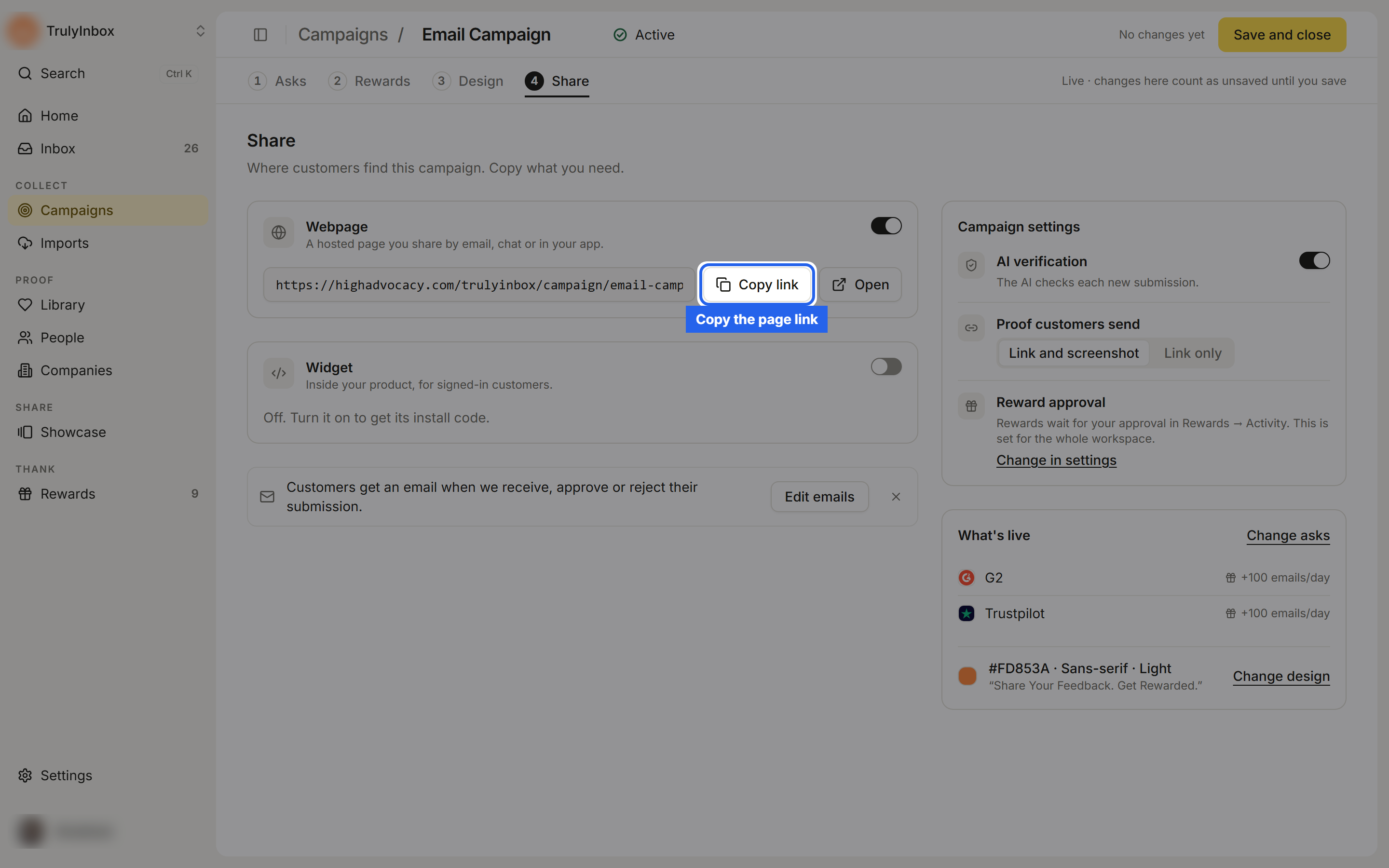
To test, open the webpage link in a private window and go through it yourself.
Customers get an email when we receive, approve or reject their submission. To change those emails, click Edit emails. See End-user notifications.
For more on links and the widget code, see Share your campaign.
6. Watch for the first submission
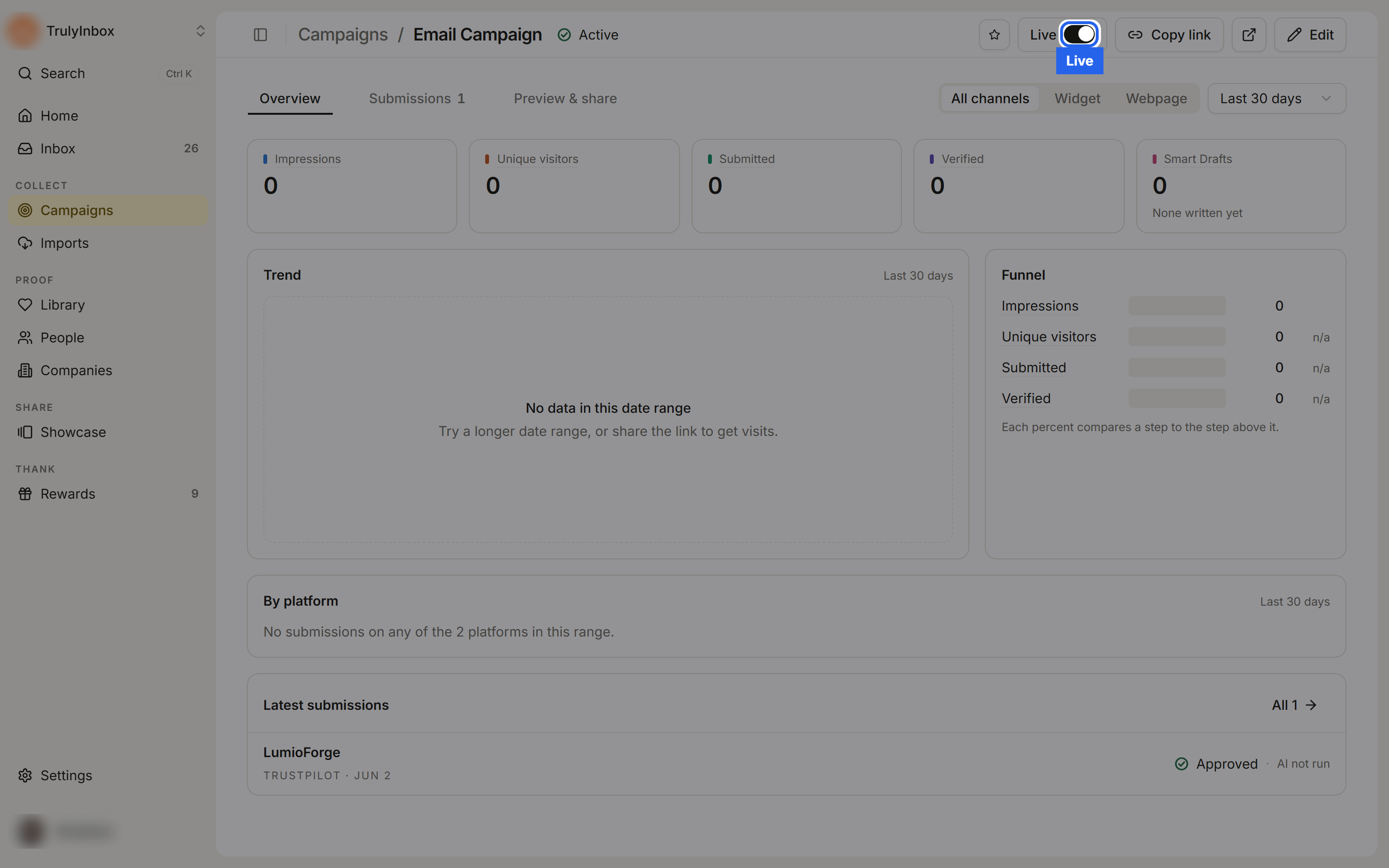
Submissions land in your Inbox, and Home shows them under Needs you. Approve one to add it to your Library. If the ask has a reward, it is sent or waits for your approval, depending on your reward settings.
Your campaign’s page shows its numbers, plus a Live switch to pause it and Copy link to grab the link again.
Troubleshooting
- Go live does nothing, or shows things to fix. Open the list next to the button and fix each item.
- I can’t see the Share step. Share opens once the campaign is live.
- The page link is missing. Make sure the campaign is live and Webpage is turned on in Share.
- I can’t edit the campaign. Members can’t edit campaigns. Ask an Owner or Admin.