Pause, edit, duplicate or delete a campaign
The Campaigns page lists every campaign in your workspace. From here you pause and resume campaigns, open them, and duplicate or delete them. This page also covers editing a campaign that is already live.
Before you start
Owners and Admins can pause, edit, duplicate and delete campaigns. Members can view campaigns and their results, but they don’t see the Live switch or the … menu.
Find a campaign
Go to Campaigns in the sidebar.
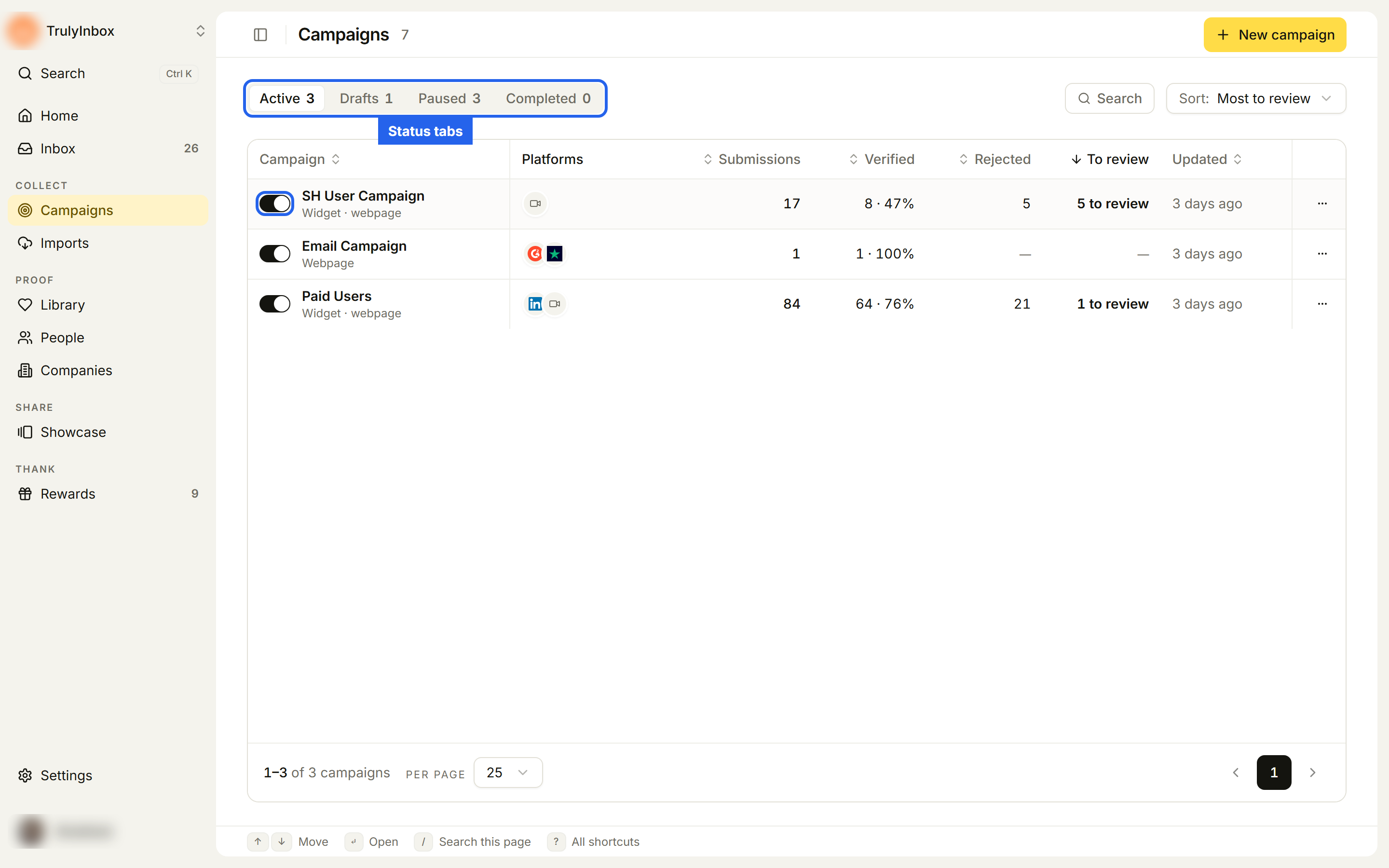
- Status tabs: Active, Drafts, Paused and Completed, each with a count.
- Search finds campaigns by name. Sort opens on Most to review, so the campaigns waiting on you come first. You can also sort by Recently updated, Most submissions, Most verified, Newest first or Name, A to Z, or click a column header.
- Each row shows:
- Campaign: the Live switch, the name, and which channels are on (for example “Widget · webpage”).
- Platforms: icons for the asks that are on.
- Submissions, Verified (count and share of submissions, for example “64 · 76%”) and Rejected.
- To review: for example “5 to review”. Click it to open the Inbox filtered to this campaign.
- Updated and Created.
Click a row to open the campaign page. Drafts open in the builder instead, so you can finish them.
Pause or resume a campaign
Use the Live switch on the campaign’s row, or the Live switch in the campaign page header.
- Turn it off to pause. You’ll see ”“{name}” is paused” and the campaign moves to Paused.
- Turn it on to resume. You’ll see ”“{name}” is live”.
While a campaign is paused, customers who open the link can still see its options, but picking one shows “This page isn’t accepting responses right now.” Pausing doesn’t change any submissions you already have.
The switch can’t be used on:
- Drafts: “Finish setup to make this campaign live”. Finish the builder and click Go live. See Create a campaign.
- Completed campaigns: “This campaign has ended”.
Edit a live campaign
- Open the campaign and click Edit, or click … on its row and choose Edit.
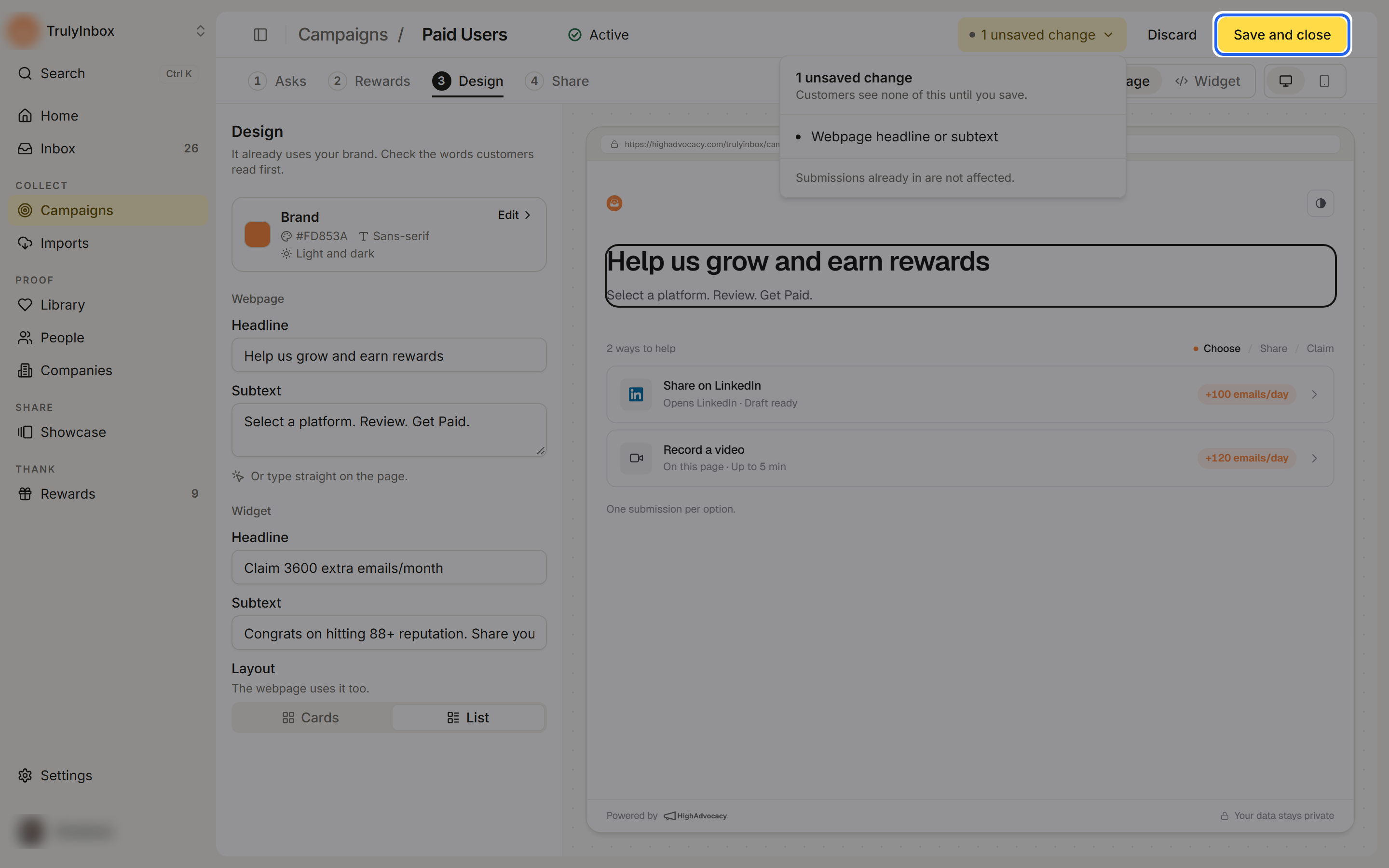
- Change what you need on the Asks, Rewards, Design or Share tab. To rename the campaign, click its name at the top and type.
- Click Save and close. To save and keep editing, press Ctrl+S.
Until you save, customers see the last saved version. The header shows how many changes are waiting, for example “1 unsaved change”. Click it to see the list. To throw the changes away, click Discard.
What happens after you save:
- A message such as “2 changes saved” appears with Undo. Undo puts the earlier version back live.
- Submissions you already have keep the reward they had. New submissions get the new reward.
- If you renamed the campaign, the hosted page link changes to match the new name. Links you already shared keep working.
If you try to leave with unsaved changes, you’ll see “Save your changes before you leave?” with Stay, Discard and leave and Save and leave.
If something is missing, for example an ask without a reward or an empty headline, saving is blocked and you see “Fix N things first. Nothing was saved.” Click a line in the list to jump to it.
Duplicate a campaign
- On the Campaigns page, click … on the campaign’s row.
- Click Duplicate.
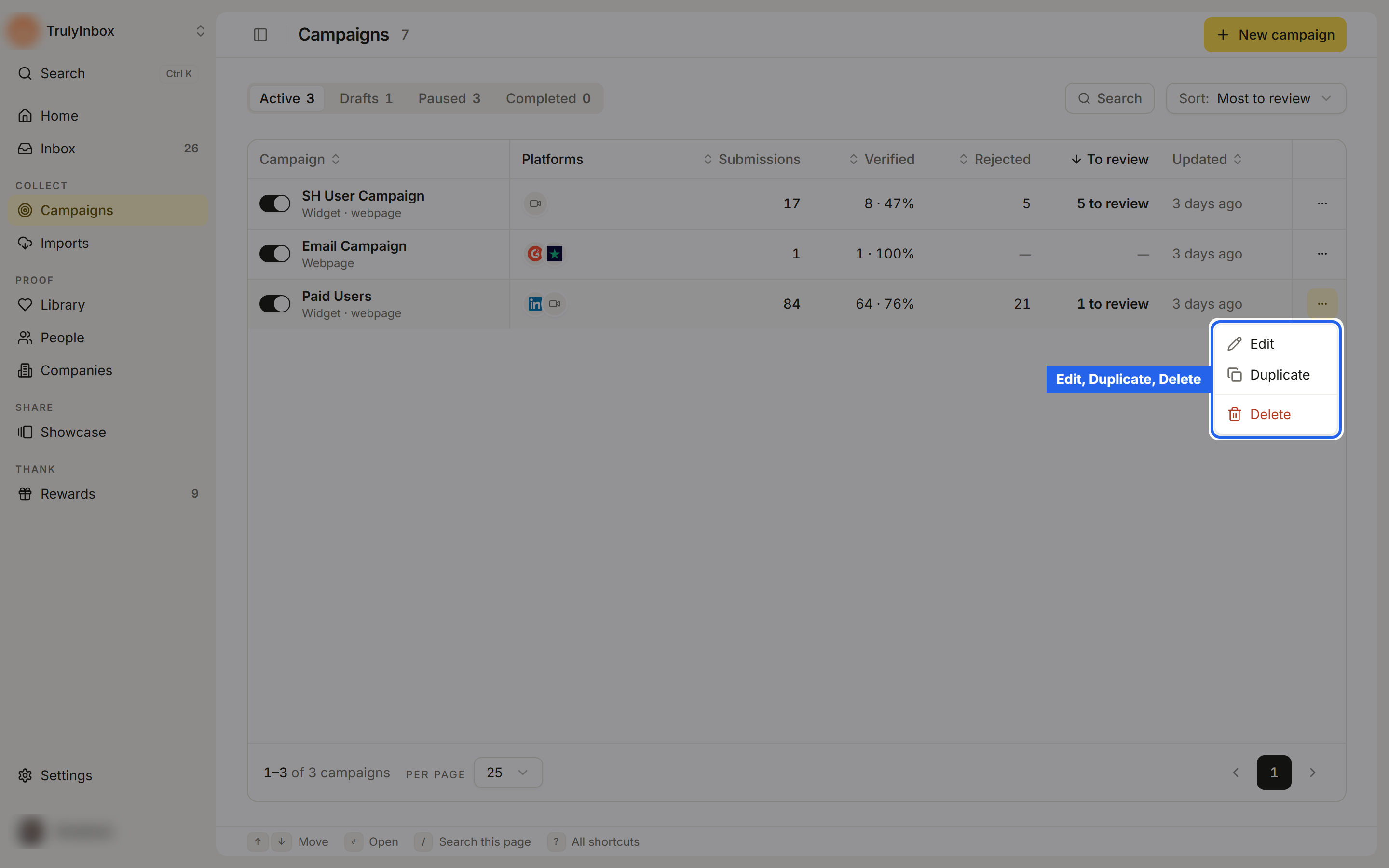
A copy named “{name} (Copy)” appears in your campaigns with the message “Campaign duplicated”. It copies the asks, their rewards, the colors, font and widget copy. Open the copy and check the Design and Share tabs before you launch it: the Logo URL, the webpage Headline and Subtext, the channel switches and the campaign settings are not carried over.
Delete a campaign
- On the Campaigns page, click … on the campaign’s row.
- Click Delete.
- In “Delete this campaign?”, click Delete campaign.
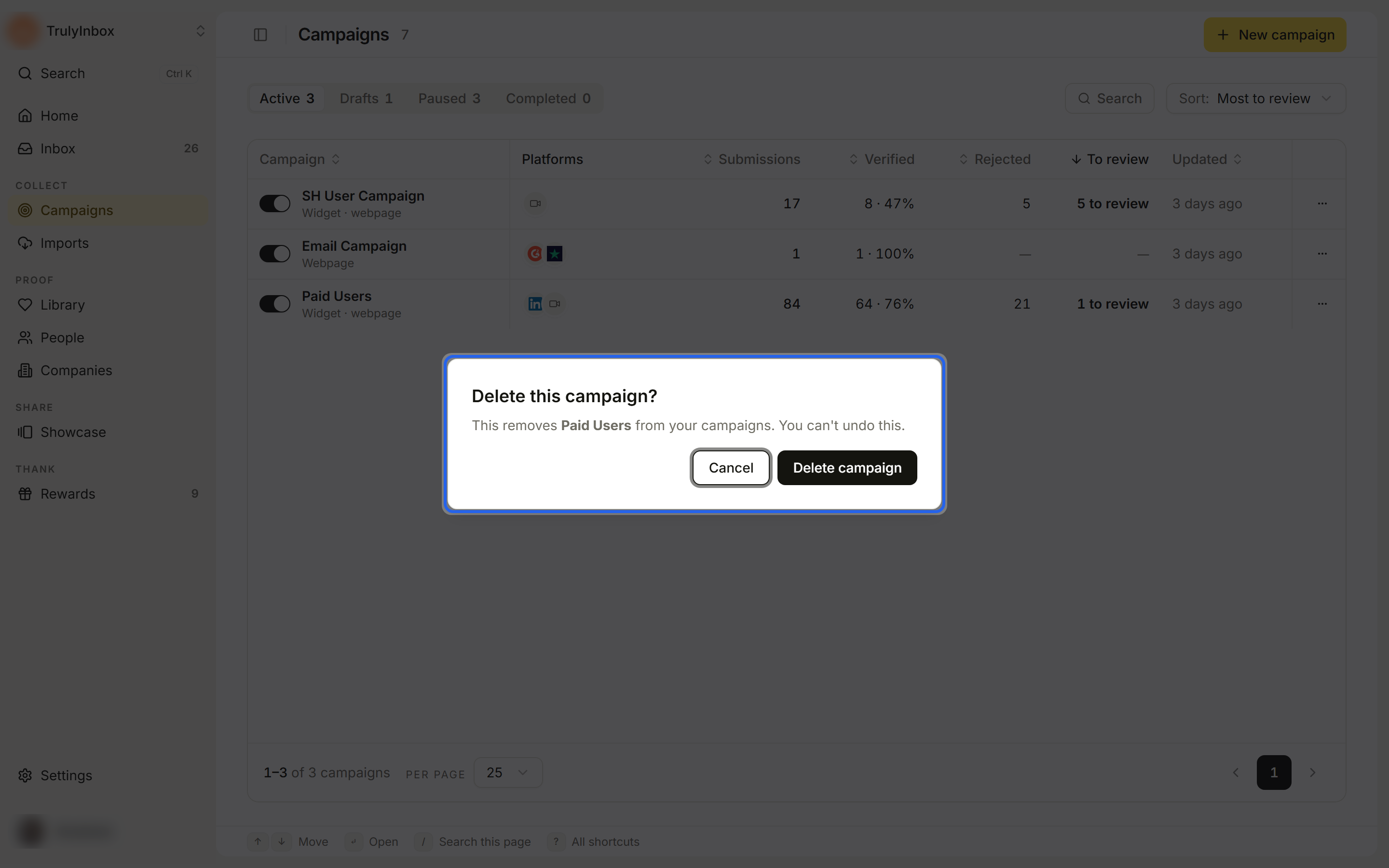
The campaign is removed from your campaigns, and its link stops working. You can’t undo this. If you might want it again, pause it instead.