Send rewards automatically with a reward connection
Audience: Marketers, admins, and the developer who owns your reward endpoint
A reward connection is a URL on your side (your own server, or a tool such as a gift card platform) where HighAdvocacy sends a reward the moment it is issued. Your endpoint then adds the credits, sends the gift card, or starts the order.
You only need a connection for rewards that send automatically. Rewards set to Manual by team don’t need one.
One connection can serve many rewards, so when the URL changes you update it in one place.
Before you start
- A URL that is reachable from the public internet and starts with
https://. - Any login header your server needs, for example an API key.
- Optional: your workspace signing secret from Settings → Security, so your server can check each request came from HighAdvocacy. See Delivery payload reference.
Add a reward connection
- Open Rewards in the sidebar, then the Delivery tab.
- Click Add connection (or Add reward connection if you already have one).
- Under Connection, enter a Connection name your team will recognize, and the Connection URL. Click the icon beside the name to pick an icon and color.
- Under Custom headers, add any login header your server needs. Click Add another for more rows.
- Click Test connection. We send a test to the URL and show the result.
- Click Create connection.
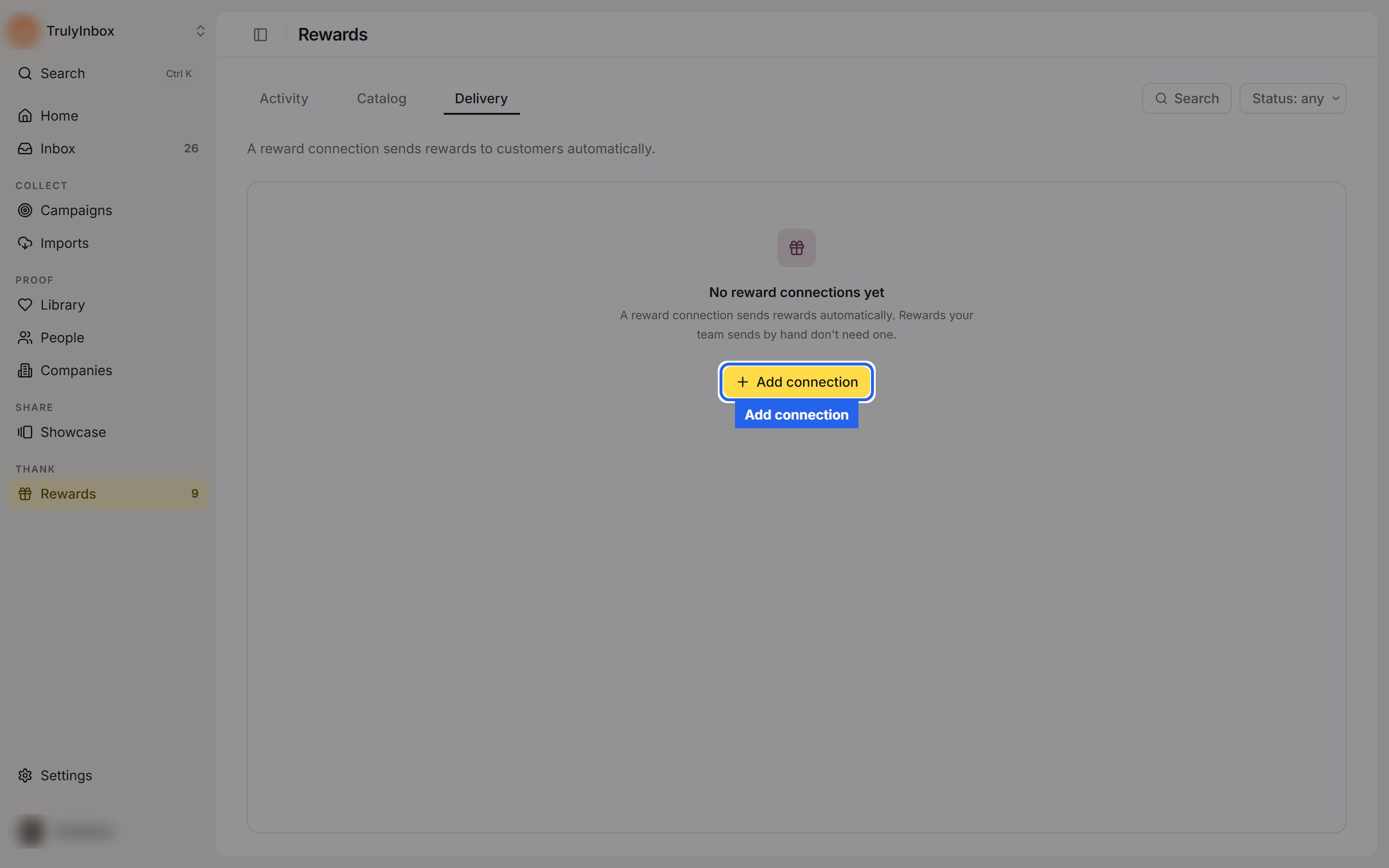
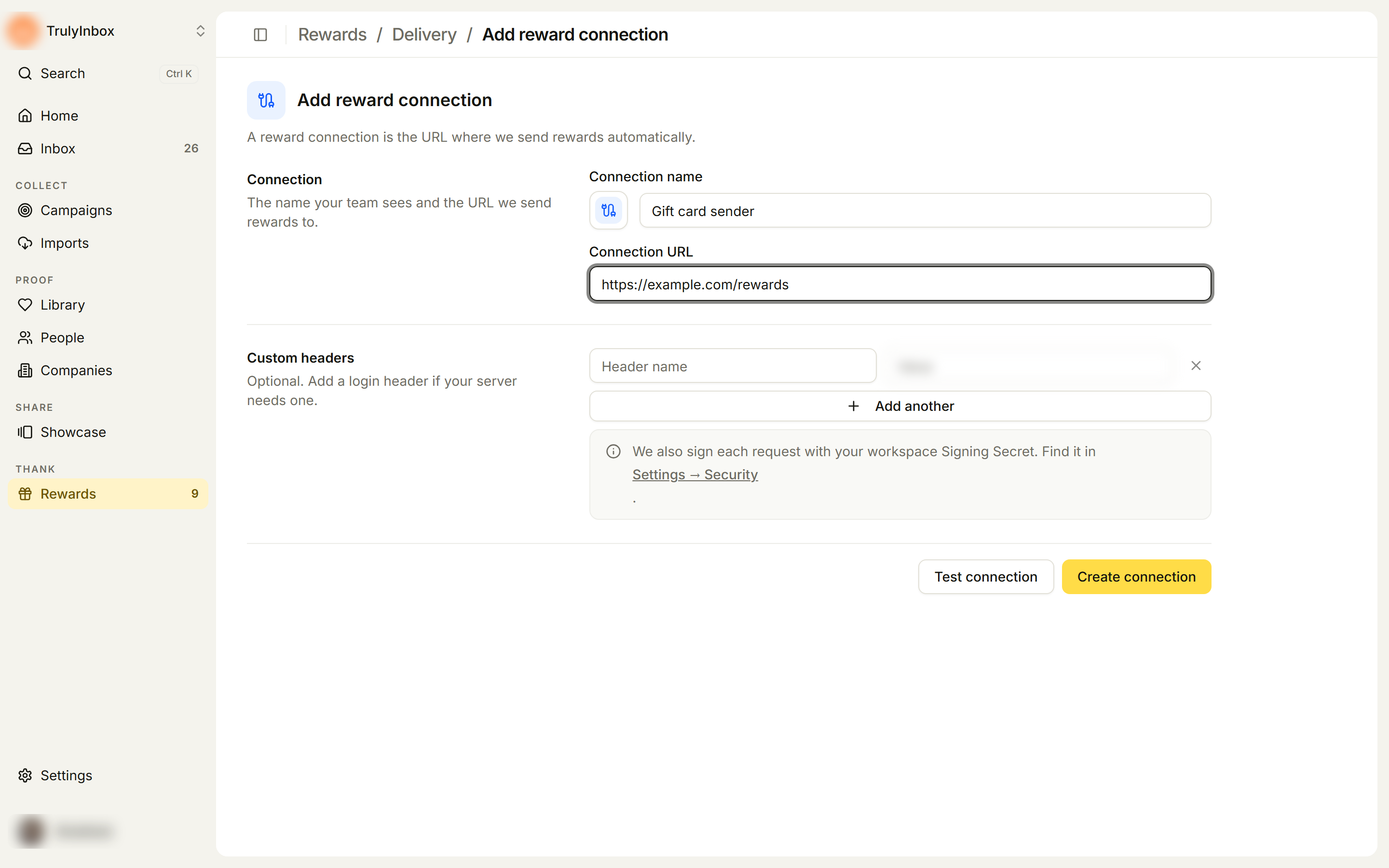
You can also add a connection while creating a reward: under Delivery, choose Reward connection, then + Create new reward connection. See Reward catalog.
Test results
| Message | What it means |
|---|---|
| Test passed. Your server answered (200) | Your server accepted the test. The number is the status code it returned. |
| Test failed. Check the URL and try again. (or the error your server returned) | The test did not succeed. |
| We couldn’t reach this URL. Check it and try again. | The URL could not be reached at all. |
Use the connection on a reward
Open a reward in the Catalog tab. Under Delivery, choose Reward connection, pick your connection from Choose a reward connection, and save. Every reward that uses the connection now sends through it.
The Delivery tab
Each row shows:
- Reward connection: the name.
- Sends to: the host of the URL, or URL not set.
- Status: Active or Needs attention.
- Used by: how many rewards use it, or Not used.
- Delivered: how many rewards it has delivered.
Filter by Status, or click Search.
Click a connection to open it. Edit its details and click Save connection. The panel on the right shows:
- Health: Last delivery (Delivered, Failed, or Not tested), Last tested, and Updated.
- Used by: the rewards that send through this connection.
When a connection needs attention
If a send through the connection fails, its status changes to Needs attention and its page shows The last reward didn’t send:
Rewards on this connection won’t send until you fix it. Check the URL and login headers. Then select Test connection.
To fix it:
- Open the failed reward in Activity and read the error under its status. It tells you what went wrong, for example that your server refused the request or didn’t answer in time.
- Open the connection from the Delivery tab and correct the Connection URL or Custom headers.
- Click Test connection, then Save connection.
- Back in Activity, click Retry on the failed reward, or Retry all failed.
Common errors and fixes:
| Error | Fix |
|---|---|
| Your reward connection refused the request. | Check the login headers on the connection, then retry. |
| We couldn’t find your reward connection URL. | Check the URL on the connection, then retry. |
| Your reward connection had an error and didn’t take the reward. | Check that your server is working, then retry. |
| Your reward connection didn’t answer in time. | Make sure your server answers within 30 seconds, then retry. |
| We couldn’t reach your reward connection. | Check that the URL is correct and public, then retry. |
| Not sent: the reward has no reward connection. | Choose or add a connection for the reward in Catalog, then retry. |