Ask for reviews on G2, Capterra and other review sites
Each review site you tick in a campaign becomes its own option on the campaign page, with its own reward. Customers pick it, leave the review on that site, then send you proof.
The review sites you can ask for are G2, Capterra, Chrome Web Store, GetApp, Google Maps, ProductHunt, Shopify App Store, Software Advice, Trustpilot and TrustRadius.
Before you start
- Open the campaign in the builder: Campaigns → New campaign, or open a campaign and click Edit.
- Have the URL of your profile on each review site ready. Links you saved in Workspace profile fill in automatically.
Add review sites
- On the Asks tab, find the Review sites group. Type in Search sites and ask types to filter the list.
- Tick each site you want.
- A site that shows Link saved already has your profile link.
- A site that shows Needs your profile link needs one before customers can open it.
- If you see Your review links are saved, click Add (for example Add G2 and Trustpilot) to tick every site that already has a saved link in one go.
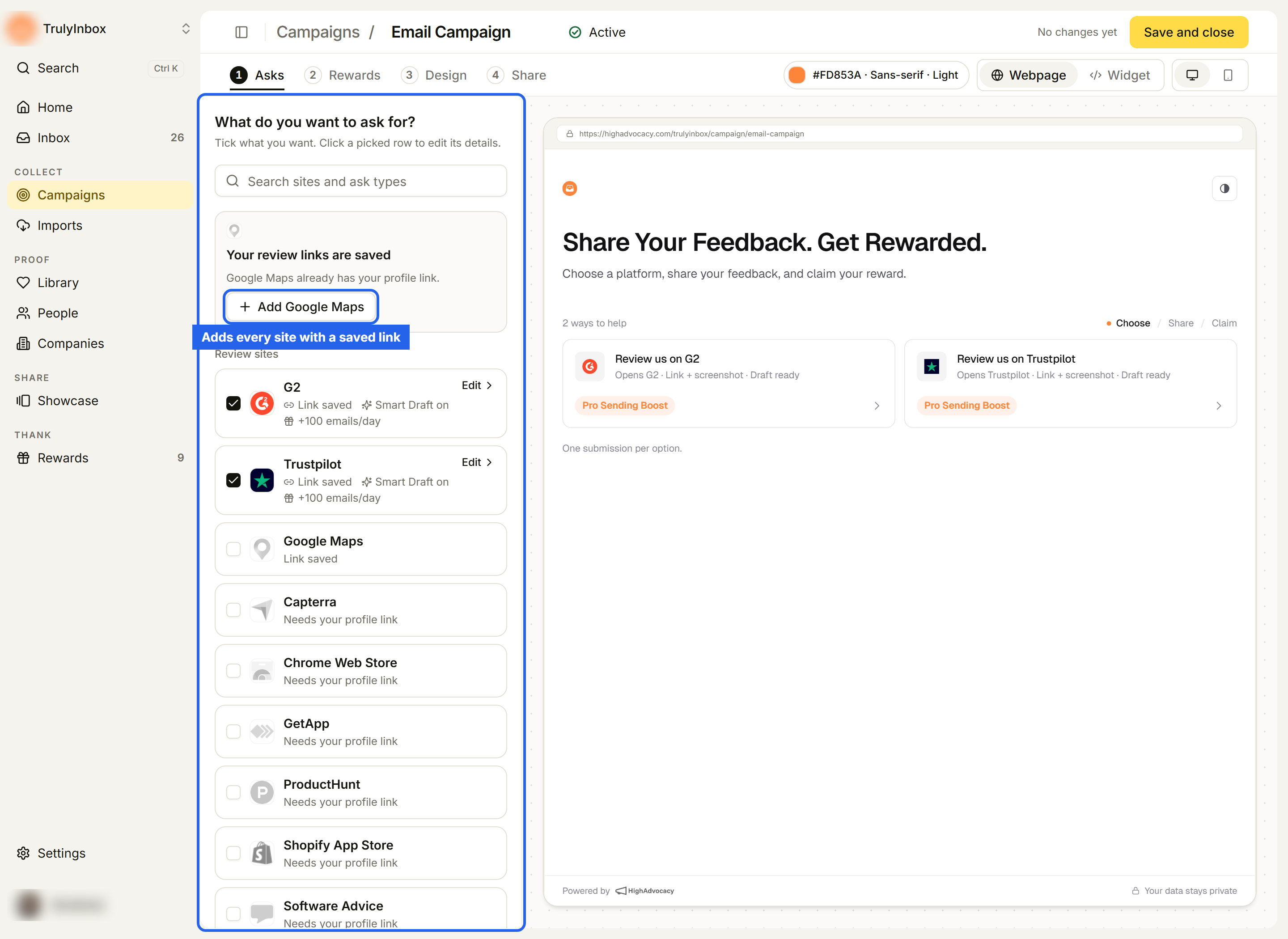
Unticking a site removes it from the campaign but keeps what you typed, so you can tick it again later.
Set up each site
Click a ticked site to open its details.
- Your Site profile link: paste the link to your profile on that site. Use the button next to it to open the link and check it.
- Smart Draft: turn it on to offer customers a starting draft for their review. See Help customers write with Smart Draft.
- Reward: pick a reward from your catalog, or No reward. See Set rewards for a campaign.
- Click Done.
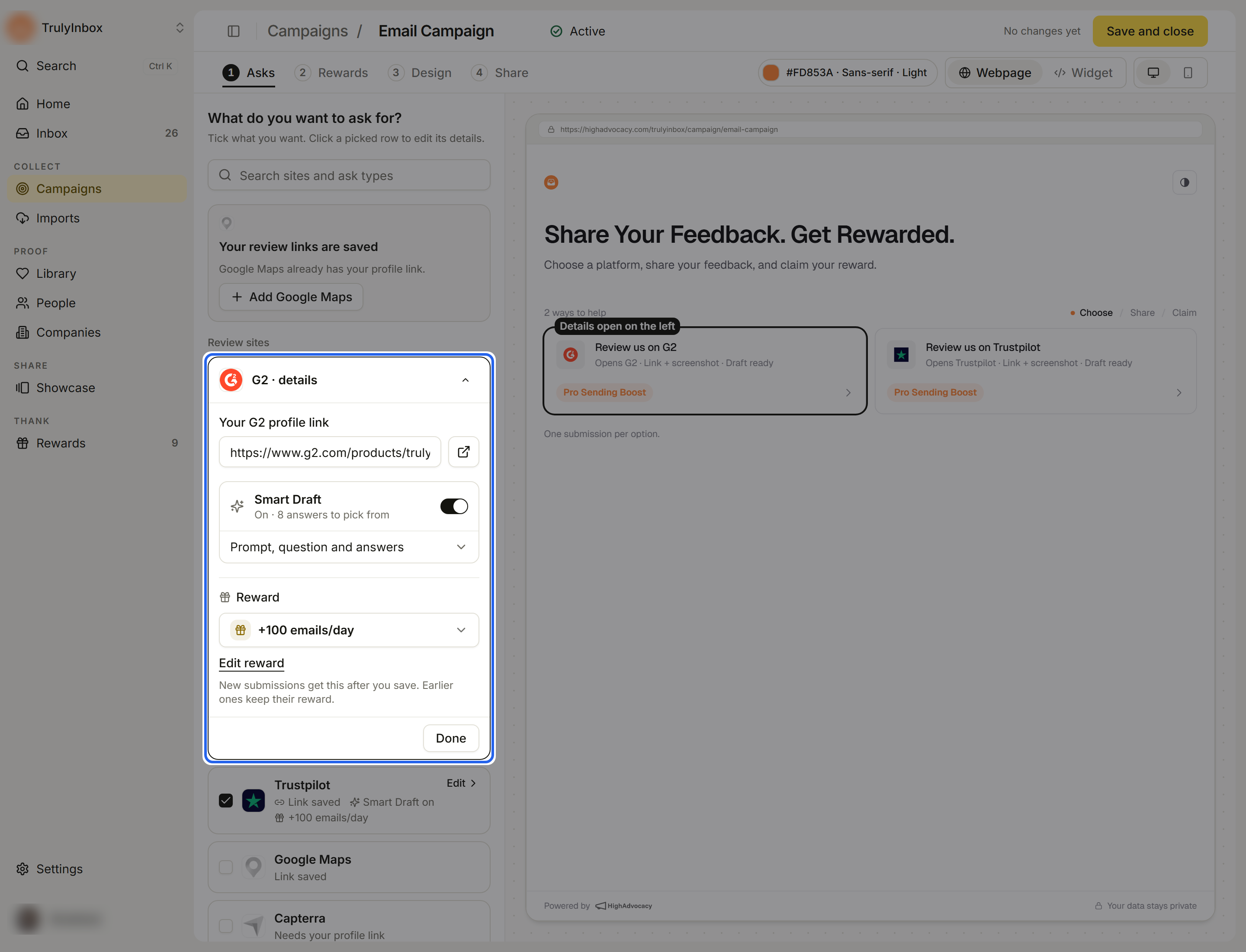
The row then shows a summary, for example Link saved · Smart Draft on · reward name.
What customers see
On the campaign page, each site shows as its own option, such as “Review us on G2”. The customer opens the site, writes the review, then comes back to send a link to the review and a screenshot. See What customers see and What proof customers send.