Approve or reject many submissions at once
When the queue is long, select several submissions and act on them together, or work through them from the keyboard.
Select submissions
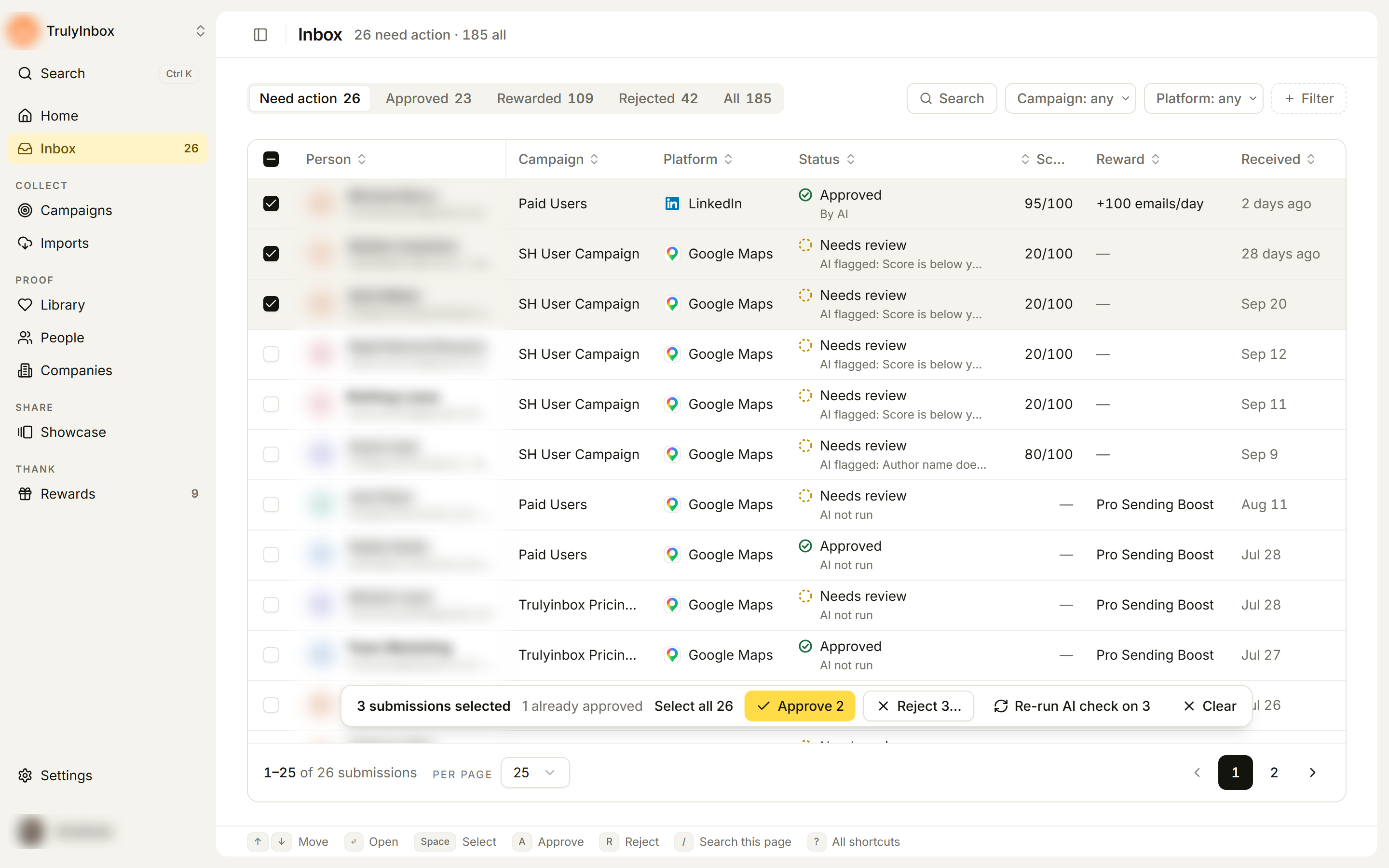
- Open Inbox and pick a tab, for example Need action.
- Tick the checkbox on each row you want. Tick the box in the header to select every row on the page.
- A bar appears at the bottom with the number selected. To include every submission that matches the tab and filters, not only this page, click Select all N.
- Click Clear to deselect.
Choose an action
Each button counts only the selected submissions it can act on:
| Button | Acts on |
|---|---|
| Approve N | Submissions waiting for a decision. |
| Reject N… | Submissions that are not already rejected or rewarded. Opens the reject dialog, where you can add one reason for all of them. The reason is emailed to each person. |
| Re-run AI check on N | Any submission that is not rewarded. Shown only when AI verification is on. |
The bar tells you what it skips, for example “1 already approved” or “2 already rewarded”. “All passed the AI check” means every selected submission passed each of its checks. If nothing selected can be changed in bulk, the bar says so. Open those submissions one at a time instead.
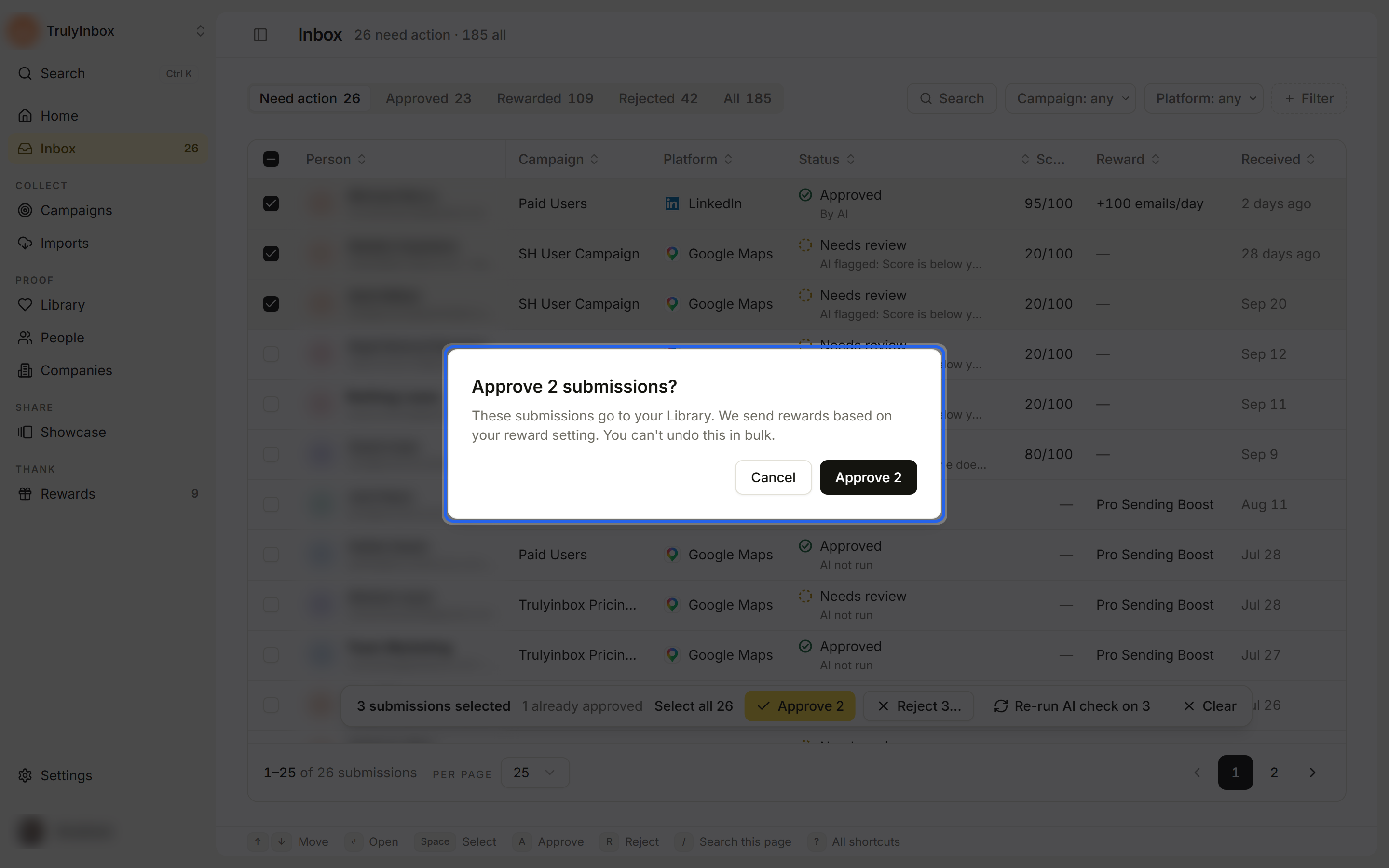
Approve N asks you to confirm. Approved submissions go to your Library, and rewards are sent based on your reward setting. You can’t undo a bulk approve in bulk, so check the selection first.
A submission the AI is still checking, or one with a reward to send, needs the drawer. Open it to decide. See Review and approve submissions.
Keyboard shortcuts
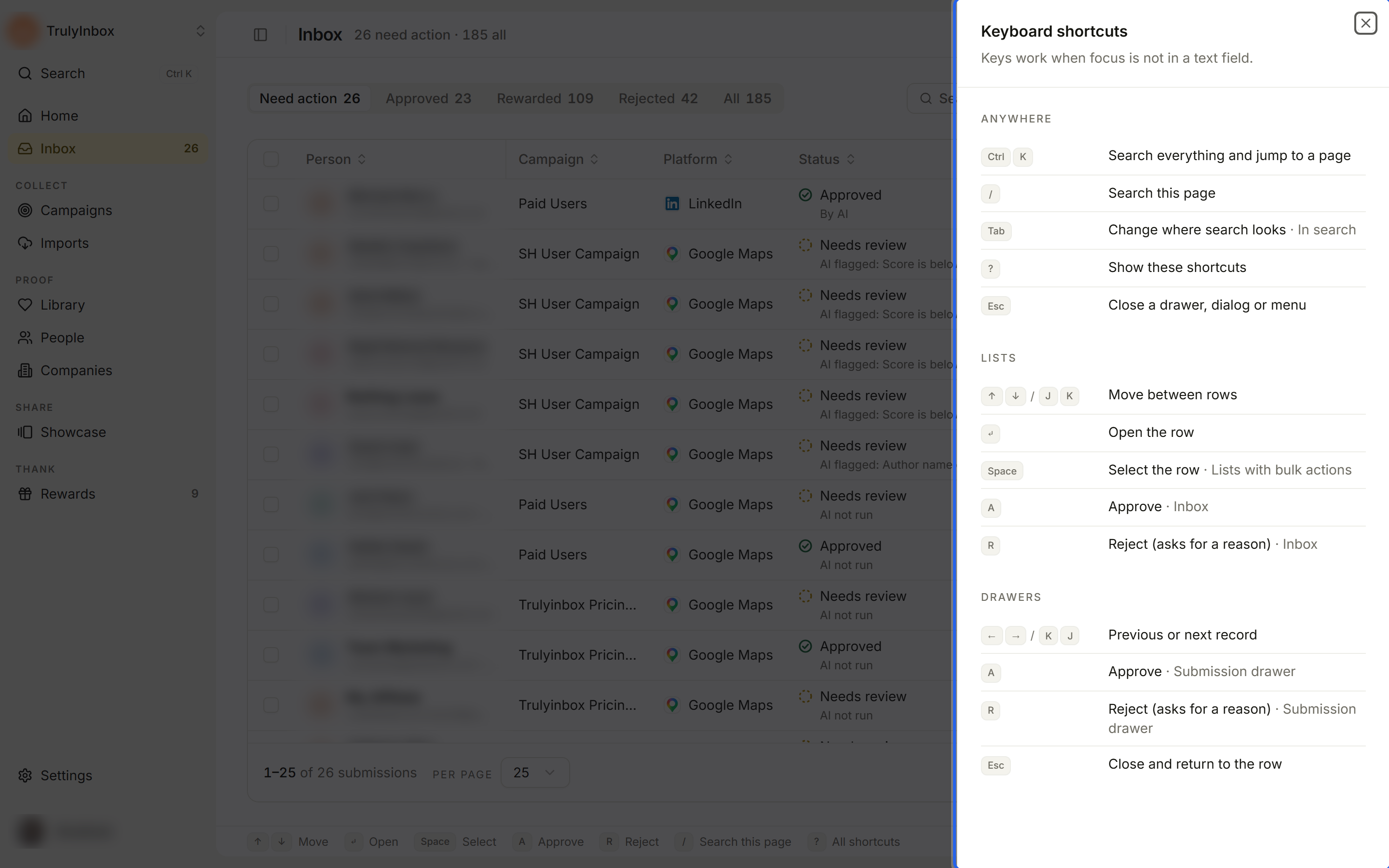
Shortcuts work when your cursor is not in a text field. The strip at the bottom of the Inbox shows the keys you can use. Press ? or click All shortcuts to see the full list.
In the list:
| Key | Action |
|---|---|
| ↑ ↓ (or J K) | Move between rows |
| ↵ | Open the submission |
| Space | Select the row. Hold Shift with the arrows to select a range. |
| A | Approve the row |
| R | Reject the row (asks for a reason) |
| / | Search this page |
| Esc | Clear the selection |
In the drawer:
| Key | Action |
|---|---|
| ← → | Previous or next submission |
| A | The main action, for example Approve or Approve & send |
| R | Reject (asks for a reason) |
| Esc | Close and go back to the row |
A and R in the list act straight away only on submissions that need a plain decision. If the AI is still checking, or a reward needs sending, they open the drawer instead so you can confirm.