Read your campaign results
Every campaign has its own page with its numbers and submissions. Use it to check whether people see the campaign and whether it brings in proof you can use.
To open it, go to Campaigns and click the campaign. The page has three tabs:
- Overview: the analytics.
- Submissions: every submission to this campaign, with a count on the tab.
- Preview & share: what customers see, plus the widget code. See Share your campaign.
The header has the Live switch, Copy link, an icon to open the hosted page, and Edit. Click the star to add the campaign to your sidebar favourites.
If the campaign is still a draft, the page shows “This campaign is a draft. Customers can’t see it until you launch it.” with Finish setup.
Pick the date range and channel
At the top right of Overview:
- Channel: All channels, Widget or Webpage. Pick one to see only that channel’s numbers.
- Date range: Last 24 hours, Last 7 days, Last 30 days (the default), Last 90 days or Custom range. For a custom range, set a start and end date. The start date must be before the end date.
Every number on the tab follows these two choices.
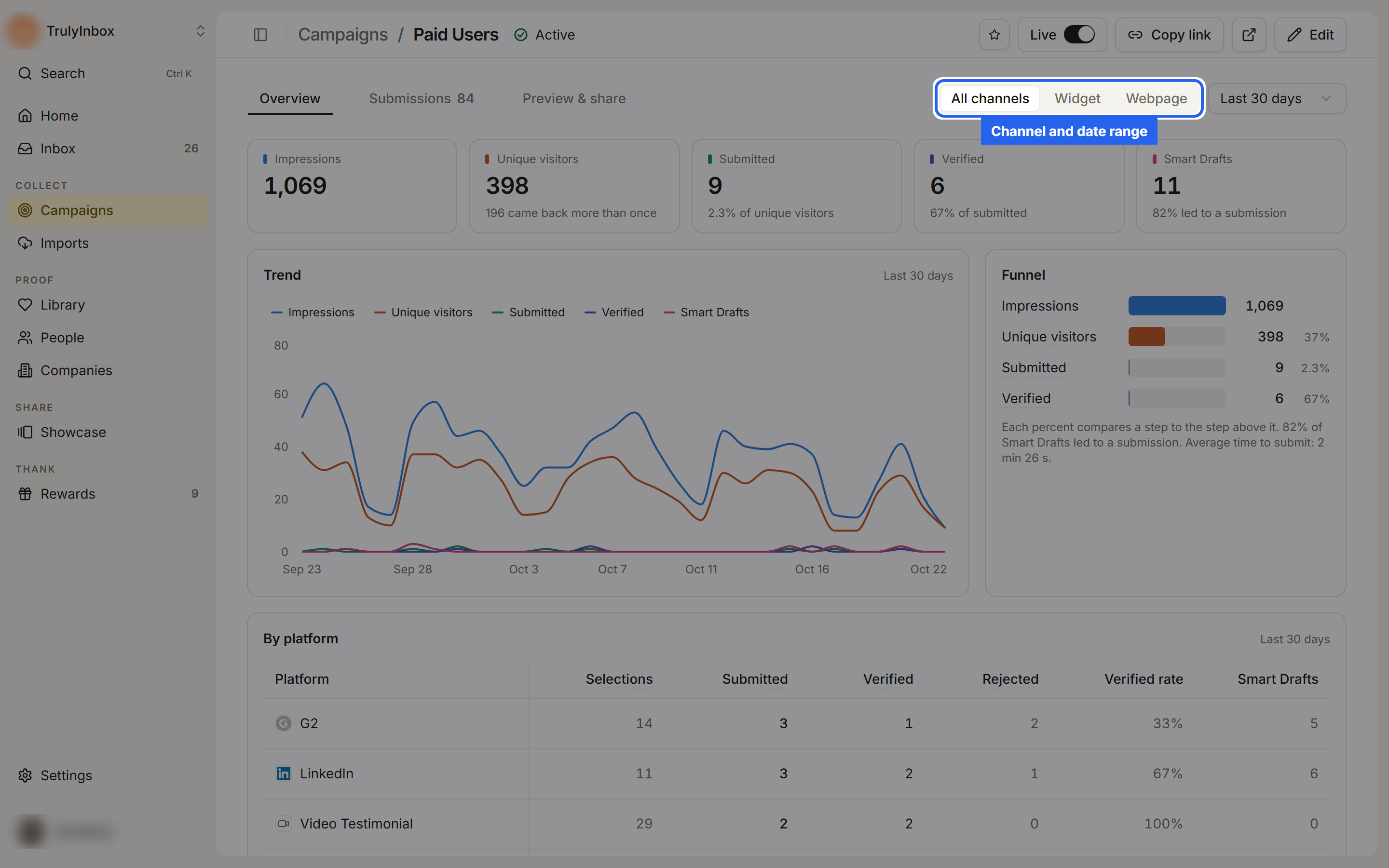
The totals
Hover over a label to see its definition.
| Total | What it counts | Second line |
|---|---|---|
| Impressions | How many times people saw the hosted page or the widget. | |
| Unique visitors | Different people who saw the campaign. Each person counts once. | “N came back more than once” |
| Submitted | Submissions in this date range, on all platforms. | Share of unique visitors |
| Verified | Submissions in this date range that were approved or rewarded. | Share of submitted |
| Smart Drafts | Drafts that Smart Draft wrote for visitors. Shown only when Smart Draft is on for the campaign. | Share that led to a submission |
Trend and Funnel
- Trend charts the totals day by day. Click a name above the chart to hide or show that line. Daily counts come from page and widget visits, so they can be a little different from the totals.
- Funnel shows Impressions → Unique visitors → Submitted → Verified. Each percent compares a step to the step above it, so you can see where people drop off. Under it you’ll see the average time to submit and, with Smart Draft on, how many drafts led to a submission.
By platform
By platform breaks the numbers down by each ask’s platform (for example G2, LinkedIn or Video Testimonial).
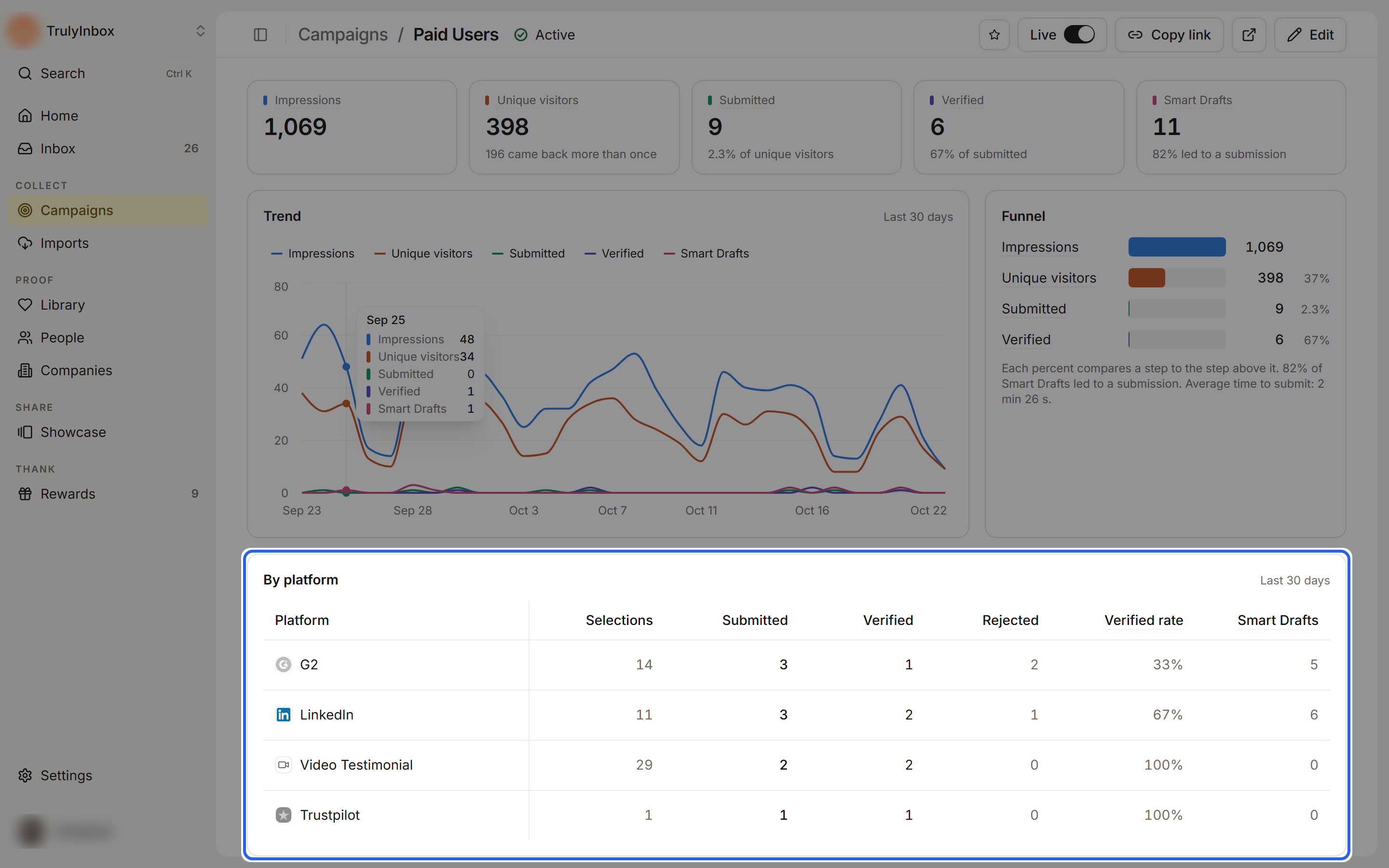
- Selections: how many times visitors chose this platform.
- Submitted: submissions on this platform in the date range.
- Verified: of those, approved or rewarded.
- Rejected: rejected by you or by the AI check.
- Verified rate: the percent of submissions on this platform that were verified.
- Smart Drafts: shown when Smart Draft is on.
Platforms with no activity in the range are folded into a line such as “2 more platforms had none.”
Beside it, Latest submissions lists the newest few. Click one to open it in the Inbox, or click All N to go to the Submissions tab.
If there’s nothing yet, the page says “No visits or submissions yet. Share the link or install the widget.” or, for a shorter range, “Try a longer date range, or share the link to get visits.”
The Submissions tab
The Submissions tab lists every submission to the campaign with Person, Platform, Status, Reward and Received. Click a column header to sort.
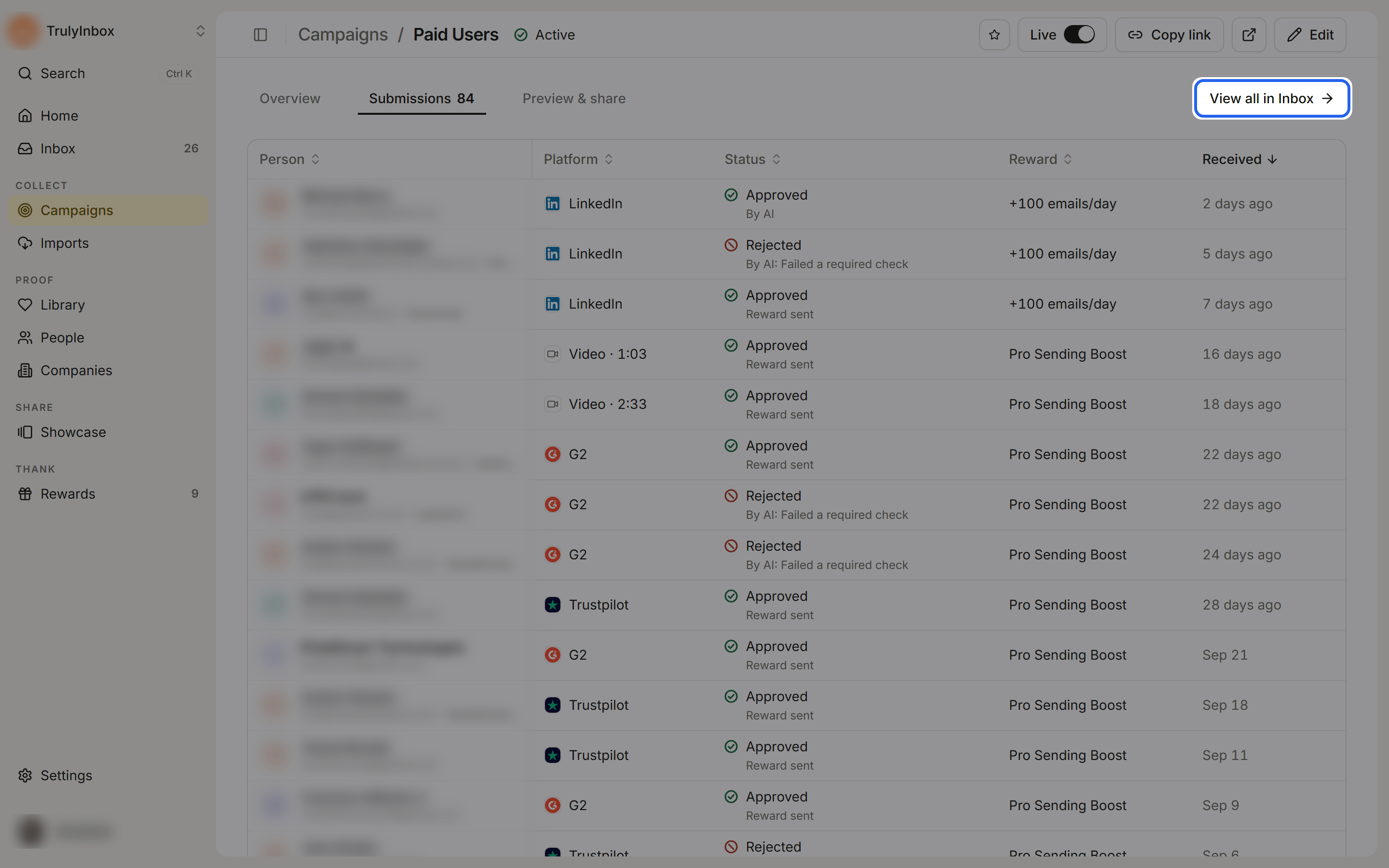
Click a row to open that submission in the Inbox, where you approve or reject it. View all in Inbox opens the Inbox filtered to this campaign.
Good to know
- The Campaigns list shows all-time Submissions, Verified, Rejected and To review for each campaign. The Overview numbers follow the date range you pick.
- To compare the widget and the webpage, switch the channel between Widget and Webpage and compare the totals.
- The analytics don’t show where a visitor came from (for example which email or page they clicked).