Change your workspace name, URL, and brand
The workspace profile holds the details HighAdvocacy uses on your campaign pages, showcases, widgets and emails. Onboarding fills most of it in from your website. You can change it any time.
Before you start
- You need to be an Owner or Admin. Members see this page read-only.
- Changing the Workspace URL breaks links you’ve already shared. Read Change the workspace URL first.
Open the profile
- Click Settings at the bottom of the sidebar.
- Click Profile under Workspace.
The Brand preview on the right shows a sample Showcase widget and Campaign page in your current colours and logo. It updates as you edit, before you save.
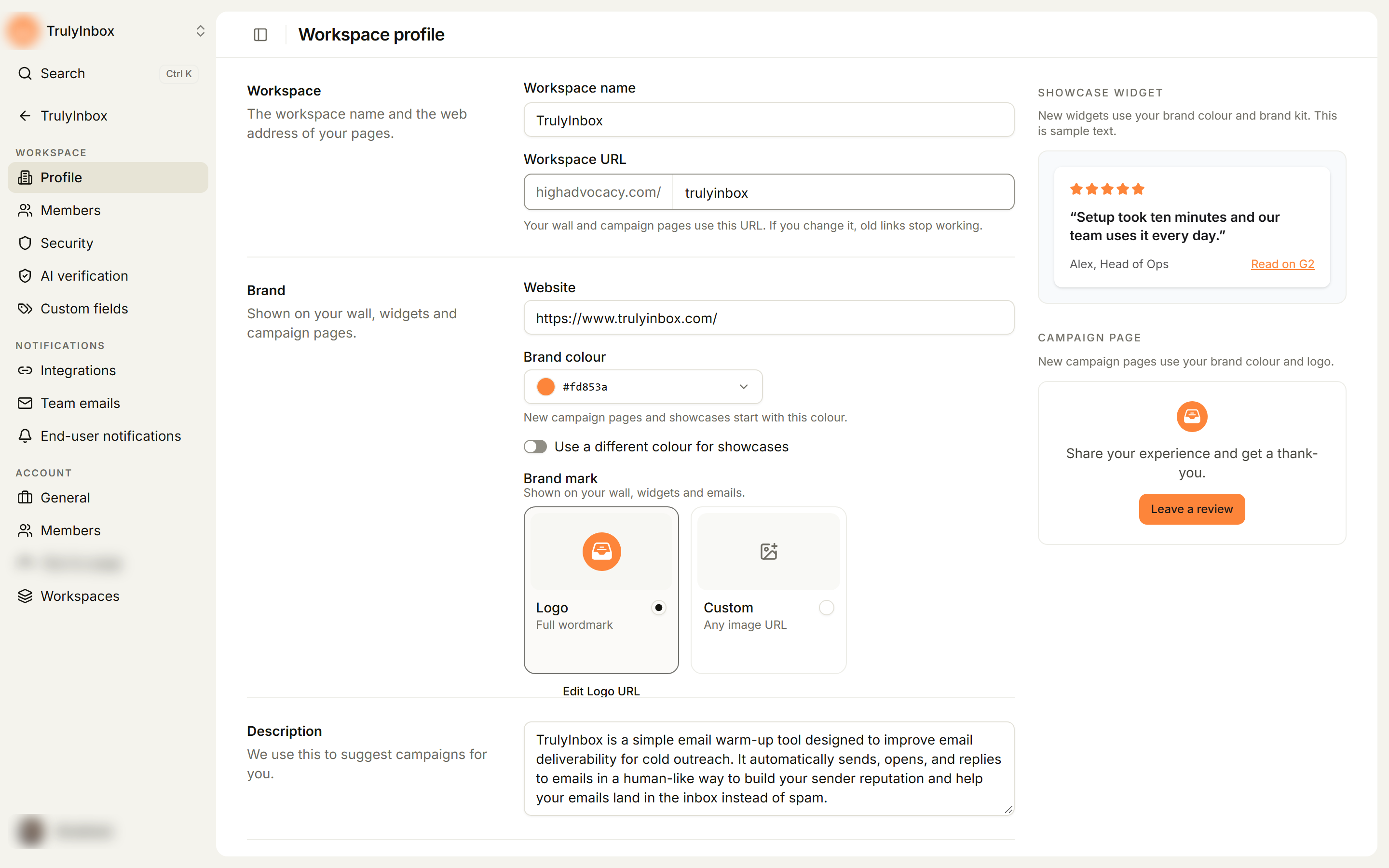
What you can change
Workspace
- Workspace name: the name your team and customers see.
- Workspace URL: the address of your pages, shown as
highadvocacy.com/plus your address. Your wall and campaign pages use it.
Brand (shown on your wall, widgets and campaign pages)
- Website: your company website.
- Brand colour: new campaign pages and showcases start with this colour. Turn on Use a different colour for showcases to set a separate Showcase colour for new showcase widgets.
- Brand mark: the image shown on your wall, widgets and emails. Pick Logo (your full wordmark, with Edit Logo URL to change it) or Custom (any image URL).
Description
A short description of your company. We use it to suggest campaigns for you.
Where you’re reviewed
Your pages on review sites. New campaigns use these links.
- Click Add review link.
- Pick the site in Select platform.
- Paste the link to your page on that site.
To remove a link, click the trash icon next to it. Each review site can be added once.
Brand kit
New showcase widgets use your brand colour and these styles:
- Colours: Surface, Background, Text and Link.
- Typography: fonts for Heading and Body.
- Personality: Tone (how your text sounds, for example Clear) and Energy (how lively it is, for example Balanced).
- Audience: who reads your widgets.
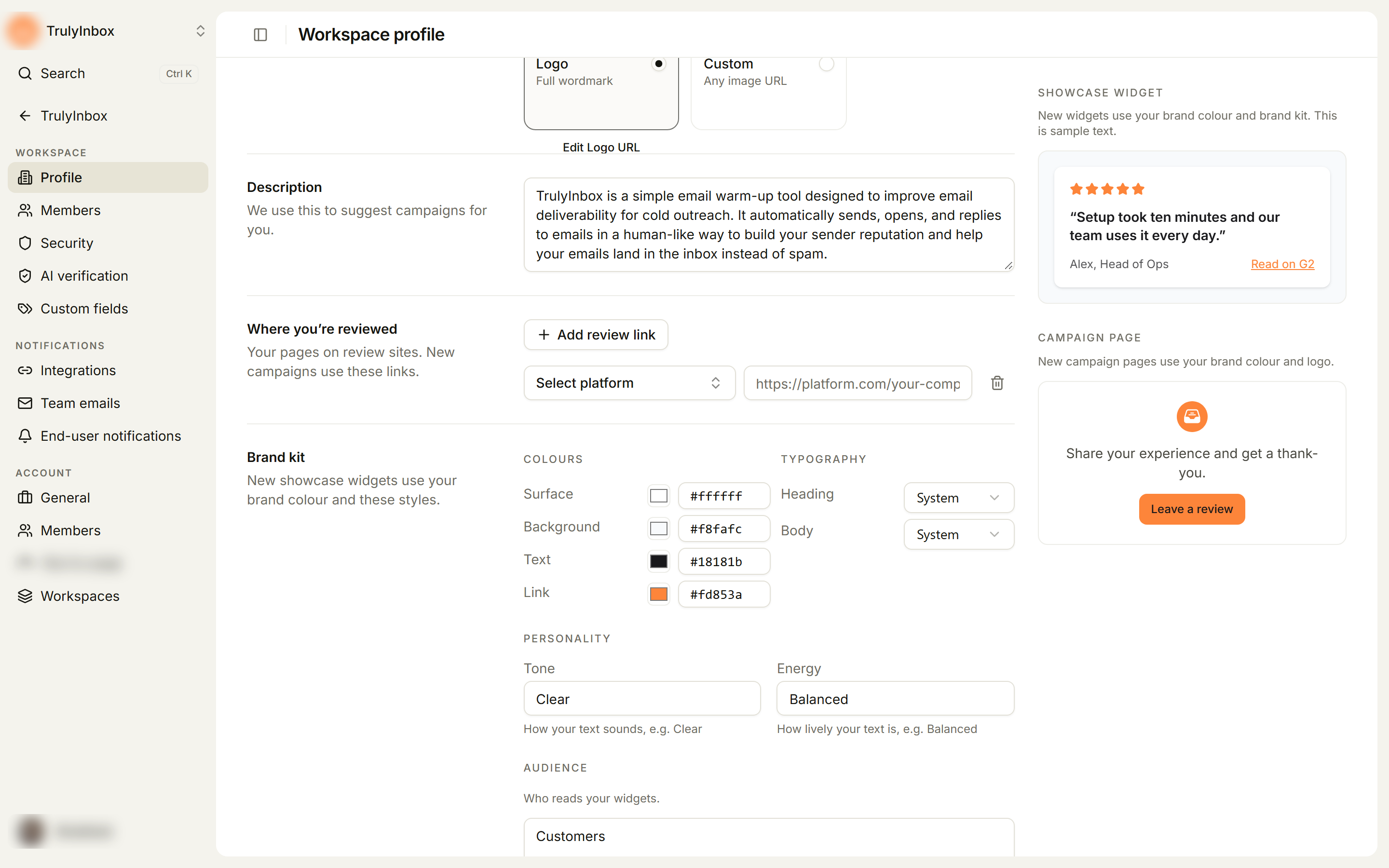
Brand colour and brand kit changes apply to new campaign pages and showcase widgets. Pages and widgets you’ve already made keep their own design. Change those in the campaign or showcase designer.
Save your changes
When you edit anything on this page, a bar appears at the bottom with You have unsaved changes.
- Click Save changes to save everything at once. You’ll see Changes saved.
- Click Discard to undo your edits.
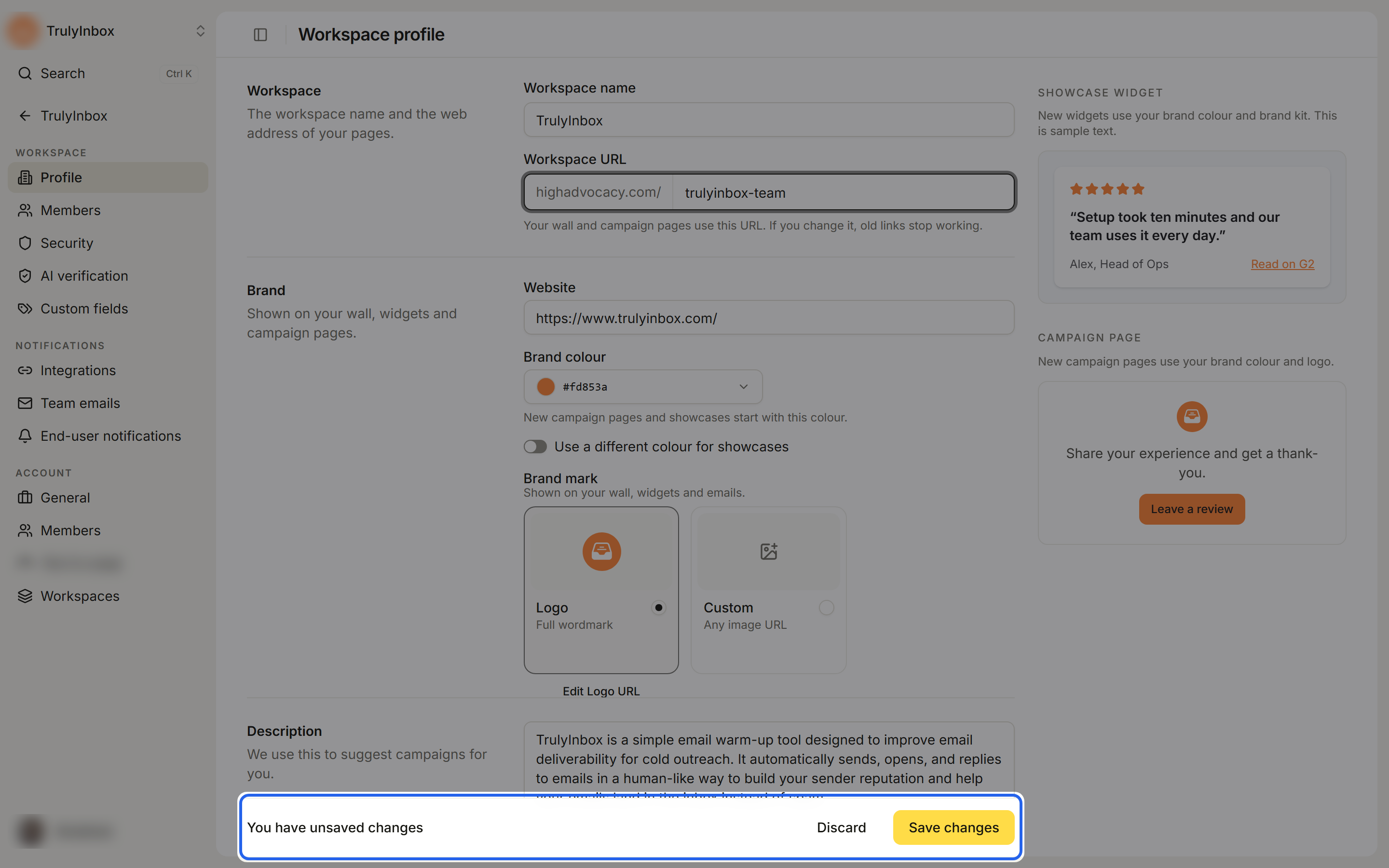
If you leave Workspace name empty, saving shows “Add a workspace name, then save.”
Change the workspace URL
Your campaign pages and showcase pages live at highadvocacy.com/<your address>. If you change the address, old links stop working, and someone else can then claim the old address.
- Edit Workspace URL.
- Click Save changes.
- Read the Change workspace URL? message, then click Change URL and save.
After the change, update any links you’ve shared by email, in your product or on your website.
The address must follow these rules:
| Message | What to do |
|---|---|
| URL cannot be empty. | Enter an address. |
| Only lowercase letters, numbers, and hyphens. | Remove spaces, capitals and other characters. |
| URL must be at least 3 characters. | Use a longer address. |
| URL must be 40 characters or less. | Use a shorter address. |
| This URL is reserved. | Pick a different address. Some words, like blog or pricing, are kept for HighAdvocacy’s own pages. |
If another workspace already uses the address, you’ll see an error under the field. Try another one.