Showcase
Use Showcase to put your proof in public. Pick a layout, choose which proof appears, match it to your brand, and publish it as a link, an embed on your website, or a data feed a developer can build on.
After you publish, edits you make in the builder show up on the live page and every embed, and an auto-add rule can pull in new proof as it arrives.
Webpage or widget, the 22 layouts, and what the builder fills in for you.
Create a showcaseReorder and remove proof, add more from the Library, and set auto-add rules.
Choose what proof appearsThe Brand, Content, Page, and Cards tabs, and what each control changes.
Design your showcaseGo live, copy the link or embed code, and see what visitors and link previews show.
Publish, share, and embedVisits, unique visitors, impressions, and where visits come from.
Showcase analyticsWebpages and widgets
Showcase makes two kinds of output. Pick based on whether you already have a page to put proof on.
| Webpage | Widget | |
|---|---|---|
| What it is | A standalone proof page hosted by HighAdvocacy, with its own link | A block of proof that sits inside a page you already have |
| How you use it | Share the link, or embed the whole page | Paste the embed code into your site |
| Typical use | A wall of love, a deal-room link, a customers page | A rating badge on your pricing page, a quote next to a sign-up form |
| Layouts | 10 | 12 |
| Builder tabs | Proof, Brand, Content, Page, Cards | Proof, Brand, Content, Cards |
Both use the same proof and the same builder. A webpage has an extra Page tab for its banner, headings, buttons, and spacing.
The Showcase page
Under SHARE in the sidebar, click Showcase. The header shows how many showcases the workspace has and a New showcase button.
Each showcase appears as a card with:
- A preview, with a Live badge when it is published.
- Its name and a line such as “Masonry wall · 6 proofs · auto-adds 4★+”.
- Live or Not live, the number of views in the last 30 days, and when it was last edited.
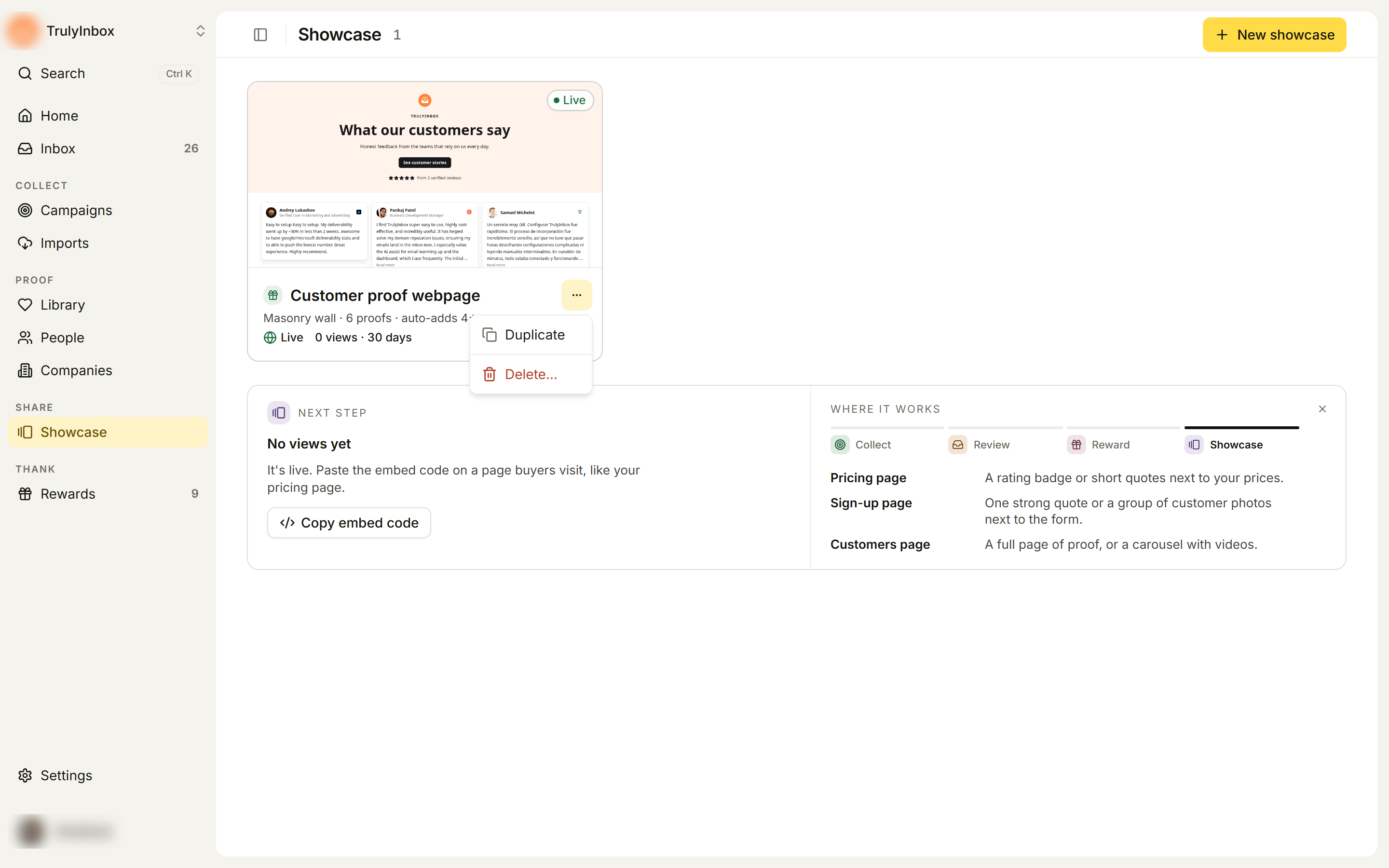
Click a card to open it in the builder. The ⋯ menu on a card has Duplicate and Delete…. Deleting asks you to confirm (“This deletes the showcase and its settings. You can’t undo this.”) and the public link stops working.
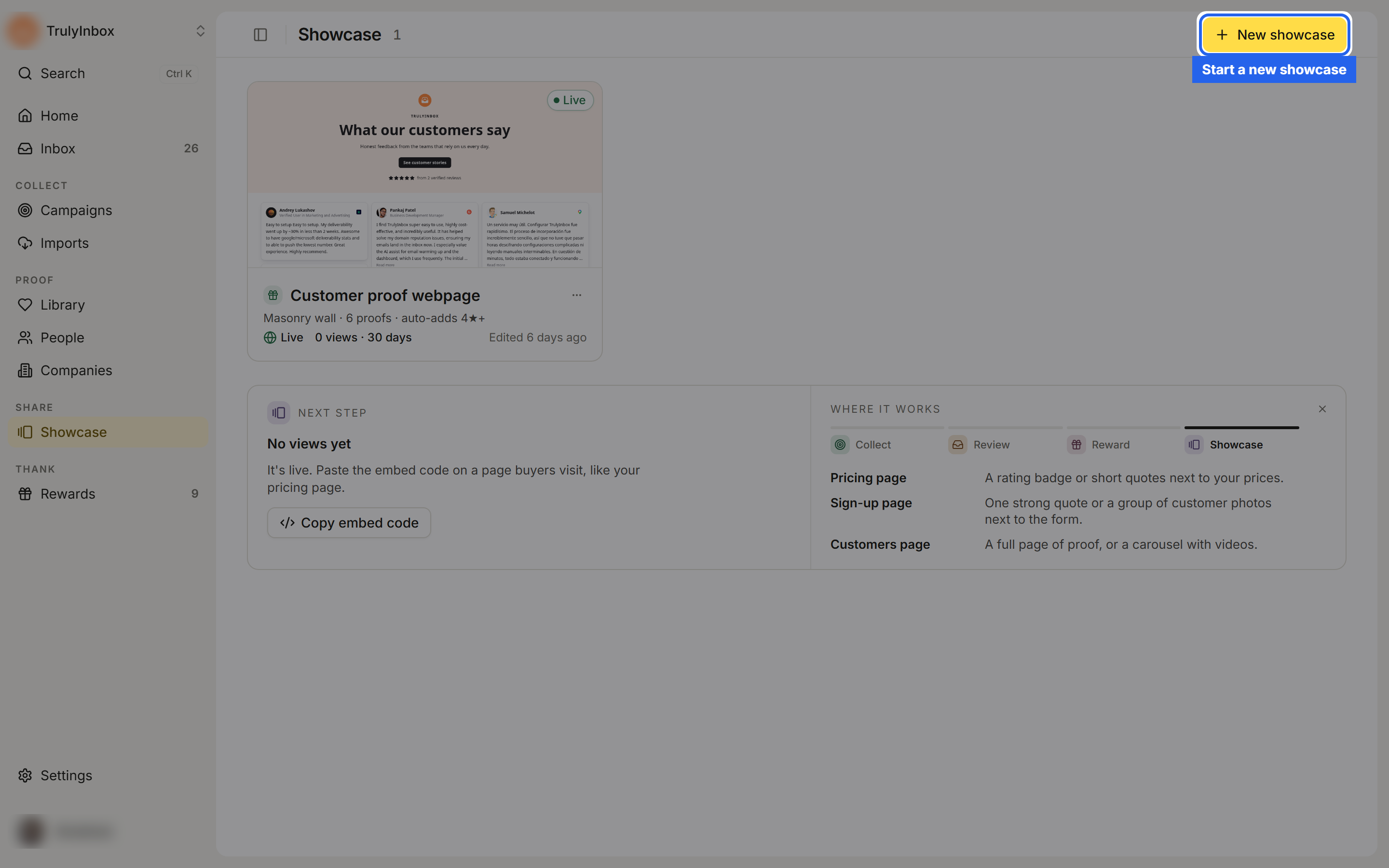
When you have a few showcases, the page also shows a Next step panel with one suggestion, such as Turn sharing on when a showcase isn’t live yet, or Copy embed code when it’s live but has no views. The Where it works panel next to it suggests placements for the pricing page, sign-up page, and customers page.
Once you have more showcases, the page switches to a grid with All, Webpages, and Widgets tabs, a Search button, and a sort menu (Last edited, Name, Type).
Your first showcase
If the workspace has no showcases yet, the page offers three starting templates (Masonry wall, Rating badge, and Single quote) filled with your highest-rated proof. Click one to create it, or click See all templates for the full list.
If your Library is still empty, the templates show example customers and the page offers a button to bring proof in first.
What proof a showcase can use
A showcase draws on approved proof in your Library: proof you collected through campaigns and approved in the Inbox, and proof you brought in through Imports.
The quote text is read-only inside Showcase. You can open a proof’s hook and highlight from the builder, but you change the proof itself in the Library.
The builder at a glance
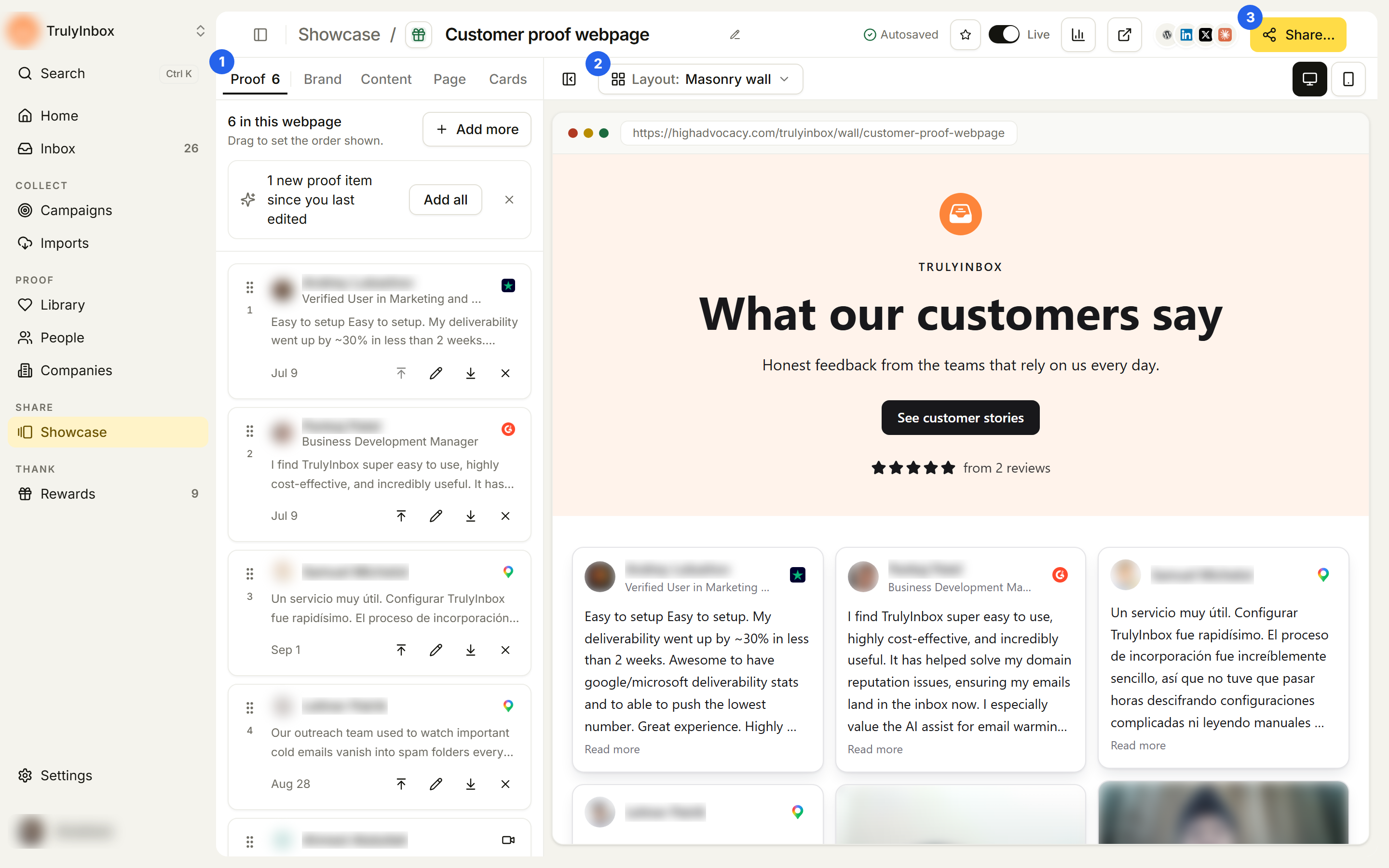
- Tabs. Proof sets what appears and in what order. Brand, Content, Page (webpages only), and Cards control how it looks.
- Preview toolbar. Layout: switches the layout. The desktop and mobile buttons change the preview size, and the panel button hides the editing panel for a full-width preview.
- Top bar. Rename the showcase, star it to add it to your sidebar favourites, switch it Live, open analytics, open the live page, and click Share… for the link and embed code.
There is no save button. Changes save as you go and the top bar shows Autosaved.
A typical first build
- Click Showcase, then New showcase.
- Choose Webpage or Widget and click a layout. The builder opens with your brand colors and best proof already in place.
- On the Proof tab, remove anything off-message and drag your strongest proof to the top.
- On the Brand tab, check the brand colour and theme, then check the mobile preview.
- Turn on the Live switch and confirm Publish.
- Click Share… and copy the link or the embed code.
Related
- Library: where the proof in a showcase comes from
- Imports: bring in reviews so a new workspace has proof to show
- Find your way around: sidebar favourites and search