Turn AI verification on or off
AI verification scores each new submission so you only review the unclear ones. You control it in two places:
- Workspace: turn the AI check on or off for every campaign, and choose what happens to rewards.
- Campaign: turn the AI check off for one campaign while others keep it.
Before you start
You need the Owner or Admin role to change workspace settings. See Roles and permissions.
Set it for the workspace
- Click Settings at the bottom of the sidebar.
- Under Workspace, click AI verification.
- Use the AI verification switch to turn the check On or Off. When it is off, your team checks every submission by hand.
- Under Reward release, choose what happens to the reward after a submission is verified:
- Send automatically when verified: the reward goes out as soon as the submission is verified.
- Wait for your approval: the reward waits until someone approves it. You release it from the submission in the Inbox with Approve & send. See Send rewards after you approve.
- Click Save changes. You see “Verification settings saved”.
Reward release is greyed out while AI verification is off.
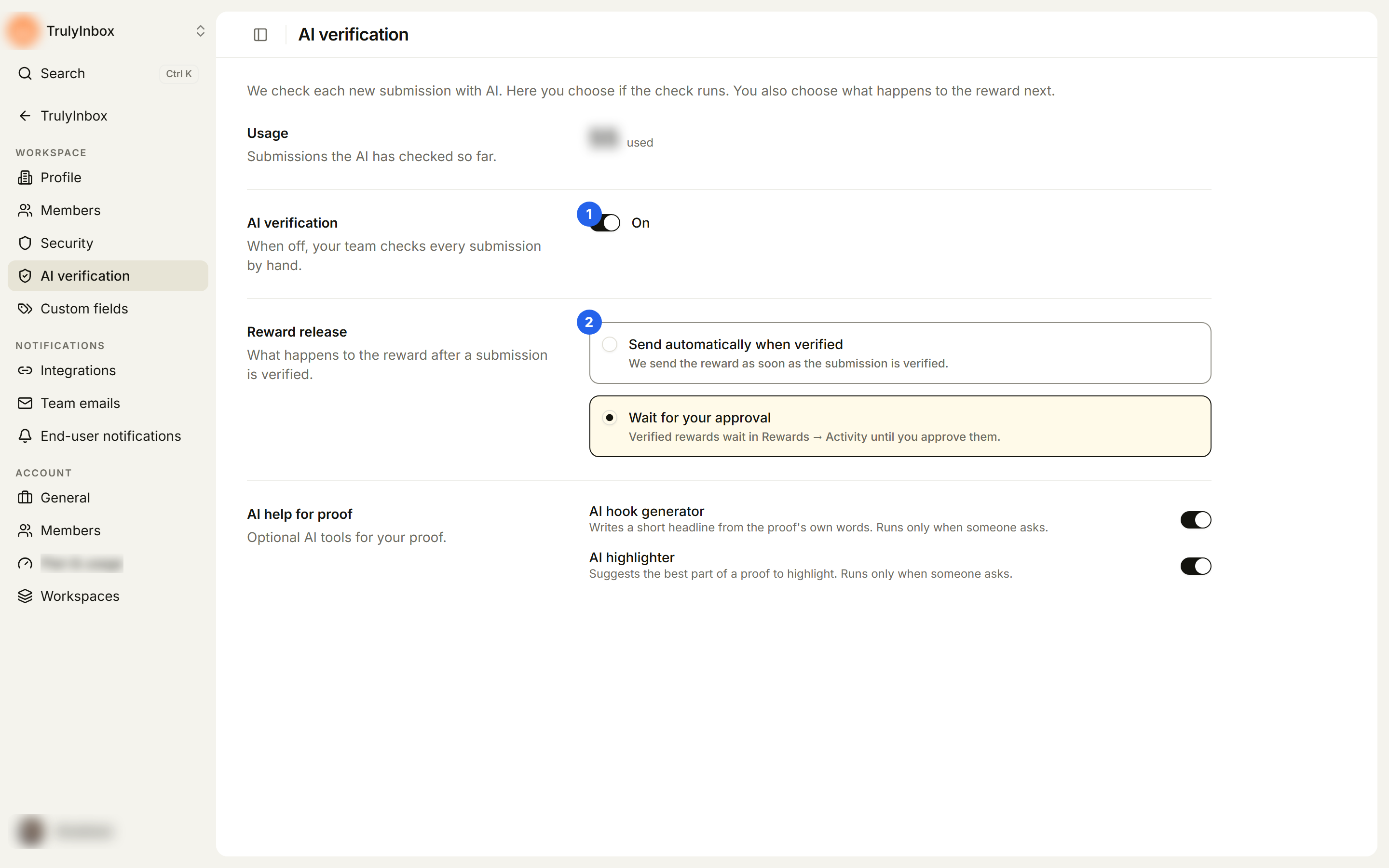
The page also shows Usage, the number of submissions the AI has checked so far.
Start with Wait for your approval while you build trust in the AI’s verdicts. Switch to sending automatically once you are comfortable.
AI help for proof
The same page has AI help for proof, two optional tools for your Library:
- AI hook generator: writes a short headline from the proof’s own words.
- AI highlighter: suggests the best part of a proof to highlight.
Both run only when someone asks for them, and they work whether or not AI verification is on. See Hooks and highlights.
Turn it off for one campaign
Each campaign has its own AI verification switch.
- Before the campaign is live: open the campaign, go to the Design step, and find the Before you go live box.
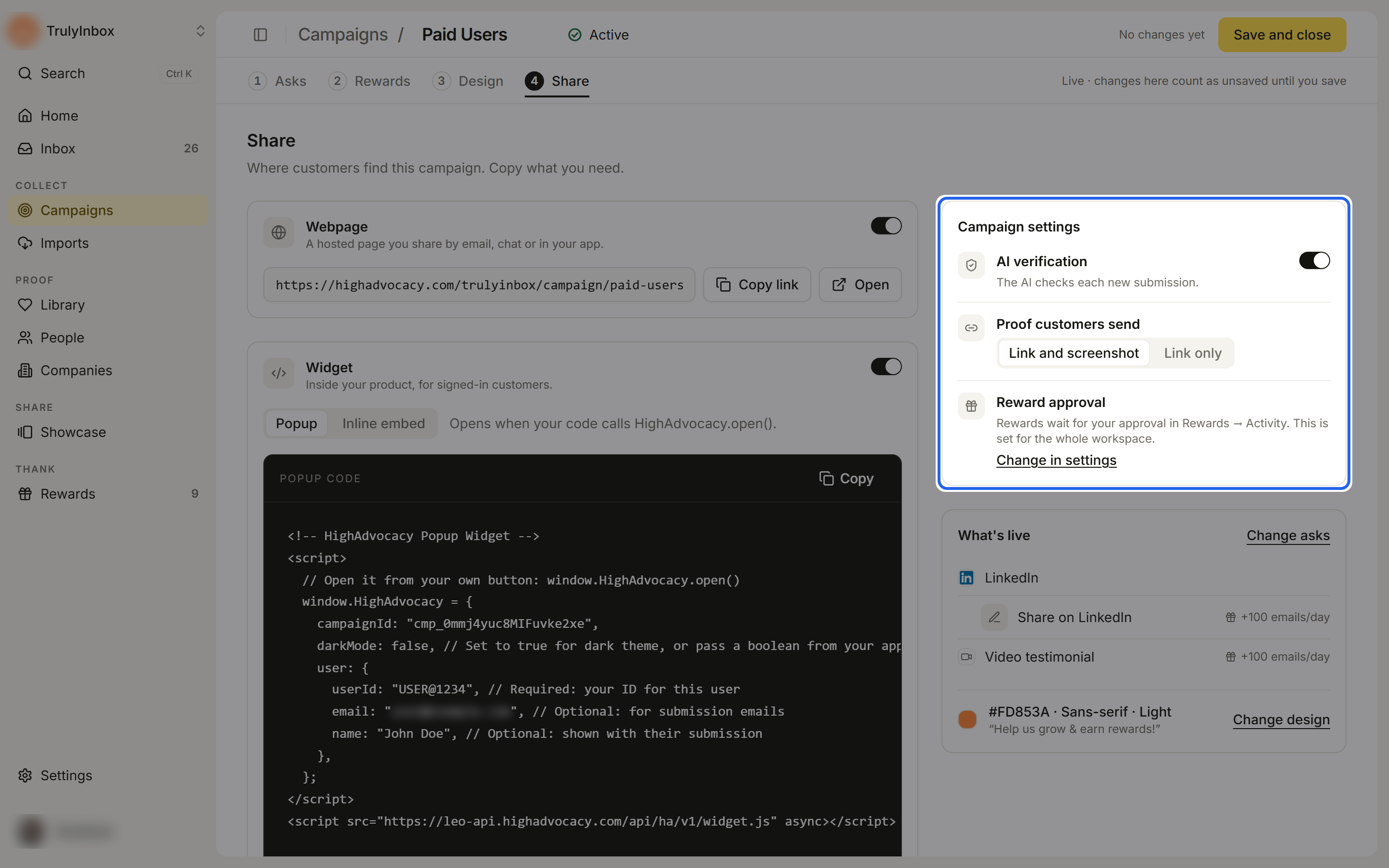
- After the campaign is live: open the campaign, go to the Share step, and find Campaign settings.
Turn AI verification off to have your team check every submission for that campaign by hand. The line under the switch reads “The AI checks each new submission.” when it is on, and “You check each submission yourself.” when it is off. A draft saves on its own. On a live campaign, save the campaign to apply the change. It affects new submissions.
The same box shows Reward approval, which follows the workspace setting. Change in settings takes you to the workspace page.
How the two settings work together
- Workspace off: the AI check is off for every campaign. The campaign switch is locked off with the note “It is off in workspace settings, so it is off for every campaign.”
- Workspace on: each campaign follows its own switch.
A submission from a campaign with the AI check off arrives in Need action with AI not run. You can still score it on demand with Run AI check in the drawer.
What happens next
New submissions are checked automatically after a short waiting period. While they wait they sit in the Checking tab. After the check, each submission is approved, sent to Need action for you, or rejected. See How AI verification works.