Browse, search and filter your proof
The Library shows your proof as a wall of cards. Use the toolbar above the wall to switch layout, search, filter and sort. Open it from the sidebar under PROOF > Library.
Choose a layout
The tabs on the left of the toolbar change how the wall is laid out:
- Comfortable: up to three centred columns with room to read.
- Dense: as many columns as fit your screen.
The tabs only appear once your Library holds more than 7 proofs. Below that, cards show larger in a getting-started layout.
The wall loads more proof as you scroll. There is no “Load more” button.
Search
Click Search in the toolbar, or press /. The search box opens with the placeholder “Search proof…”. Type what you’re looking for; the search applies on top of any filters you have on.
Filter
Two filters are always in the toolbar:
- Rating: 5 stars, 4 stars, 3 stars, 2 stars or 1 star. You can pick more than one.
- Platform: the review site or social network the proof came from. Only platforms you have proof from are listed, with a count for each.
Next to them, Favorites shows only the proof you have starred. See Tag and favorite proof.
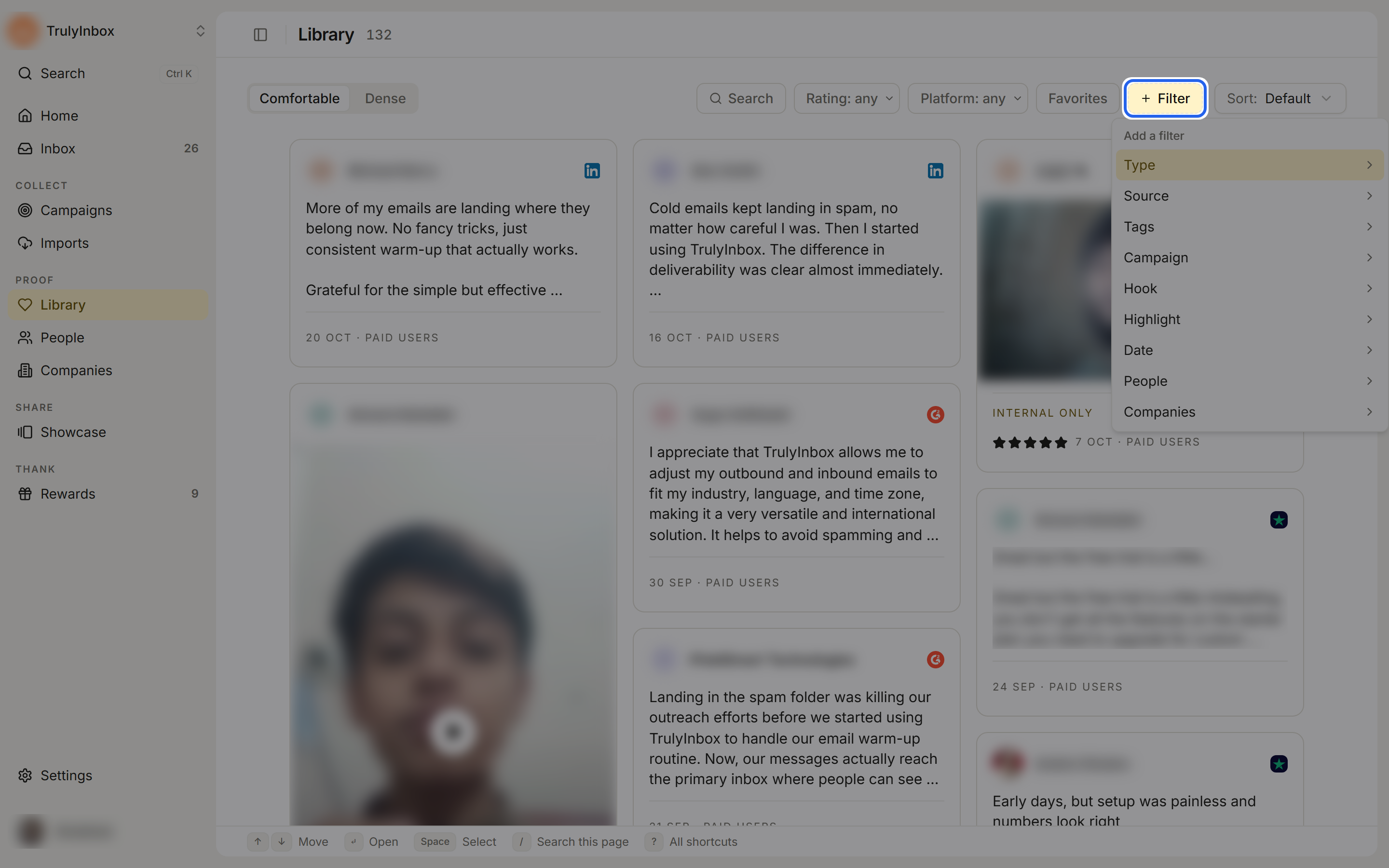
Click + Filter for the rest:
| Filter | Options |
|---|---|
| Type | Review, Social post, Video testimonial, Written testimonial |
| Source | From a campaign, Imported |
| Tags | Any of your tags, or Untagged. With several tags picked, it shows proof that has every selected tag. |
| Campaign | One or more campaigns |
| Hook | Has a hook, No hook yet |
| Highlight | Has highlights, No highlights yet |
| Date | Last 7 days, Last 30 days, Last 90 days |
| People | One or more people (searchable) |
| Companies | One or more companies (searchable) |
Filters combine. Each applied filter shows as a chip in the toolbar; click it to change the selection. Click Clear filters to remove them all. If the toolbar runs out of room, chips that don’t fit move into + Filter.
While filters are on, the count on the right reads “N of M proofs”. The number next to the Library title always shows the size of your whole Library.
If nothing matches, the wall reads “No proof matches these filters” with a Clear filters button.
Filters live in the page URL, so you can bookmark a filtered view or send it to a teammate.
Sort
Use Sort on the right of the toolbar:
- Default
- Newest
- Oldest
- Highest rated: reorders the proof that has loaded so far, best rated first, with unrated proof last. As more proof loads while you scroll, the wall re-sorts.
What a card shows
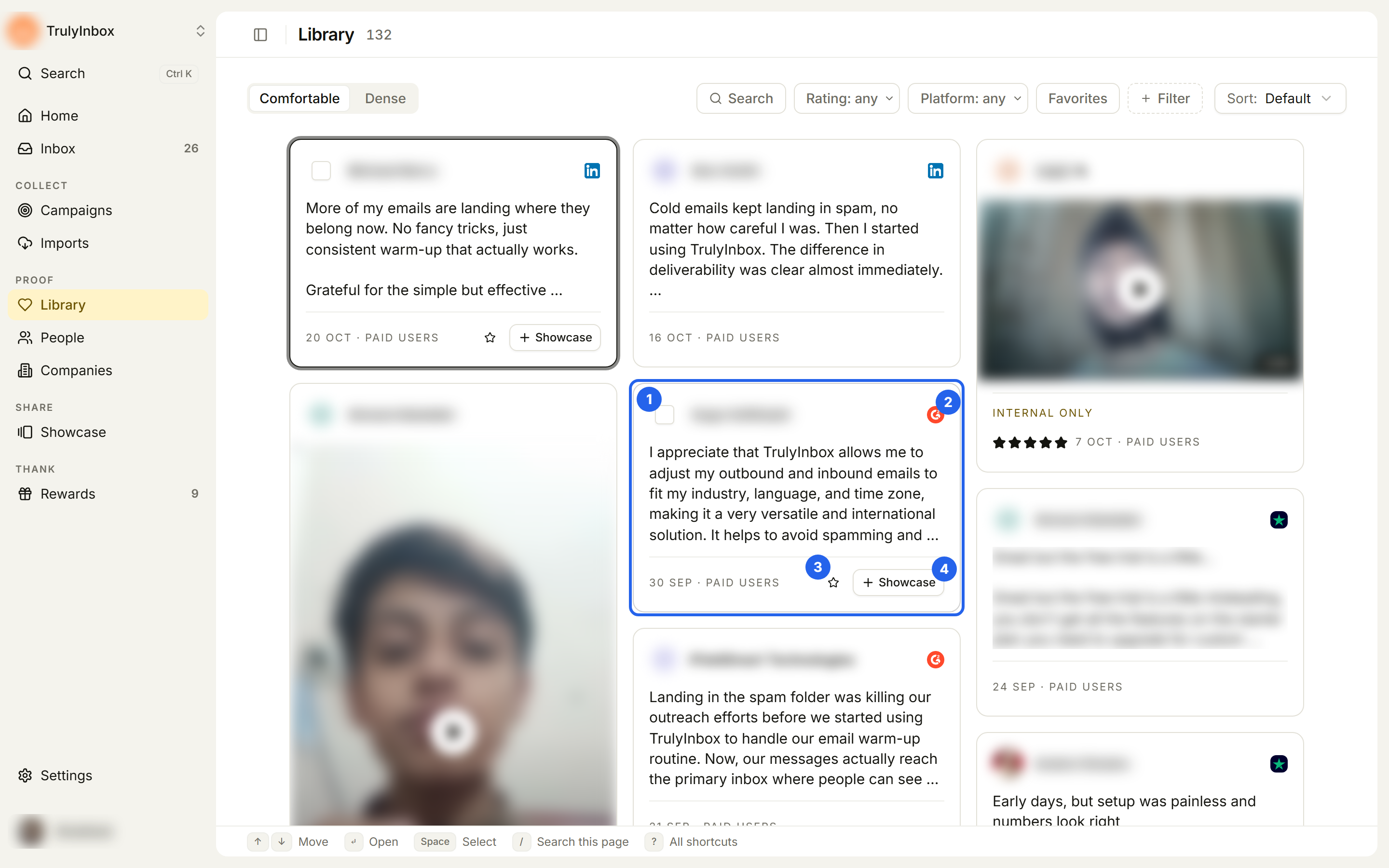
From top to bottom, a card shows:
- Who said it: the person’s name (or email when there is no name, or “Anonymous”), with their role and company underneath.
- Source logo (top right): click it to open the original review or post on its platform.
- Media: the video (with its length) or screenshots. Click a screenshot to view it larger.
- Hook, if the proof has one, in bold. See Add hooks and highlights.
- Quote, with any highlights shaded.
- Tags: up to two tag chips, plus “+N” when there are more. Internal only shows when the person did not agree to have their proof featured publicly.
- Stars (for everything except social posts) and a short line with the date and one more detail. The date is the original review or testimonial date when we have it, otherwise the date it was submitted. The detail is the first that applies: who set the hook (“Hook by …”), Favorite, Imported, or the campaign name.
When you hover a card:
- A checkbox replaces the avatar, so you can select the card. See Work with many proofs at once.
- The source logo opens the original.
- The star adds the proof to your favorites.
- + Showcase adds the proof to one or more showcases.
Click anywhere else on the card to open it. See Open a proof.
Older written testimonials collected before ratings existed show no stars. That is expected.
Keyboard shortcuts
| Key | Action |
|---|---|
↑ ↓ | Move between cards |
↵ | Open the focused card |
Space | Select the focused card |
/ | Search this page |
? | All shortcuts |
What you can’t do here
- Approve or reject proof. That happens in Inbox.
- Edit the customer’s words. Proof text stays exactly as it was given.
- Export proof from the Library.