Create and manage rewards in the catalog
Audience: Marketers and admins
The catalog holds every reward your workspace offers. You set a reward up once, then add it to as many campaign asks as you like. When the reward needs to change, you edit it in one place.
Open Rewards in the sidebar, then the Catalog tab.
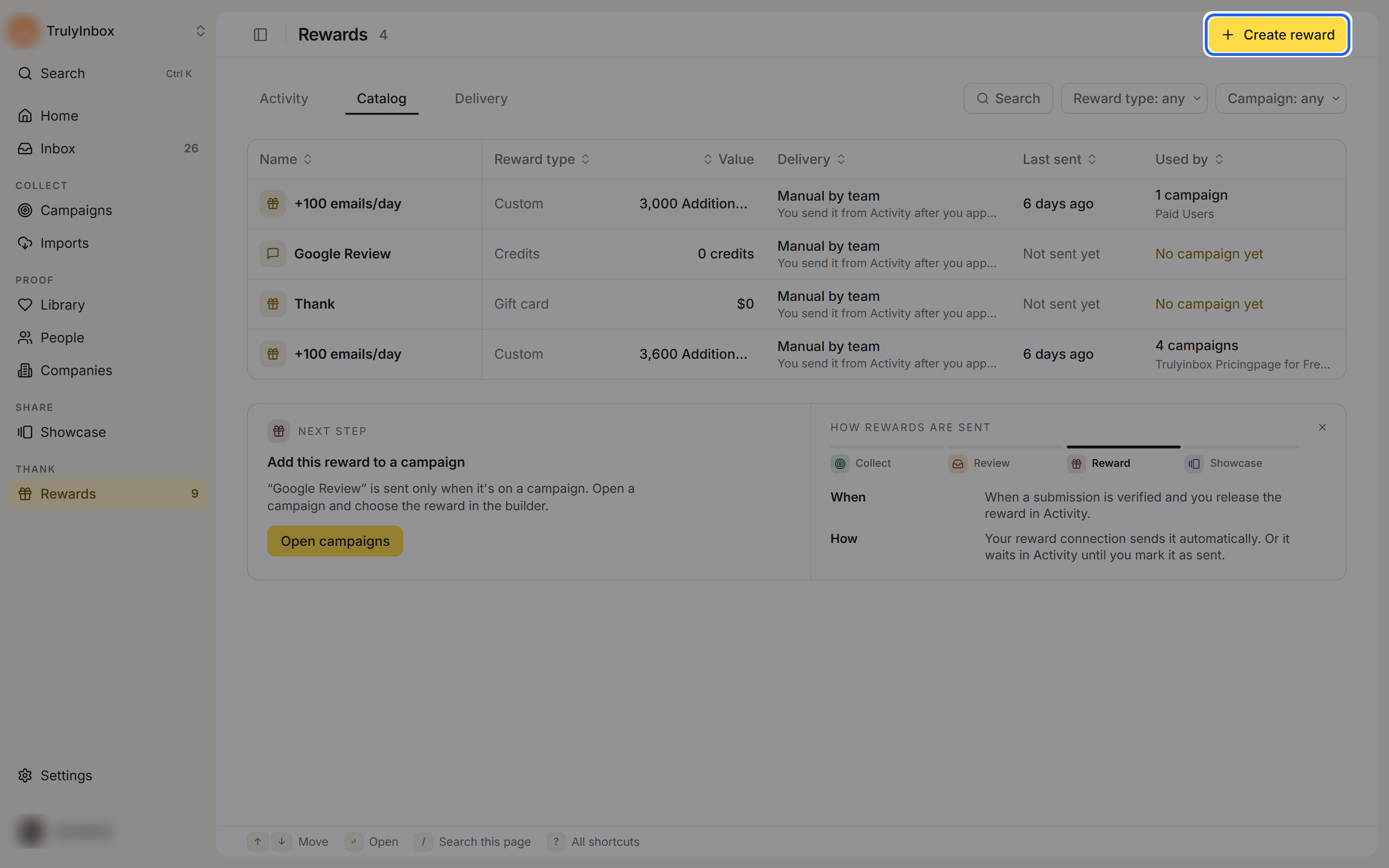
Each row shows:
- Name and Reward type (Credits, Gift card, or Custom).
- Value, for example
100 creditsor$25. - Delivery: Manual by team, or the reward connection that sends it.
- Last sent: when this reward last went out, or Not sent yet.
- Used by: how many campaigns use it, or No campaign yet.
Narrow the list with the Reward type and Campaign filters, or click Search (shortcut /). Click a column header to sort.
Create a reward
- On the Catalog tab, click Create reward. If the catalog is empty, click Choose reward next to a reward type instead.
- Fill in Basics, Reward value, and Delivery (details below).
- Click Create reward.
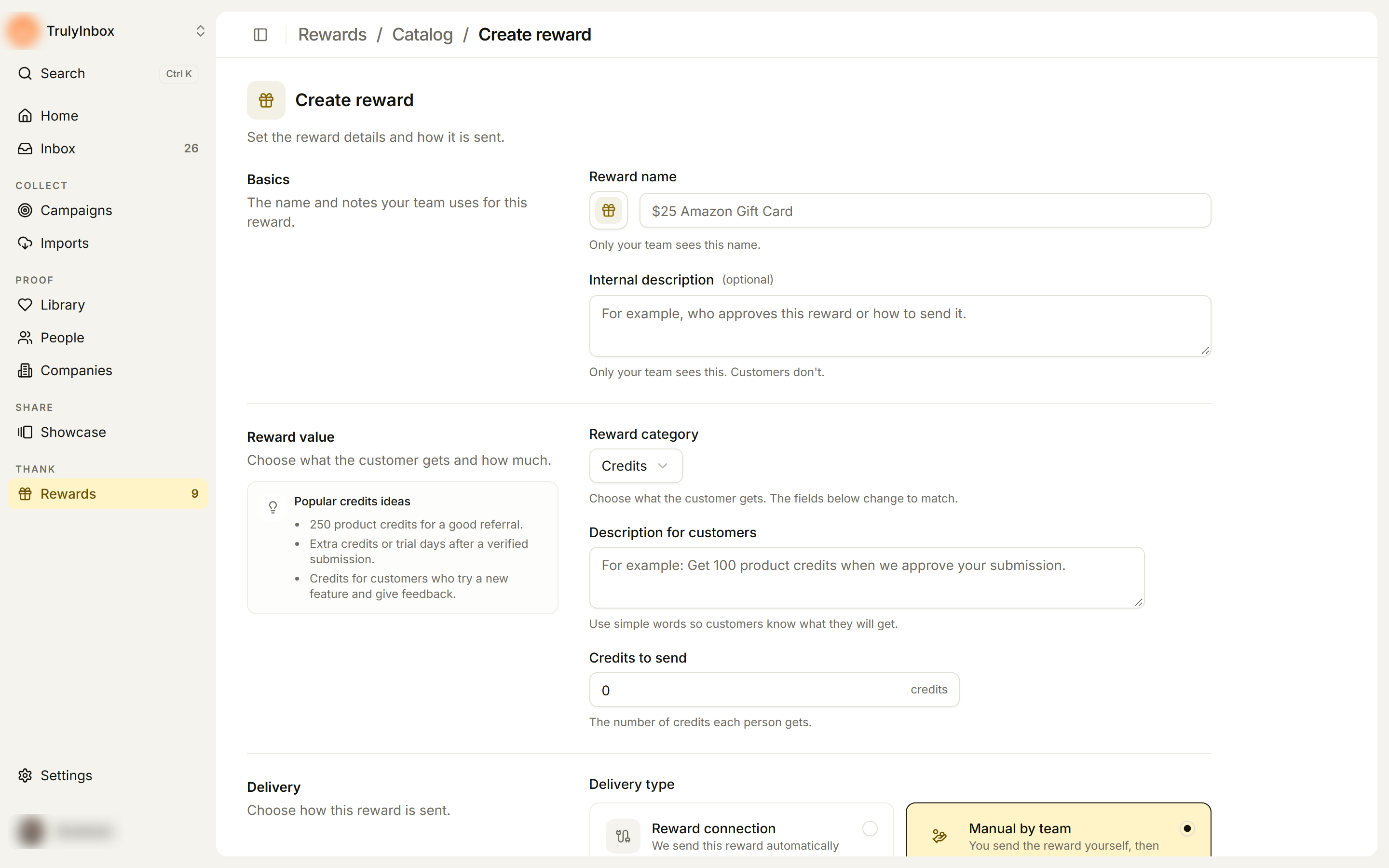
Basics
| Field | What it does |
|---|---|
| Reward name | The name your team sees in the catalog, in campaign pickers, and in Activity. Customers don’t see it. Click the icon beside the name to pick an icon and color. |
| Internal description (optional) | A note for your team, for example who approves this reward or how to send it. |
Reward value
| Field | What it does |
|---|---|
| Reward category | Credits, Gift card, or Custom. The fields below change to match. |
| Description for customers | What customers see on your campaign before they submit, for example “Get a $25 gift card when we verify your review.” |
| Credits to send (Credits) | The number of credits each person gets. |
| Gift card value and Currency (Gift card) | The amount on the gift card. Currency options: USD, EUR, GBP, INR, CAD, AUD, SGD, AED, JPY. USD is the default. |
| Field name and Display label (Custom) | Field name is the name we send to your reward connection, for example plan_days. Don’t change it later. Display label is the name your team sees in lists and Activity, for example Trial days. |
| Reward value (Custom) | The number we send with this reward. |
Next to this section, a panel such as Popular gift card ideas suggests rewards for the category you picked.
Delivery
Choose a Delivery type:
- Reward connection: we send the reward automatically through a reward connection. Pick one from Choose a reward connection, or choose + Create new reward connection to add one right here with a Connection name and Connection URL. Use Test connection to send a test before you save.
- Manual by team: you send the reward yourself. After you approve a submission, it shows in Activity with Ready to send, and you click Mark as sent once it’s done.
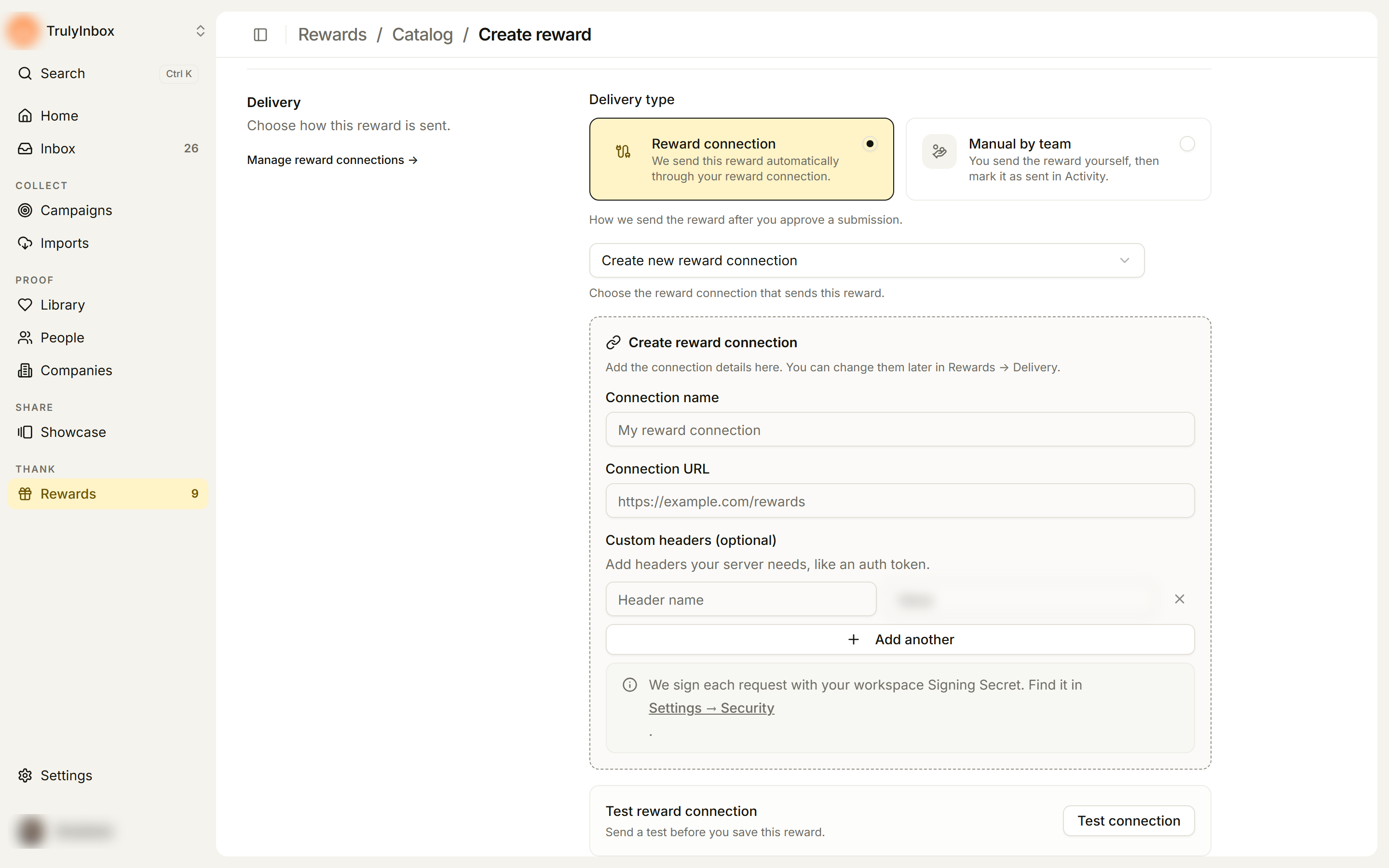
When you pick Reward connection, two more sections appear:
- Extras: extra fields we add to the data sent to your reward connection, for example
cost_centerorregion. Click Add field for each one. - Data preview: the data we send, updated as you type. See Delivery payload reference.
To manage connections themselves, see Send rewards automatically.
Edit a reward
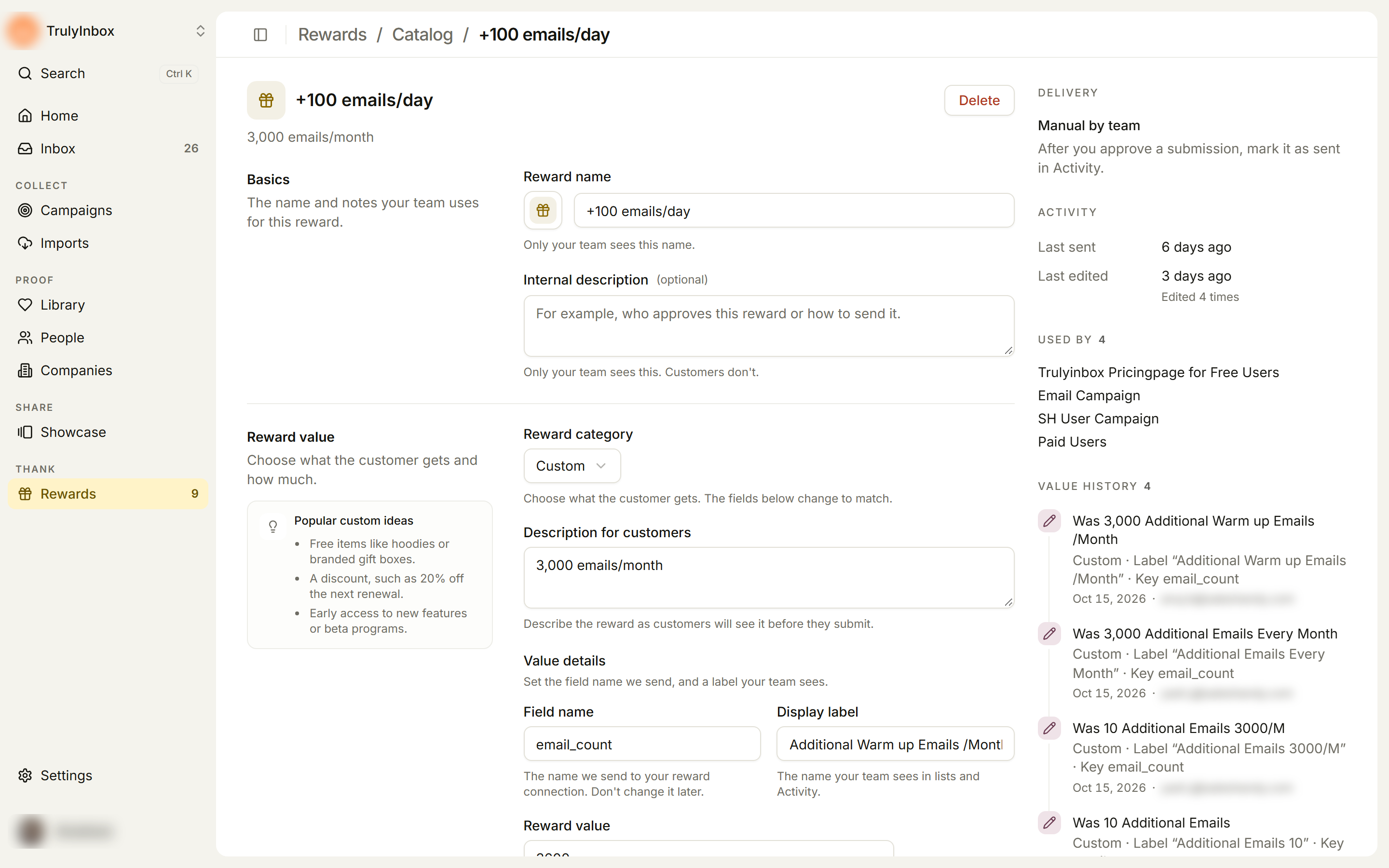
Click a reward in the catalog to open its page. The form is the same as when you created it. Change what you need and click Save changes.
The panel on the right shows:
- Delivery: Manual by team, or the reward connection with its status.
- Activity: Last sent and Last edited, with how many times the reward has been edited.
- Used by: the campaigns the reward is on. If it is on none, it says “It isn’t on a campaign yet, so we never send it.”
- Value history: earlier values of the reward. See Reward snapshot and history.
Changing a reward that is in use
If the reward is on at least one campaign and you change its category, value, currency, field name, display label, delivery type, or connection, you see Change a reward that is in use? before it saves:
This reward is on N campaigns. New values apply to future rewards only. Rewards already sent keep their old values.
Click Save changes to confirm. Changes to the name, descriptions, icon, or extras save without this prompt.
Delete a reward
- Open the reward from the catalog.
- Click Delete at the top of the page.
- In Delete this reward?, click Delete reward. This can’t be undone.
You can’t delete a reward that is still on a campaign. The dialog lists those campaigns instead. Remove the reward from each one first, then delete it. Rewards already issued keep their records in Activity.
Add a reward to a campaign
Rewards are attached per ask in the campaign builder’s Rewards step. You can pick a reward for each ask, use Set one reward for all, choose No reward, or Create new reward without leaving the campaign. See Set rewards on a campaign.
If you need the same idea at a different amount (for example a $10 and a $25 gift card), create two rewards.