Imports
Campaigns collect new proof. Imports bring in the proof you already have: reviews on G2 or Trustpilot, LinkedIn posts that praise you, a spreadsheet from another tool, or a screenshot of a happy customer’s email.
Imported proof lands in the Library next to campaign proof, attaches to a Person and a Company, and can go into a Showcase. It is marked Imported, not verified. HighAdvocacy does not check imported proof, so read it in the Library before you use it publicly.
Paste a review profile or website link. Review profiles can stay in sync every week.
Import from the webPaste up to 25 post links and import them as social proof.
Import LinkedIn and X postsUpload a CSV, map your columns, and import many testimonials at once.
Import from a spreadsheetUpload images of praise and let AI read the name, rating, and text.
Extract from screenshotsType in one written or video testimonial.
Add a testimonial manuallyPick what to keep, add tags and AI hooks, and read the result.
Review and confirm an importManage the review profiles that sync new reviews every week.
Connected sourcesHow imports skip duplicates and link reviewers to People and Companies.
Duplicates and matchingBefore you start
- Anyone in the workspace can import: Owners, Admins and Members.
- Imported proof is not verified on arrival. Check it before you publish it.
Find Imports
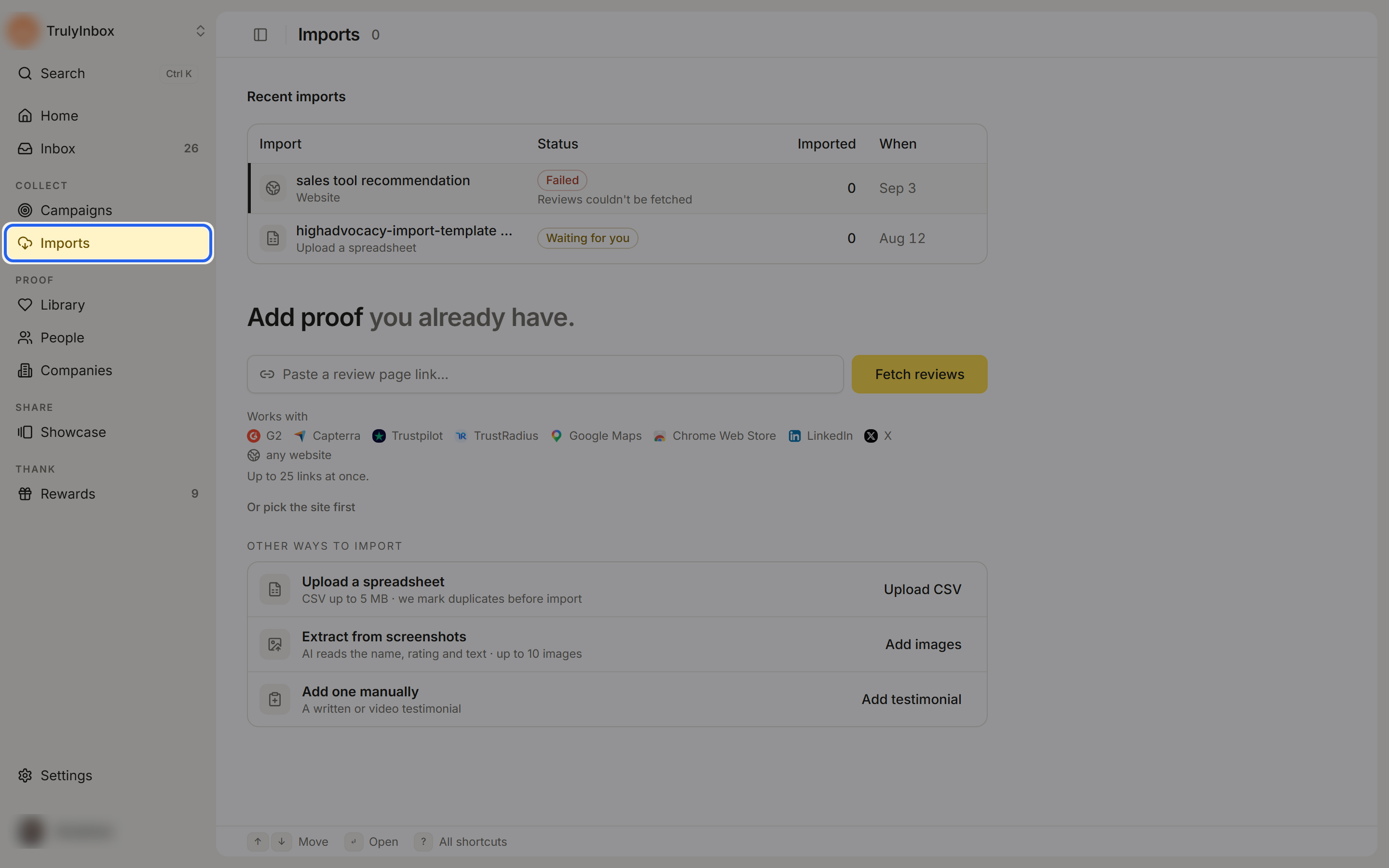
In the left sidebar, open Collect › Imports. The page header reads Imports, with a count of everything you have imported so far.
The page has three parts:
- Add proof you already have. A single field where you paste a link, plus a Works with line listing the supported sites. Below it, Or pick the site first opens the source picker instead.
- Other ways to import. Upload CSV, Add images (screenshots), and Add testimonial (manual).
- Recent imports. Every import run, newest first. Once you have a few runs or a synced source, this list (and Syncing sources) moves to the top, and the paste field opens from the Import proof button in the header.
If you saved review profile links in Settings › Profile under Where you’re reviewed, they show under Your review sites, each with an Import button. Review profiles found on your website during onboarding show under Found on your website with Fetch reviews. Both buttons start a fetch straight away.
Which method to use
| You have | Use |
|---|---|
| A profile on G2, Capterra, Trustpilot, TrustRadius, Google Maps, or the Chrome Web Store | Import from the web |
| Testimonials on your own website | Import from the web (any website) |
| LinkedIn or X posts about you | Import LinkedIn and X posts |
| An export from another tool | Import from a spreadsheet |
| Praise that only exists as an image (email, Slack, DM) | Extract from screenshots |
| One quote or one video | Add a testimonial manually |
How an import runs
- Start the import: paste a link, upload a file, add images, or fill in the form.
- HighAdvocacy fetches or reads what you gave it. You can leave the page; the run keeps going and shows under Recent imports.
- Select the items you want to keep.
- Confirm: add tags and, if switched on, ask AI for hooks and highlights.
- Click Import N and read the result page.
Nothing is added to your Library until you click Import N. The manual form is the only one-step method: Save testimonial imports it directly. See Review and confirm an import for the Select and Confirm steps and the result page.
Recent imports
The Recent imports table has the columns Import, Status, Imported, Skipped, and When. Under each name is the method, for example G2 profile · syncing, LinkedIn post, Website, or Upload a spreadsheet. Click a row to open that run.
A run shows one of these statuses:
| Status | Meaning |
|---|---|
| In progress | HighAdvocacy is still fetching or reading. |
| Waiting for you | Items are ready. Open the run to select and import them. |
| Done | The import finished. |
| Partly done | Some items imported and some failed. |
| Nothing imported | The run finished but added nothing, for example because every item was a duplicate. |
| Failed | The source could not be read. |
Related
- Library: where imported proof lives
- Showcase: publish imported proof on a widget or webpage
- People & Companies: the records imports create and match
- Roles and permissions: who can import