Work with many proofs at once
Select proof in the Library to act on all of it in one go: add it to a showcase, tag it, favorite it, or generate hooks and highlights.
Approving, rejecting and exporting proof aren’t bulk actions in the Library. Approval happens in Inbox.
Select proof
- In the Library, hover a card. A checkbox replaces the avatar in the top-left corner.
- Click the checkbox (or anywhere in that corner). You can also move to a card with the arrow keys and press
Space. - Keep ticking cards. Once one is selected, every card shows its checkbox.
The toolbar turns into a bar that reads “N proofs selected”.
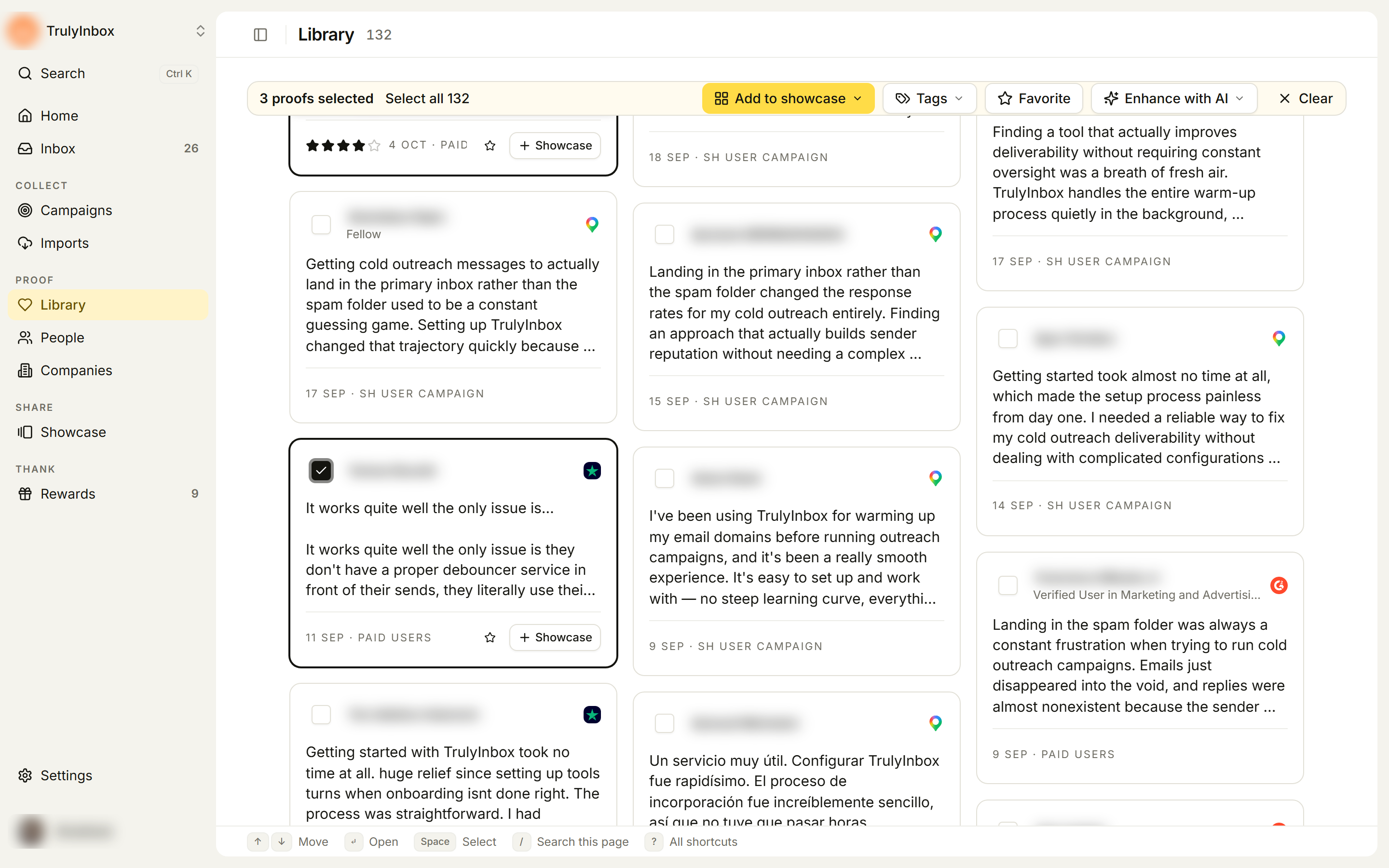
- Select all N selects every proof that matches your current search and filters, including cards that haven’t loaded on screen yet. The bar then reads “All N proofs selected”. You can untick cards to leave them out.
- Clear (or
Esc) clears the selection.
Tip: filter first, then Select all. For example, filter by Untagged and tag the lot.
Add to a showcase
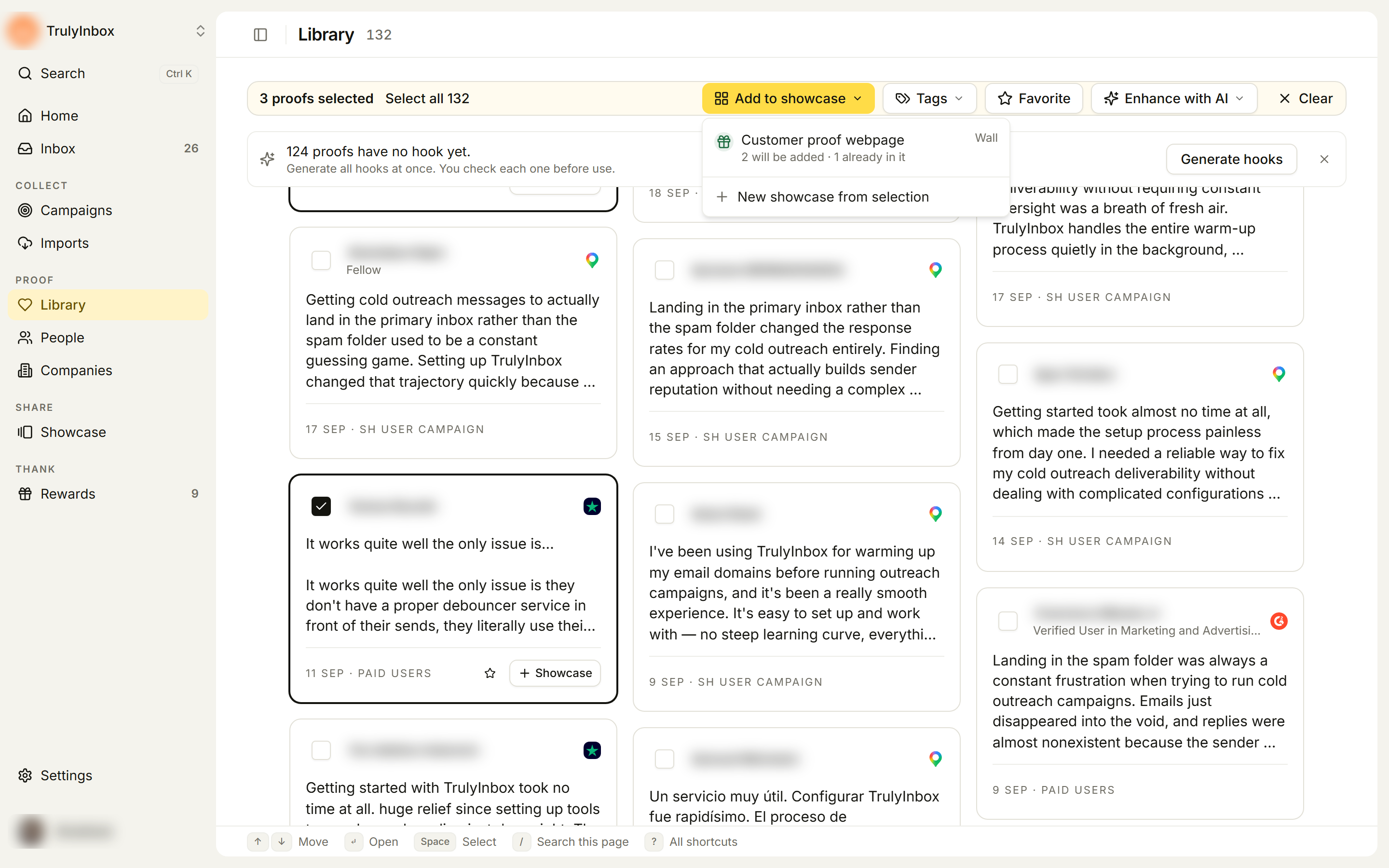
- Click Add to showcase.
- Each showcase in the list shows what will happen, for example “2 will be added · 1 already in it”. A showcase is greyed out when all the selected proof is already in it, or when adding would take it over its limit of 100 proofs (“Over the limit of 100 proofs”).
- Pick a showcase. Confirm with Add proofs in the dialog.
If the showcase is shared, the new proof shows on its page and on your website. Proof below the showcase’s star rating rule stays hidden there, and so does proof with no text or media.
To start fresh, choose New showcase from selection. It creates a new widget with the selected proof in it.
Add or remove tags
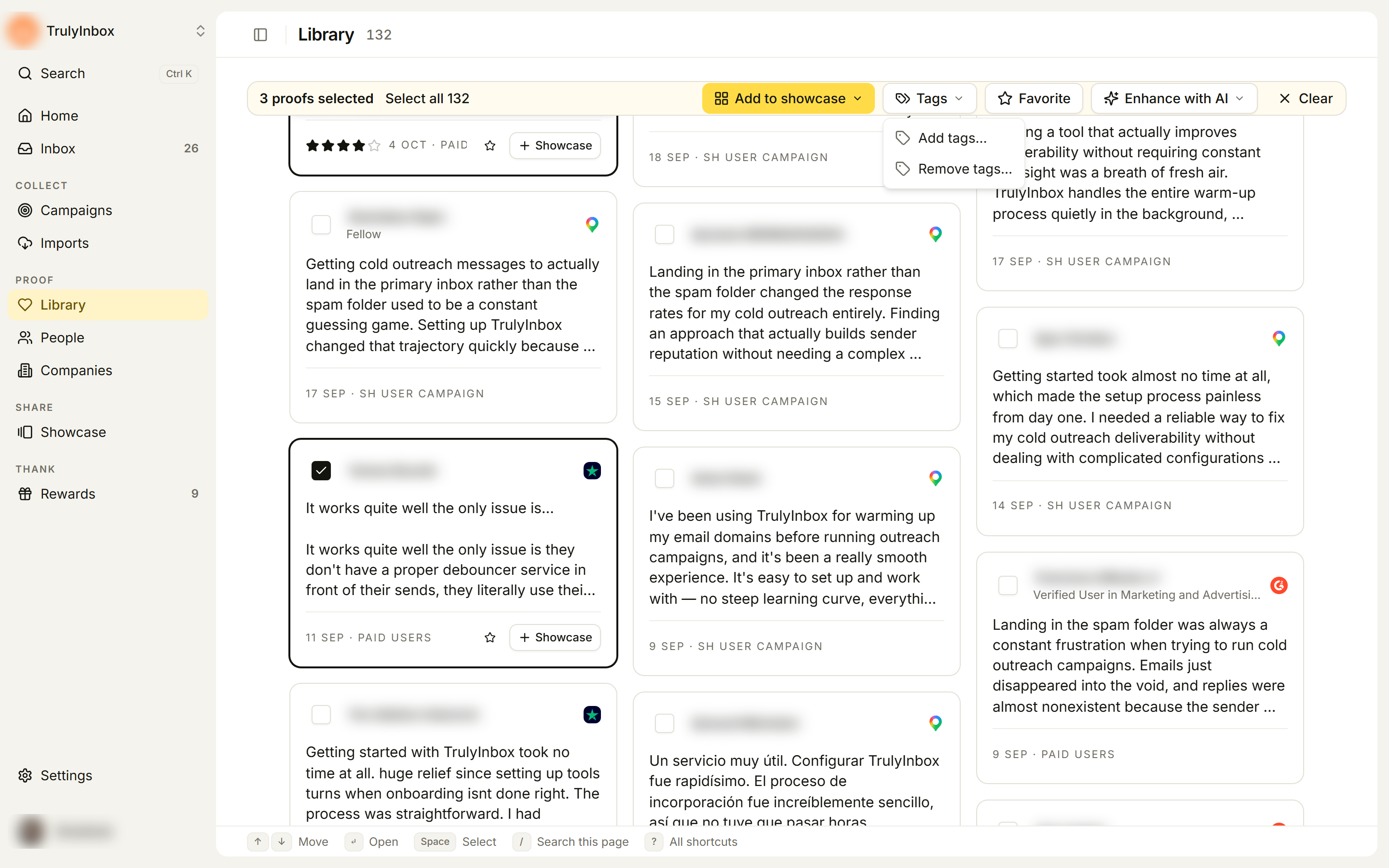
- Add tags…: type one or more tags (pick existing ones or create new), then click Apply.
- Remove tags…: the menu shows how many tags the selection has. In the dialog, tick the tags to remove and click Remove. It is greyed out when the selection has no tags.
Tag rules are the same as for one proof. See Tag and favorite proof.
Favorite or unfavorite
Click Favorite to star every selected proof. If everything selected is already a favorite (or you are filtering by Favorites), the button reads Unfavorite and removes the star instead.
Enhance with AI
Click Enhance with AI and choose Generate hooks or Suggest highlights. Each option shows how many of the selected proofs will get one, and how many have no text. A dialog shows the full count before anything runs, and nothing is generated until you confirm.
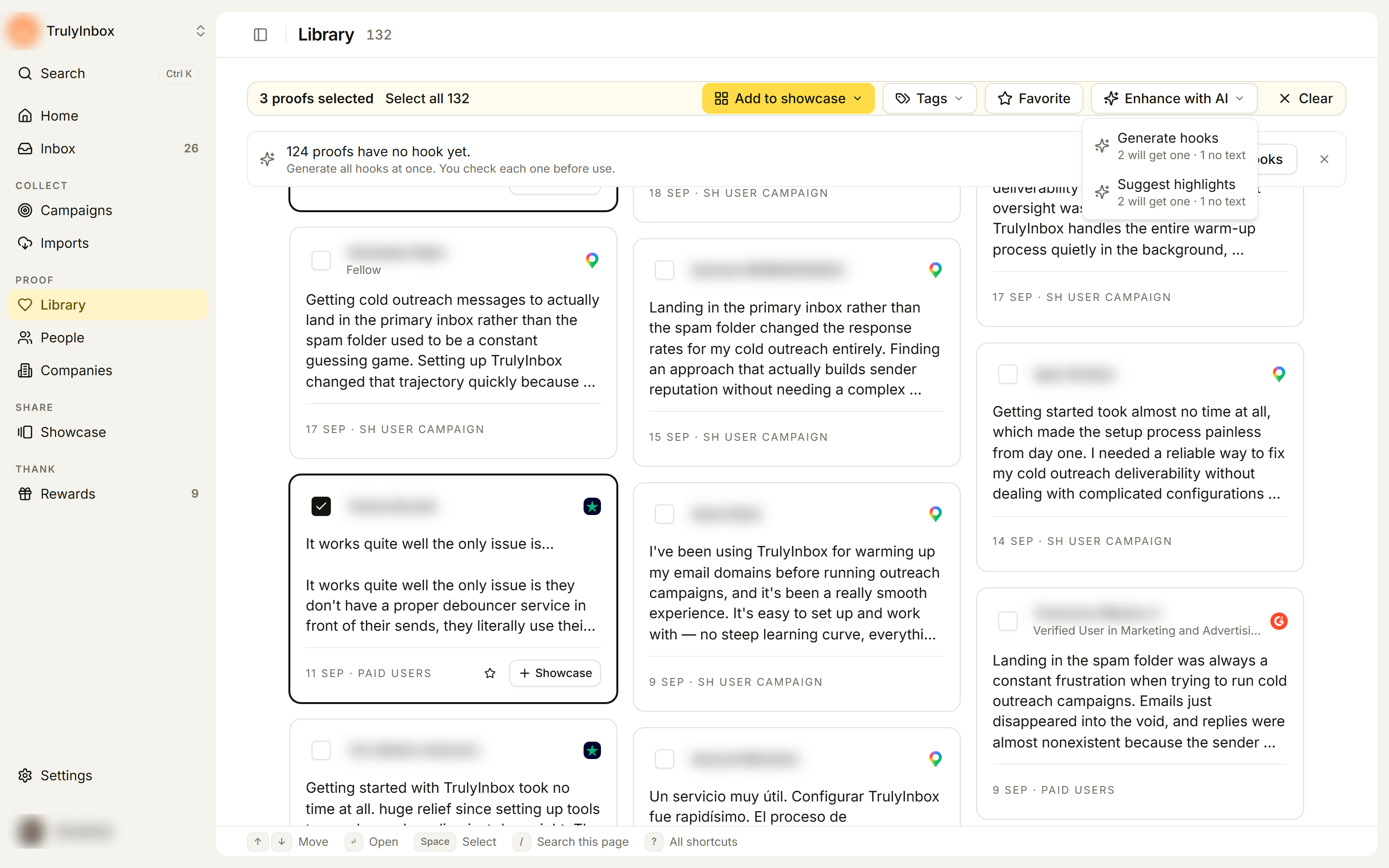
Enhance with AI only shows when the AI hook generator or AI highlighter is on in Settings > AI verification. See Add hooks and highlights for how runs work.