Sign in and join a workspace
HighAdvocacy has no passwords. You sign in with your work email (we send a link and a code), or with Google or Microsoft. This page also covers joining a workspace someone else set up.
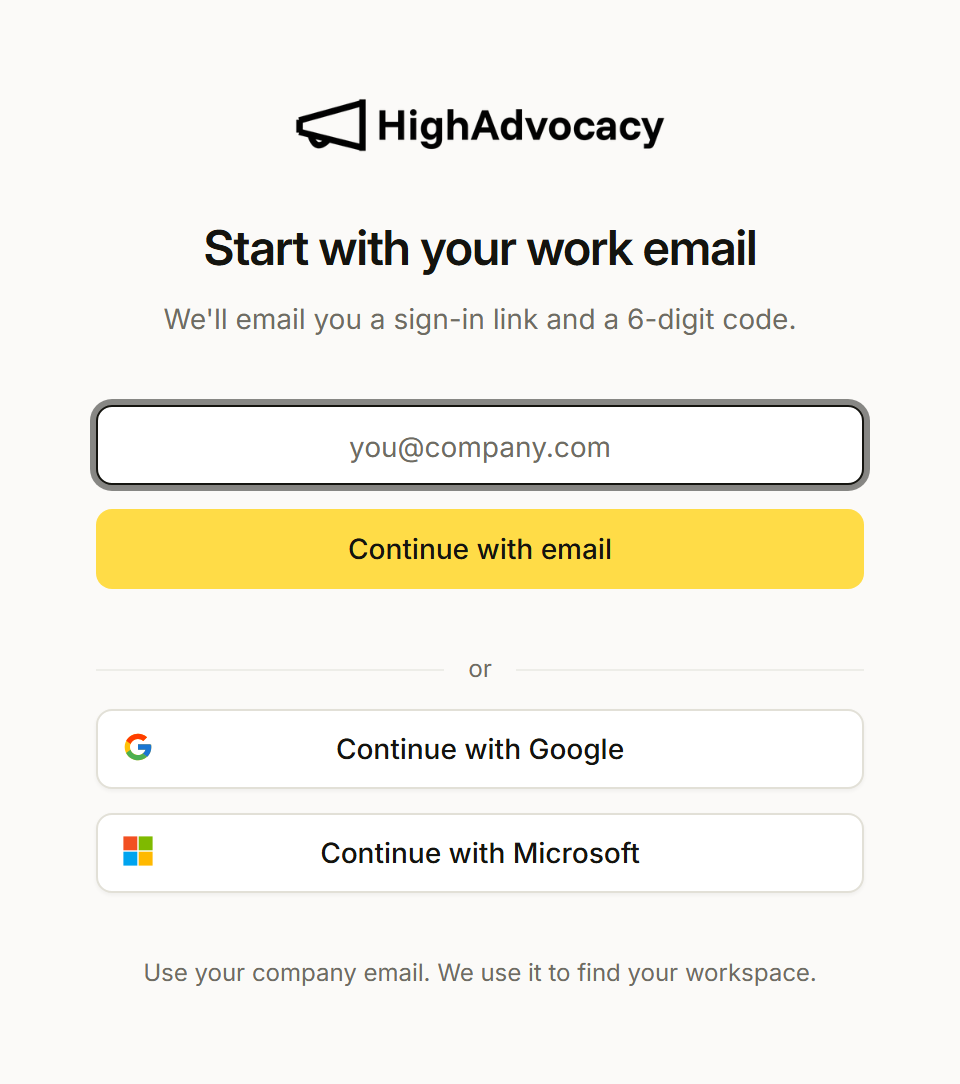
Sign in
- Go to
app.highadvocacy.com/login. - Choose how to sign in:
- Email: type your work email and click Continue with email. On Check your email, type the 6-digit code and click Verify code, or open the link in the email.
- Google or Microsoft: click Continue with Google or Continue with Microsoft. The button you used last time shows a Last used badge.
- You land on Home in the workspace you used last.
About the email link and code:
- Both expire 15 minutes after they’re sent, and the link works once.
- The code boxes have Open Gmail and Open Outlook shortcuts to your inbox.
- No email? Wait for the timer, then click Resend email. Wrong address? Click Change.
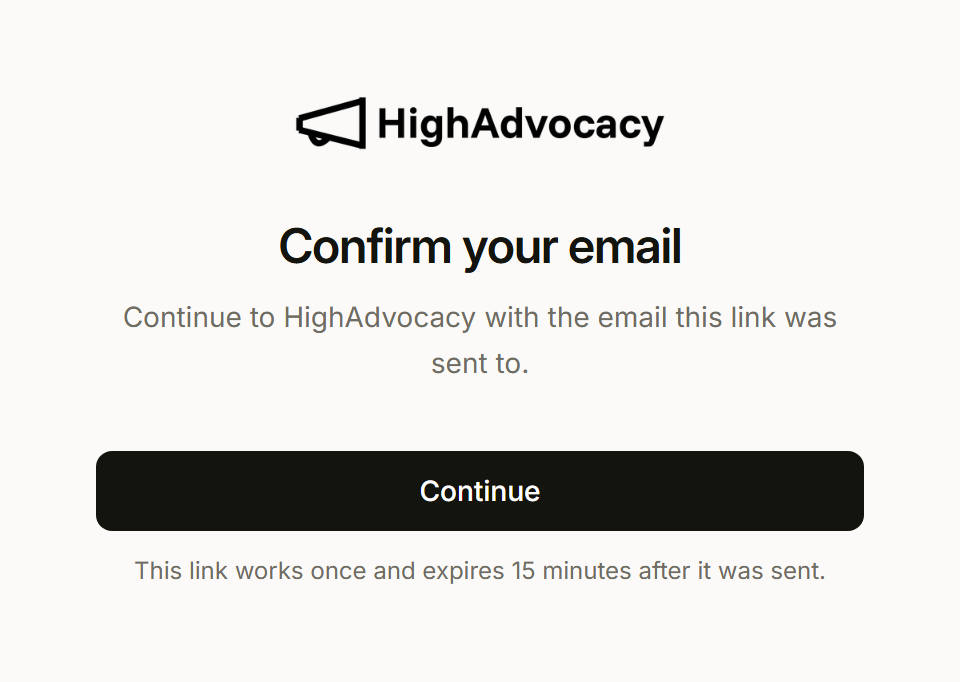
- When you open the link, you see Confirm your email. Click Continue to sign in.
Accept an invitation
When a teammate invites you, you get an email with an invitation link.
- Open the link. You see Accept your invitation with the Account and Workspace you’re joining.
- Click Accept invitation.
- You’re signed in and land on Home in that workspace. You don’t go through onboarding.
If you’re asked to sign in instead, sign in with the email address the invitation was sent to.
Invitations come from Owners and Admins in Settings > Members. See Invite teammates.
Ask to join your company’s workspace
Each company has one workspace. If you sign up and someone at your company already set one up, you’ll see a message like Acme already has a workspace, with how many people are in it and who owns it.
- Click Request access.
- You see Request sent. Your request goes to the workspace owner by email.
- We email you when they add you. Then sign in as usual.
Owners and Admins see your request on Home under Needs you and approve or decline it in Settings > Members under Requests to join. See Approve requests to join.
Switch workspaces
If you belong to more than one workspace, click the workspace name at the top of the sidebar and pick another. See Find your way around.
Sign out
Click your name at the bottom of the sidebar, then Sign out.
Troubleshooting
- “This link no longer works.” The link was already used or is older than 15 minutes. Click Get a new link.
- “This link is incomplete.” Part of the link is missing, often because the email app split it. Open it from the email again, or get a new one.
- “We couldn’t verify that code.” Use the code from your latest email, or open the link instead.
- “Use your work email.” Personal and temporary addresses can’t be used. Sign in with your company email.
- “This email already has a HighAdvocacy account. Sign in using its existing method.” Use the method you signed up with, for example Google instead of email.
- “Your IT admin needs to approve HighAdvocacy.” Your company requires admin approval for Microsoft apps. Click Email my admin, or Use email instead.
- “Invitation not found” or “This invitation was already used or cancelled.” Ask the person who invited you to send a new invitation.
- You’re suddenly back on the sign-in screen. You may have been removed from your last workspace. Ask an Owner or Admin on your team.