Send alerts to Slack and other tools
An integration sends an alert to a tool your team already uses each time something happens in HighAdvocacy, like a new submission or a reward that needs sending. You set integrations up in Settings → Integrations.
Before you start
- You need the Owner or Admin role. Members can view integrations but can’t add or change them.
- Have the tool you want to connect open in another tab. Each tool gives you a link that HighAdvocacy posts alerts to.
Where alerts can go
| Destination | What you paste |
|---|---|
| Slack | Slack channel link (an Incoming Webhook link) |
| Microsoft Teams | Teams channel link |
| Discord | Discord channel link (a channel webhook link) |
| Zapier | Zapier catch link (from Webhooks by Zapier) |
| Basecamp | Basecamp chatbot link |
| Your own server | Your server URL (any HTTPS link) |
You can add more than one integration for the same tool, for example one Slack channel for new submissions and another for reward problems.
Add an integration
-
Open Settings at the bottom of the sidebar, then click Integrations under Notifications.
-
Choose a destination:
-
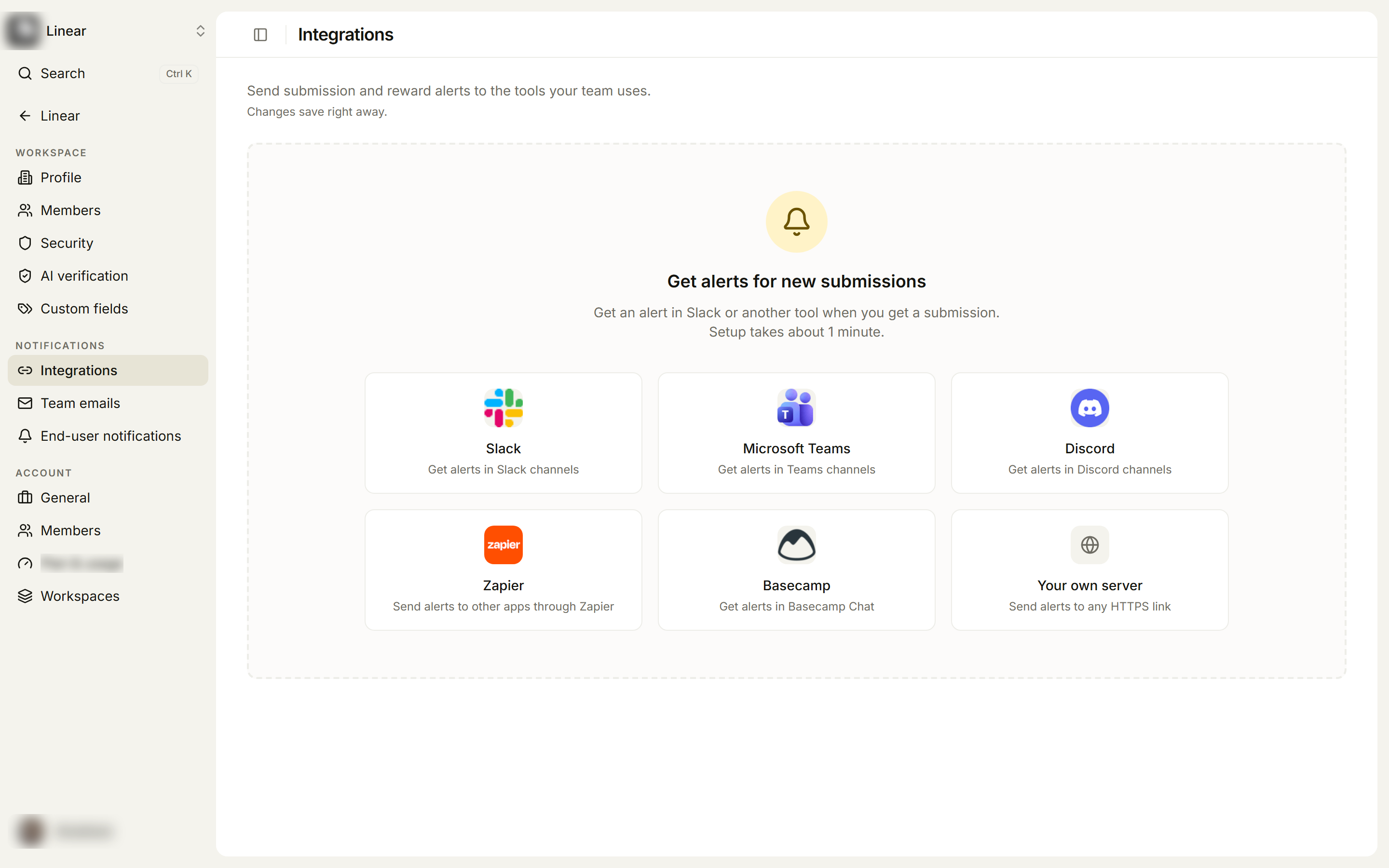
If you have no integrations yet, the page shows Get alerts for new submissions with a tile for each tool. Click the tile you want.
-
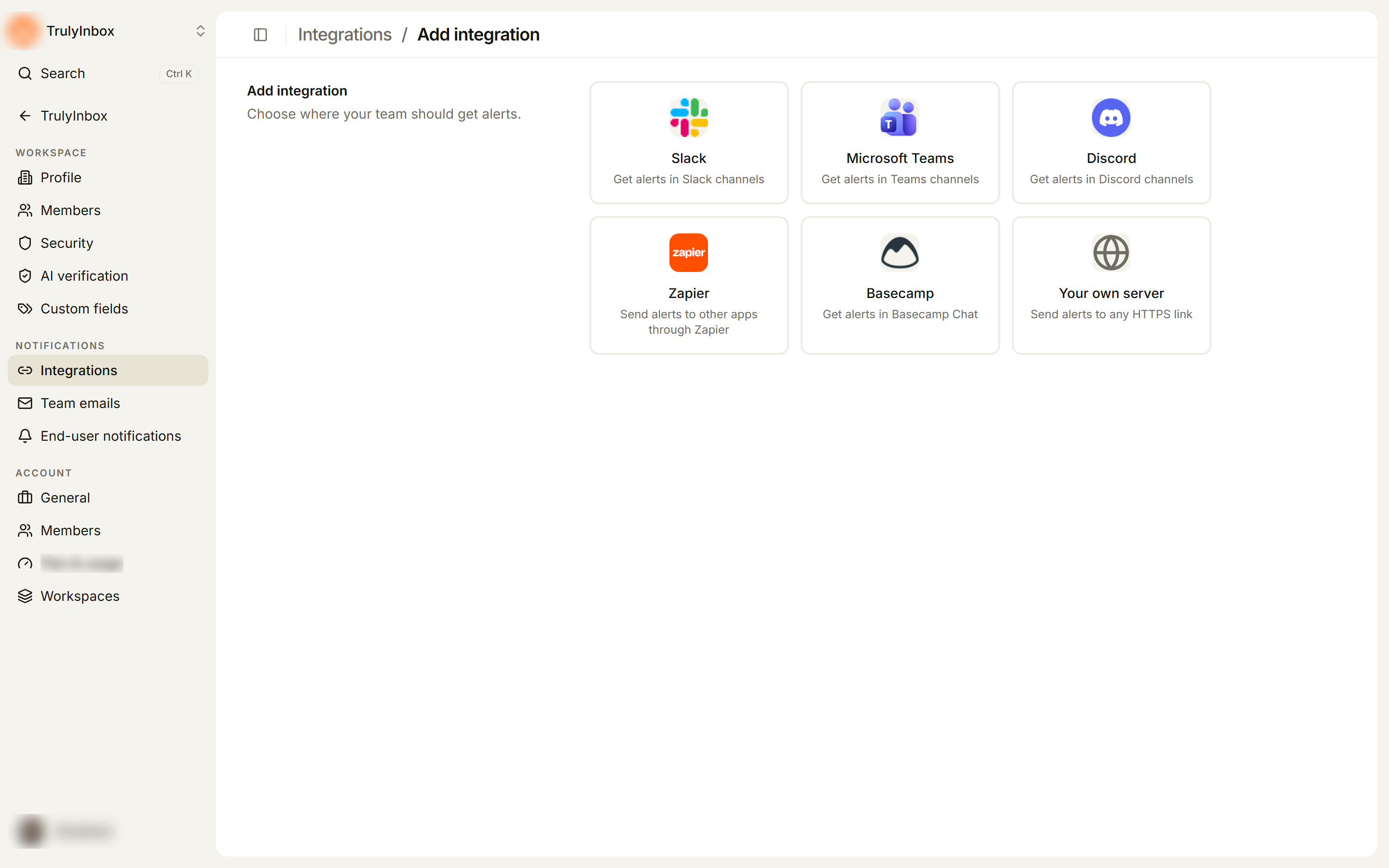
If you already have one, click Add integration at the top right, then pick a tool on the Add integration page.
-
-
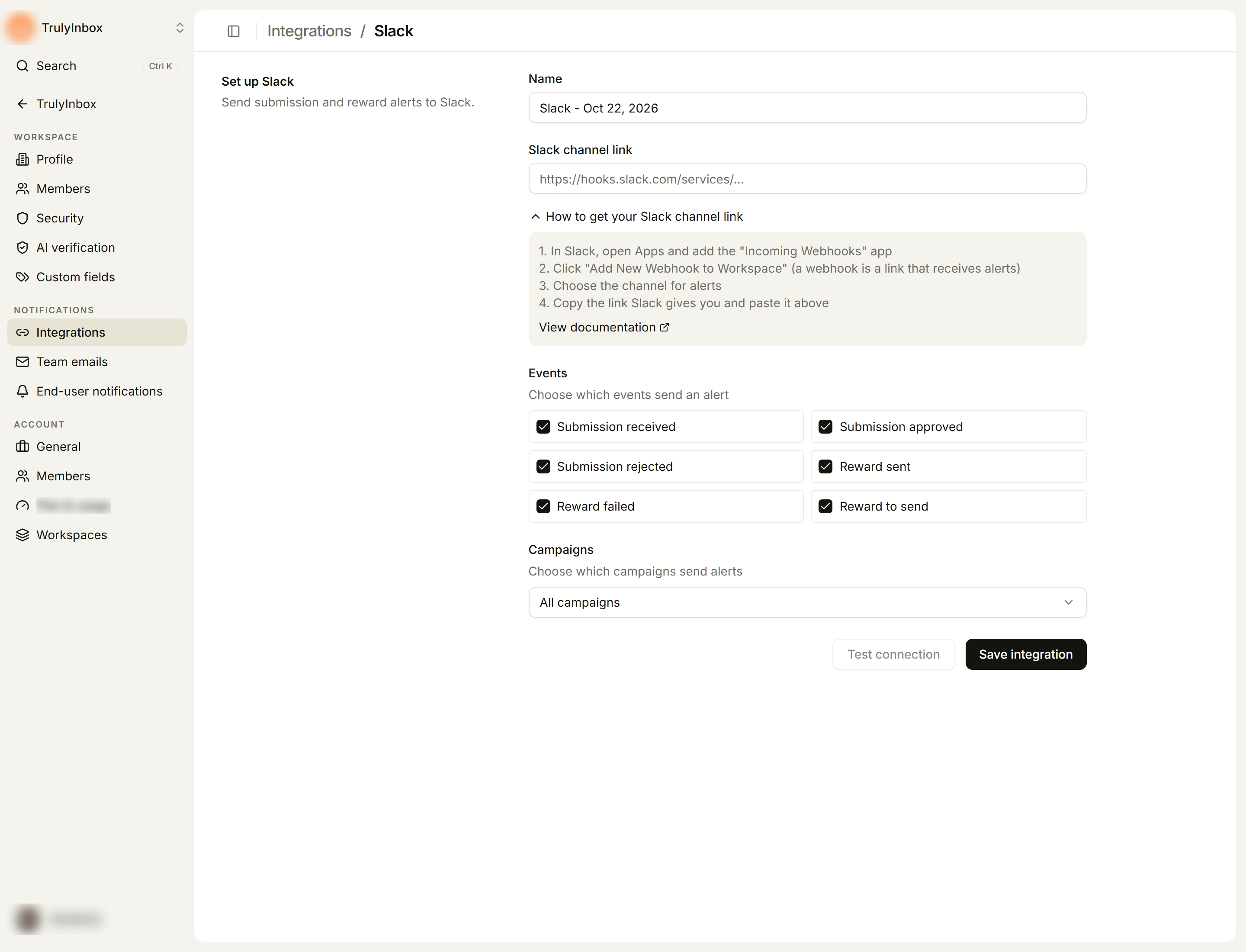
On the Set up {tool} page, check the Name. It starts as the tool name and today’s date, for example
Slack - Oct 22, 2026. Rename it if you plan to have more than one. -
Paste the link from your tool into the link field. Click How to get your {link name} to see the steps inside the app, or follow the steps for your tool below.
-
Under Events, untick any events this destination should not get. All six are ticked to start.
-
Under Campaigns, leave All campaigns or open the list and tick only the campaigns that should send alerts here.
-
Click Test connection to send a sample alert, and check that it arrived.
-
Click Save integration. You go back to the Integrations list, where the new integration shows as Active.
Get the link from your tool
Slack
- In Slack, open Apps and add the Incoming Webhooks app.
- Click Add New Webhook to Workspace.
- Choose the channel for alerts.
- Copy the link Slack gives you and paste it into Slack channel link.
Microsoft Teams
- Open Teams, select a channel, and open its … menu.
- Click Connectors or Workflows.
- Search for Incoming Webhook and set it up.
- Copy the link Teams gives you and paste it into Teams channel link.
Discord
- Open Discord and go to Server Settings → Integrations.
- Click Webhooks, then New Webhook.
- Choose a channel and name the bot.
- Click Copy Webhook URL and paste it into Discord channel link.
Zapier
- Create a new Zap in Zapier.
- Choose Webhooks by Zapier as the trigger.
- Select Catch Hook.
- Copy the link Zapier gives you and paste it into Zapier catch link.
After you click Test connection, Zapier shows the sample alert in the trigger step. Use its fields to build the rest of your Zap.
Basecamp
- Open a Basecamp project and select Chat.
- Open the chat options and choose Add a chatbot.
- Name the chatbot and copy its posting link.
- Paste the link into Basecamp chatbot link.
Alerts then appear in that project’s chat.
Your own server
Use Your own server to send alerts to any HTTPS link you control, such as an internal tool or a CRM.
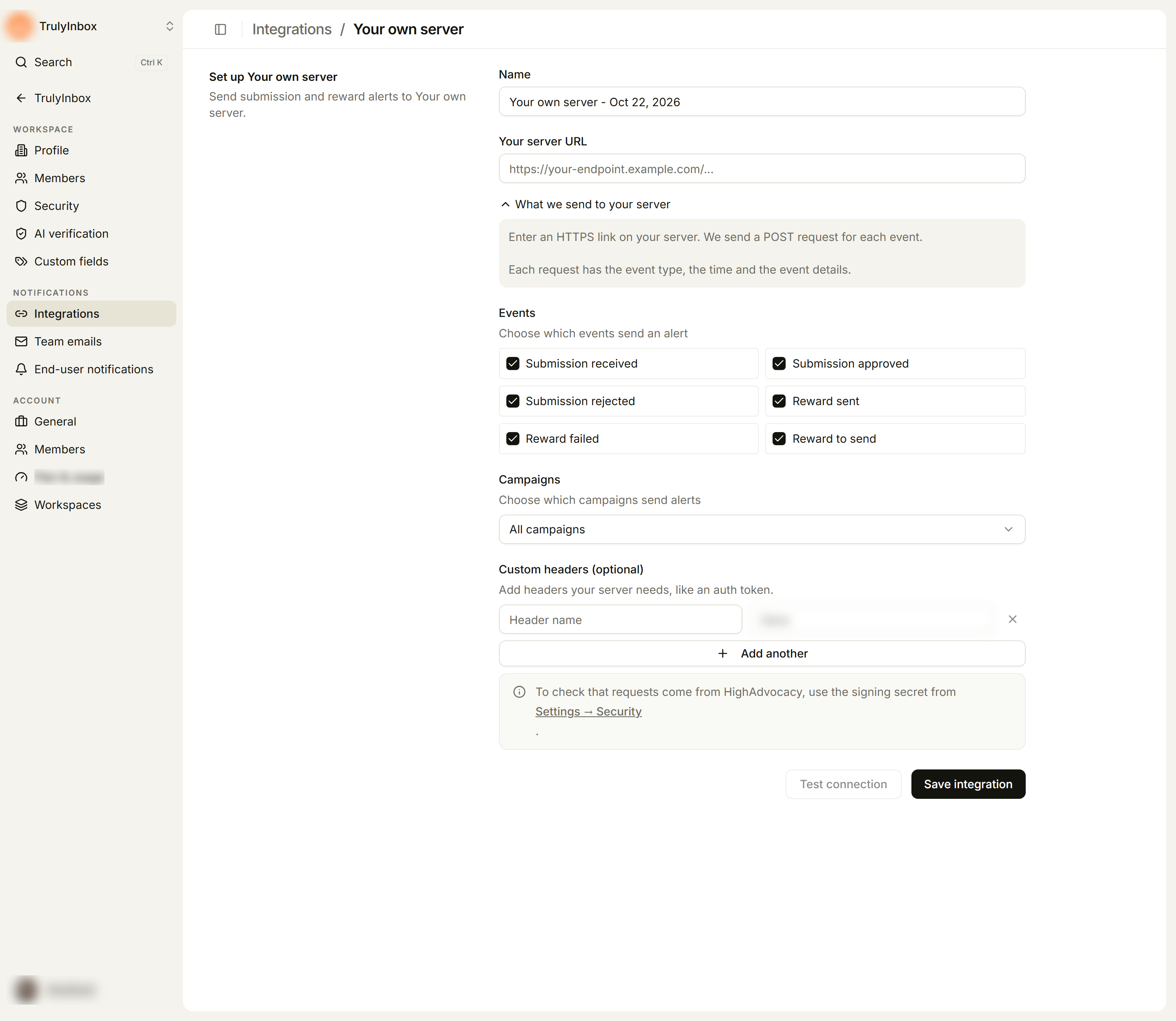
- Paste your endpoint into Your server URL. We send a POST request for each event. Each request has the event type, the time and the event details. Click What we send to your server to see this in the app.
- If your server needs headers, such as an auth token, fill in Custom headers (optional): a Header name and a Value per row. Click Add another for more rows.
- To check that requests come from HighAdvocacy, use the signing secret in Settings → Security. See Security settings.
Choose which campaigns send alerts
- All campaigns sends alerts for every campaign in the workspace.
- To limit it, open the Campaigns list and tick specific campaigns. The field then reads, for example, 2 campaigns selected. Ticking All campaigns again clears your selection.
Team emails always cover every campaign. Only integrations can be limited to some campaigns.
Test the connection
Test connection sends a sample alert with example data to the link you pasted. A note under the form shows the result from your tool, with the response time when it worked. If it failed, the note shows the error, so you can fix the link and test again.
You can also test a saved integration: in the Integrations list, open the ⋯ menu on its row and choose Test connection. A message at the bottom of the screen shows the result.
The Integrations list
Once you have an integration, Settings → Integrations lists them with these columns:
- Integration: an on/off switch, the tool’s logo and the name.
- Events: All events, or how many events are ticked (for example 3 events).
- Status: Active (alerts are on), Paused (someone turned the switch off) or Failed (we turned alerts off after failed sends).
- Last active: when the last alert went out, or Never.
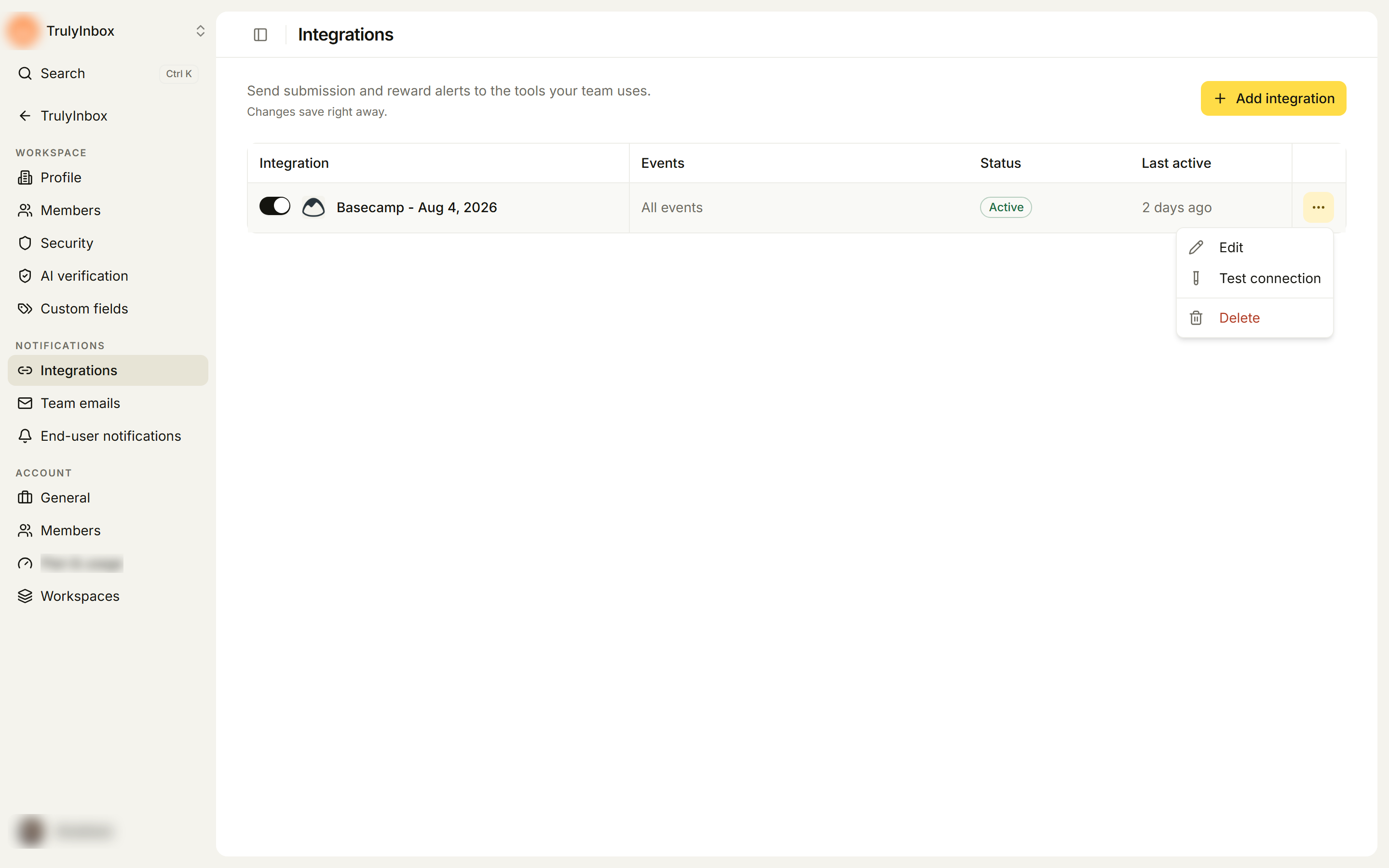
Changes on this page save right away. Use the row switch to pause or resume alerts. The ⋯ menu has Edit (opens the integration), Test connection and Delete. Deleting asks you to confirm in Delete integration? and can’t be undone.
A Failed integration can’t be switched on from the list. Open it and click Turn on again. See Check, edit or turn off an integration.
If something goes wrong
| Message or problem | What to do |
|---|---|
| Add a name. / Use 100 characters or fewer. | Give the integration a name of 100 characters or fewer. |
| Paste the link where we should send alerts. | The link field is empty. Paste the link from your tool. |
| Enter a full link, e.g. https://example.com | Paste the whole link, including https://. |
| Choose at least 1 event. | Tick at least one event under Events. |
| Test connection is greyed out | Paste a link first. The button needs a link to test. |
| The test fails | Copy the link again from your tool. For Slack, check the Incoming Webhooks app is still installed. For your own server, check it accepts POST requests and add any headers it needs. |
| Alerts stopped arriving | Open the integration and check its status and the Delivery log. See Check, edit or turn off an integration. |
| A campaign doesn’t send alerts | Open the integration and check that the campaign is ticked under Campaigns, or choose All campaigns. |