Review and approve submissions
Every submission waits in the Inbox until someone decides on it. This page shows you how to read a submission and approve or reject it. To act on many at once, see Bulk actions and shortcuts.
Before you start
- You need the Owner, Admin, or Member role to approve or reject.
- If AI verification is on, most submissions arrive already scored. See How AI verification works.
Read the list
Open Inbox in the sidebar. It opens on the Need action tab. Each row shows:
- Person: who sent it, with their email and company when known.
- Campaign and Platform: where it came from.
- Status: your team’s decision word (Needs review, Approved, or Rejected), with a short line under it about the AI check.
- Score: the AI score, for example 80/100, or a dash when it was not scored.
- Reward and Received.
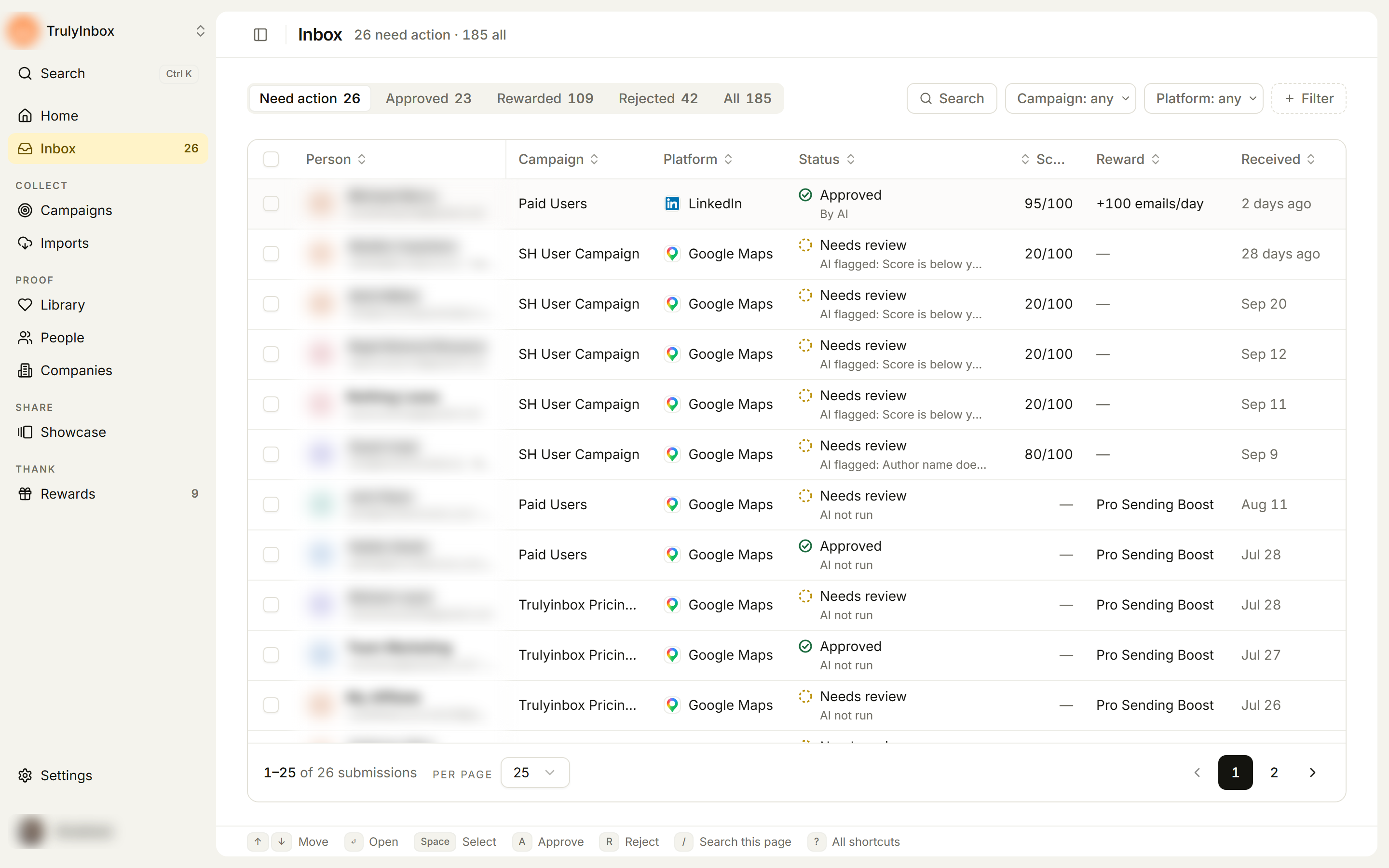
The line under the status tells you what the AI did:
| Line | Means |
|---|---|
| AI passed | The AI check passed. |
| AI flagged: [reason] | The AI found something for you to look at, for example “Author name doesn’t match”. |
| AI checking | The AI check has not finished. |
| AI not run | No AI check ran, for example because AI verification is off for the campaign. |
| Imported, not checked | The proof was imported, not sent through a campaign. |
| By AI or By AI: [reason] | The AI made the decision on its own. |
| Reward sent | Shown on rewarded submissions. No reward to send when there was no reward. |
Open a submission
- Click a row, or move to it with the arrow keys and press ↵.
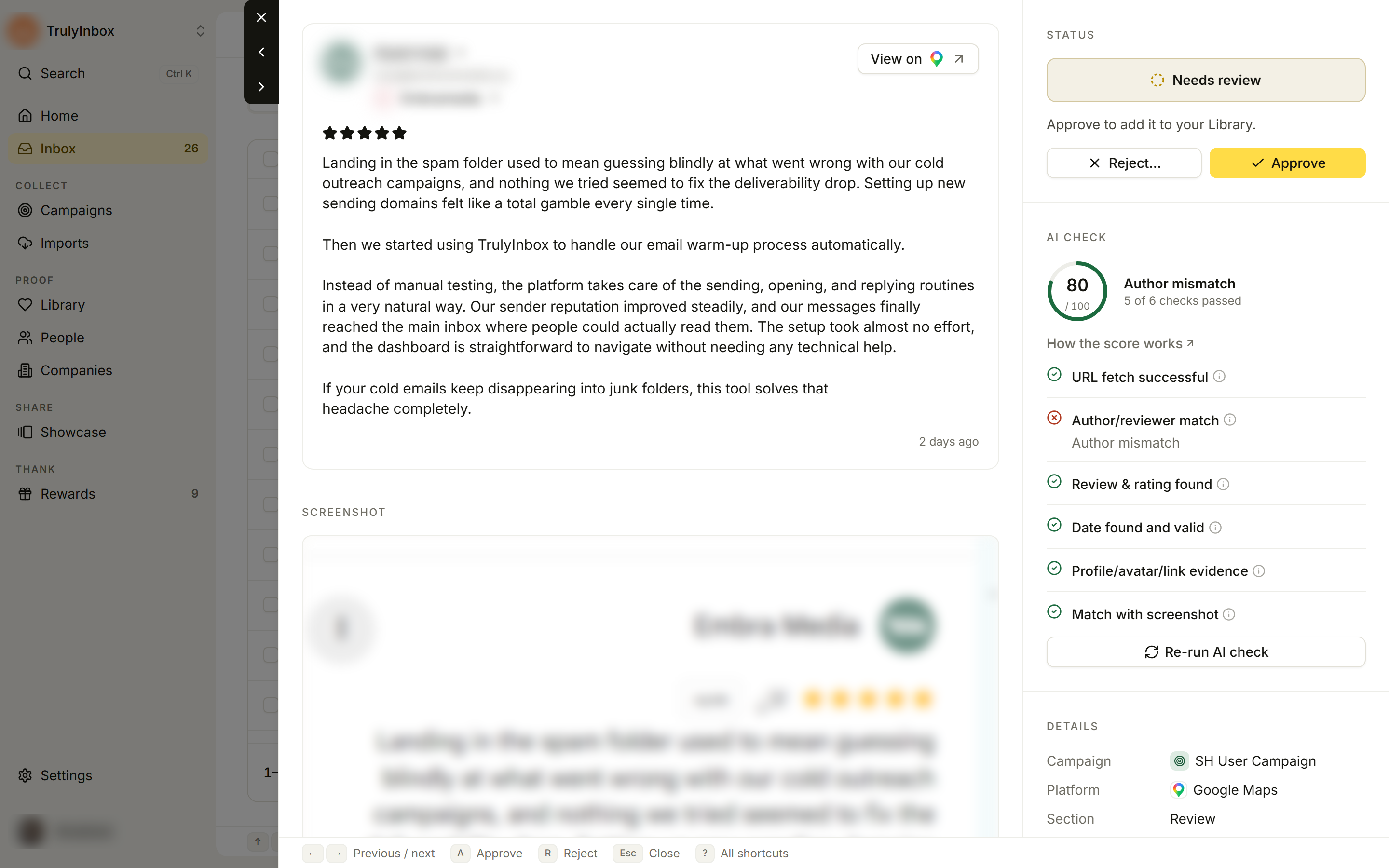
- The drawer opens. On the left is the proof: the person, a View on button for the platform, the review or post text (or the video or quote), and the Screenshot they uploaded.
- On the right are four sections:
- Status: the decision so far, one line on why, the next step, and the action buttons.
- AI check: the score ring, how many checks passed, and each check. How the score works opens How AI verification works.
- Details: Campaign, Platform, Section, Source, Reward, Submitted, and Decided by once someone has decided.
- History: every event with when and who. Your teammates show by name. Events from the AI check show AI.
- Use View on to open the live review or post and compare it with what the AI found.
Use the arrows at the top of the drawer, or ← and →, to move to the previous or next submission.
Approve or reject
The buttons in the Status section change with the submission’s state.
A submission that needs review:
- Approve adds it to your Library. If rewards are sent automatically when verified, the button reads Approve & send [reward] and the reward goes out too. If rewards wait for your approval, the line above the buttons says the reward needs a separate approval. See Send rewards after you approve.
- Reject… opens a dialog. Add an optional Reason and click Reject. The reason is emailed to the person who sent the submission. Edit the email opens End-user notifications.
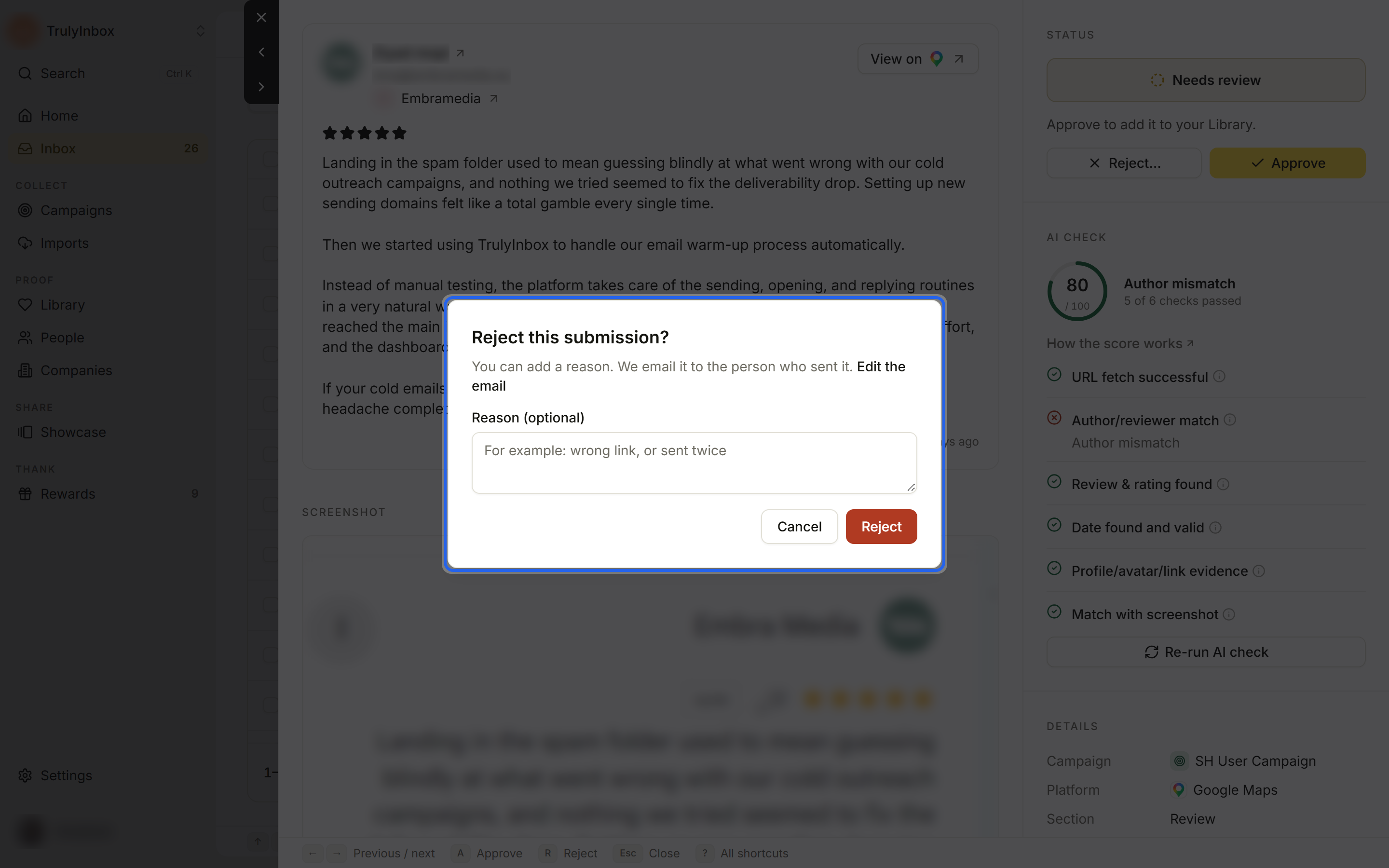
After you decide, the drawer moves to the next submission so you can keep going.
A submission the AI is still checking: you can decide now. Approve asks you to confirm with “Stop the AI check and approve?”, and Reject… shows the same notice. Your decision counts and the AI check stops. To get a result first, use Run AI check.
A submission that is already decided: you can change the decision.
- On an approved submission, Reject replaces the approval with your decision.
- On a rejected submission, Approve & send [reward] asks “Approve this rejected submission?” and replaces the rejection with your decision.
A rewarded submission is final. It has no decision buttons.
Run the AI check again
- Re-run AI check scores the submission again, for example after a review that was waiting for moderation goes live. It is not offered once the submission is rewarded.
- Run AI check appears when a submission has not been checked yet. If AI verification is off for that campaign, the drawer links to the campaign so you can turn it on for new submissions.
Check a flagged author
“Author name doesn’t match” means the AI could not tie the name on the review to the person who sent it. People often use a nickname, initials, or a different name on review sites. Open the review with View on, and if you recognise the person, approve it.