Choose what proof appears in a showcase
The Proof tab of the builder controls which proof a showcase shows and in what order. You can also add proof from the Library without opening the builder, and set rules that add new proof automatically.
The Proof tab
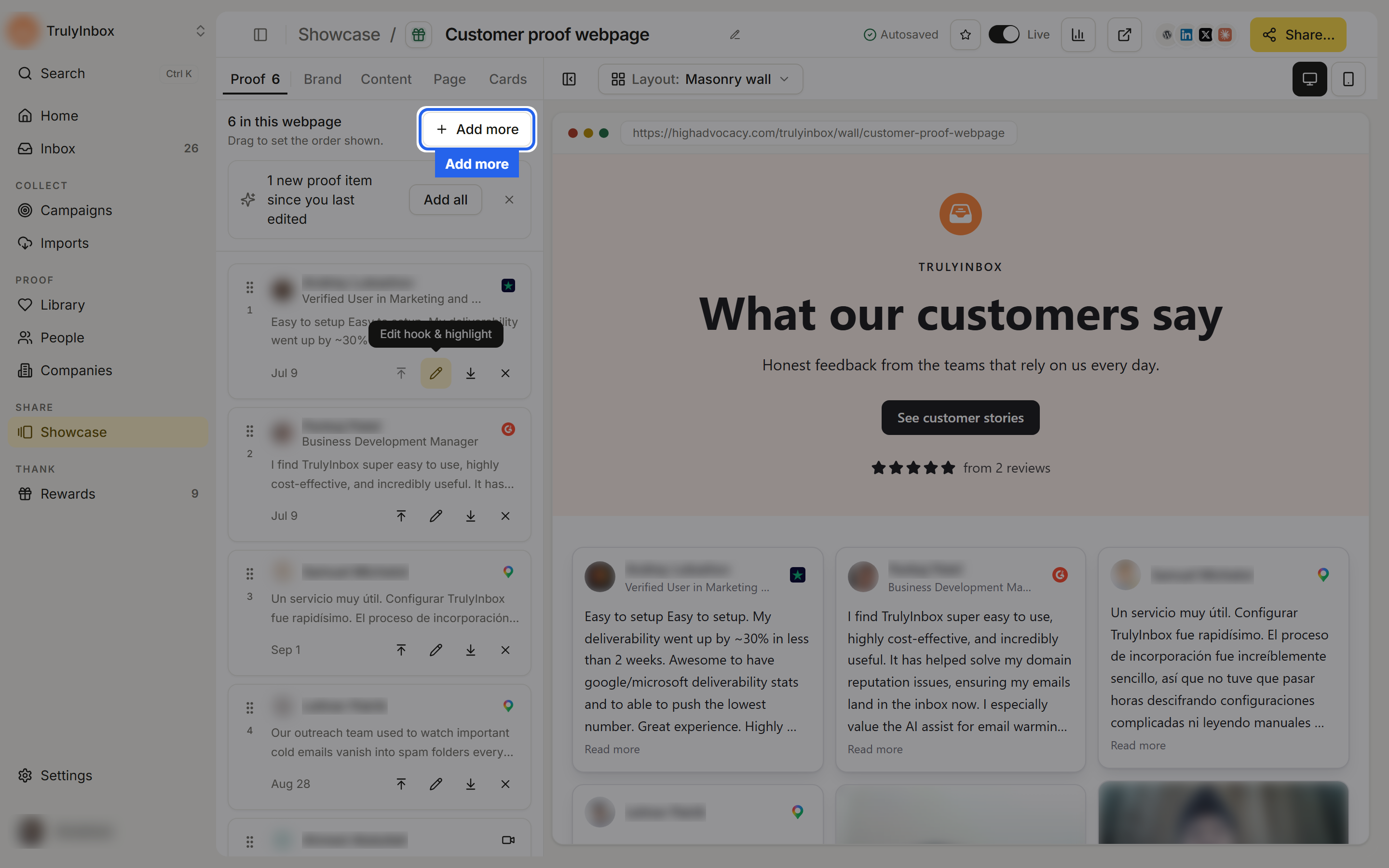
Open a showcase from the Showcase page. The builder opens on the Proof tab, which shows a count of the proof in it.
The top of the tab reads “6 in this webpage” (or “in this widget”) and “Drag to set the order shown.” Each proof row has these controls:
- Drag to reorder: the handle on the left. Drag the row up or down.
- Move to top and Move to bottom: faster than dragging in a long list.
- Edit hook & highlight: opens the proof’s details over the builder so you can add or change its hook and highlight. See Hooks and highlights.
- Remove: takes the proof out of this showcase. It stays in your Library.
Moves and removals show a message with Undo.
Most layouts give the first few proofs the most prominent spot, and on mobile later proof sits far down the page. The Single Quote widget shows only the first proof, so drag the one you want to the top.
Notices on the Proof tab
- “N new proof items since you last edited” with Add all: new approved proof has arrived. Add all adds it; you can also dismiss the notice.
- “N proofs are hidden: rated below 4★, or nothing to show.” with Remove them: some selected proof won’t appear on the live showcase (see Why some proof is hidden).
- No hook or No text on a row: the proof has no hook for layouts that show hooks, or has nothing to show at all.
Add proof from the builder
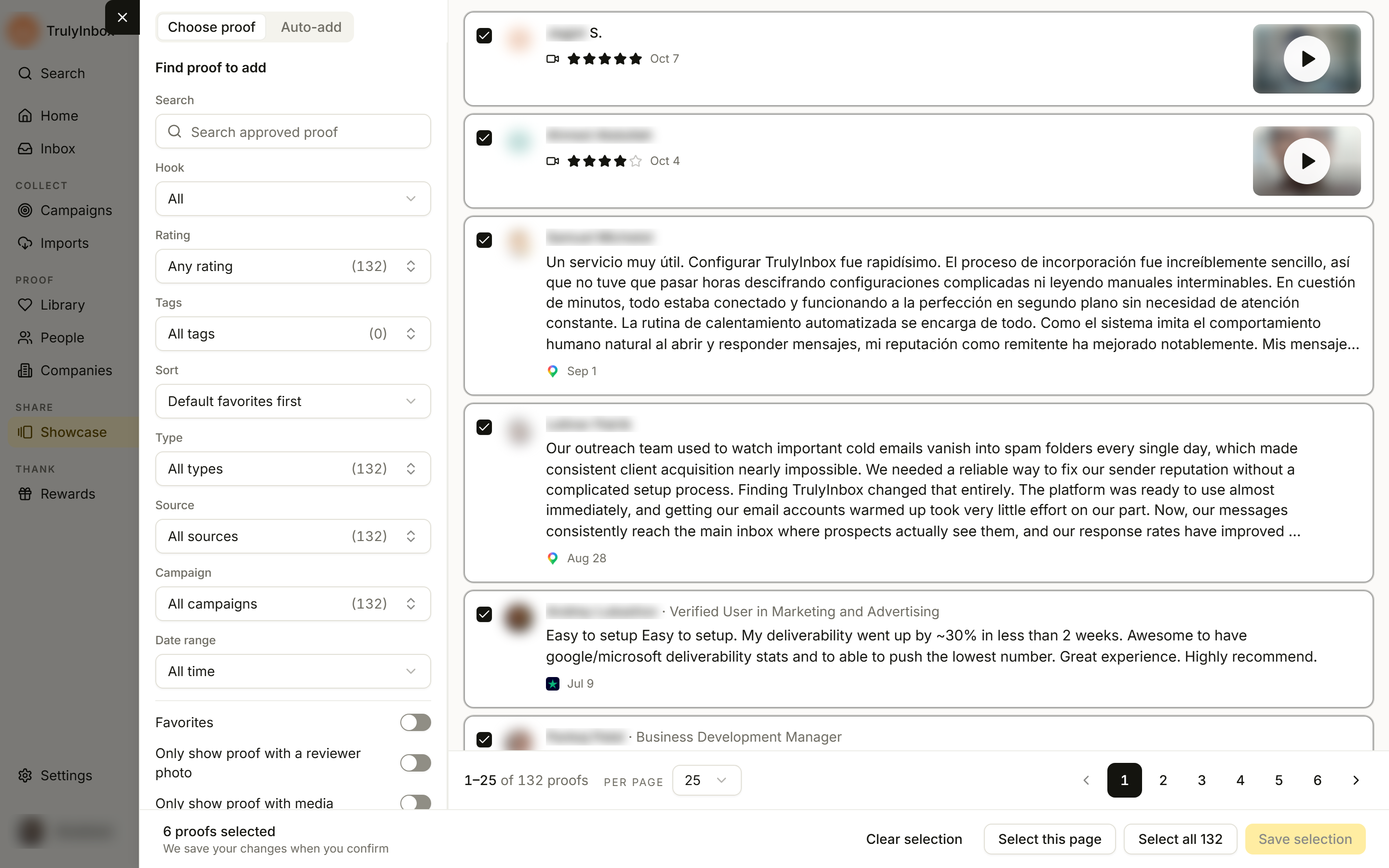
- On the Proof tab, click Add more. The Add proof sheet opens on the Choose proof tab.
- Narrow the list with the filters:
- Search (“Search approved proof”)
- Hook: All, Has hook, No hook
- Rating, Tags, Type, Source, Campaign
- Sort: Default favorites first, Newest, Oldest
- Date range: All time, Last 7 days, Last 30 days, Last 90 days
- Switches for Favorites, Only show proof with a reviewer photo, Only show proof with media, and Not in this showcase yet
- Click a proof card to select or deselect it. Proof already in the showcase is selected. To select in bulk, use Select this page or Select all N. Clear selection deselects everything.
- Click Add N proofs (or Save selection if you only removed proof). Nothing changes until you click it.
A showcase can hold up to 100 proofs. If a change would go over that, you see “This showcase can hold 100 proofs. Remove some to add more.”
Add proof from the Library
You can add a proof to showcases while you browse the Library.
One proof at a time
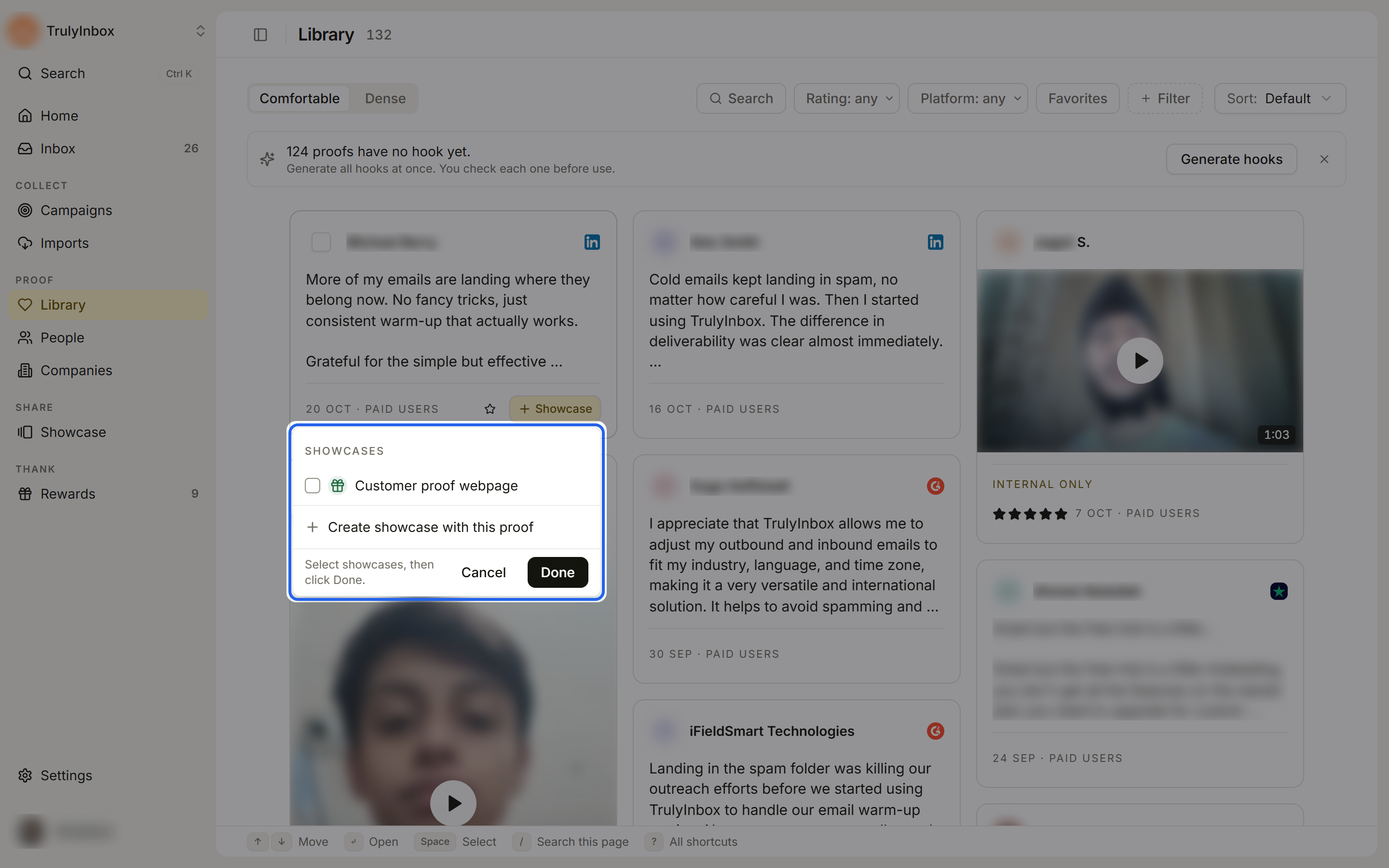
- On a proof card, click + Showcase. In the proof’s details drawer, the button is Add to a showcase.
- Tick the showcases you want it in. Untick a showcase to take the proof out of it.
- Click Done.
To start a new showcase from that proof, click Create showcase with this proof. This creates a Masonry widget containing the proof.
If a showcase’s auto-add rule has a minimum rating above the proof’s rating, the row warns “Below your 4★ rule. It stays hidden there.” The proof is added, but it won’t show on that showcase.
The proof’s details drawer also has a Used in section that lists every showcase the proof appears in. Click one to open it.
Many proofs at once
- In the Library, select the proof you want.
- In the bar that appears, click Add to showcase.
- Pick a showcase. Each one shows how many proofs will be added and how many are already in it.
- Confirm with Add proofs.
Or pick New showcase from selection to create a Masonry widget with everything you selected. See Bulk actions in the Library for selecting proof.
Add new proof automatically
Auto-add rules add new approved proof to a showcase as it arrives.
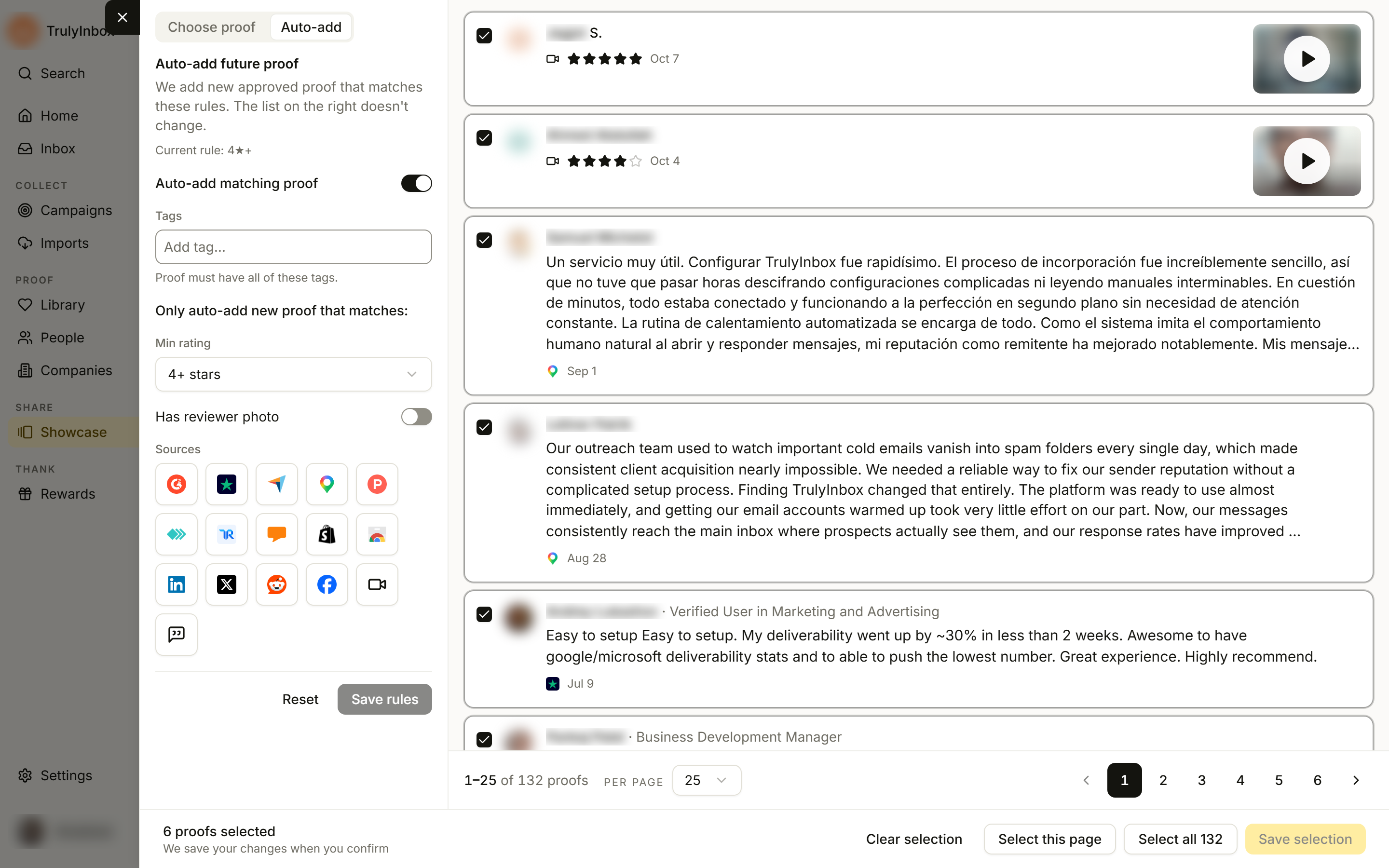
- On the Proof tab, click Add more, then open the Auto-add tab.
- Turn on Auto-add matching proof.
- Set the rule:
- Tags: “Proof must have all of these tags.” If a tag isn’t on any proof yet, you see “{tag}: not on any proof right now”.
- Min rating: Any rating, 3+ stars, 4+ stars, or 5 stars.
- Has reviewer photo: only proof with a photo. Useful for photo-led layouts such as Avatar Group, Avatar Slider, and Avatar Blocks.
- Sources: click the logos of the platforms to include: G2, Trustpilot, Capterra, Google Maps, Product Hunt, GetApp, TrustRadius, Software Advice, Shopify App Store, Chrome Web Store, LinkedIn, X, Reddit, Facebook, Video, and Written testimonial.
- Click Save rules. Reset goes back to the saved rule.
The tab shows the saved rule as “Current rule: 4★+” (or “Auto-add is off”). The rule applies to new approved proof from now on. It doesn’t change the proof already in the showcase. The Showcase page card also shows the rule, for example “auto-adds 4★+”.
Hand-picked, automatic, or both
- Hand-picked gives you exact control. Use it for a deal-room page or a launch page with one message.
- Auto-add keeps a page fresh. Use it for a homepage widget or a general wall of love.
You can do both. Drag the few quotes you always want to the top, and let auto-add fill in the rest. Proof that is auto-added goes live without anyone checking it first, so on high-traffic pages keep the minimum rating high and check the showcase now and then.
Why some proof is hidden
A proof in the showcase doesn’t appear on the live page or in the preview when:
- It is rated below the auto-add minimum rating. When auto-add is on with a minimum rating, that rating also applies to proof you picked by hand. Proof without a star rating, such as most social posts, is never hidden by this.
- It has nothing to show. No text, no hook, and no photo or video.
The Proof tab tells you how many are hidden. Click Remove them to take them out, or lower the minimum rating.
If nothing is left to show, a live webpage shows your workspace name and “No testimonials to show yet.”
When the showcase is empty
If a showcase has no proof, the Proof tab shows “No proof in this showcase yet” with an Add proof button. If the Add proof sheet says “You have no approved proof yet.”, approve submissions in the Inbox or bring proof in through Imports.
Related
- Design your showcase: how the selected proof looks
- Library: where all of this proof lives
- Hooks and highlights: short hooks and highlighted phrases for your proof