Import testimonials from screenshots
Upload screenshots of praise from an email, a Slack message, a DM, or a comment, and AI reads the reviewer, rating, and text out of each one. You check every result before anything is imported.
Before you start
- Up to 10 images per import, as PNG, JPEG, or WebP, up to 5 MB each.
- Make sure the text is readable and the sender’s name is in the crop. A screenshot that shows the name and date gives AI more to work with than the quote alone.
Step 1: Add your images
- Open Collect › Imports.
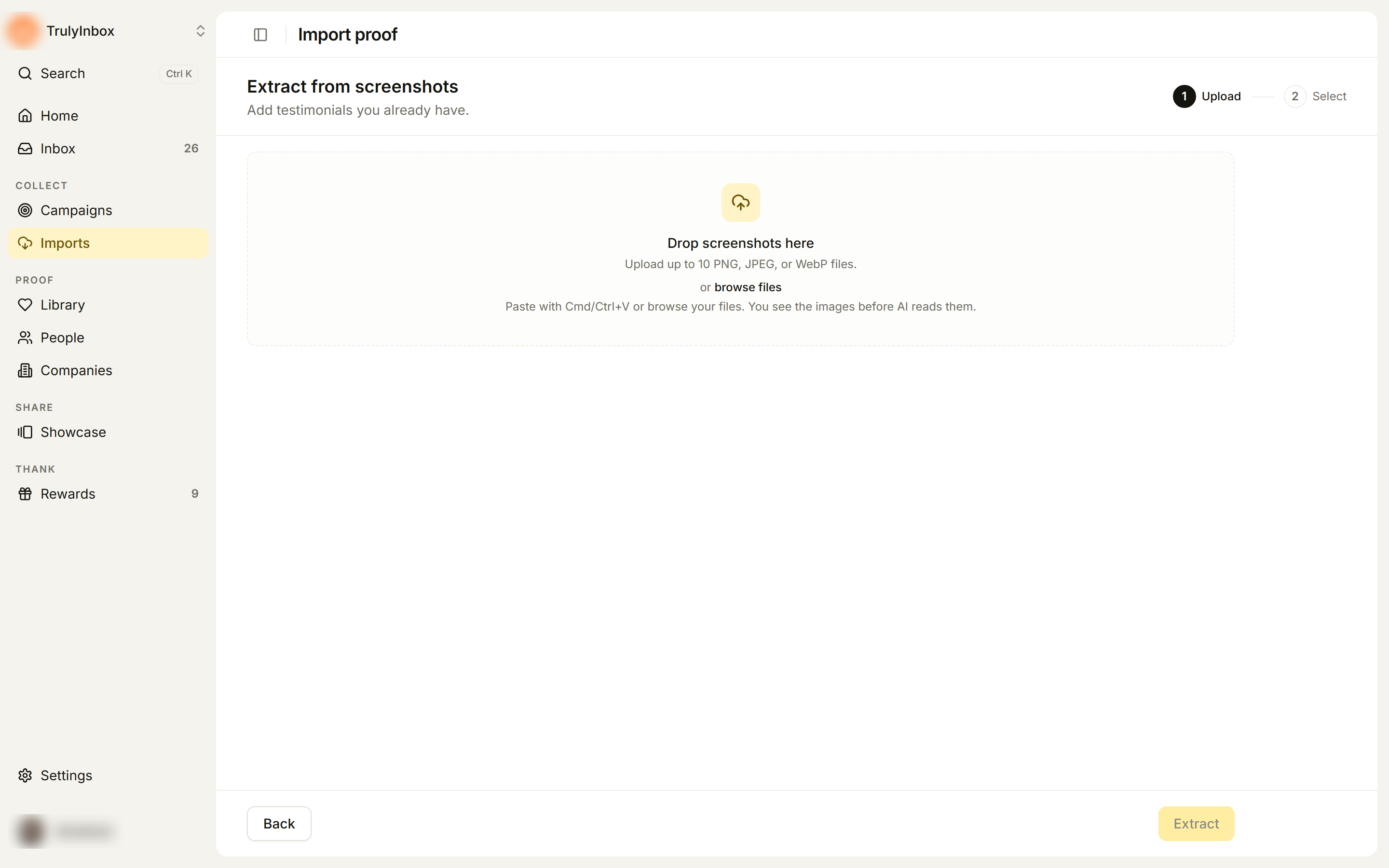
- Under Other ways to import, click Add images. The Extract from screenshots page opens.
- Drop your images on Drop screenshots here, click browse files, or paste with Cmd/Ctrl+V.
- Check the previews under Selected screenshots and remove any you added by mistake. AI does not read anything yet.
- Click Extract.
Step 2: Check what AI found
Each image is read on its own. When it is done, the page shows how many testimonials were extracted, one card per screenshot. Each card shows the reviewer, rating, text, a status, and how sure AI is, for example 92% confidence.
- Ready: everything needed was found.
- Needs input: something is missing, such as the reviewer name.
- Not a testimonial: the image does not contain praise. Leave it out; the rest of the batch is not affected.
- Failed: the image could not be read. Click Retry to read it again.
To fix a card, click Edit, correct the fields, and click Save screenshot. HighAdvocacy checks it again when you save.
A card can be selected when it is Ready, has a reviewer name and text, and AI is at least 80% confident. For a card below 80%, open Edit, fix at least one field, tick I confirm this testimonial is correct., and save.
Read the text against the image before you import. A misread name or rating is easier to fix here than later.
Step 3: Select, confirm, and import
- Select the testimonials you want. Use Search reviewer or text…, the rating filter, or the date filter to narrow the list.
- Click Continue.
- On Confirm, add tags and optional AI hooks and highlights.
- Click Import N.
See Review and confirm an import for the Confirm step and the result page.
Troubleshooting
An image extracted nothing. The text may be too small, low-contrast, or cut off. Crop it at a higher resolution and import it again.
The rating is wrong or missing. Emails and chat messages often have no rating. Click Edit and set the rating yourself, based on what the message says.
I can’t select a card. It is missing a name or text, or AI was not confident enough. Use Edit to fix it and confirm it.
I have more than 10 images. Run several imports. Duplicates across batches are spotted when the testimonial has a source link.