What proof customers send for each ask
Proof is what a customer adds to show they did the task: a link, a screenshot, a video or their written words. This page lists what the hosted campaign page asks for on each kind of ask, so you can tell customers what to expect and answer questions when they get stuck.
The Submit button stays disabled until everything the task needs is in place.
What every submission needs
- Your name: at least 2 characters.
- Work email: a valid email address.
If you sent a personal link with the customer’s name and email in it, the task shows “Submitting as” with those details instead, and the customer can click Not you? to change them. See Share your campaign.
In the widget, customers do not type a name or email. They come from the signed-in user your code passes in.
Proof by ask type
| Ask | What the customer adds |
|---|---|
| Review (G2, Capterra, Trustpilot and others) | Link to your review and a Screenshot |
| Review on GetApp or Software Advice | A Screenshot of your review only. These reviews have no public link, so the screenshot is the proof. |
| Social post | Link to your post and a Screenshot |
| Engagement: like, follow or upvote | A screenshot for each action |
| Engagement: comment or reshare | A link (Link to your comment or Link to your reshare) and a screenshot for each action |
| Video testimonial | A recorded or uploaded video, a star rating and the consent checkbox |
| Written testimonial | The testimonial text, a star rating and the consent checkbox |
Reviews and social posts
On the Add your proof step, the customer:
- Clicks Open {platform} to post, if they haven’t yet.
- Pastes the link to their review or post. A tick shows when the link looks right.
- Adds a screenshot.
- Fills in their name and work email, then clicks Submit.
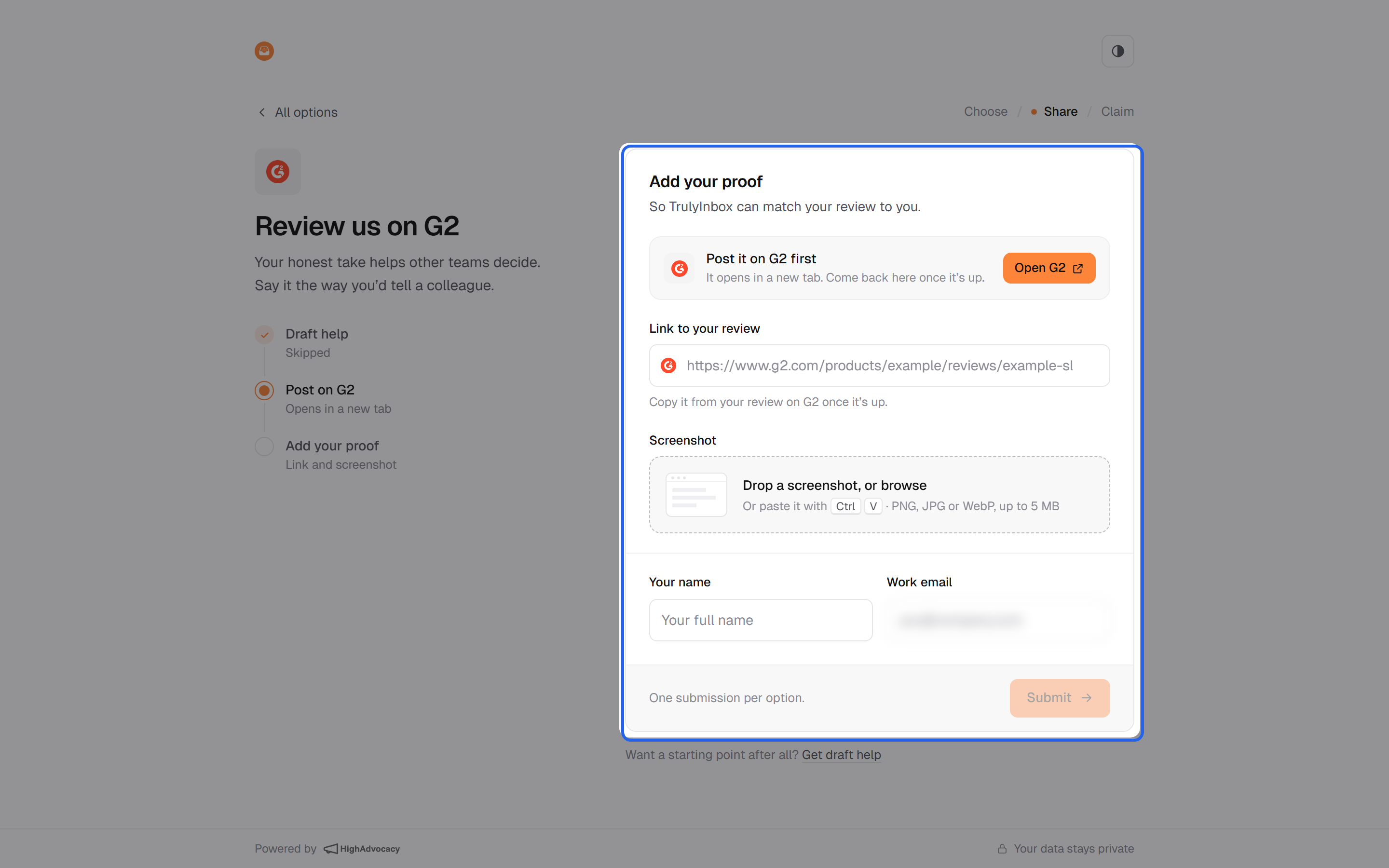
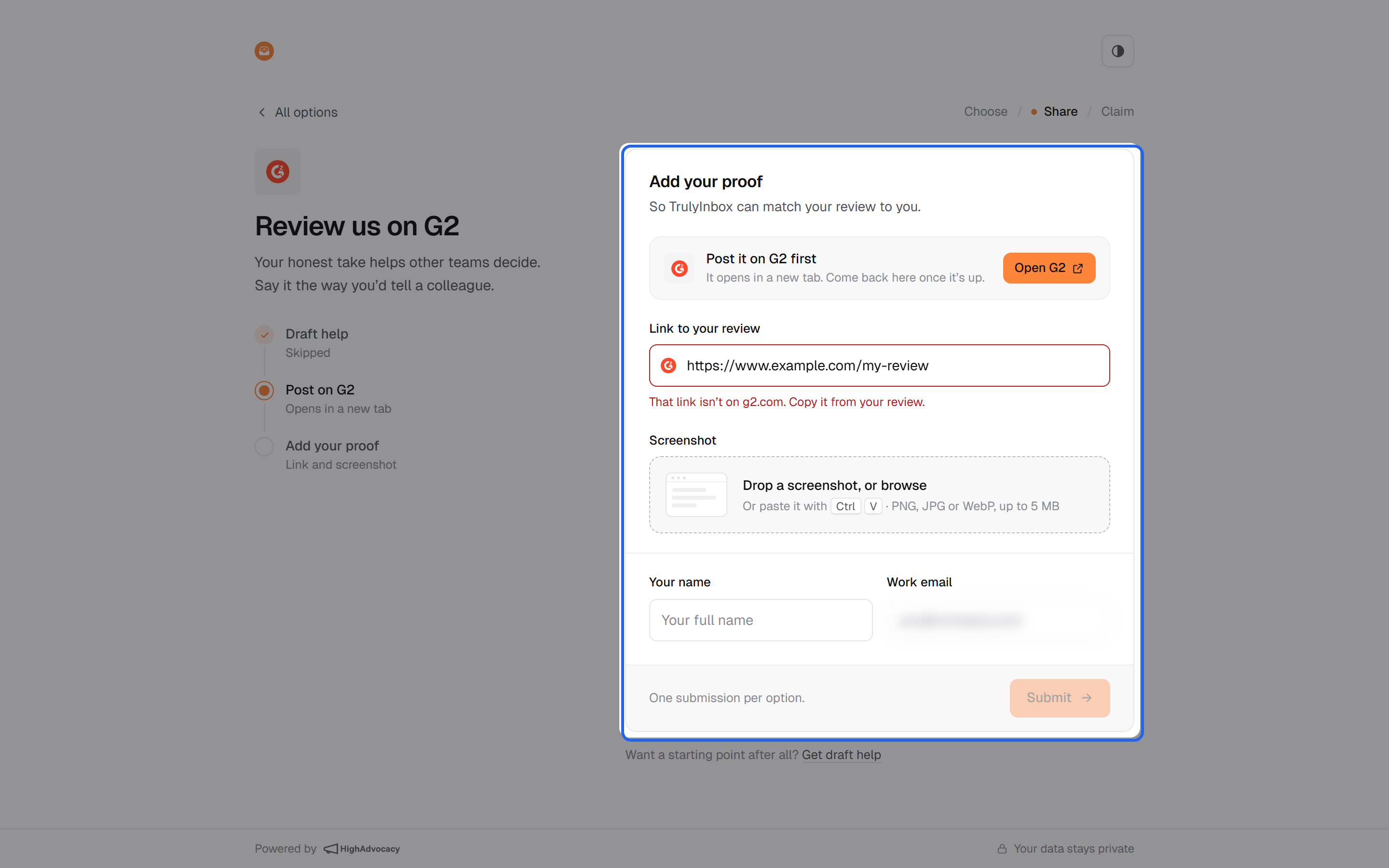
The link must be on the platform’s own site and point to the review or post itself, not to your profile page. If it doesn’t, the customer sees a message under the field:
- “That link isn’t on {domain}. Copy it from your review.” (or “your post”)
- “Enter a valid {platform} URL, for example …” with an example of the right kind of link.
Engagements
Each action has its own row. The customer clicks Open post (or Open page for Follow), does the action, then adds that action’s proof in the same row. One screenshot covers one action, so a three-action engagement needs three screenshots. All actions are needed. The task shows “All N are needed to count.” until every row is done.
Video testimonials
- Record in the browser with Record video, or or upload a file in MP4, MOV or WebM, up to 60 MB.
- The video can’t be longer than the maximum the page shows next to the record button. Recording stops at the limit, and a longer upload shows “Choose a video that is {length} or shorter.”
- If the camera can’t be used, the customer sees “We couldn’t use your camera. Allow camera and microphone access in your browser, or upload a file instead.” or “No camera found. You can upload a video file instead.”
- Before sending: a star rating, name and email, and the consent checkbox. Customers keep the tab open while it uploads (“Sending your video…”).
Written testimonials
- The text must be between the minimum and maximum characters you set on the ask. The box stops at the maximum, and below the minimum it shows “At least {min} characters · {n} to go”.
- A star rating from Poor to Excellent.
- Name, email and the consent checkbox.
The consent checkbox
Video and written testimonials show: “{Your company} can feature this on its website and marketing, with my name.” It starts ticked. If the customer unticks it, they can’t submit.
Screenshot rules
- PNG, JPG or WebP, up to 5 MB.
- Customers can drop a file, browse for one, or paste a screenshot with Ctrl+V. On a phone, they pick one from their photos.
- Messages: “That isn’t a PNG, JPG or WebP.” and “That file is over 5 MB. Try a smaller screenshot.”
One submission per option
Each customer can submit each option once. A second try on the same option shows “You’ve already submitted this option.” They can still do the other options in the campaign.