Help customers write reviews and posts with Smart Draft
Smart Draft gives customers a starting draft so a blank box doesn’t stop them. The customer picks a few answers (or types a line in their own words), Smart Draft writes a draft, and they edit it before they post.
You turn Smart Draft on per ask. It works on review sites and social posts. Engagements and testimonials don’t use it.
Before you start
- Open the campaign in the builder: Campaigns → New campaign, or open a campaign and click Edit.
- Fill in the Description in Workspace profile. Smart Draft uses it to write about your product.
Turn on Smart Draft
- On the Asks tab, click the review site or the social post to open its details.
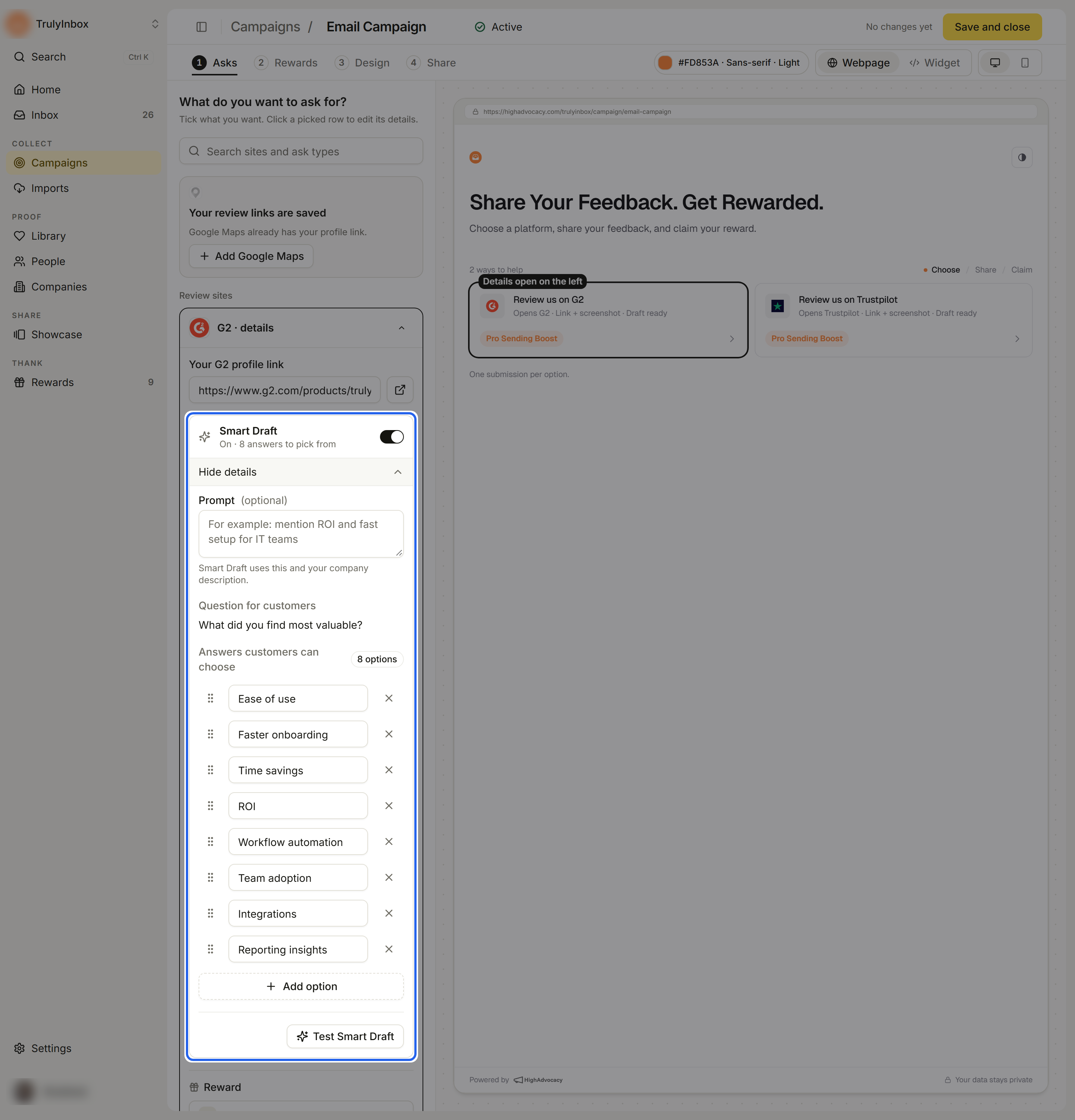
- Turn on Smart Draft. The row under it reads On · N answers to pick from. When it’s off, it reads “Off. Customers write it themselves.”
- Click Prompt, question and answers to see the settings.
Choose what Smart Draft writes about
- Prompt (optional): tell Smart Draft what to focus on, for example “mention ROI and fast setup for IT teams”. Smart Draft uses this and your company description.
- Question for customers: the question customers answer. Review sites ask “What did you find most valuable?” and posts ask “What outcome stood out most?”
- Answers customers can choose: the options customers pick from.
- Click an answer to change its wording.
- Drag the handle on the left to reorder.
- Click the × to remove one. Every ask keeps at least two answers.
- Click Add option to add another.
On a live campaign, these changes reach customers after you click Save and close.
Test Smart Draft
- Click Test Smart Draft.
- Pick one or more answers, or type a line in In your own words (optional). Typing a note turns the answers off, the same as on the campaign page.
- Click Generate my draft to see the kind of draft a customer gets.
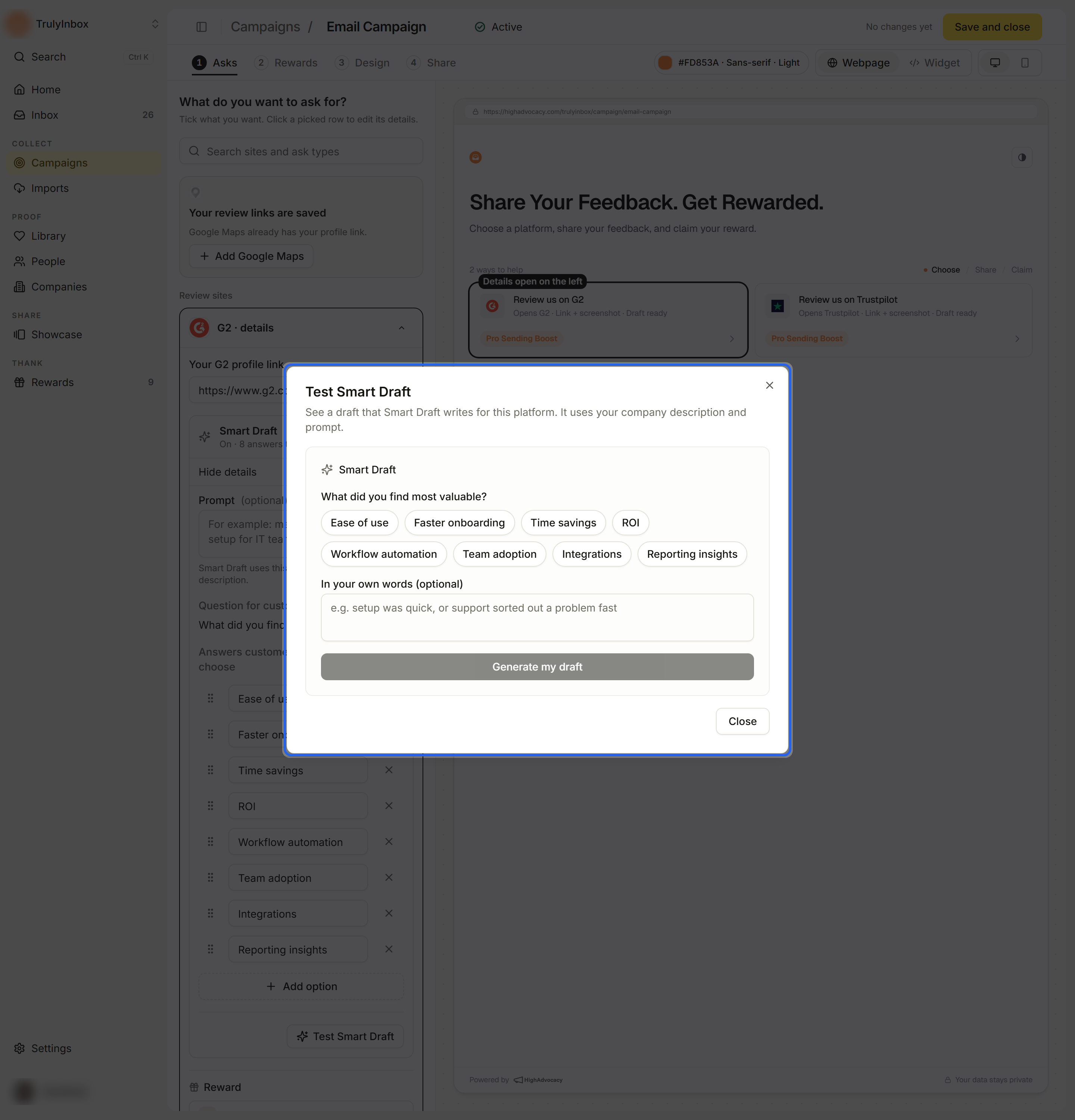
Testing doesn’t change the campaign or create a submission.
What customers see
- On the campaign page, an ask with Smart Draft on shows Draft ready under its name.
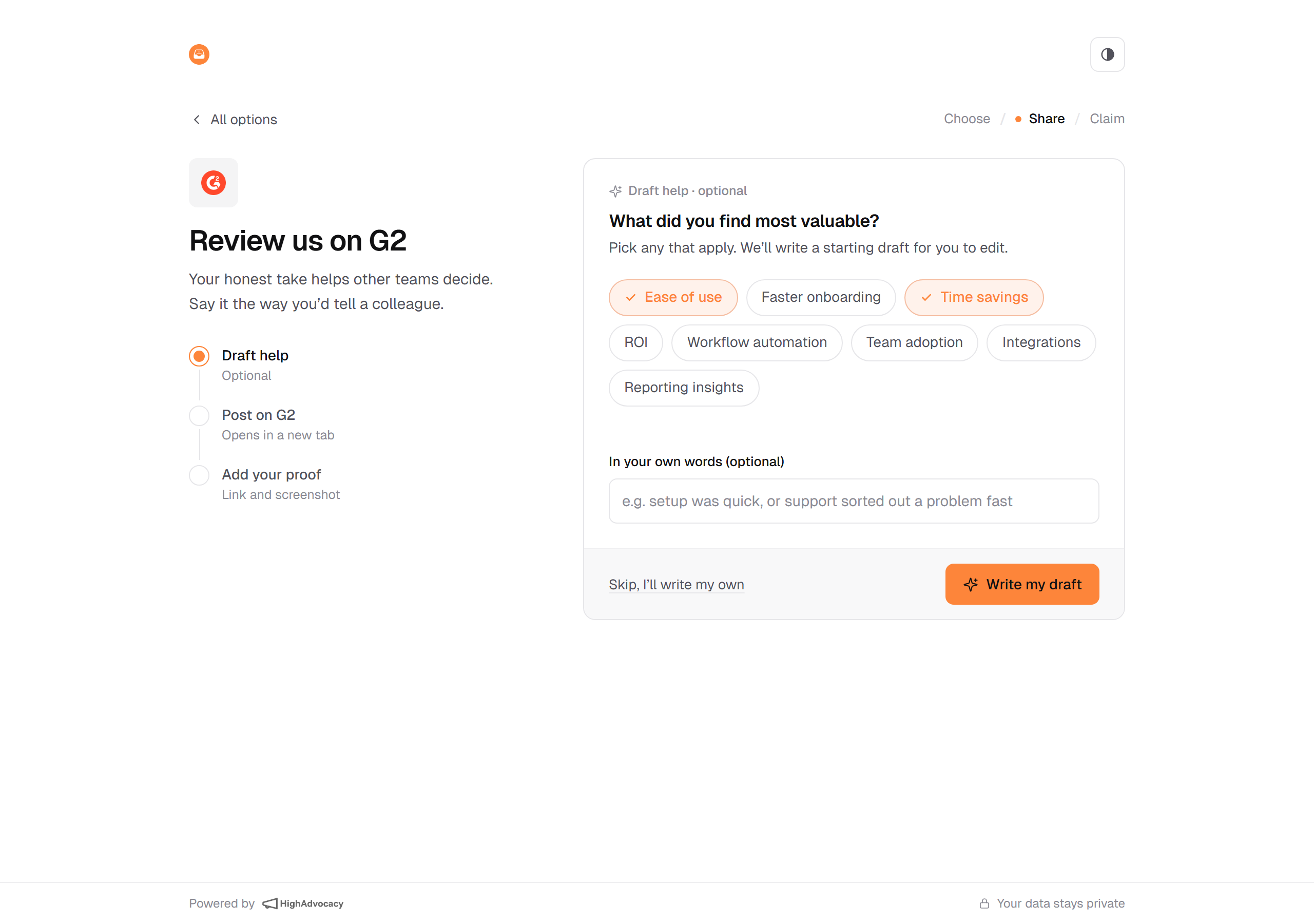
- When the customer opens it, the first step is Draft help · optional: your question, your answers, and In your own words (optional).
- They click Write my draft, or Skip, I’ll write my own.
- The draft appears under Your draft. They can edit it, click Write it again, or click Change answers.
- They click Copy and open plus the site name (for example Copy and open G2), paste and post the draft there, then click I’ve posted it and send their proof.
Troubleshooting
- “Save the campaign first. Then you can test Smart Draft.” You’re testing on a new campaign that hasn’t saved yet. Make any change so the draft saves, then test again.
- “Smart Draft is not working right now. Try again, or write the draft yourself.” The test couldn’t write a draft this time. Try again in a moment.
- A customer says the draft didn’t appear. If a draft can’t be written, the customer sees an error and can try again or skip and write their own. Their submission still works without a draft.
- Test Smart Draft is greyed out on a post. Add at least one answer with text.
Related
Last updated on