Add hooks and highlights to proof
Add a hook and highlights to show the strongest part of a proof on your showcase cards.
- A hook is a short headline that stands in for the proof on cards set to show a hook. For example: “Set it up once and everything works”.
- Highlights are the phrases you mark in the proof text. Showcase cards shade them.
Neither changes the customer’s words. The proof text stays Verbatim.
Write a hook
- Open the proof from the Library.
- In the Hook section, type in the box (“A short headline for this proof”). Hooks can be up to 240 characters, on one line.
- Press
Enteror click away. The hook saves on its own.
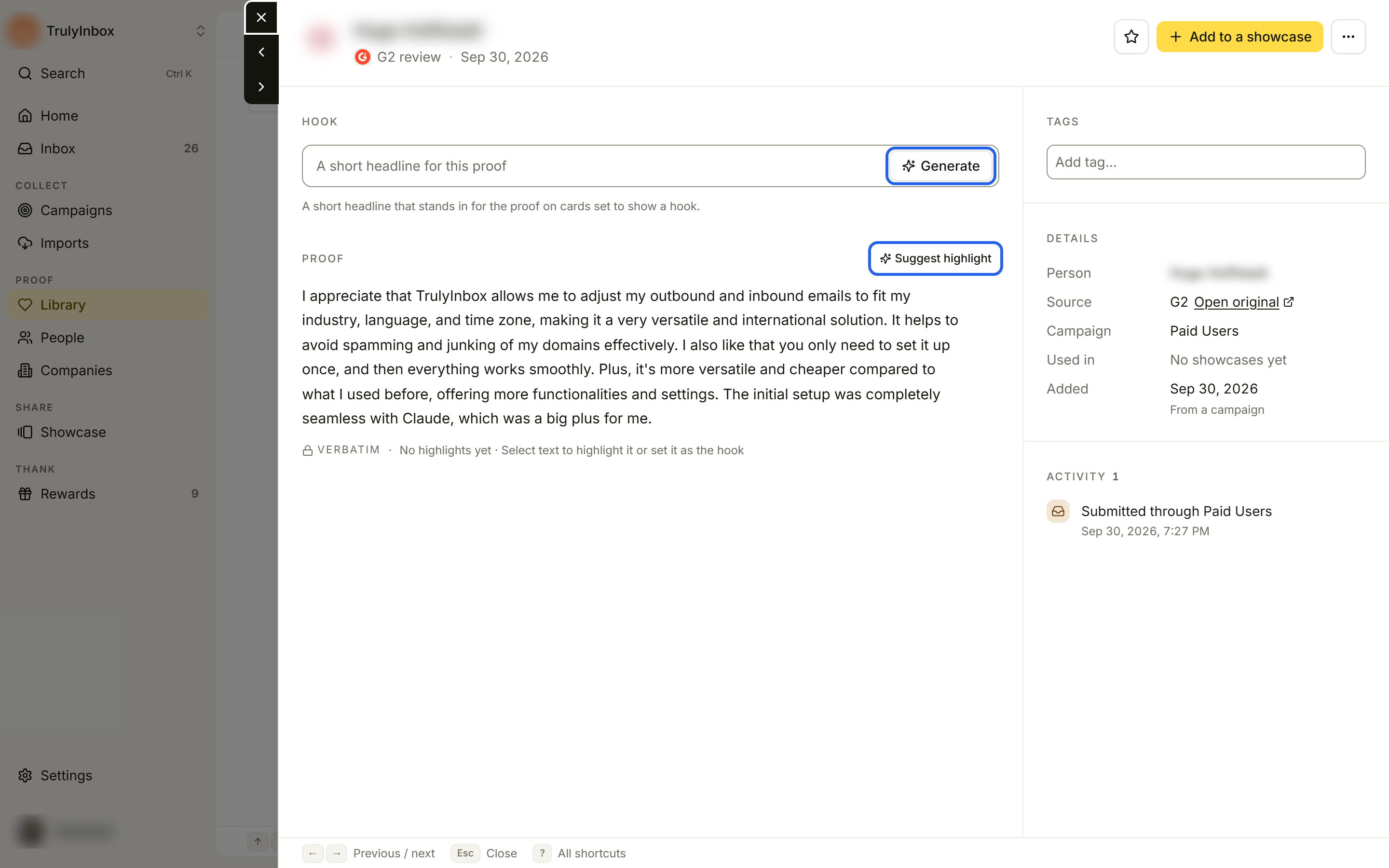
You can also select words in the proof text and click Set as hook to use the customer’s exact phrase.
To remove the hook, click Clear next to the section title. An Undo appears in the confirmation message if you change your mind.
Under the box you’ll see who last edited the hook and when, and AI if it was generated. If the proof is already in a showcase, a note reminds you that your edits show in every showcase that uses this hook.
Generate a hook with AI
- In the Hook section, click Generate (or Regenerate if there is already a hook).
- The suggested hook fills the box, with a bar that reads, for example, “AI hook applied · option 1 of 3 · not saved yet”.
- Choose:
- Keep to save it.
- Regenerate to see the next option.
- Dismiss to go back to what you had.
Each AI hook uses only words from its own proof. If the AI can’t write a safe hook from the text, the drawer says “Couldn’t generate a hook for this one”. Write one yourself instead.
Highlight phrases
- Open the proof and select a phrase in the Proof text.
- In the small bar that appears, click Highlight.
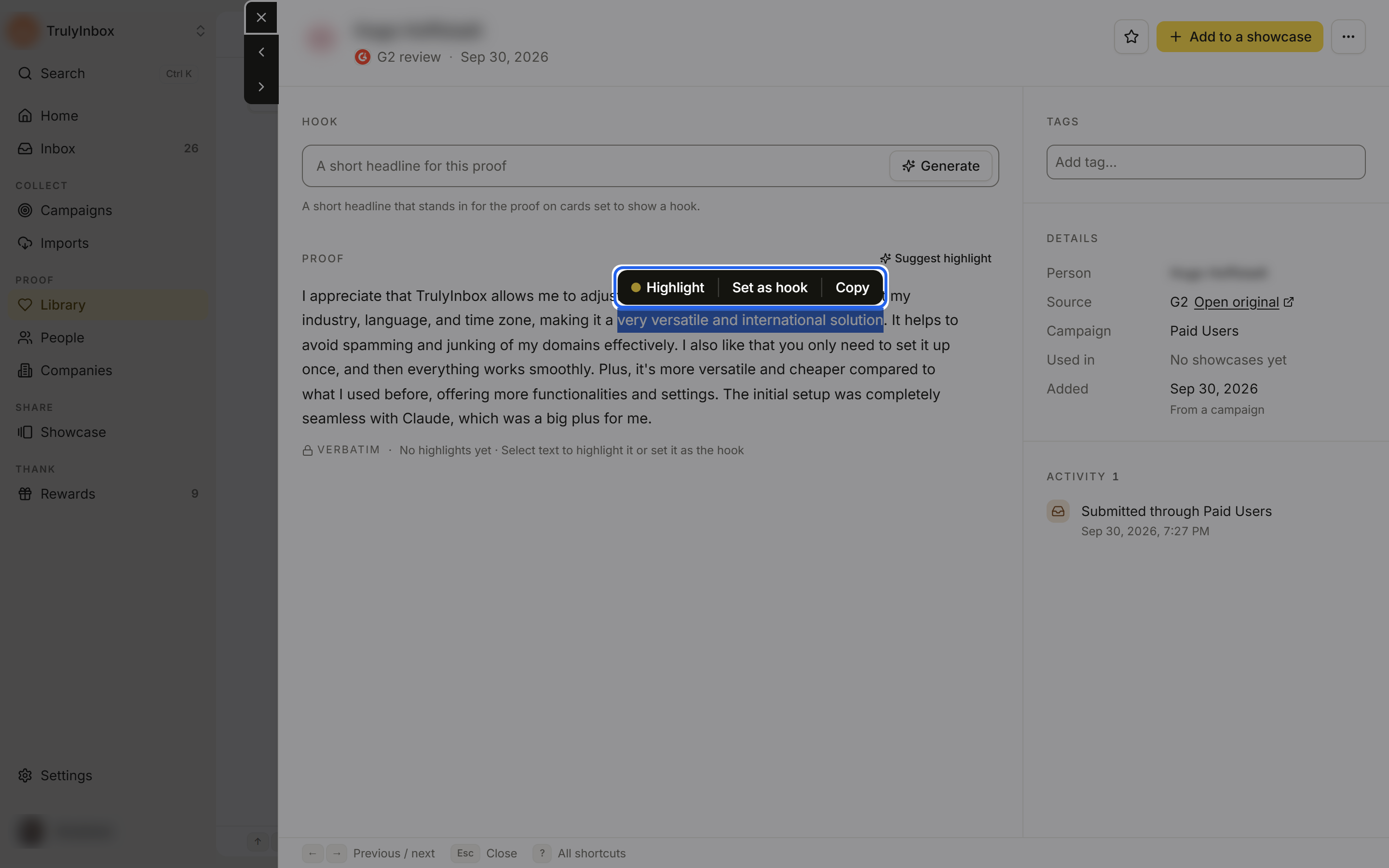
To remove one highlight, select it, right-click, and choose Remove highlight. To remove them all, click Clear highlights.
Keep highlights under 60% of the text. If you highlight more, the drawer warns “Too much text is highlighted.”
The line under the text shows how many highlights there are and who added them, for example “2 highlights · suggested by AI”.
Let AI suggest a highlight
- In the Proof section, click Suggest highlight (or Suggest again).
- The suggestion is shaded in the text, with a bar that reads “AI highlight applied · not saved yet”.
- Click Keep to save it, Regenerate for another suggestion, or Dismiss to bring back your old highlights.
AI highlights only mark words that are already in the proof.
Do many at once
You can generate hooks or suggest highlights for many proofs in one run.
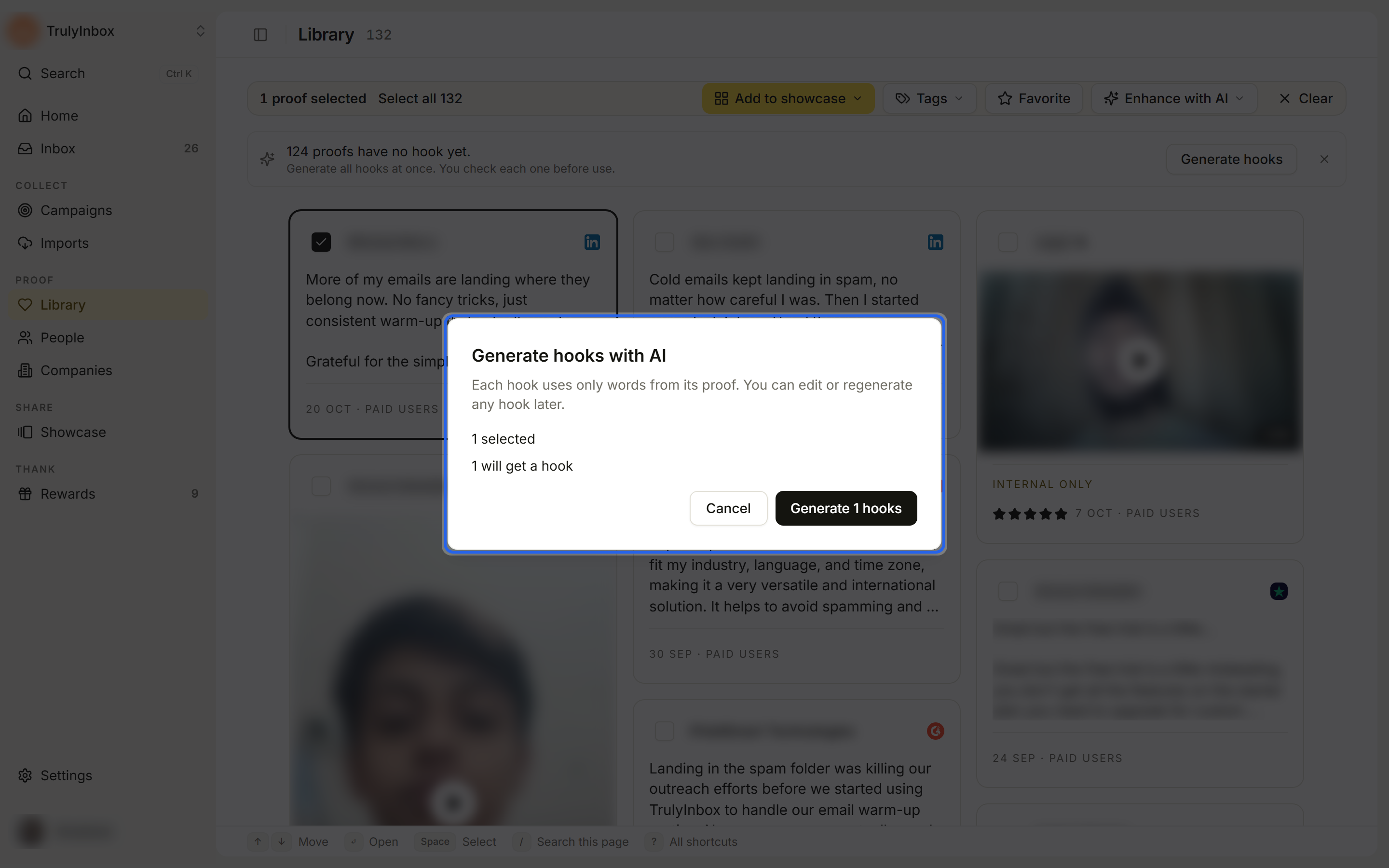
- In the Library, select the proofs you want, then click Enhance with AI > Generate hooks or Suggest highlights. When your Library has proof without a hook, a notice above the wall (“N proofs have no hook yet.”) also offers Generate hooks for the whole Library.
- Check the summary: how many are selected, how many will get a hook or highlight, and how many are skipped because they already have one or have no text.
- Click Generate N hooks or Suggest N highlights.
A progress card shows the run (“Generating hooks…”). You can keep working while it finishes. When it’s done, the card shows how many were applied, skipped and failed.
Bulk runs never overwrite a hook or highlights you already have. Check the results before you use them on your website. You can filter by + Filter > Hook or Highlight to review them.
Turn the AI tools on or off
The AI buttons only show when the tools are on for your workspace.
- Go to Settings > AI verification.
- Under AI help for proof, switch AI hook generator and AI highlighter on or off. Both run only when someone asks.
- Click Save changes.
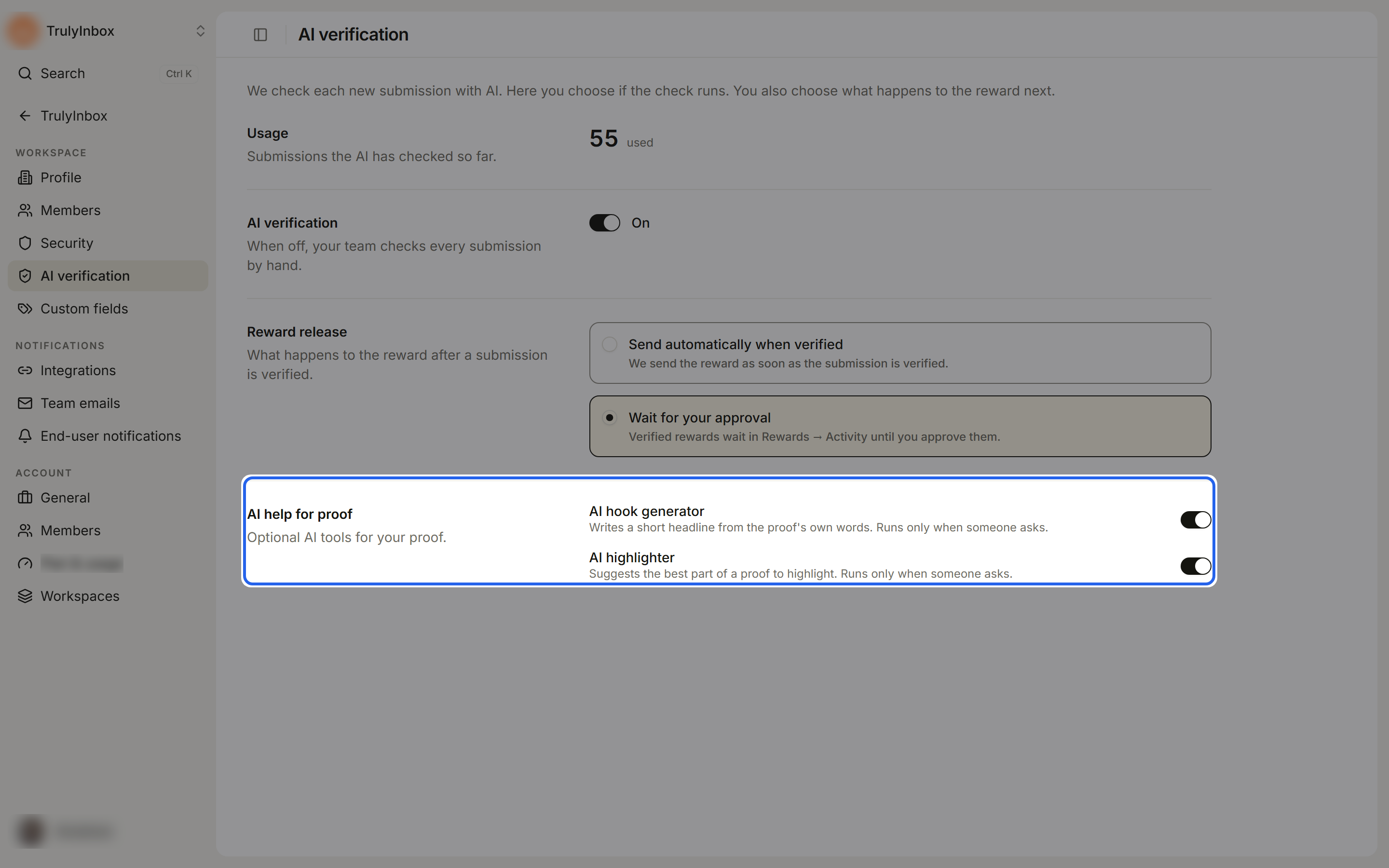
When a tool is off, its buttons disappear. Writing hooks and highlighting by hand always works.
How hooks and highlights show in a showcase
In the showcase builder’s design settings:
- Text display chooses Full proof, Hook + proof or Hook only.
- Show highlight shades the parts you marked on each proof.
See Design your showcase.
If the proof text changes
If a proof’s text changes after you set a hook or highlights, the drawer shows “The proof text changed after you set the hook or highlights”. Highlights that no longer match are removed. Check that the hook still fits, edit it if needed, then click Dismiss.
Troubleshooting
- “AI isn’t available right now.” Try again in a few minutes.
- “AI hooks are turned off for this workspace.” or “AI highlights are turned off for this workspace.” Turn them on in Settings > AI verification.
- No Hook section. Proof without text can’t have a hook or highlights.