Sign up and set up your workspace
Signing up creates your workspace and makes you its Owner. Onboarding then reads your website, finds where customers already review you, and builds your first showcase or campaign. It takes a few minutes.
Before you start
- Use your work email, or a Google or Microsoft account on your company domain. Personal addresses (like Gmail or Outlook) and temporary inboxes can’t be used.
- Use a computer. On a phone you’ll see HighAdvocacy works best on desktop. You can tap Continue anyway, but setup is easier on a larger screen.
- If someone at your company already uses HighAdvocacy, you’ll be asked to join their workspace instead. See Ask to join your company’s workspace.
1. Enter your work email
- Go to
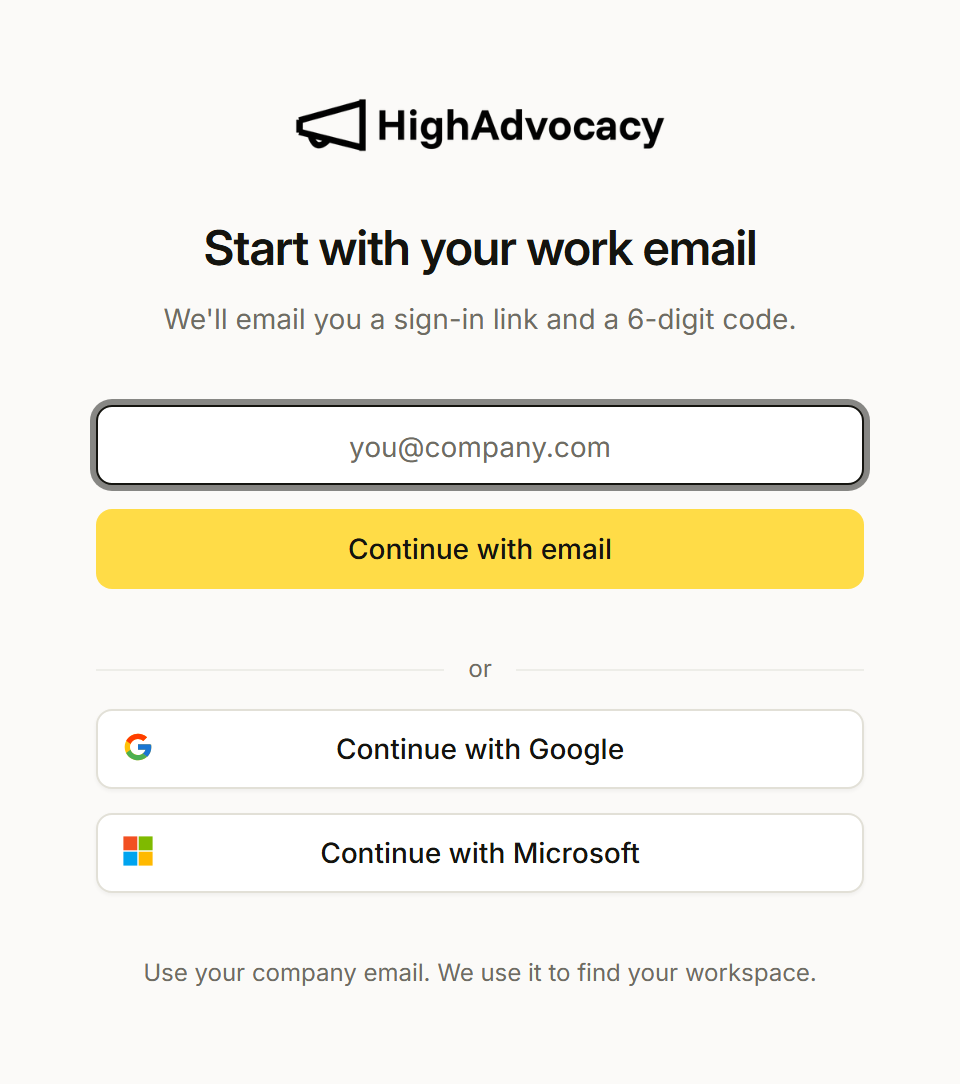
app.highadvocacy.com/sign-up. - On Start with your work email, type your email and click Continue with email. Or click Continue with Google or Continue with Microsoft.
- If you used email, you’ll see Check your email. We send a sign-in link and a 6-digit code. Type the code and click Verify code, or open the link in the email. Both expire in 15 minutes.
Didn’t get the email? Wait for the timer, then click Resend email. Typed the wrong address? Click Change next to it.
2. Set up your workspace
New accounts see Set up your workspace.
- Check Company website. We fill it in from your email domain; change it if your website is different.
- Check Workspace address. This is the
highadvocacy.com/...part of your campaign and showcase links. If you change it later, old links stop working. - Click Start scan.
Your workspace is created when you click Start scan. If the address is in use, you’ll see “This address is already taken. Try another one.”
3. Let us scan your website
The scan screen shows what we’re doing:
- Picking up your logo and brand colours
- Finding your review profiles
- Reading your website for reviews
- Checking your newest review
It takes about 30 seconds. When it’s done you’ll see the review sites we found, and your details open on their own (or click Check details). If the review search stops early, your brand is saved; click Try again.
4. Check what we found
This screen has two parts. Click anything to change it.
- Your company (left): Company name, Company description, Industry, Audience, how you sell (Buyer, Offering, How they buy), and Competitors. Open Colours, fonts, tone and images to check your palette, fonts, tone, logo, site icon and link preview image.
- Where you’re reviewed (right): each review profile we found, with Reviews found, Average rating, and Since the newest review. Below it, Where you can ask lists social sites where you can ask your own audience.
To fix a profile:
- Wrong match: remove it.
- Missing site: click Add another review site (or Add a review site if we found none), paste the profile link, like
g2.com/products/...ortrustpilot.com/review/..., and click Add.
You don’t need any review sites to continue. When it looks right, click Yes, that’s us.
5. Pick your first step
Next you see how many reviews of your company are already online and where we found them. Below that is one suggested step, marked Suggested, and often an alternative.
- Create a showcase page. A page of your best reviews in your brand style, at your own address.
- Add a showcase widget. Shows your reviews on your existing web pages with one line of code.
- A campaign, such as Get your first reviews, Grow your review count, Add a review platform, or Keep reviews coming. It asks your customers for new proof.
Click Start here on the suggestion, or Do this instead on the alternative. A showcase is only offered once we’ve found at least 5 reviews.
6. Finish your showcase or campaign
If you picked a showcase, we collect your best reviews, style them in your brand, and publish the page. This takes about 20 seconds, and you can close the tab while it runs. When it’s ready you can Preview, Open live page, Copy embed code, Edit showcase page (or Edit widget), or Go to Home.
If you picked a campaign, we set up a few campaign ideas based on your website: for example Reviews on G2, Customer posts on LinkedIn, and Video testimonials. The first one is Recommended.
- Open an idea to see it. Switch between the webpage your customers open and the widget they see on your site.
- Choose what to do: Open live page, Copy widget code, Edit campaign, or Go to Home.
Any of these actions creates that campaign in your workspace. To look at a different idea first, click All options. To check and share your new campaign, see Launch your first campaign.
What happens next
- You land on Home, which shows your setup steps until you finish them. See Your Home page.
- If you leave during the scan, the check screen, the first-step screen or a showcase build, your next sign-in takes you back there.
- Your website, brand, description and review links can be changed later in Settings > Profile. See Workspace profile.
Troubleshooting
- “Use your work email.” You used a personal or temporary address. Sign in with your company email, or with Google or Microsoft on your company account.
- “Your IT admin needs to approve HighAdvocacy.” Your company only lets admins approve new Microsoft apps. Click Email my admin to send them a request, or click Use email instead.
- “This email already has a HighAdvocacy account.” Sign in the way you did before, for example with Google instead of email.
- “Acme already has a workspace.” (with your company name) Someone at your company set it up already. Click Request access. See Ask to join your company’s workspace.
- “We couldn’t verify that code.” Check the code in your latest email and try again, or use the link instead.
- “Our review search isn’t working right now.” Wait a few minutes, then try again.
- We found no review sites. That’s fine. Add the links yourself on the check screen, or carry on and import reviews later.