Open a person or company record
Click any row on People or Companies to open its record in a panel on the right. The record shows who they are, what they gave you, and what happened, in three columns:
- Left: profile details.
- Middle: snapshot numbers and their proof.
- Right: Activity.
Each record has its own address (/people/{id} or /people/companies/{id}), so you can copy the URL and send it to a teammate.
Move between records and close
- Use
←and→(or the arrows at the top) to step to the previous or next row. The order follows your list, including its filters and sort. - Press
Escor click × to close. - Press
?to see all shortcuts.
A person’s record
Header
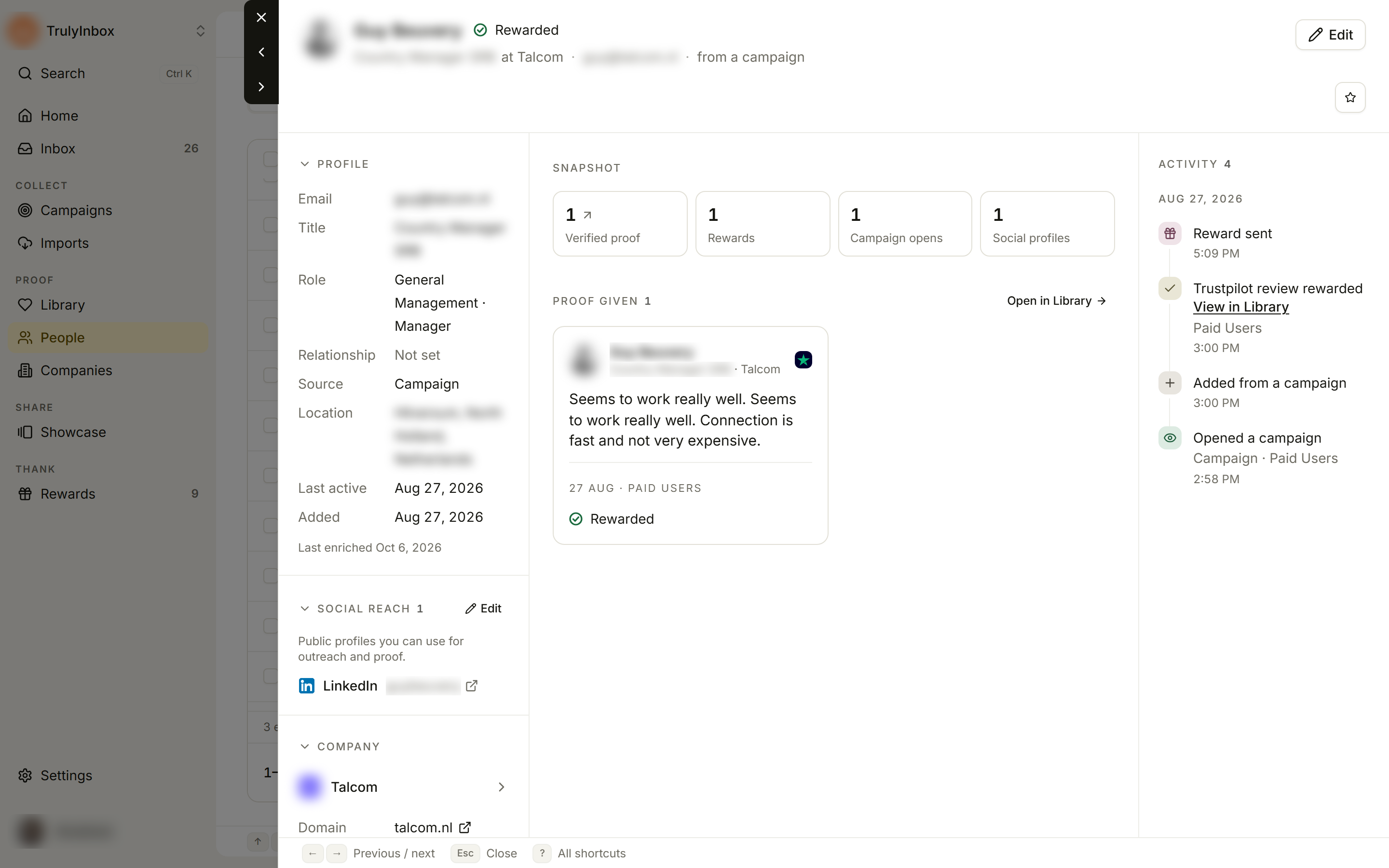
The header shows the person’s name and their stage: Engaged, Submitted, Verified, or Rewarded. If all their proof is imported, it shows Imported. Below the name you see their job title and company, their email, and where they came from (for example from a campaign or from an import).
Header buttons:
- Review submission appears when they have a submission waiting. It opens it in the Inbox.
- Edit opens the profile editor. See Edit a person’s profile.
- The star (Add to favourites) pins the person to your sidebar.
If the person opted out, their email bounced, or they’re marked do not contact, a red band under the header says Opted out, Email bounced, or Do not contact.
Left column
- Profile: Email, Phone, Title, Role, Relationship, Source, Location, Last active, and Added. Fields with no value are hidden. Role can include a Decision maker label. Under the fields, Last enriched {date} shows when we last looked up public details, or Looking up details… while we’re doing it.
- Social reach: their public profiles, with links. If there are none, it says No public profiles yet. Click Edit to add them.
- Company: the company they work at, with its Domain, Industry, and Size · ARR. Click the company name to open its record. This section is hidden when the person has no company.
- Custom fields: your workspace’s custom fields and the person’s Tags.
You can change Relationship, custom fields, and tags right here. Changes save straight away.
Middle column
Snapshot shows tiles for what the person has done. A tile only appears when it applies:
| Tile | Shows |
|---|---|
| Verified proof | Proof that passed review. Click it to open their proof in the Library. |
| Imported proof | Proof you imported. Click it to open it in the Library. |
| Rewards | Rewards they got. |
| Campaign opens | How many times they opened a campaign. |
| Social profiles | How many public profiles they have. |
When some proof is imported, you’ll see: “We don’t check imported proof. Read it in the Library before you use it.”
Proof given shows each piece of proof as a Library card. Click Open in Library to see it all there. If there’s none yet, it says No proof yet.
Activity
The right column lists what happened, newest first, grouped by day. For example: Opened a campaign, Added from a campaign, Sent a submission, a proof being verified, rewarded, rejected, or imported, and Reward queued, Reward sent, Reward delivered, or Reward failed. Some events link to View in Library or View submission.
A company’s record
Header
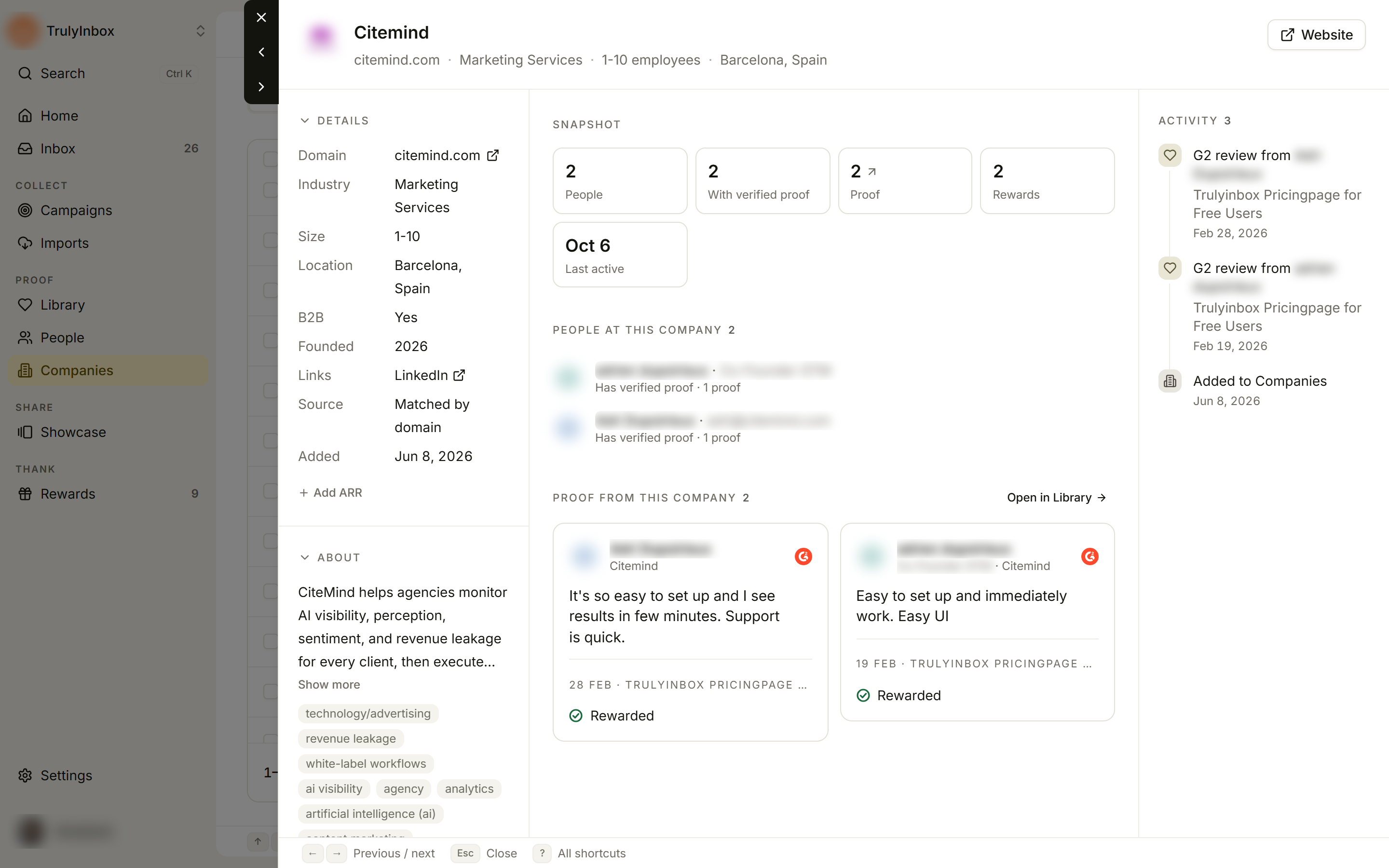
The header shows the company’s logo, name, domain, industry, size, and location. Website opens the company’s site. You can change the name and logo here. See Company details and enrichment.
Left column
- Details: Domain, Industry, Size, ARR, Location, and details we found, such as B2B, Founded, Revenue, Funding round, Links, Source, and Added.
- About: a short description of the company, when we found one.
- Custom fields: the company’s Tags.
Middle column
Snapshot shows People, With verified proof, Proof (or Imported proof), Imported, Rewards, and Last active. Tiles only show when they apply. Click a proof tile to open the company’s proof in the Library.
People at this company lists each person with their job title and proof count. Click a name to open that person. If one person has several records (for example, two email addresses), they’re grouped together with links to each record. If nobody is linked yet, it says “No people are linked to this company yet. Add a person from their profile.”
Proof from this company shows proof from everyone at the company as Library cards. If there’s none, it says No proof from this company yet.
Activity
Lists each piece of proof as it arrived (for example, a Trustpilot review from a named person) and when the company was Added to Companies.
If a record doesn’t open
If you see This person isn’t in this workspace or This company isn’t in this workspace, the record was deleted or the link is for another workspace. Click Back to people or Back to companies.
Related
- Edit a person’s profile
- Company details and enrichment
- Proof details: what you can do with a single piece of proof.