Track rewards, mark them as sent, and retry failures
Audience: Marketers and admins
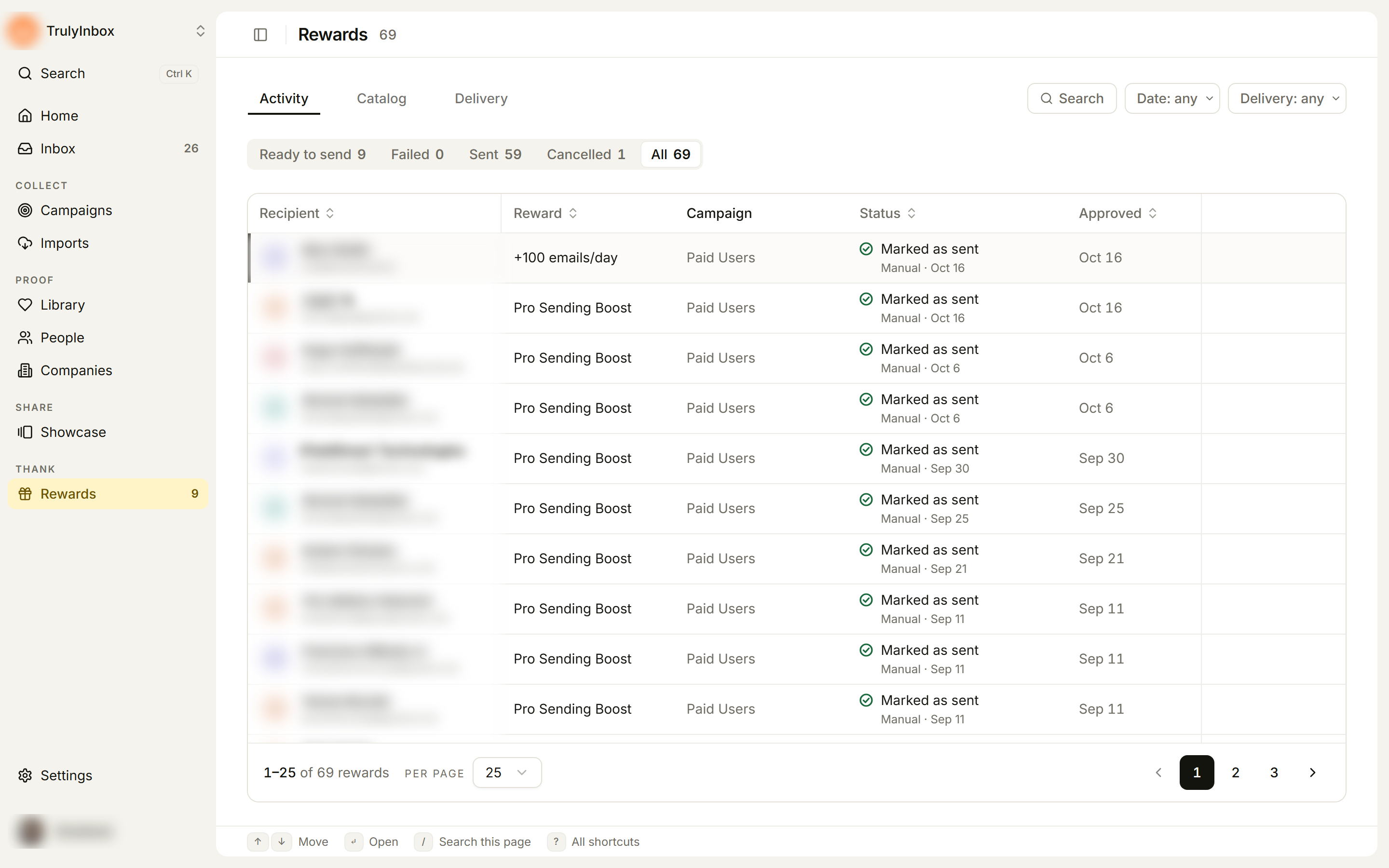
Activity lists every reward issued to a customer, one row per reward. It covers rewards sent by a reward connection and rewards your team sends by hand. Use it to see what went out, what failed, and what is still waiting on you.
Open Rewards in the sidebar. Activity is the first tab. The number next to Rewards in the sidebar shows how many rewards are ready for you to send.
Read the list
Each row shows:
- Recipient: the customer’s name and email.
- Reward: the reward name.
- Campaign: the campaign the submission came from.
- Status: the reward’s status, with a line underneath showing how and when it went out (for example
Manual · Oct 16), or why it failed. - Approved: when the submission was approved.
Sort by Recipient, Reward, Status, or Approved by clicking the column header.
Status tabs
| Tab | What it shows |
|---|---|
| Ready to send | Manual rewards waiting for your team to send them. |
| Failed | Rewards a reward connection couldn’t send. |
| Sent | Rewards that went out, through a connection or marked as sent by your team. |
| Cancelled | Rewards cancelled because you rejected the submission before the reward was sent. |
| All | Everything. Activity opens on this tab. |
Each tab shows its count. A row’s status can be Queued, Sent, Delivered, Failed, Ready to send, Marked as sent, or Cancelled.
Filter and search
- Date: Last 7 days, Last 30 days, Last 90 days, or Custom range.
- Delivery: Manual by team or a specific reward connection.
- Search: click Search or press
/.
Send a manual reward and mark it as sent
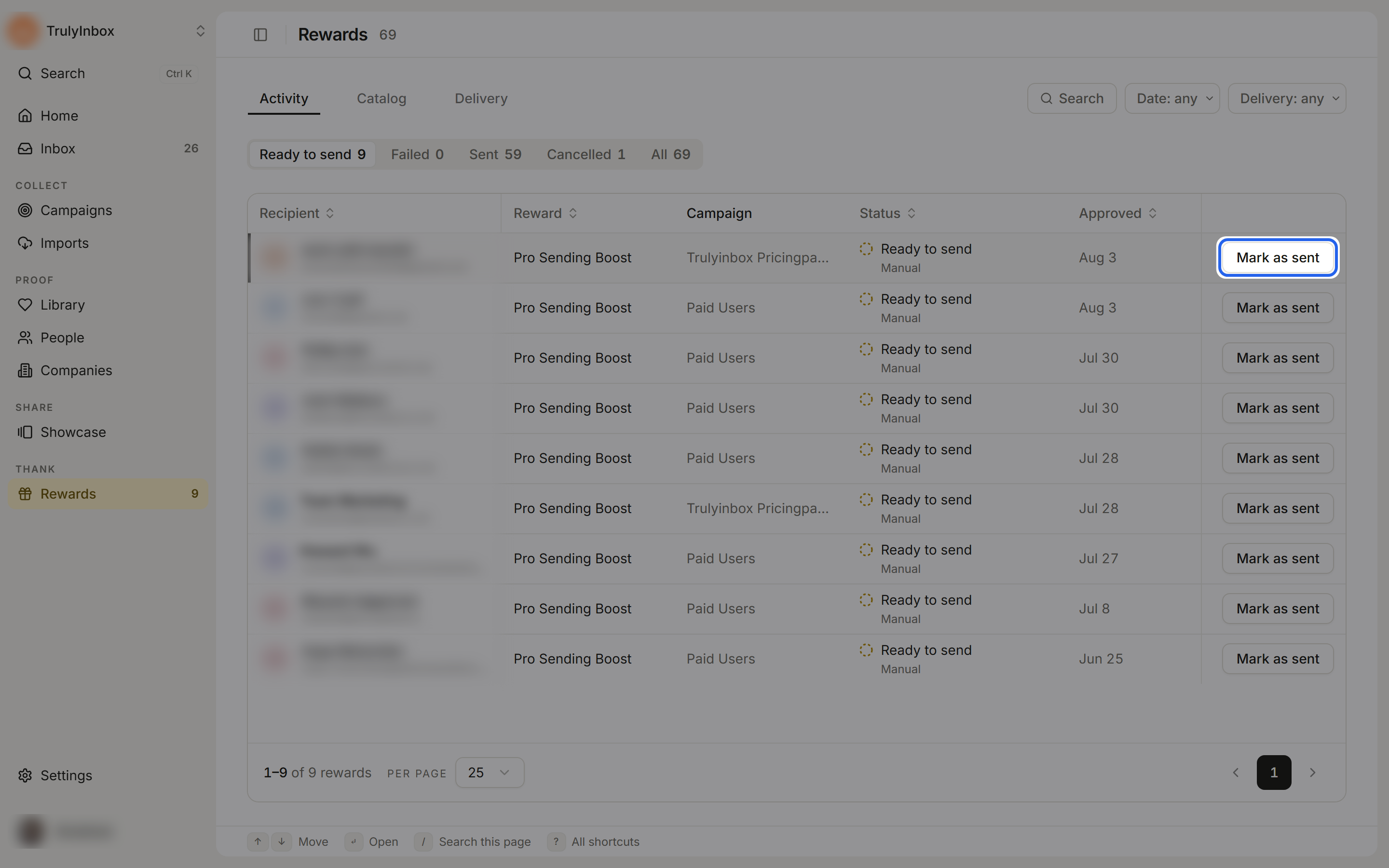
Rewards with delivery set to Manual by team arrive with the status Ready to send.
- Open the Ready to send tab.
- Send the reward to the customer yourself, for example by adding the credits in your product or emailing the gift card. Click the row to see the recipient’s email and the reward details.
- Click Mark as sent on the row, or in the reward’s panel.
The status changes to Marked as sent and the reward moves to the Sent tab.
Retry a failed reward
When a reward connection can’t send a reward, the row shows Failed with a short reason, for example Your reward connection returned error 500.
- Fix the cause first. Open the reward to read the full error and the suggested fix, and update the connection under Delivery if needed. See Send rewards automatically.
- Click Retry on the row, or in the reward’s panel.
To retry every failed reward at once, click Retry all failed above the list. It retries all failed rewards that can be retried in the workspace, not only the ones your filters show.
A retry sends the reward exactly as it was issued, even if you’ve edited the reward since. See Reward snapshot and history.
Open a reward
Click any row to open its panel. The panel title reads <Reward> for <Recipient>, and the link can be shared with a teammate.
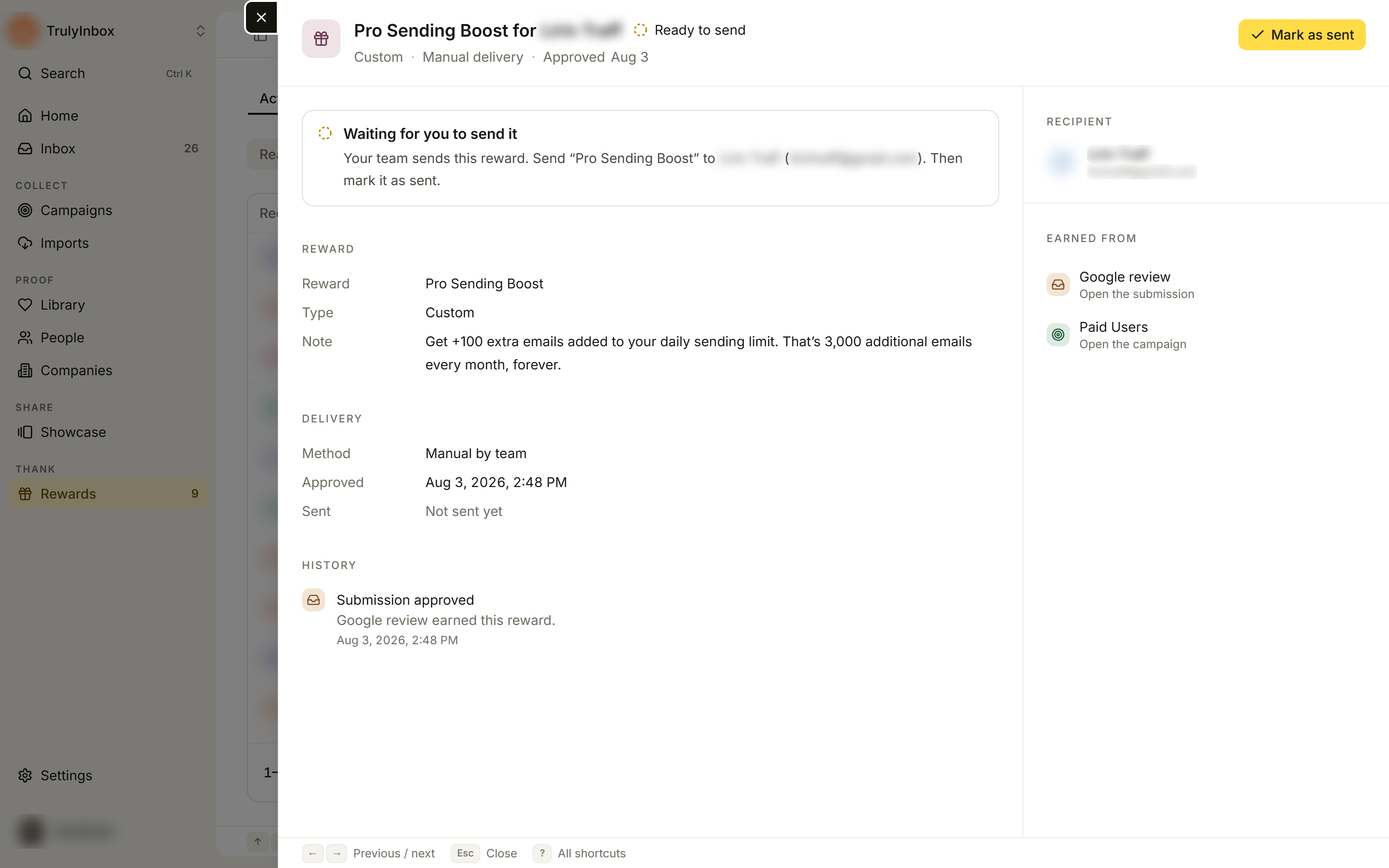
The panel shows:
- A summary of where the reward stands and what to do next, for example Waiting for you to send it.
- Reward: the reward, its value, type, and the description customers saw.
- Delivery: the method and connection, Send attempts (including automatic retries), Resends (retries you started), the last response, and when it was approved and sent.
- History: each step, from approval to sending.
- Technical details (connection rewards): click Show to see the last response, the connection URL, and the data we sent.
- Recipient and Earned from, with links to the person, the submission, and the campaign.
You can’t change a reward’s values from this panel.
When a reward doesn’t show up
- The submission isn’t approved yet. A reward appears after you approve a submission that earns one.
- The reward is waiting for your approval. If your workspace holds rewards until you approve them, release it from the submission in Inbox. See When rewards are sent.
- The ask has no reward. Check the campaign’s Rewards step. An ask set to No reward sends nothing.
If the workspace has never issued a reward, Activity shows No rewards sent yet: “A reward shows here after you approve a submission that earns one.”