Create, switch, and delete workspaces
A workspace keeps its own campaigns, proof and team. Most companies need one. Create more if you run separate brands or products. Only Owners can create, delete and restore workspaces.
Switch workspaces
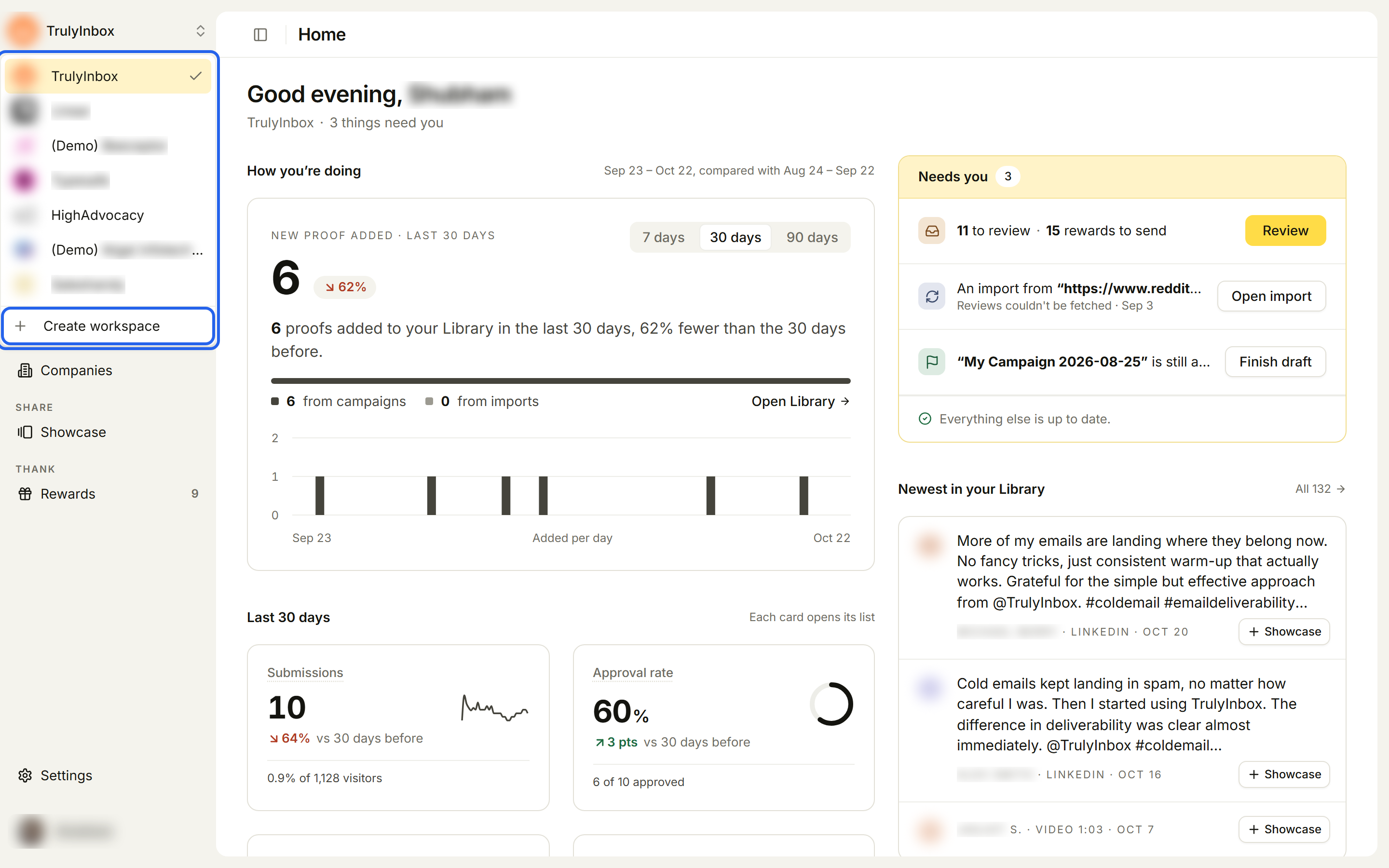
Click the workspace name at the top of the sidebar, then pick another workspace. You only see the workspaces you belong to. Owners see them all.
When you sign in, HighAdvocacy opens the workspace you used last.
Create a workspace
You can start from the workspace switcher or from Account → Workspaces.
- Click the workspace name at the top of the sidebar, then Create workspace. Or go to Account → Workspaces and click Create workspace.
- Enter a Workspace name and your Company website.
- Click Create (or Create workspace).
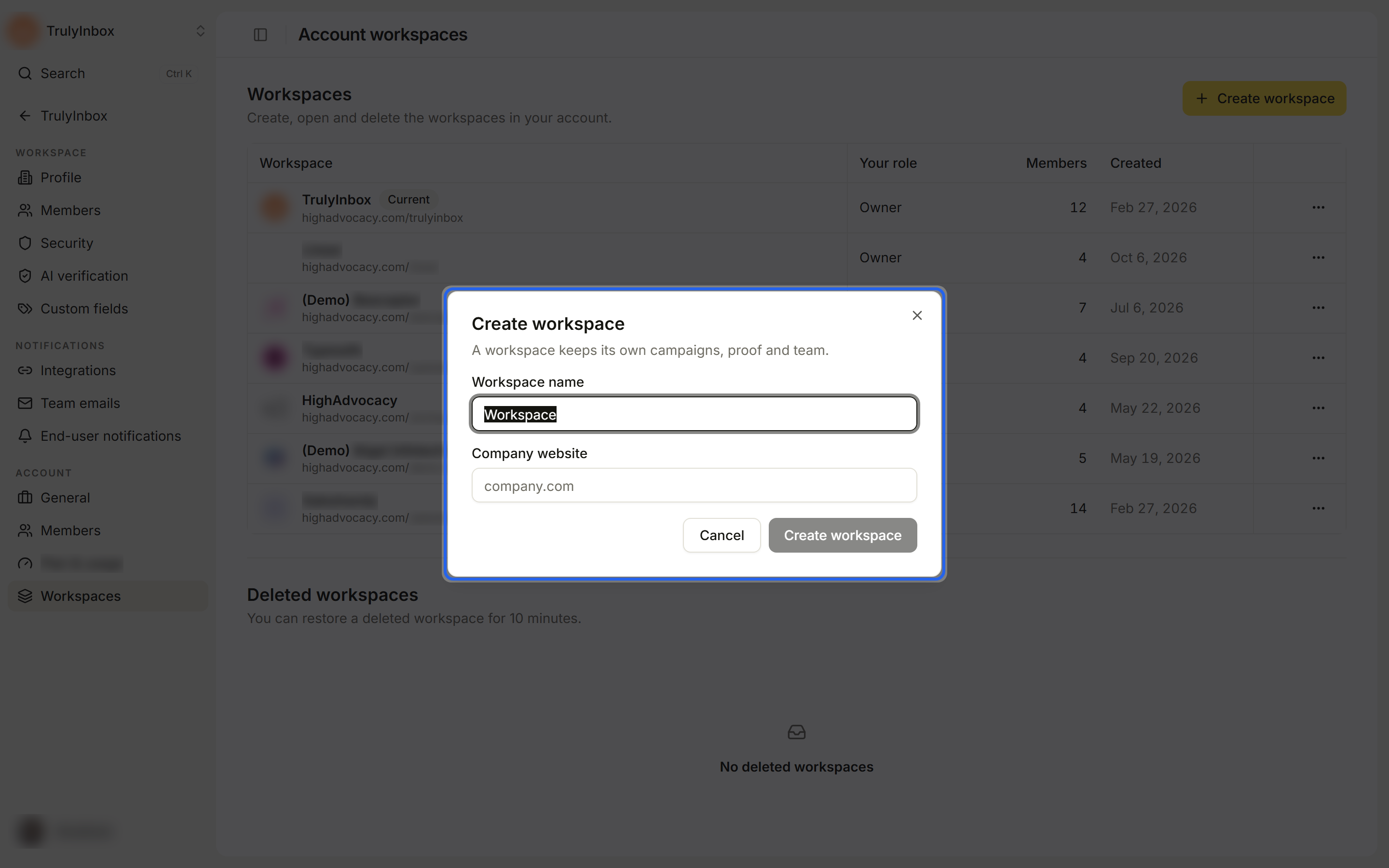
We then scan the website to set the workspace up, the same way as your first workspace. See Sign up and onboarding.
See all your workspaces
Account → Workspaces lists every workspace in the account with Your role, the number of Members and when it was Created. Your current workspace has a Current badge.
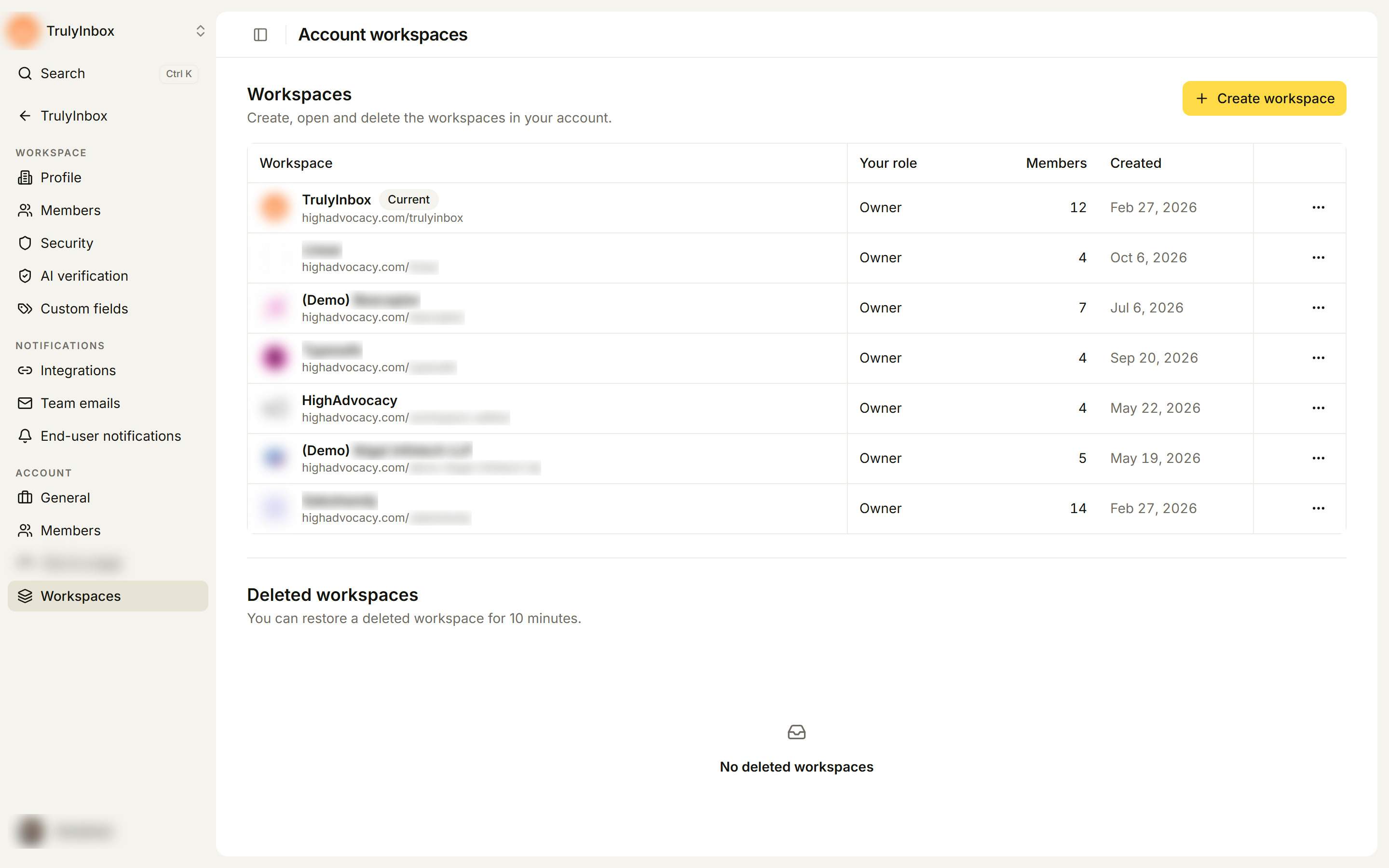
- Click a row, or Manage in its ⋯ menu, to open that workspace’s profile settings.
- Click Open, or Open workspace in the ⋯ menu, to go to the workspace.
Delete a workspace
Deleting a workspace removes it for everyone in it. You can restore it for 10 minutes.
- Go to Account → Workspaces.
- Click the ⋯ menu on the workspace, then Delete workspace.
- Type the workspace name to confirm.
- Click Delete workspace.
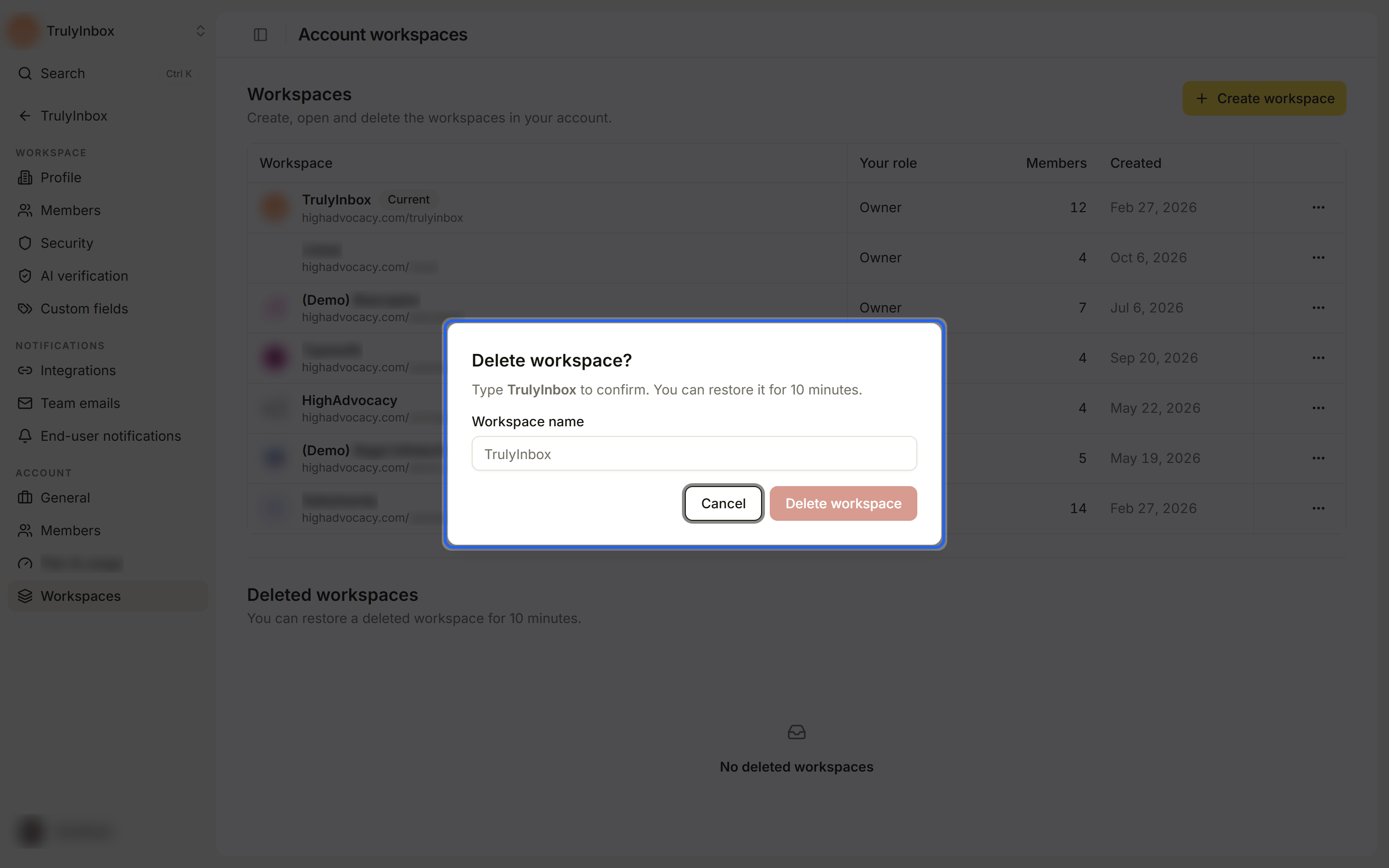
You’ll see Workspace deleted. and the workspace moves to Deleted workspaces.
Restore a deleted workspace
- Go to Account → Workspaces.
- Under Deleted workspaces, find the workspace.
- Click Restore.
You’ll see Workspace restored. Restore is available for 10 minutes after you delete a workspace. After that, the workspace can’t be restored.