Add custom fields to people and companies
Custom fields let you keep details HighAdvocacy doesn’t track by default, like a customer’s industry, region or account manager. When a widget submission includes a matching field, we save the value for you.
Before you start
- You need to be an Owner or Admin.
- People and companies have separate field lists.
Add a field
- Click Settings at the bottom of the sidebar, then Custom fields.
- Pick People or Companies.
- Under Add a field, enter a Label, for example “Industry”.
- Pick a Type: Text, Number, Date, Single select, Multi select or Boolean.
- For Single select or Multi select, list the choices in Options (comma-separated), for example
SaaS, Agency, Ecommerce. - Click Add field.
You’ll see Custom field “{label}” created and the field appears in the list below.
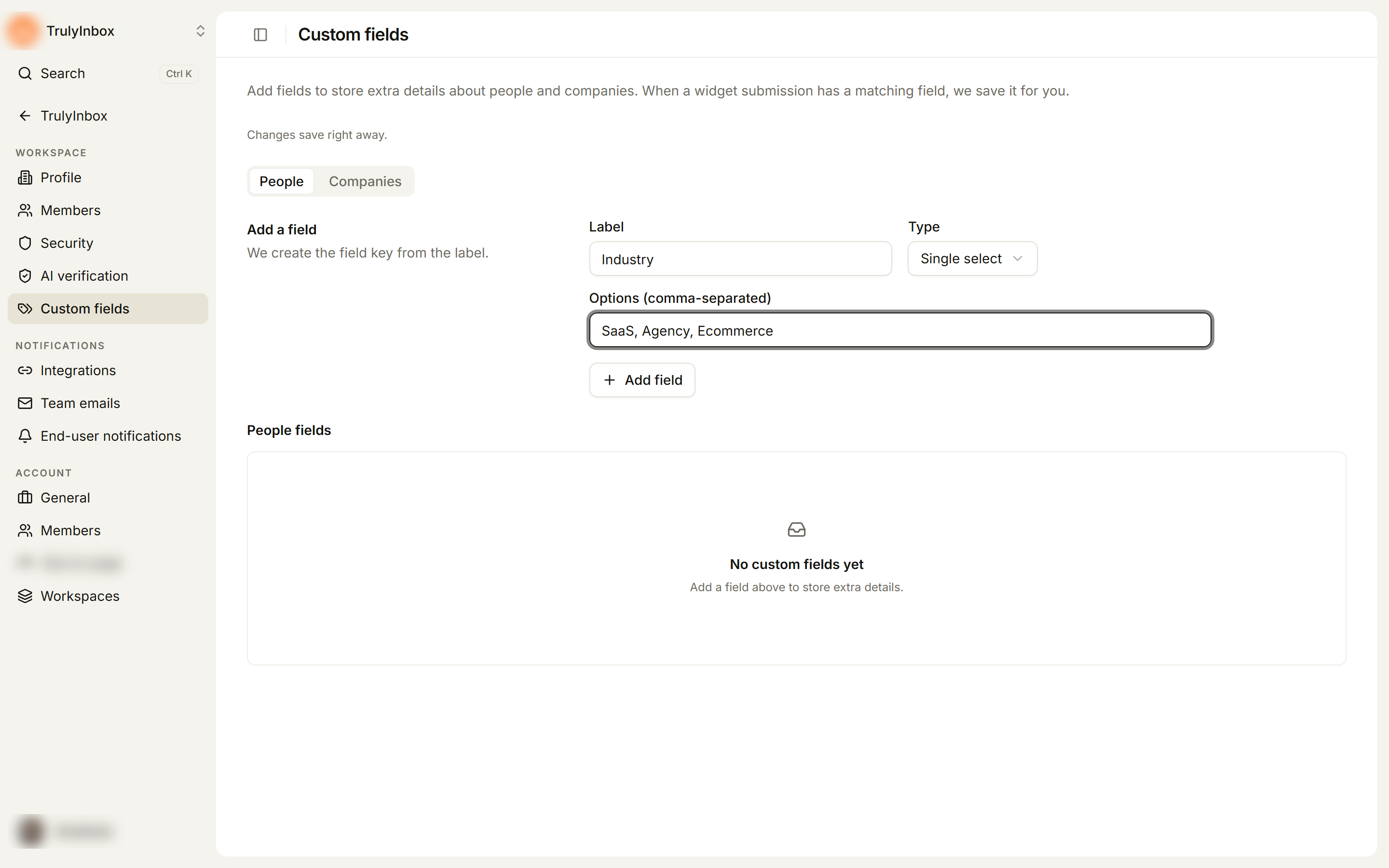
We create the field Key from the label. The list shows each field’s Label, Key and Type. Use the key when you send matching data from your widget.
If something is missing, you’ll see one of these:
- Add a label for the field.
- Add at least 1 option for this field. (select types only)
Where custom fields show
- On a person’s profile, in the Custom fields section. Click a value to fill it in or change it. It saves when you click away.
- As extra columns in the People table.
Archive a field
- Click the trash icon on the field’s row.
- Click Archive in the Archive “{label}”? dialog.
The field no longer shows on people and companies, and we stop saving it from the widget. The values you already have are kept.
Related
Last updated on