Workspace settings
Audience: Workspace Owners and Admins
Workspace settings control one workspace: its name, web address and brand, who can use it, which websites can show your widget, the domain your public pages use, and the extra fields you keep on people and companies.
To open them, click Settings at the bottom of the sidebar. The sidebar switches to the settings menu. Click the workspace name at the top of that menu to go back.
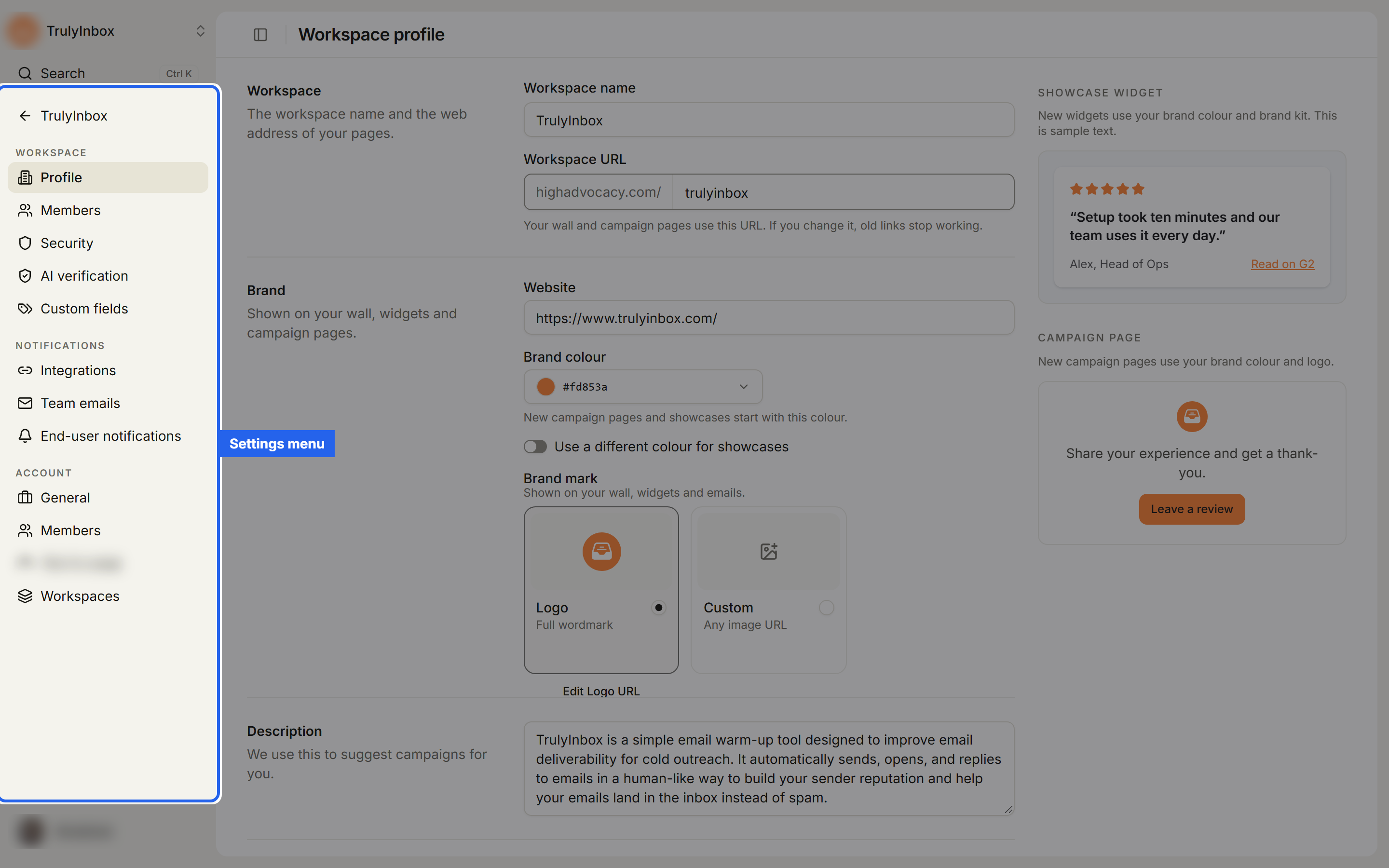
The settings menu has three groups:
- Workspace: Profile, Members, Security, Domains, AI verification and Custom fields. These pages are covered in this section, except AI verification.
- Notifications: Integrations, Team emails and End-user notifications. See Notifications.
- Account: General, Members and Workspaces. Only account Owners see this group. See Account.
Change the workspace name and URL, your website, brand colour, logo, review links and brand kit.
Workspace profile and brandAdd someone from your account or invite them by email, then resend or cancel pending invitations.
Invite teammatesWhat Owners, Admins and Members can do, and how to change a role or remove someone.
Roles and permissionsApprove or decline coworkers who asked to join your workspace.
Requests to joinChoose which websites can show your widget, and verify alerts sent to your own server.
Widget security and signing secretShare showcases and campaign pages on your own subdomain, like proof.yourcompany.com.
Custom domainsStore extra details about people and companies.
Custom fieldsWho can change settings
- Owners and Admins can change every workspace settings page.
- Members don’t see Settings in the sidebar. If a Member opens a settings link directly, the page is read-only.
Some pages save each change right away and say Changes save right away. under the page description. Others, like Profile, show a bar with Discard and Save changes once you edit something.
AI verification settings are covered in Set up AI verification.