Team emails
Team emails send an alert by email to people on your team. Use them when your team doesn’t live in Slack or another chat tool, or as a backup to an integration. They cover every campaign in the workspace.
Before you start
You need the Owner or Admin role. Members can see this page, but the controls are turned off.
Set up team emails
- Open Settings at the bottom of the sidebar, then click Team emails under Notifications.
- Under Recipients, type an email address and click Add email (or press Enter). Repeat for each person. You can add up to 10 recipients. A distribution list or shared inbox counts as one.
- Under Events, untick any events you don’t want emails for.
- Turn on Send team emails. The label next to the switch changes to On.
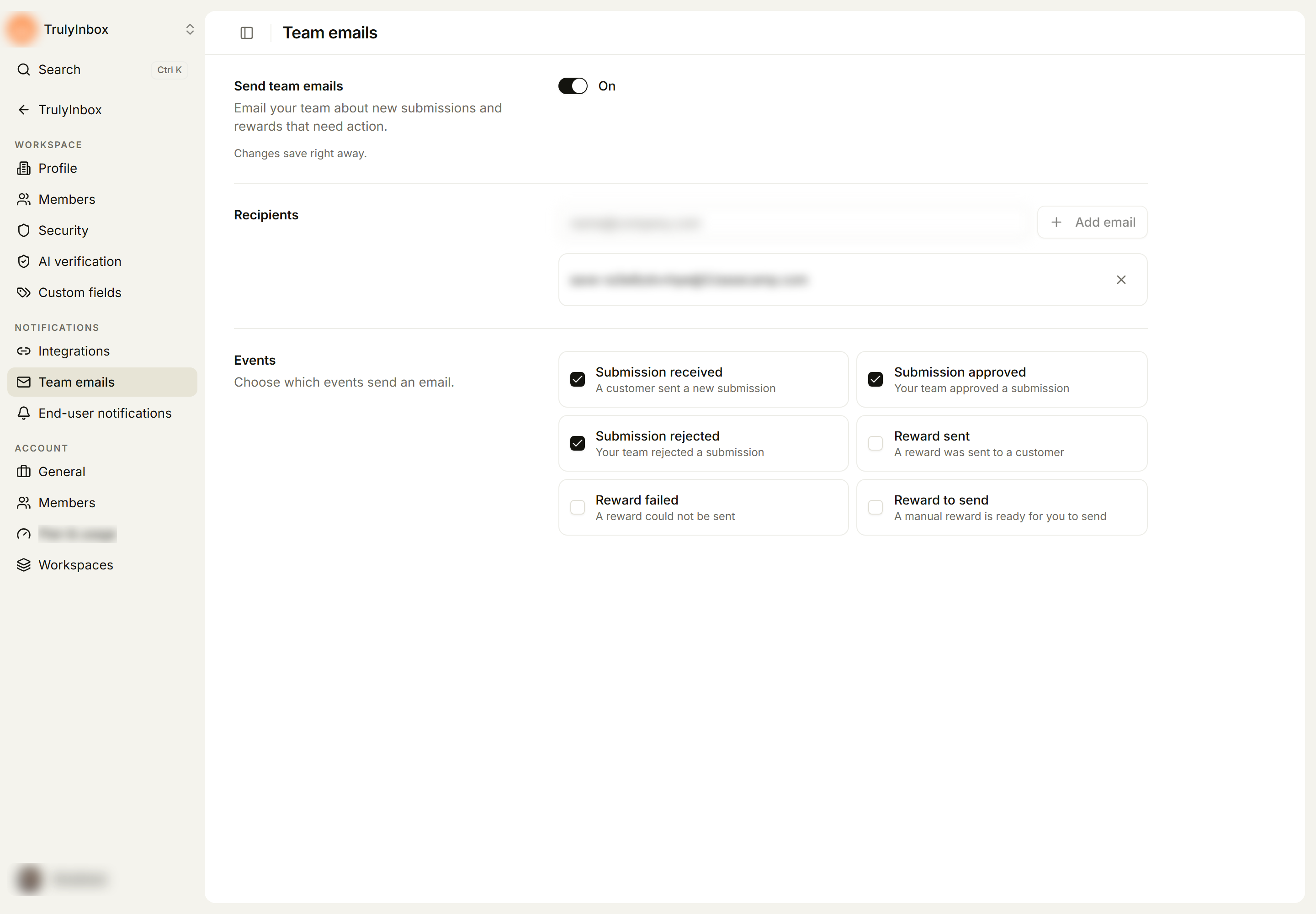
Changes on this page save right away. There is no save button.
The events
| Event | Sent when |
|---|---|
| Submission received | A customer sent a new submission |
| Submission approved | Your team approved a submission |
| Submission rejected | Your team rejected a submission |
| Reward sent | A reward was sent to a customer |
| Reward failed | A reward could not be sent |
| Reward to send | A manual reward is ready for you to send |
One set of events applies to every recipient.
Turn team emails off
Turn off Send team emails. The page shows Team emails are off, and no one gets these emails until you turn them on again. Your recipients and events stay as they are.
Team emails also turn off on their own if you remove the last recipient or untick the last event.
Remove a recipient
Click the × next to the address.
If something goes wrong
| Message | What to do |
|---|---|
| Add at least 1 recipient, then turn on alerts. | Add an email address before turning on Send team emails. |
| Choose at least 1 event, then turn on alerts. | Tick at least one event first. |
| Enter a valid email address. | Check the address for typos. |
| You already added this email. | That address is already in the list. |
| You can add up to 10 recipients. | Remove an address to add a new one, or use a distribution list. |
| We couldn’t save this change. Try again. | The change didn’t save. Try it again. |
Related
Last updated on