Send rewards after you approve a submission
Approving a submission does not always send its reward. Depending on your settings, the reward can wait for a second approval, or wait for your team to send it by hand. Both cases show up in the Inbox Need action tab.
Before you start
- Your workspace’s Reward release setting decides whether rewards wait. See Set up AI verification.
- The reward’s delivery type decides who sends it: a Reward connection sends it automatically, Manual by team means you send it yourself. See Rewards.
Send a reward that is waiting for approval
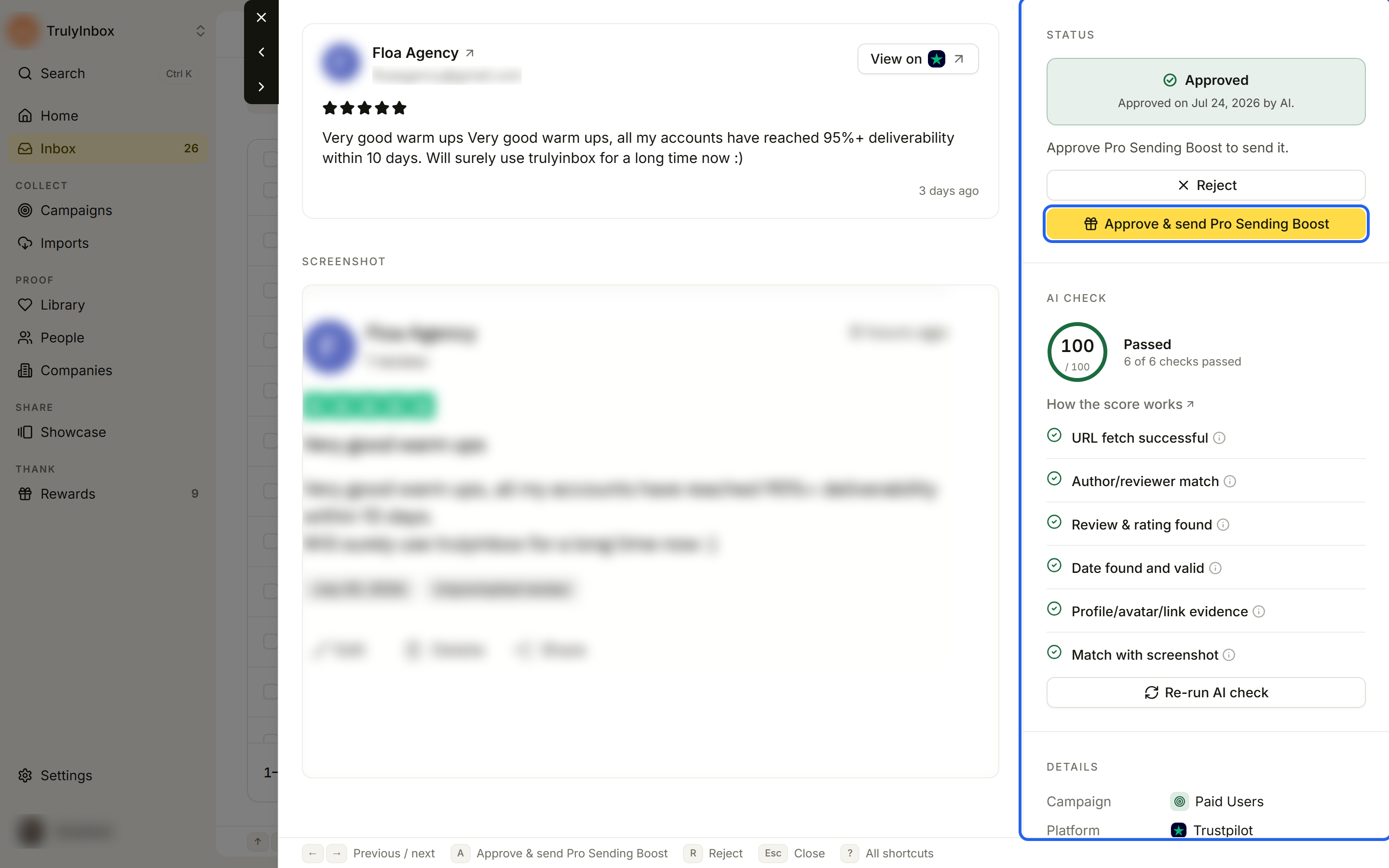
With Wait for your approval selected, an approved submission keeps its reward until someone approves the reward too. The submission sits in Approved and also in Need action. Its Reward detail reads “Not sent yet. The reward needs a separate approval.”
- Open Inbox and go to Need action or Approved.
- Click the submission. The Status section says “Approve [reward] to send it.”
- Click Approve & send [reward], for example Approve & send Pro Sending Boost.
The reward is released. A reward connection sends it automatically. A Manual by team reward then waits for you to send it (see below).
Mark a manual reward as sent
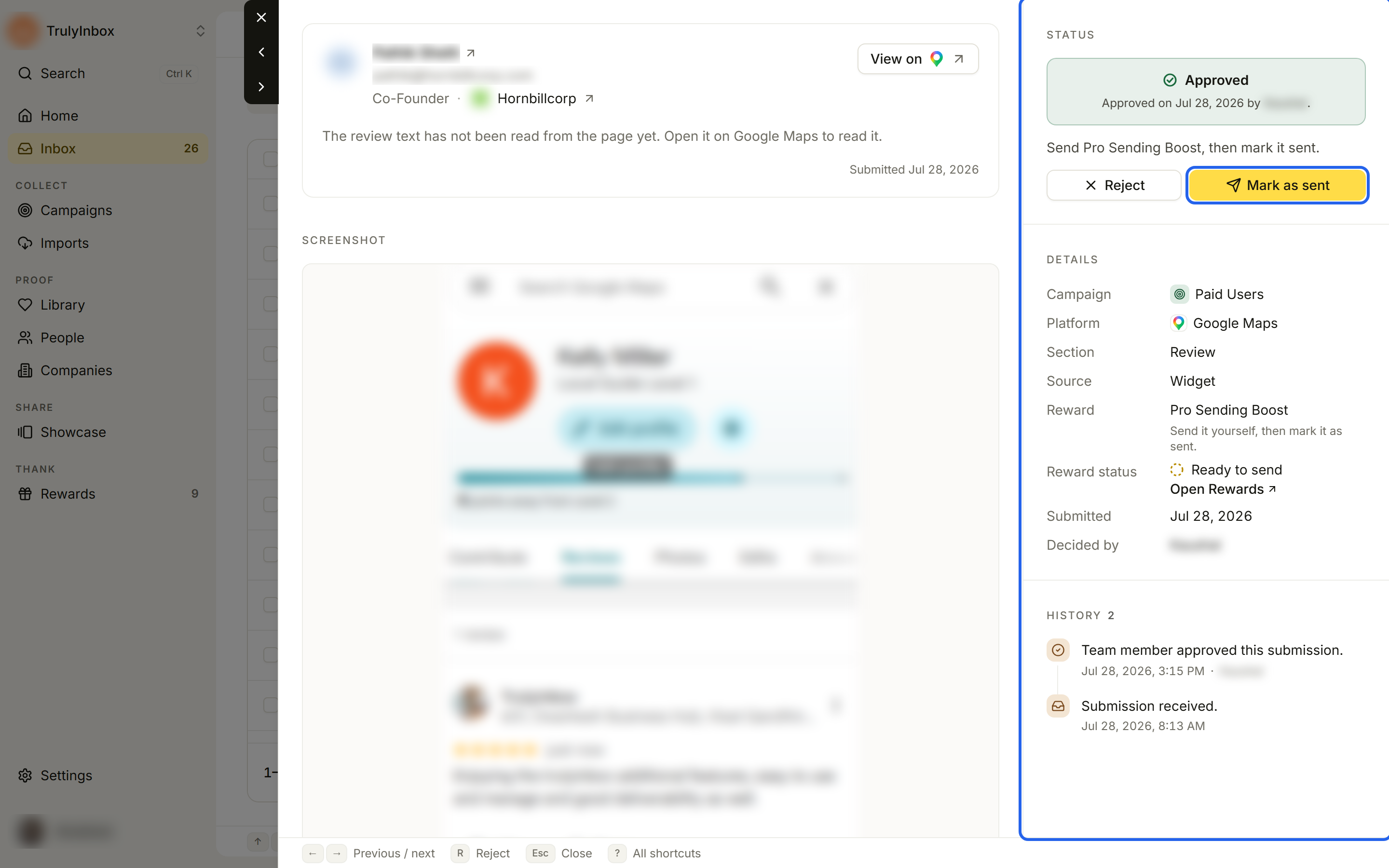
When a reward is Manual by team, your team sends it outside HighAdvocacy, then records it. The Reward detail reads “Send it yourself, then mark it as sent.” and Reward status shows Ready to send.
- Send the reward to the customer the way you normally do.
- Open the submission in the Inbox.
- Click Mark as sent.
The submission moves to Rewarded. You can also mark manual rewards as sent from Rewards → Activity. Open Rewards in the drawer takes you there.
Check where a reward is
In the drawer’s Details:
- Reward: the reward name, with a line on what happens next.
- Reward status: where delivery stands, for example Ready to send, Sent, Delivered, or Failed. Open Rewards opens the Rewards page.
- Reward sent: the date it was sent.
Once the reward is sent, the submission moves to the Rewarded tab and its status line reads Reward sent.